


 Jul 14, 2026
 8 min
8 minEquipment reservation app: prevent conflicts and track returns
Plan an equipment reservation app that prevents double bookings, records returns and damage, and places faulty items on maintenance hold.

Learn the basics of using Docker for web development, understand containerization, and discover how to integrate Docker into your development workflow for seamless collaboration.

Developing web applications can be complicated, and ensuring consistent behavior across various environments — development, test, or production — can be challenging. One powerful solution to alleviate these headaches is Docker — a containerization platform allowing you to package, distribute, and run applications in isolated, portable containers.
Docker has transformed how developers work, improving productivity and reducing the complexity of setting up and managing application environments. In this beginner's guide, we'll cover Docker's fundamentals, how it helps with containerization, and how it functions.
Before diving into Docker, it's essential to understand the concept of containerization. Containerization is the process of encapsulating software code, its dependencies, and required configurations into a portable, self-contained unit called a container. These containers run consistently across different environments, ensuring software behaves the same way, regardless of the underlying infrastructure. Containers are lightweight, efficient, and can be easily shared and deployed, making them an excellent choice for web development projects.
Docker and containers can be compared to shipping containers for international trade. Early shippers faced challenges in transporting goods due to varying sizes and shapes, leading to inefficiencies and wasted resources. Standardized shipping containers solved this issue, as they could be effortlessly loaded onto ships and trucks, regardless of their contents. Similarly, Docker makes it possible to wrap up your application and its dependencies in a standardized format, making it easy to deploy and run in multiple environments.
Containerization differs from traditional virtualization, which uses virtual machines (VMs) to run applications. VMs include an entire guest operating system (OS) and require dedicated resources (CPU, memory, storage) for each instance, making them resource-heavy and less efficient. Containers, however, share the host OS kernel, reducing resource usage and providing faster startup times.
Docker builds upon the concept of containerization, providing a straightforward and user-friendly way to create, manage, and distribute containers. Docker achieves containerization through various components and concepts, including Docker images, Dockerfiles, and Docker containers.
A Docker image is a portable, lightweight, and executable package that includes everything needed to run an application — code, runtime, system tools, libraries, and settings. Images are built from base images, pre-configured OS environments that provide the foundation for your containerized application. Docker images are versioned and can be stored in a registry, making it easy to share and distribute the application among team members or deploy it to various environments.
A Dockerfile is a script containing step-by-step instructions on building a Docker image. It specifies the base image, dependencies, application code, system configurations, and other requirements for running the application in a container. Dockerfiles allow developers to define their application environment in code, promoting transparency and version control.
A Docker container is a running instance of a Docker image. When launched, the container wraps the application and its dependencies in an isolated and consistent environment, ensuring it behaves as expected across different systems. Containers can be created, started, stopped, and removed as needed, improving application portability and making testing and deploying new software versions easier.
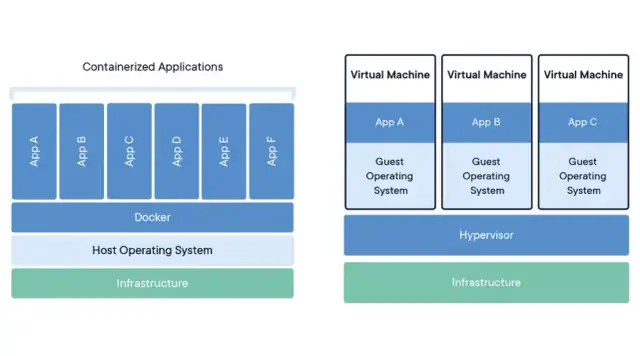
In summary, Docker makes it simple for developers to containerize their applications, providing a reliable and efficient way to package, distribute, and run software in a consistent and portable manner. With an understanding of basic Docker concepts such as containerization, images, Dockerfiles, and containers, we'll explore using Docker for web development in the following sections.
To start using Docker for web development, you need to install Docker on your local machine. Docker is available for macOS, Windows, and Linux. Follow the steps below to install Docker:
docker --version
If the installation was successful, the above command should display the installed Docker version. Now that you have Docker installed, you can start using it for web development projects.
A Dockerfile is a script containing instructions for building a Docker image. When building a web application, the Dockerfile defines the base image, application dependencies, and required configurations for the container. To create a Dockerfile, follow these steps:
Dockerfile (no extension) in the root directory of your project.node, python, or php) or a custom image. Use the FROM instruction in the Dockerfile:FROM node:latest
WORKDIR instruction. This will be the base directory for all further actions:WORKDIR /app
COPY instruction:COPY . .
npm for Node.js or pip for Python:RUN npm install
EXPOSE instruction:EXPOSE 3000
CMD ["npm", "start"]
With the Dockerfile in place, you can now build a Docker image and run your application inside a container using the following commands:
docker build -t my-web-app .
docker run -p 3000:3000 my-web-app
In web development, projects often involve multiple services running in separate containers. To organize this multi-container setup, Docker provides a utility called Docker Compose. Docker Compose allows you to define and manage multi-container applications using a simple YAML file, typically called docker-compose.yml.
To create a docker-compose.yml file for your web application, follow these steps:
docker-compose.yml in the root directory of your project.version: "3"
services section to define the containers that make up your application. Specify the container details like the image, build context, and environment variables for each service. Here's an example of a web application with a Node.js backend and a Redis database:services:
web:
build: .
ports:
- "3000:3000"
depends_on:
- redis
redis:
image: "redis:latest"
ports:
- "6379:6379"
With the docker-compose.yml file in place, you can now use Docker Compose to build and run your multi-container application using a single command:
docker-compose up
Docker Compose will take care of building the images, creating the containers, and connecting them together as specified in the docker-compose.yml file.
By utilizing Docker Compose, developers can simplify the management of multi-container applications, making it easier to create, package, and deploy web applications with multiple interconnected services.
Integrating Docker into your development workflow can help make your process more efficient, consistent, and collaborative. By containerizing your applications, you can eliminate issues related to varying development environments, streamline continuous integration, and make it much more manageable for team members to share and work on the same codebases.
Here are some practical ways to integrate Docker into your development workflow:
Using Docker for local development allows you to create portable, isolated environments that mimic your production setup. To get started, simply create a Dockerfile for each service of your application. After defining the container configuration, you can build and run the containers on your local machine, providing a consistent environment for writing and testing code.
Docker simplifies setting up continuous integration pipelines. Using containers, you can create reproducible environments for running tests, ensuring the code works as intended before it's deployed to production. Many CI/CD tools, such as Jenkins, GitLab CI, and GitHub Actions, have built-in support for Docker, allowing you to incorporate Docker containers into your pipelines easily.
One of the most significant advantages of using Docker in a development team is the ability to share application environments. Instead of manually configuring each team member's development setup, you can use Docker images and containers to ensure that everyone is working with the same dependencies and configurations. This saves time and helps avoid issues when deploying the application to staging or production environments.
Docker containers can also be used to deploy applications in production. Numerous cloud providers and container orchestration systems, such as Kubernetes and Amazon ECS, support deploying Docker containers, delivering the same consistency and isolation advantages that you experience during development. This simplifies deployment processes and reduces the chances of encountering environment-related issues when launching live applications.
AppMaster.io, a powerful no-code platform for creating backend, web, and mobile applications, employs Docker to package and deploy backend applications efficiently. Using Docker, AppMaster.io ensures its applications run consistently and securely across various environments, making it an invaluable tool for modern application development.
When you create an application with AppMaster.io, the platform generates source code for the applications, compiles them, and packages them in Docker containers. This process makes it easy to maintain and execute the applications with consistent performance, even when deploying to different hosting environments.
Docker containerization is not the only advantage of using AppMaster.io. The platform's powerful visual development environment lets you design data models, business processes, and user interfaces without writing any code. This approach speeds up and democratizes the development process, allowing even non-developers to create scalable, efficient, and secure applications.
Docker has revolutionized the world of web development by introducing containerization, which provides consistency, portability, and performance advantages across the entire development lifecycle. Integrating Docker into your development workflow can help you minimize environment-related issues, streamline continuous integration, enhance team collaboration, and deploy applications to production effortlessly.
Finding the right tools for your web development projects is crucial in today's fast-paced technology market. Tools like Docker and AppMaster.io can significantly enhance your development experience and make your projects more competitive in an increasingly demanding industry. Embracing these solutions will undoubtedly lead to more efficient, cohesive, and successful web development practices.
 What is Docker?
Docker is a containerization platform that enables developers to package, distribute, and run applications in a consistent and secure environment called containers.
What is containerization?Containerization is the process of packaging software code, its dependencies, and required configurations into portable containers, allowing them to run consistently across different environments.
How does Docker differ from virtual machines?Docker uses containers that share the host OS kernel, making them lightweight and efficient. Virtual machines, on the other hand, require a complete guest OS, consuming more resources and resulting in slower performance.
What is a Dockerfile?A Dockerfile is a script containing instructions on how to build a Docker image. It outlines the base image, application dependencies, and required configurations for the container.
Why is Docker used in web development?Docker simplifies web development by allowing developers to create portable and consistent application environments, reducing the complexity of setting up and maintaining development, testing, and production environments.
What is Docker Compose?Docker Compose is a tool for defining and running multi-container Docker applications. It uses a file, typically called docker-compose.yml, to configure the application's services, networks, and volumes.
How can Docker be integrated into a development workflow?Docker can be integrated into the workflow by utilizing it for local development, continuous integration, sharing application environments among team members, and deploying containerized applications to production.
What is AppMaster.io?AppMaster.io is a no-code platform that allows users to create backend, web, and mobile applications. It enables the visual creation of data models, business processes, and UI components for faster and cost-effective application development.
How does Docker relate to AppMaster.io?AppMaster.io utilizes Docker to package and deploy backend applications in portable containers, ensuring consistent and secure execution of server applications across different environments.
Experiment with AppMaster with free plan.
When you will be ready you can choose the proper subscription.
 Jul 14, 20268 min
 Jul 13, 20268 min
 Jul 08, 20268 min