


 Jul 14, 2026
 8 min
8 minEquipment reservation app: prevent conflicts and track returns
Plan an equipment reservation app that prevents double bookings, records returns and damage, and places faulty items on maintenance hold.

Build a room turnover app that assigns cleaning, tracks inspections, reports maintenance needs, and confirms guest rooms are ready.
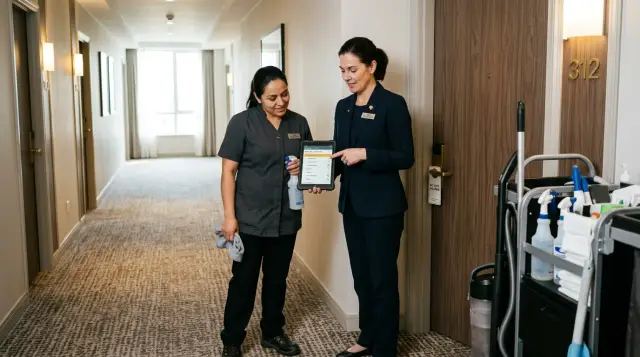
Room turnover often begins with a small handoff: a guest checks out, someone adds the room to a paper list, and a housekeeper gets a message. That handoff is easy to miss when the front desk is busy, shifts change, or several people update the same list.
Paper lists show that room 214 needs cleaning, but they rarely show who accepted the task, when work started, or whether someone found a broken lamp. Chat messages create the same problem. A manager posts "214 needs attention," and the reply disappears under questions about linen or late checkouts.
A room turnover app gives each room one visible record. Staff can see the current owner and status instead of searching through notes and messages. A simple flow might include:
Cleaning, inspection, and repair work should use the same status flow. A housekeeper may finish the bathroom and beds but report a leaking tap. The room should move to maintenance open, not ready. Once maintenance finishes the repair, an inspector can review the room before the front desk releases it.
Separate lists create false confidence. If housekeeping marks a room "complete" while maintenance has an open note in another chat, the front desk may assign it to an arriving guest. That leads to delayed check-ins, repeat work, and arguments over who needed to act.
Clear ownership prevents much of this. When staff open a room record, they should see one current status, the person responsible for the next step, and any open repair report.
For example, Maria finishes room 214 at 1:10 p.m. and marks cleaning complete. She also notes that the television remote is missing. The room does not become ready. An inspector reviews it, opens a replacement task if needed, and changes the status only after the issue is closed.
A simple no-code app can keep these updates together without forcing staff to manage a complicated system. Every room needs an owner, every handoff needs a record, and only finished rooms should receive the ready status.
A room turnover app works when each person has a clear job at every stage. Housekeeping staff clean and update rooms. Inspectors check the result. Maintenance staff fix faults. Managers watch progress and step in when work gets stuck.
Start with the roles your hotel actually uses. A small property may have one manager who also performs inspections. A larger hotel may assign that work to a floor supervisor. The app should match the shift you run, not an ideal structure nobody follows.
Housekeeping staff need a short list of assigned rooms, cleaning notes, and a button to mark work complete. They should also be able to report problems such as a leaking tap, damaged lamp, or missing remote. They do not need access to every room, staffing schedule, or manager note.
Inspectors need rooms that housekeeping has marked complete. For each room, they can use a room readiness checklist, add a note, and choose "approved" or "return to cleaning." If they find damage, they can open a maintenance request without losing the inspection record.
Maintenance staff need a queue of reported issues with the room number, description, urgency, and photos if the team uses them. They update the request when they start and finish work. A completed repair should return the room to inspection rather than mark it ready automatically.
Managers need a wider view of room status, current assignees, overdue work, and reasons rooms cannot return to service. They should be able to reassign tasks when someone calls out or checkout priorities change.
Role-based access gives people the information they need without adding clutter or inviting accidental changes.
If a housekeeper marks room 214 as cleaned but reports a noisy air conditioner, the inspector sees both updates and can send the repair to maintenance. The manager sees why room 214 is unavailable without calling several people.
A no-code room turnover app built with AppMaster can give each role a separate screen while keeping every update tied to the same room record. That prevents a room from appearing ready on one list while maintenance still has an open repair request.
A room turnover app needs one shared status for every room. Staff should see the room number, room type, and current stage without opening several screens or asking the front desk.
Keep the first version simple. Use names that describe the next action:
Each status change should record the assignee, time, inspection result, and any maintenance issue. This creates a useful history without forcing staff to write long notes.
For example, room 418 changes to Dirty at 11:06 after checkout. A supervisor assigns it to Maya, who starts cleaning at 11:20. She finishes at 11:47 and sends it to Inspection. The supervisor finds a leaking tap, selects Repair needed, and adds a short note. After maintenance fixes the tap, the supervisor inspects the room again and marks it Ready at 12:30.
Do not let staff move a room directly from Dirty to Ready. That shortcut hides whether anyone cleaned or inspected it. Keep previous statuses and timestamps so a manager can see where a delayed room spent its time.
A maintenance report should remain attached to the room record. The maintenance team needs the room number, issue description, priority, and reporter. Housekeeping needs to know whether the issue blocks the room. A loose drawer handle may allow cleaning to continue, while a plumbing leak should keep the room in Repair needed.
Use color only as a backup to the written status. Colors help during busy shifts, but clear labels also work on printed lists and for staff who have trouble distinguishing colors.
Create a cleaning task as soon as the front desk records a checkout. Use the same trigger when staff mark an occupied room as dirty after an extended-stay service or accidental spill. Keep the room number, task type, and current status together.
Give each task one named cleaner. Shared assignments often lead to everyone assuming somebody else took the room. If a supervisor reassigns work, keep the new assignee and the time of the change.
Set a target completion time that fits the day's schedule. A room needed for an early arrival at 2:00 p.m. might need cleaning by 1:00 p.m., while a standard departure room can have a later target. This helps supervisors sort hotel housekeeping tasks by urgency instead of relying on memory.
Keep the cleaner's mobile screen short. They should open their assigned room, read relevant notes, and mark the job complete. A simple checklist can cover routine work:
"Cleaning complete" should not make a room ready. When a cleaner submits the task, the app should move the room to "Awaiting inspection" and alert the assigned inspector.
Maya might finish room 418 at 12:35 p.m., mark it complete, and note that she replaced two missing hangers. The app records the time, adds room 418 to the inspection queue, and keeps it unavailable for check-in. The inspector can approve the room or return it to cleaning with a specific comment.
Cleaning completion should not automatically mark a room ready. A separate inspection gives the hotel a practical quality check and stops the front desk from assigning a room with a missed item.
Keep the room readiness checklist short enough to use between arrivals. An inspector should be able to complete it on a phone in a minute or two. Long forms encourage rushed taps and vague notes.
A practical checklist covers the areas guests notice first:
The inspector should choose one of two outcomes: approve the room or return it for follow-up. Approval changes the status to Ready and makes the room available to the front desk. A return sends it back to cleaning with a clear note, such as "Replace the missing hand towel" or "Wipe water marks from the bathroom mirror."
Avoid a generic "failed inspection" label. Staff need to know what to fix without calling the inspector or searching chat messages. Keep notes on the same room record beside the cleaning task and maintenance request.
Record the inspector's name and approval time. This supports a later review if a guest reports an issue and helps supervisors spot patterns, such as one floor repeatedly missing supplies.
In an AppMaster room turnover app, create an inspection record connected to the room and turnover task. Add checklist fields, an outcome, notes, the inspector, and a timestamp. Set one rule: only an approved inspection can change a room to Ready.
A maintenance issue should stay tied to the room record that holds cleaning and inspection details. If a housekeeper finds a leaking tap or broken lamp, they should report it from the room screen instead of sending a separate message that staff can lose later.
Keep the report short enough to complete on a phone. Ask for a plain description, urgency, and a photo when it helps. "Water leaking under bathroom sink" gives maintenance more to work with than "bathroom problem."
Use urgency labels that match hotel operations:
Send each report to the person or team responsible. A broken door lock may go to an on-site engineer, while a Wi-Fi fault may go to the IT contact. Assigning requests prevents the familiar problem where several people assume somebody else will handle them.
Keep room availability honest while work remains open. If a repair blocks guest use, set the room to "Maintenance hold" and remove it from the ready-room list. For a minor repair, a manager can leave the room available and schedule work around occupancy.
Show repair progress beside hotel housekeeping tasks and room inspection tracking. A simple flow works well: reported, assigned, in progress, waiting for parts, repaired, and verified. Include the assignee, report time, and latest note so the shift supervisor does not need to chase updates through calls or chat.
For example, a cleaner reports that room 214 has no hot water. The app marks the request high urgency and places the room on maintenance hold. After a technician restores the heater, an inspector checks the water temperature, completes the room readiness checklist, and changes the room to Ready.
With AppMaster, teams can keep room, task, inspection, and maintenance information in connected records. A repair can change room availability immediately while staff still see the cleaning work already completed.
At 10:30, the front desk marks room 214 as checked out. The app changes its status to "Needs cleaning" and creates a housekeeping task with the room number, checkout time, and relevant notes.
The supervisor assigns the room to Maya, who is already working on the same floor. She starts at 10:42, and the status changes to "Cleaning in progress." At 11:15, she marks cleaning complete. The app moves room 214 to "Awaiting inspection" and notifies the inspector.
During inspection, Daniel finds that the bedside lamp does not switch on. He opens room 214, selects "Report maintenance," and writes: "Left bedside lamp will not turn on." The room record now shows that cleaning is complete and maintenance is open. Its overall status changes to "Maintenance required," preventing an early release.
The task goes to Priya. She replaces the failed bulb and marks the repair complete at 11:38. Daniel receives the update, checks the room again, and confirms that the lamp works and the room is clean. He marks room 214 Ready at 11:45.
The front desk sees a confirmed ready status rather than guessing from a completed cleaning task. Maya records cleaning progress, Daniel records the inspection and lamp fault, and Priya closes the repair request. Every update remains in the same room history.
AppMaster can support this flow with room records, status fields, task assignments, and separate screens for housekeeping, inspection, and maintenance. Each person updates the same record.
A room turnover app fails when status labels hide work that still needs attention. The most common issue is using a single "Ready" status. A housekeeper may finish cleaning at 11:10, but a supervisor still needs to inspect the room. If both steps use the same status, the front desk can assign a room that has not passed inspection.
Use separate statuses such as "Cleaning in progress," "Awaiting inspection," "Inspection failed," and "Ready." Staff can then see whether a delay comes from cleaning, inspection, or repair.
Maintenance records can create another blind spot. Someone reports a leaking tap, then a colleague closes the request without a repair note. The hotel has no clear record of what happened, who handled it, or whether the room is safe to release.
Require a short completion note before staff close a maintenance request. For example: "Replaced cartridge in bathroom sink and tested for five minutes." Keep the room blocked until the maintenance worker records the repair and an inspector approves it.
Long room readiness checklists also cause delays. If routine turnover requires staff to confirm 35 items, many people will tap through the form without reading it. Keep daily checks short and specific:
Put deep-cleaning tasks and inventory counts on separate schedules. Routine work moves faster, while the hotel still keeps records for periodic jobs.
Verbal updates break down during busy checkout periods. A housekeeper may tell a supervisor that room 214 has broken glass or a strong odor, but the message can disappear when shifts change. Urgent room issues need a written record tied to the room.
In AppMaster, a maintenance form can capture the room number, problem type, photo, priority, and report time. It can alert the right person and prevent the room from moving to Ready until staff resolve the issue.
A five-minute review at the start of a shift helps prevent guests from arriving at rooms that only look finished on screen. The supervisor should open the room list, filter active work, and resolve any status without a clear next owner.
Timestamps often reveal problems that a status alone hides. A room may show "cleaning complete" at 10:15 but have no inspection by 13:00. The supervisor can reassign the task before it becomes an urgent front-desk call.
Notes need the same attention. "Stain on curtain reported" and "extra towels requested" require different actions. Ask staff to write short, factual notes with the room number, issue, and action taken. Avoid vague entries such as "done" or "problem fixed."
A room turnover app should show room status, assigned person, last update, inspection result, and open maintenance items in one view. AppMaster can support this as an internal no-code tool with rules that keep a repair-needed room off the ready list.
Start with one floor or one housekeeping team. A hotel does not need to replace every paper sheet and radio call on day one. A small pilot lets staff test the workflow during a real shift, where gaps become obvious quickly.
Ask room attendants, supervisors, and maintenance staff which updates they send or check most often. Their answers usually point to a practical first version: room number, current status, assigned attendant, cleaning notes, inspection result, and a maintenance request when needed. Keep the first screen easy to read while walking a corridor.
Build the app around updates people make in the moment. An attendant should be able to open room 214, mark cleaning as started, and submit it for inspection. A supervisor can mark it ready or return it with a note. If a lamp does not work, the same room record can create a maintenance request without losing cleaning history.
AppMaster lets teams create this type of application with no-code visual tools. Create room and task data, add status choices, and make separate views for attendants, inspectors, and maintenance staff. Its Business Process Editor can apply rules such as sending a room to inspection after cleaning or keeping it unavailable until maintenance closes an issue.
Test the app during one full shift before adding more features. Watch where staff pause, skip a status, or enter the same information twice. Then adjust the form and status names to match the words the team already uses.
A useful first test includes assigning a cleaning task, updating room statuses, recording an inspection result, sending a maintenance request from the room screen, and showing supervisors a live list of rooms that still need action. Add the next floor when staff can update rooms without asking for help.
 What should a room turnover app track?
Give every room one shared record with a current status, an assigned person, timestamps, and open issue notes. Staff then check one place instead of comparing paper lists, calls, and chat messages.
Which room statuses should a hotel use?Use a short sequence such as Dirty, Cleaning, Inspection, Repair needed, and Ready. Each label should tell staff what needs to happen next and who owns that step.
Should cleaning complete make a room ready?No. Cleaning complete should move the room to Inspection, not Ready. Only an inspector should approve the room for the front desk after checking the cleaning result and any reported faults.
How do we avoid confusion over cleaning assignments?Assign each cleaning task to one named attendant. If a supervisor changes the assignment, the app should save the new name and time so the team knows who owns the room now.
What belongs on a room inspection checklist?Keep the checklist brief enough to finish on a phone in a minute or two. Check the bathroom, bedding, supplies, visible damage, and room items that guests notice right away. Inspectors should approve the room or send it back with a specific note.
How should staff report maintenance problems?Staff should report the problem from the room screen with a clear description, urgency, and a photo when useful. The app should attach the repair request to that room and keep blocking issues visible until maintenance and inspection close them.
How do we set maintenance priority?Use urgent for safety risks, active leaks, damaged locks, or power loss. Use high when the fault prevents occupancy, such as a broken toilet or failed air conditioning. Use normal for issues that do not stop a guest from staying in the room.
When should maintenance block a room from check-in?Keep the room unavailable when an open repair affects safety, essential facilities, or guest comfort. After maintenance records the repair, send the room back to inspection. An inspector should confirm the fix before marking it Ready.
What should a supervisor see in the app?Supervisors need a view of every room's status, current assignee, last update, overdue work, inspection result, and open repair requests. They also need permission to reassign work when priorities or staffing change.
How can we build a room turnover app with AppMaster?Start with one floor or one team for a full shift. Build room records, cleaning assignments, inspection results, maintenance requests, and simple status rules in AppMaster. Watch where staff stop or duplicate entries, then adjust the labels and forms before expanding to more floors.
Experiment with AppMaster with free plan.
When you will be ready you can choose the proper subscription.
 Jul 14, 20268 min
 Jul 13, 20268 min
 Jul 08, 20268 min