


 Jul 14, 2026
 8 min
8 minEquipment reservation app: prevent conflicts and track returns
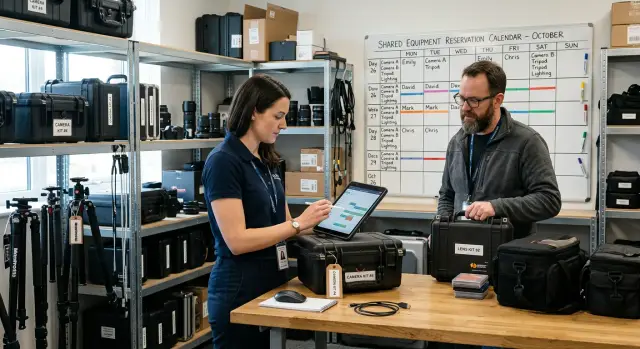
Plan an equipment reservation app that prevents double bookings, records returns and damage, and places faulty items on maintenance hold.

Build an appointment waitlist workflow that captures preferences, ranks people fairly, sends expiring offers, and records every response.

A cancelled appointment creates an urgent gap. The slot may be tomorrow morning, after lunch, or within the next hour. If staff do not see the cancellation quickly and contact the right person, the time goes unused.
Many teams still manage a waitlist in a spreadsheet, a notes field, or a staff member's memory. Someone checks the calendar, scans names, then calls or texts people one at a time. By the time a person replies, the slot may be gone or the staff member may be handling something else.
Manual outreach also misses people who would gladly take the appointment. A patient may prefer afternoons, need a particular provider, or require 30 minutes of travel time. When those details sit in separate messages or are never recorded, staff contact people who cannot attend while better matches never hear about the opening.
An appointment waitlist workflow makes this repeatable. When a slot opens, the workflow checks who matches the time, service, location, and provider. It contacts candidates in a consistent order and gives each person a clear window to accept.
Fairness matters as much as speed. If staff always call the most recent request, the loudest caller, or the person they remember, others may wait longer without a clear reason. A ranking policy can use request date, staff-approved urgency, and stated availability. Staff follow the same rules instead of making a new judgment for every cancellation.
The goal is straightforward: offer open appointment slots to suitable people quickly, give them enough time to respond, and keep a record of every offer and reply. That reduces empty calendar time and makes the process easier to explain.
A waitlist works only when each request includes enough detail to make a quick match. A name and phone number are not enough. Staff should not need to call someone just to learn that they only want Tuesday mornings or cannot travel to a second location.
Start with the appointment itself. Ask people to select the service they need, the location they can use, and any practitioner preferences. Make practitioner choice optional when possible. Someone who prefers Dr. Lee but will see any qualified clinician should not lose an earlier opening because the form treats that preference as a strict requirement.
For dates and times, collect preferences and limits. A simple form can ask for preferred days, time windows, and dates the person cannot attend. Avoid a vague "next available" option unless the person truly has no limits. Specific answers make open appointment slots easier to fill.
Keep the form focused on a few fields:
Contact details need the same care. Let each person choose a contact method, such as text message, email, or phone call. Record the address or number for that method, along with consent for appointment messages. The consent record should show how and when the person agreed.
Speed matters when a cancellation appears at 10 a.m. for a 2 p.m. visit. Ask how much notice people need: "same day," "24 hours," "two to three days," or "one week or more." A two-hour offer to someone who needs a day's notice wastes the offer window and feels careless.
Keep the form short enough that people finish it. If staff collect requests by phone, they should use the same fields in their internal form. Consistent records prevent guesswork and give ranking rules accurate information.
A waitlist feels fair when people can understand why someone received an open appointment first. Set the rules before a cancellation happens. Staff should not have to invent a priority order while a patient waits on the phone.
Start with eligibility. A person must match the appointment type, location, provider requirements, and preparation rules. A 30-minute follow-up slot should go only to people who need that length of visit and can attend that location. This prevents offers that staff later have to withdraw.
A practical fair waitlist ranking follows a clear sequence:
Keep urgency rules narrow and written down. A note such as "needs soon" invites inconsistent decisions. When a clinician marks a request urgent, record who made that decision and when. Other staff can then follow the instruction without guessing.
Availability should help fill slots, but it should not erase a person's place in line. Someone who selected "any weekday afternoon" will match more cancellations than someone with narrow availability. That is reasonable. The system should still avoid moving people ahead for an appointment they do not actually match.
Sometimes staff need to override the ranking. A patient may need transport, an interpreter, or a same-day clinical review. Allow the override, but require a short reason and keep it in the appointment record.
This record protects staff and makes appointment cancellation management easier to review. It can also reveal patterns, such as a team repeatedly skipping people who requested evening appointments.
Review rankings regularly. Compare who receives time-limited appointment offers with who remains on the list. If certain groups wait longer than expected, fix unclear eligibility or urgency rules before inconsistent habits become routine.
A cancellation should create an opening as soon as staff confirm it. The workflow needs the appointment date, start and end time, location or service type, practitioner if relevant, and any rules that limit who can book it. A moved booking can follow the same process once the original slot becomes free.
The system checks saved waitlist preferences against that opening. It excludes people who asked for a different service, cannot attend at that time, prefer another location, or already have a conflicting appointment. This avoids offers that recipients must decline.
For example, if a 2:00 p.m. clinic visit becomes available, the workflow checks people waiting for that visit type who accepted weekday afternoon availability. It does not offer the slot to someone who only chose mornings, even if they joined the list earlier.
Apply the ranking rules after the match. Select the first eligible person and create one time-limited appointment offer. Hold the slot while that offer is active so two people cannot claim it.
Some openings need a staff decision before the workflow contacts anyone. A staff member may need to check booking restrictions, follow-up timing, payment status, accessibility needs, or a clinician's instructions. Use a review status that pauses automatic outreach and shows the reason clearly.
Staff need three simple choices: approve the proposed candidate, select another eligible candidate, or release the slot for normal booking. Record who made the decision and when.
If staff reject a candidate for a case-specific reason, the workflow should move to the next eligible person without changing the underlying ranking. The exception stays attached to that opening, while the wider queue remains fair for future slots.
A waitlist offer should answer four things quickly: when the appointment is, where it takes place, how long the person has to reply, and how they confirm the slot. If people need to search their inbox or call the office for basic details, the appointment may sit empty.
Use plain language and put the deadline near the start. Include the full date, local time, appointment type if useful, and the location or remote meeting method. Avoid vague wording such as "an appointment is available tomorrow."
A clinic appointment is available on Tuesday, May 14 at 2:30 PM at 18 Oak Street. Please accept or decline by 12:00 PM today. Select Accept to reserve this time. If we do not receive a response by noon, we will offer the appointment to the next person on the waitlist.
Give recipients two obvious actions: Accept and Decline. An acceptance should reserve the time immediately and send confirmation. A decline should close the offer and move to the next eligible person. Asking someone to reply with a word, call a number, or visit a separate page adds friction when the deadline is short.
State an exact deadline with a date, time, and time zone when people may live or work in different areas. "Reply within two hours" can confuse someone who opens the message late. "Reply by 12:00 PM Eastern Time on May 14" is clearer.
The deadline should match the appointment's lead time. A slot tomorrow morning may need a 30-minute response window. An opening next week can allow several hours. Leave enough time to contact another person if the first offer expires.
Explain what happens at expiry. When the deadline passes, the workflow should mark the offer as expired, release the slot, and contact the next eligible candidate. An expired link should not appear to hold a place.
Send confirmation after every response. A short acceptance confirmation reduces double bookings. A decline confirmation reassures the person that they have not lost their place on the wider waitlist unless your policy says otherwise. Record the offer time, deadline, response, and final booking status.
An offer needs a clear end time. Without one, a cancelled appointment can sit in limbo while staff wait for a reply and other people lose their chance to book it.
Use the contact method each person selected when joining the waitlist. Send a text to someone who prefers text, or an email to someone who chose email. Record the time sent, the channel, and the deadline.
Same-day openings need tight limits. A slot that starts in two hours may need a 15-minute reply window. For an opening next week, a few hours may be reasonable. Give people enough time to notice the message, but do not hold open appointment slots so long that the offer loses its use.
Do not send several offers for the same appointment unless your policy clearly allows a first-confirmed approach. Parallel offers can leave two people saying yes when only one can have the time.
A safer process is to send one offer to the highest-ranked eligible candidate, hold the slot only until the stated deadline, and record every outcome. After a decline or expiry, release the slot and send the next offer.
If a person accepts, confirm the booking right away and stop the offer sequence. If they decline, keep their original preferences for future openings. If they do not respond, record the expiry without treating it as a request to leave the waitlist.
This approach keeps appointment cancellation management fair and gives staff a reliable history when someone asks why an offer moved on.
A waitlist works only if everyone can see what happened to each offer. Save separate outcomes for accepted, declined, expired, and unanswered. "Unanswered" means the deadline has not passed. Once it does, the workflow should change the status to "expired."
Record a timestamp for every event: when staff created the offer, when the system sent it, when the person opened it if that information is available, and when they replied. Clear times help staff resolve disputes and spot patterns, such as offers that expire too quickly.
Do not give an appointment to someone simply because they clicked a link. Update the appointment only after the person confirms they want the slot and the workflow verifies that it remains available. If another staff member filled it first, show that result clearly rather than leaving the person waiting.
Attach a simple offer history to every appointment. A receptionist should not have to search texts, emails, and notes to learn why a slot remains open. Show the candidate, offer time, deadline, response, and staff member who took action.
A record might look like this:
This history makes the ranking easier to review. Staff can confirm that the workflow contacted people in the intended order and did not skip anyone without a recorded reason.
People do not always reply with a neat "yes" or "no." Someone may write, "I can make it," call the front desk, or answer after the deadline. Give staff a clear way to record the response and add a brief note when needed.
A dental practice gets a cancellation for Tuesday at 3:00 p.m. The appointment is long enough for a routine checkup and cleaning, so the front desk wants to fill it before the clinic closes.
The workflow checks patients who requested Tuesday afternoons. It removes anyone who already has a visit booked, has an overdue balance if the practice uses that rule, or marked themselves unavailable that week. The remaining patients stay in the order set by the practice's ranking policy.
Maria is first in line. She joined the waitlist three weeks ago, selected weekday afternoons, and is due for her cleaning. The system sends a clear offer with the Tuesday 3:00 p.m. appointment, the clinic address, and a 3:10 p.m. response deadline. She can select "Accept" or "Decline."
Maria declines seven minutes later because she is at work. Her response updates the record immediately, so staff do not call her by mistake or send the same offer again.
The workflow sends the same slot to James, the next eligible patient. His message states the exact time and asks him to respond within ten minutes. At 3:14 p.m., James accepts.
The system books James, removes the slot from later offers, and sends confirmation with the visit details. It records the cancellation, each offer, Maria's decline, and James's acceptance. Staff can later see why the slot went to James and when each action happened.
The front desk avoids a rushed chain of phone calls, while the clinic keeps a clear appointment cancellation management record.
Empty slots often come from small process gaps, not a lack of people on the list.
Do not move someone to the front simply because they called several times. That rewards persistence rather than need or wait time, and it can feel unfair to quieter patients. Set the order in advance using urgency, time spent waiting, appointment type, and stated availability.
Long messages also lose appointments. Someone scanning a text between meetings may miss a deadline buried in the third sentence. Put the available time, location or format, response action, and expiry time near the start. For example: "A visit is open today at 3:30 PM. Reply YES by 2:00 PM to claim it."
Do not treat an offer as a booking before the person accepts. Keep the slot in an offered status, block it from other bookings for the stated period, and confirm it only after a clear yes. If the person declines, send the offer to the next eligible candidate.
Expired offers need active handling. A pending offer that passed its deadline can stop staff from contacting another person even though the slot remains open. The system should change that record to expired at the deadline, log the time, and return the appointment to the offer queue.
A simple status set prevents confusion:
Keep a response log with the candidate, offer time, deadline, channel, and outcome. When a patient asks why they did not receive an opening, staff can explain the decision from the record instead of relying on memory.
Review every active waitlist entry before turning on automatic offers. If someone prefers text messages but has no mobile number, staff need a clear fallback, such as email or a phone call. Check for duplicate entries too. One person should not receive two offers for the same opening because they joined the list twice or used two contact methods.
Create a few test entries and run them through the full workflow. Test accepted offers, declined offers, and offers that receive no reply before the deadline. Confirm that the process reserves the slot after acceptance, moves to the next eligible person after a decline or expiry, records the contact method and final status, alerts staff when no eligible candidate remains, and blocks late acceptance after someone else books the slot.
Use realistic timings. A two-hour deadline may work for an appointment tomorrow, while a same-day opening may need 15 minutes. Also test what happens when staff cancel the opening while an offer is still active.
Staff should be able to see why the system selected a person: they requested that provider, matched the time window, and waited longer than others with the same priority. A short ranking note gives staff a consistent answer when someone asks why they were not contacted first.
Track results weekly. Count open appointment slots, filled openings, accepted offers, expired offers, and typical response time. If many offers expire, review contact details, deadlines, and whether the offered times match the preferences people gave.
An internal tool built with AppMaster can keep waitlist entries, response statuses, and weekly reports in one place. Teams can create the application without code instead of relying on a spreadsheet that several people edit at once.
Start with one appointment type that often has cancellations, such as a 30-minute follow-up visit, and a limited group of people on the waitlist. A team can find gaps in the rules more easily with ten candidates than with every appointment on the calendar.
Give staff a short written guide before the first offer goes out. It should explain who qualifies, how ranking works, how long people have to respond, and what staff do after an acceptance, decline, or expiry. This prevents two staff members from making different decisions for the same opening.
Use actual results to improve the process. After a few weeks, review how many offers people accept, how often they reply after the deadline, and which message times receive the fastest responses. If many offers expire, try a clearer message or a longer response window. Record ranking changes and apply them consistently going forward.
A simple daily routine helps: check new cancellations and eligibility at set times, send an offer to the highest-ranked match, pause lower-ranked offers until the deadline, update the calendar after every response, and review expired offers promptly.
AppMaster can hold waitlist data, appointment preferences, ranking fields, and response history in one no-code application. Its visual Business Process Editor can check eligibility, select the next candidate, send a notification, and mark an offer expired when its deadline passes. Staff can then use a web or mobile screen to see the current status rather than relying on a shared spreadsheet.
Keep the first version plain. Fill cancelled appointments fairly, record every decision, and expand the workflow only after the team follows the rules consistently.
 What details should an appointment waitlist collect?
Collect the service needed, location, provider preference, acceptable days and times, blocked dates, notice needed, contact method, and consent for appointment messages. These details let staff match people to real openings without extra calls.
How should we rank people on an appointment waitlist?Start by filtering for people who can actually take the appointment. Then apply approved urgency rules, sort the remaining candidates by waitlist date, and use one consistent tie breaker, such as the original appointment date.
Should provider preference be required on a waitlist?Treat provider preference as flexible unless the person says it is required. Someone who prefers one clinician but accepts any qualified clinician can receive an earlier suitable opening.
Should we send the same opening to several people at once?Use a single active offer for each slot. Hold the appointment for the highest-ranked eligible person until the stated deadline, then move to the next person after a decline or expiry.
What should an appointment offer message include?Include the full appointment date and local time, location or remote format, reply deadline, and clear Accept and Decline actions. Put the deadline near the beginning so recipients can act quickly.
How long should people have to respond to an offer?Match the response window to the lead time. A same-day opening may need 15 to 30 minutes, while an appointment next week can allow several hours. Leave enough time to contact another candidate if the first offer expires.
What happens when someone does not reply before the deadline?Mark the offer as expired at its deadline, release the temporary hold, and contact the next eligible person. Keep the expired status in the history, but do not remove the person from the wider waitlist just because they missed one message.
What records should we keep for each waitlist offer?Save the candidate name, matching reason, contact channel, offer time, deadline, response, final booking status, and any staff override. This gives staff a clear answer if someone asks why they did not receive a slot.
When can staff override the waitlist order?Allow overrides for specific reasons, such as clinical review, transport needs, an interpreter, or booking restrictions. Require staff to enter a short reason, their name, and the time of the decision so the exception remains visible.
How do we test an appointment waitlist workflow before launch?Test accepted, declined, expired, duplicate, and late-response cases. Also test a cancellation while an offer is active, a missing contact method, and a slot with no eligible candidates. Confirm that each outcome updates the appointment and offer history correctly.
Experiment with AppMaster with free plan.
When you will be ready you can choose the proper subscription.
 Jul 14, 20268 min
 Jul 13, 20268 min
 Jul 07, 20268 min