


 Jul 13, 2026
 8 min
8 minContract intake app: a practical design for legal teams
Learn how to design a contract intake app that captures request details, routes reviews, tracks progress, and reports turnaround time.

Plan an equipment reservation app that prevents double bookings, records returns and damage, and places faulty items on maintenance hold.
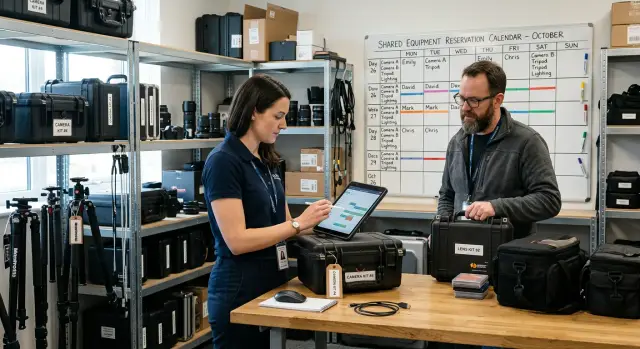
Shared equipment creates friction when a team relies on memory, chat messages, or a calendar that only shows planned bookings. A laptop may sit in a meeting room while two people each think they have it. A van may leave the site with no record of the driver. A camera can change hands several times in a week, and nobody knows who used it last.
The issue is rarely the item itself. The booking process fails when it does not record the full handoff. A reservation shows that someone intended to use an item. It does not show that they collected it, returned it, or left it in working condition.
Missing return records waste time quickly. A colleague searches the office, messages several people, and delays work because a tablet is not where it should be. If the item is expensive, a manager must work out who had it last. Small gaps become disputes because each person remembers events differently.
Damage creates a bigger problem. Someone may notice a cracked screen or flat battery, put the item back, and say nothing. The next person reserves it as though it works, arrives for a client visit, and finds equipment they cannot use. The team loses time and may blame the wrong person.
An equipment reservation app needs to treat availability as more than an open time slot. Each item needs a current status, such as available, reserved, checked out, awaiting inspection, or under maintenance. It also needs a history showing who reserved it, who collected it, when they confirmed the return, and any reported issues.
Clear accountability does not assume people will act badly. It gives them an easy way to record normal events while the details are fresh. A staff member can check out a projector at 9:00, return it at 16:30, and report a loose HDMI cable. The app can put the projector on hold before anyone else books it.
Every shared item needs an owner for its current handoff, a status that matches reality, and a history the team can check when something goes wrong. With those records in place, bookings become reliable handovers rather than informal promises.
An equipment reservation app works when everyone follows the same rules. Decide what the team must record before designing screens or automations. A vague booking such as "camera for Friday" leaves too many gaps: which camera, for how long, and who is responsible if it returns damaged?
Start with the item record. Staff should see enough detail to choose the right item without opening a spreadsheet or asking operations. For a laptop, this may include its asset ID, model, location, charger type, current condition, and required accessories. For a projector, include its room or storage cabinet, cable set, and setup notes.
Keep the first version practical. Record details that affect a reservation or return, then add fields only when people have a clear reason to use them.
Use a short list of statuses with plain meanings. Each item should have one current status, and the app should update it as a reservation moves forward.
Do not let users choose every status manually. A confirmed reservation can change an item to Reserved, and check-out can change it to Checked out. Manual changes make sense for damage and maintenance because a responsible staff member needs to review those cases.
Every reservation needs one responsible person, even when several people use the item. Record that person's name, contact details, collection time, due-back time, and intended use. The responsible person should submit the return confirmation and report missing parts or damage.
Decide which equipment needs approval before it enters the booking calendar. Everyday items such as spare keyboards may not need approval. High-cost, safety-sensitive, or limited items often do. A team lead could approve requests for a company camera, while staff reserve a meeting-room adapter immediately.
Build approval rules around the item rather than the person making the request. This keeps the process predictable when teams change. In AppMaster, you can model item fields and status rules in the Data Designer, then use a visual business process to send approval requests to the right manager.
People need to identify the exact item they need. A vague entry such as "projector" creates confusion when the office owns three. Give every physical item its own record and unique asset ID, such as AV-PROJ-014 or LAP-023.
Keep the ID visible on a printed label attached to the item. Staff should be able to search the same ID in the app when they collect it, return it, or report a problem. This avoids arguments over which laptop had the cracked screen or which camera went missing after an event.
Each record needs practical details:
Groups make browsing faster, but they should not replace individual records. You can place five identical headsets in a "Headsets" group while keeping a separate entry for each unit. Each entry retains its own asset ID, booking history, return status, and damage reports.
Photos help with equipment that has visible wear or several loose parts. A camera record can include images of the body, lens, battery, charger, and carrying case. Staff checking it back in can compare its condition with those images instead of relying on memory.
Use clear field names and fixed choices where possible. Someone booking a monitor needs to know whether it is in the fourth-floor storage room and includes an HDMI cable. They do not need to read a paragraph.
With AppMaster, a team can model this inventory in the visual Data Designer and create forms for adding assets, updating condition, and attaching photos. A reservation can reference a specific asset ID, keeping the booking, handover, return confirmation, and maintenance history connected to one item.
Assign one person to maintain inventory quality. They do not need to approve every booking, but they should review new items, merge duplicates, and correct records when equipment moves. Clean inventory data makes later reservation and return steps believable.
Start with four connected records: equipment, reservations, returns, and damage reports. The equipment record stores the item name, asset number, current status, location, and notes. A reservation records who needs the item, when they need it, and when they expect to return it.
In AppMaster, create these data models in the Data Designer and connect them in the visual interface. A reservation should point to one equipment record and one requester. A return or damage report should point back to the same item and reservation, so staff can see the full history without searching through messages.
Build the reservation form with a start date and time, end date and time, requester name, and purpose. Users should only be able to select available equipment. A camera, laptop, or projector marked "under maintenance" should never appear as reservable.
Before the app saves a request, run a business process that checks the item's status and existing reservations. Reject a request when another approved reservation overlaps the requested period. Two reservations overlap when the new start time falls before an existing end time and the new end time falls after an existing start time.
Use simple statuses:
Show availability in a calendar or schedule view. Staff need the equipment name, booking period, and current status at a glance. They do not need private notes, but they do need enough information to avoid promising the same item twice.
If Maya reserves a meeting-room projector from 9:00 to 11:00 on Tuesday, a second request for 10:30 to 12:00 should stop before it reaches approval. The requester can choose another projector or a different time.
Keep approval separate from booking for expensive or scarce items. A manager can approve a request, and the app can change the status to Reserved only after approval. This gives the team control without turning equipment tracking into an email chore.
A reservation shows that someone planned to use an item. It does not prove they collected it or brought it back. Keep the booking open until the borrower confirms each handoff.
At pickup, ask the borrower to select a "Check out" button. The app should save their name, the actual pickup time, and the expected return time. If the reservation owner collects an item for someone else, record that person too. This creates a clear trail when a laptop, camera, or projector does not return on time.
The expected return time should remain editable for approved extensions. Do not move it silently because another booking starts later. Ask the borrower to request more time, then notify the equipment owner if that request creates a conflict.
Do not end a booking automatically when its scheduled time passes. The borrower must confirm the return, even if they return the item early. A short return form gives the team useful information without adding much work.
Record the actual return date and time, the item condition, missing accessories, and a short note for anything unusual. A staff member may return a meeting-room tablet with its screen intact but without the charging cable. The app can mark the tablet as returned while flagging the accessory for follow-up.
A condition choice should not replace notes. If someone selects "damaged," require a brief description and allow photo attachments when the process needs evidence. Send the report to the equipment owner right away so they can decide whether to put the item on hold.
Send an overdue reminder shortly after the expected return time. Message the borrower first, then alert the equipment owner if the borrower has not confirmed a return after the chosen grace period. Include the item name, booking reference, and expected return time.
Keep the status visible to the people who need it: checked out, overdue, returned, or awaiting inspection. A confirmed return closes the borrower's responsibility, while an inspection status gives the equipment owner time to check the item before the next reservation.
A reservation app needs a clear path for problems. If someone finds a cracked tablet screen or a loose projector cable, they should report it before the next person reserves the item. A short form is enough: choose the item, add a brief description, attach photos, and submit.
Photos show the condition at the time of the report. Ask staff to include a close photo of the issue and, when useful, a wider photo showing the damaged part. The app should also save the reporter's name, date, and most recent return record.
When a user submits a damage report, the app should change that item's status to "Under maintenance" immediately. It should not cancel existing bookings without warning, but it must block new reservations until someone reviews the issue.
If the item has a booking later that day, notify the next user and the equipment owner. Give the next user a choice to select a replacement item or cancel the booking. This prevents someone arriving for a meeting and finding that the only projector is unusable.
Use statuses everyone understands:
The person reviewing a report should record their decision in the item history. They can mark the report as inspected, add their name, describe the repair work, and note whether a technician approved it. If the repair needs a part or outside service, keep the item on hold until the work finishes.
For example, Maya returns a meeting-room tablet and reports that its charging port only works at an angle. The app records her photos and description, then blocks new bookings. Jordan checks the tablet, approves a port replacement, and adds the repair date. Staff can see why the tablet is unavailable instead of assuming someone forgot to return it.
Do not switch an item back to "Available" simply because a repair task says complete. A staff member should test the reported problem, check that the item works for normal use, and record their name and the check date.
The record should show who reported the issue, who approved the work, and who confirmed that the equipment was safe to reserve again.
Maya needs a projector for a client presentation on Thursday from 1:00 to 3:00 p.m. She opens the equipment reservation app, chooses "Projector P-04," and sees that it is available. The app records the time, purpose, and Maya as the person responsible for collecting and returning it.
At 11:30 a.m., Daniel tries to reserve the same projector from 2:00 to 4:00 p.m. The request overlaps Maya's booking by one hour, so the app rejects it before he submits it. It shows other available projectors instead. Daniel selects P-07 and avoids a last-minute search before his meeting.
At 3:10 p.m., Maya receives a return reminder. She returns Projector P-04 to its storage spot, opens the reservation, and confirms the return. The app records the time and changes the projector's status from "Checked out" to "Available."
For equipment with accessories, the confirmation should ask for more than a single tap. Maya confirms that she returned the projector, power adapter, remote, and HDMI cable. A condition check gives her a place to report an issue before the next person collects it.
Maya notices that the HDMI cable has a bent connector and only works at a certain angle. She selects "Report damage," describes the problem, and attaches a photo if required. The damage report puts the cable, or the full projector kit, on a maintenance hold if staff cannot use the projector without it.
The app removes the affected item from future bookings while the hold is active. Daniel's reservation for P-07 stays unchanged, and nobody can reserve P-04 until a manager clears the hold after repair or replacement.
The record answers practical questions later: who used the projector, when they returned it, what they reported, and why it is unavailable.
Small shortcuts make an equipment reservation app hard to trust. The usual problem is that the app records an intention, such as a planned return, but not the event itself. When a laptop, camera, or projector goes missing, staff need a clear record of who had it last and what condition they reported.
Do not let staff change or delete a past reservation without keeping an audit record. A booking may need a correction, but the app should retain the original time, the person who made the change, and the reason. Otherwise, the team cannot tell whether someone extended a booking after a conflict appeared or whether the original schedule had an error.
If Maya changes a projector return from 2:00 p.m. to 5:00 p.m., the app should show both entries. The current booking can display 5:00 p.m., while the history explains when and why Maya changed it.
An audit trail should record who created, changed, or cancelled a reservation, the old and new booking times, when the change happened, and a short reason.
A shared spreadsheet often fails as an item condition record. People forget to update it, overwrite another person's notes, or add vague comments such as "seems fine." That creates arguments when a cracked screen or missing cable appears later.
Ask the borrower to confirm the item's condition at check-out and return. Let them choose a clear status, add a note, and attach photos when needed. The app should stamp each confirmation with the user and time. This creates a usable chain of custody instead of a collection of loose comments.
Do not accept "I will return it later" as a return confirmation. Keep the item checked out until the borrower, equipment manager, or another approved staff member confirms physical receipt. If the due time passes, show the reservation as overdue and notify the responsible person.
Damage needs its own path. When a borrower reports a loose laptop hinge, the app should create a damage report and put the item on maintenance hold immediately. Staff must not be able to reserve it again until an authorized person records that the repair is complete and the item has passed a condition check.
Run a short trial before anyone relies on the app for daily work. Ask a few people to make bookings, check items out, return them, and report a problem. A process that looks clear on a diagram can confuse people rushing to borrow a projector five minutes before a meeting.
Every physical item needs a unique ID, even when several items look identical. "Laptop 07" or "Camera B12" gives staff a specific item to book and gives managers a clear trail later. The record should show its current status, such as available, reserved, checked out, overdue, or under maintenance.
Test reservation rules with a deliberate clash. Have one person reserve Camera B12 from 10:00 to 12:00, then have another request it from 11:30 to 13:00. The app should reject the second request or direct that person to another available camera. It should never accept both bookings quietly.
Test the full accountability path:
Managers also need a readable item history. Open a test item and check whether you can see who reserved it, who checked it out, when they confirmed its return, and every damage or maintenance note. The team should be able to answer two questions quickly: where is this item, and who had it last?
If you build this workflow in AppMaster, keep the test version small. Create a few sample items and user roles, then test the actual rules before importing the full inventory. Fix unclear status labels and missing alerts early, when changes take minutes rather than disrupting the team.
Start with one equipment category that causes regular booking problems, such as meeting-room projectors, cameras, or field tablets. Invite a small group of frequent users to try the app for a few weeks.
The first version should focus on everyday actions. Staff need to see availability, reserve an item, confirm check-out, confirm return, and report damage without opening a spreadsheet or sending a separate message.
Ask users about friction while details are fresh. A long asset ID, too many required fields, or a confusing return screen can push people back to informal workarounds. Remove fields that do not support a real decision, but keep the details that establish accountability.
A practical first setup includes:
After the first month, review overdue returns and damage records with the group. If the same item comes back late, shorten reservation windows or send a reminder before the due time. If people report the same fault more than once, keep the item on hold until someone confirms the repair.
Judge the app by whether people can answer simple questions quickly: Who has the item now? When should it return? Why is it unavailable? Which items need attention?
AppMaster can help you create a no-code reservation app without combining separate tools. Build forms for reservations, check-out, returns, and damage reports. Use visual business rules to prevent schedule conflicts, update an item's status after a report, and block bookings during maintenance. You can then create web or mobile screens for people who reserve equipment and staff who manage it.
Begin with the workflow your team already understands, test it with real equipment, and adjust the screens after people use them. A simple process that staff follow consistently prevents more conflicts than a complicated system they avoid.
 Why does each piece of equipment need its own record?
Use one record for every physical item, with a unique asset ID, location, accessories, condition, and current status. A separate record prevents confusion when several items share the same name.
How can the app stop double bookings?The app should check approved reservations before it saves a new request. If the requested period overlaps another booking, it should stop the request and show another available item or time.
Why is a reservation not enough on its own?A reservation records the plan. Check-out records who actually collected the item and when, which gives the team a clear person to contact if the item does not return.
Which equipment statuses should I use?Use a short status list: Available, Reserved, Checked out, Overdue, Awaiting inspection, and Under maintenance. Let normal actions update most statuses, while staff handle damage and maintenance changes.
Who is responsible when several people use the same item?Require one named person for every reservation, even if a group uses the item. That person confirms collection and return, requests extensions, and reports missing parts or damage.
What should happen when equipment is returned late?Keep the item checked out until someone confirms its physical return. Send the borrower a reminder after the due time, then alert the equipment owner after your chosen grace period.
What should a return confirmation include?Ask the borrower to record the actual return time, condition, missing accessories, and a short note. If they report damage, let them attach photos and send the report to the equipment owner.
What should the app do after someone reports damage?Move the item to Under maintenance as soon as someone submits a damage report. Block new bookings, notify anyone with a later reservation, and return the item to service only after staff test and approve it.
How do we keep a useful equipment history?Keep an audit history of reservations, check-outs, returns, cancellations, damage reports, and maintenance work. Each entry should show who made it, when they made it, and what changed.
What is the best way to launch an equipment reservation app?Start with one troublesome category, such as projectors or field tablets. Build inventory, reservations, check-out, return, and damage reporting first, then test the process with frequent users before adding every item.
Experiment with AppMaster with free plan.
When you will be ready you can choose the proper subscription.
 Jul 13, 20268 min
 Jul 08, 20268 min
 Jul 07, 20268 min