


 Jul 14, 2026
 8 min
8 minEquipment reservation app: prevent conflicts and track returns
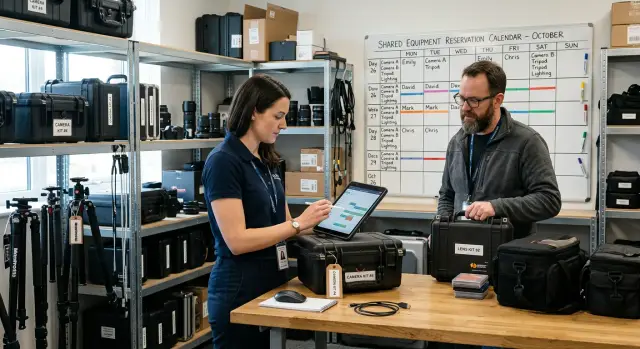
Plan an equipment reservation app that prevents double bookings, records returns and damage, and places faulty items on maintenance hold.

Replace shared email aliases with a case management app to assign owners, track every request, avoid duplicate replies, and keep requesters informed.

A shared address such as support@ or it@ looks simple. Anyone on the team can read incoming messages and reply. Yet the inbox rarely shows who owns a request, when work began, or what happens next.
People fill that gap with habits. One person flags an email, another moves it into a folder, and a third assumes someone else picked it up because it disappeared from the top of the inbox. None of these actions names an owner.
Service becomes uneven. A simple request may receive an answer within minutes because the right person sees it. A more urgent request can sit for days while every teammate assumes someone else is handling it.
Email threads track messages, not work. A request may need a manager's approval, a check in another system, and a final update to the requester. The thread shows pieces of that activity among replies, forwards, and private notes.
Teams often try subject tags such as "[Assigned: Mia]" or folders named "In progress." These methods work only when everyone follows the same routine every time. They fall apart when work moves to another person or several teams need to contribute.
A case management app gives each request one visible record. It can show the owner, priority, status, due date, and history. Staff no longer have to guess from unread markers or a colleague's vague reply.
Two people can open the same new email, especially after a busy morning or weekend. Both may start investigating before either responds. The requester then receives two messages, sometimes with conflicting answers.
Duplicate work costs time even when the requester sees only one reply. If two employees each spend 20 minutes resetting the same account or gathering the same details, the team loses 20 minutes and other requests wait longer.
A case management app assigns a request when someone claims it. Other team members can add internal notes or help with a task, but everyone can see who will send the final response.
Requesters feel the confusion as well. They send an email, receive an automatic acknowledgement, and then hear nothing. They do not know whether the team needs more information, approved the request, or missed it. Many send follow-up emails, creating extra threads and more chances for duplicate work.
Clear request status tracking changes that experience. Labels such as "Received," "Waiting for approval," "In progress," and "Completed" give people a direct answer. When teams replace shared email aliases with case records, each request has a home, a named owner, and a visible route to completion.
A case management app turns each request into one case: a record with a clear owner, current status, and complete history. Requests can begin as form submissions, emails, or messages from another team. Once they enter the app, staff work from the same record instead of passing copies around an inbox.
A shared alias treats each message as a separate event. One person replies, another forwards the thread, and a third adds a note in a private chat. The requester may receive two answers or none. Staff must search long threads to find out who agreed to do what.
A case record keeps the context in one place. Ownership can change as work moves between teams, but the case remains the same. Statuses such as "New," "In progress," "Waiting for requester," and "Closed" tell staff and requesters where things stand.
Consider an employee requesting access to a finance folder. In a shared mailbox, the manager's approval might arrive in one email, an IT question in another, and the final confirmation in a third. Anyone joining later must reconstruct the story.
In a case, the access request includes the employee's details, approval, internal notes, attachments, and every status change. The IT owner sees the full record before acting. A colleague who needs to help adds a note to the case rather than starting another email chain.
Each case should show who owns the next action. If nobody owns it, a team lead can spot the gap quickly. If the owner needs input, they can assign a task or move the case to a waiting status instead of leaving the request buried in their inbox.
Internal notes let staff discuss details that requesters should not see. Public updates can tell the requester that the team needs more information, approved the request, or expects to finish by a specific date. Staff do not need to copy sensitive discussion into an external email.
The history records assignments, replies, and status changes. It helps when a requester follows up two weeks later or when an owner takes leave. With a case management app, the work belongs to the team rather than one person's mailbox.
Start with the inbox, not the app. Review four to eight weeks of messages sent to each shared alias. The goal is to learn what people actually ask for instead of designing forms around assumptions.
Group similar emails into request types. An IT inbox may receive access requests, hardware requests, software problems, account changes, and simple questions. Not every type needs its own workflow, but each should have a clear category.
For each category, list the information the team needs before it can act. An application access request might require the employee's name, department, manager approval, application name, and reason for access. A laptop problem needs different information, such as the device, error message, and urgency.
Start with a short list. Too many categories make a form difficult to use and send people back to email. Split a broad category later if the team sees a repeated need.
This map gives each case enough context when it enters the queue. It also stops staff from asking every requester the same follow-up questions.
Name the team or role responsible for each category, even if several people can complete the work. "IT" is often too broad. Labels such as "identity administrator," "device support," and "finance approver" support useful routing rules and set clearer expectations.
Some requests cross team boundaries. Keep one case, assign one current owner, and record handoffs inside the record. Device support might own a new laptop request until procurement needs to order hardware. Procurement receives a task or handoff, not a separate email thread.
Choose the first aliases to replace based on volume and confusion. Start with an inbox that receives repeatable requests and has several people replying, such as it-support@ or access@. Leave unusual or sensitive requests for later if the team still needs to agree on the process.
A case management app can put this map into daily use through forms for common requests, routing rules, and visible request status tracking. In AppMaster, teams can model the needed fields, build approval steps, and create separate views for requesters and staff without writing code.
Keep the original alias active during the first rollout, but direct new requests into the case form. Compare new cases with incoming emails for a few weeks. Missing categories and unclear fields will become obvious while staff can still help people through the change.
Begin with the request form. Keep it short enough that people will use it, but collect enough information for the team to act without a chain of follow-up emails. A facilities request might ask for the office location, issue type, urgency, and a short description. An IT access request may need the employee's department, required application, manager, and access date.
Make fields required only when the team cannot work without them. Long forms push people back to email, where details arrive in inconsistent formats.
Give every request a status that describes its current state in plain language. A simple starting flow works for most teams:
Show the relevant status to the requester. They can check progress instead of sending "Any update?" to a shared inbox. Add a short closing note so they know what the team did.
Decide who should receive each type of request. Rules can use form answers such as department, category, location, or urgency. Access requests for finance software can go to the finance systems owner, while laptop issues go to desktop support.
Give every case one named owner, even when several people contribute. This makes responsibility clear and supports duplicate work prevention. Colleagues can see that someone has already taken the case before writing a second response.
Owners also need a simple reassignment option. People take leave, workloads change, and some requests enter the wrong queue. Ask the owner to choose a new owner and leave a brief internal note, such as "This needs payroll approval before IT can grant access." The history will then explain the handoff without exposing internal discussion to the requester.
AppMaster lets teams model forms, status flows, and routing rules visually. They can also create a requester page for current status and public updates, while staff work in a separate space for assignments and internal discussion.
Test the flow with five realistic requests before inviting the whole company. Confirm that each request gets an owner, status changes appear correctly, and reassigned work keeps its history. Small fixes here prevent a confusing first week.
Duplicate replies usually begin with a simple gap: two people see the same email, and neither knows whether the other has started. A case management app closes that gap by turning each request into one visible record with one owner.
When a new request arrives, search the requester's email address against open cases. If staff find a match, they should see the existing case before creating another one. They can add a note, attach the new message, or tell the requester that the original case is already in progress.
Put the owner and status at the top of every case. Use clear labels such as New, Assigned, Waiting for requester, In progress, and Closed. Anyone scanning the queue should quickly see who handles the request and whether they need to act.
A simple assignment rule helps too. A request about account access can go to the IT support queue, where one support worker claims it. Once claimed, the case shows that person's name and leaves the unassigned list. Other team members can still read the record, but they should not send a separate answer unless the owner reassigns it.
Keep team discussion separate from requester communication. Each case needs internal notes for context, handoffs, troubleshooting, and questions to coworkers. It also needs requester updates for messages the requester can read. This prevents private comments about a missing approval from reaching the employee who made the request.
Set a clear follow-up rule: the owner sends the next external reply, even if several coworkers add internal notes. If a manager needs to take over, they reassign the case first. That habit prevents conflicting answers and gives requesters one reliable contact.
During the transition, teams often keep the old address. Instead of replying from the inbox, send each email into the app and manage the conversation from its case record. The shared address remains familiar for requesters while the work behind it becomes visible.
Maya has joined the sales team and needs access to a reporting tool before her first client call. With a shared IT alias, she might send a short email and wait. Several people may see it, nobody may claim it, and Maya may follow up two days later.
In a case management app, Maya opens an "Access request" form. She selects the reporting tool, gives a business reason, chooses her manager, and submits the request. The app creates case IT-1042 and shows its status as "Submitted."
The case follows a clear path:
Each person sees the task that belongs to them. The manager receives an approval request rather than an email thread. The IT owner receives the approved request with Maya's tool choice and reason attached. Other IT staff can see that a colleague owns IT-1042, so they do not grant access twice or send another reply.
Maya can open the request page and check its current stage. While her manager reviews it, the page says "Waiting for manager approval." After approval, it says "Assigned to IT." If the owner needs more information, Maya receives a message inside the case and replies in the same place.
The case history records who approved the request, who completed it, and when each status changed. IT can later answer questions about why Maya received access or how long the request took.
Teams often begin with access requests because the workflow is familiar and easy to measure. In AppMaster, teams can create the form, approval steps, ownership rules, status page, and notifications with visual tools. The same pattern can later support hardware requests, account changes, and onboarding tasks.
Moving incoming messages into a case management app is not enough. Teams can recreate old habits in a new tool: staff claim work in chat, statuses mean different things to different people, and requesters hear nothing until the work is done.
Do not assign a case through memory, verbal agreements, or an informal chat message. These methods disappear when someone takes a day off, a conversation moves quickly, or two people read the same request. Every open case needs one named owner in the app.
A support lead can reassign a case when priorities change, but the record must show who owns it now. If an employee requests access to a finance folder, the case might move from the service desk to a security approver. The employee should not have to guess where the request went.
Set a backup owner for each queue. If the assigned person has not acted within the agreed time, the backup owner receives an alert and decides whether to take over. This rule helps during leave, sick days, and busy periods.
Long status menus create confusion. Keep labels plain and define each one clearly:
Do not let staff close cases silently. Before closing, the owner should send a brief update explaining what happened, what the requester needs to do next, and, where relevant, when access or service will be available. A case should feel finished for the person who asked, not only for the team handling it.
Duplicate work also returns when staff treat the app as optional and keep answering through the old alias. Pick a cutover date, direct new requests into the app, and record email follow-up on the matching case. If two people begin work, the named owner decides who continues and adds a short note.
AppMaster can build these rules into the app. A visual business process can require an owner before work starts, send a requester update before closure, and move a case to a backup owner when the original assignee is unavailable.
Run a short test with real requests before replacing shared email aliases for everyone. Ask a few staff members to submit cases, assign them, change their status, and close them. This will reveal unclear fields or missing notifications while the stakes are low.
Every new request needs one named owner. A queue can hold unassigned cases briefly, but someone must take responsibility before work starts. If two people can work the same case without seeing each other's activity, duplicate replies will return.
Check assignment rules against common requests. A password reset may go directly to IT support, while a new software license may need approval first. Give staff a straightforward fallback rule for cases that enter the wrong queue.
Staff need a clear list of open cases, with status, owner, date received, and requester visible without opening every record. Use status names that match the team's language, such as New, Waiting for requester, In progress, and Closed.
The app should keep a visible history. Anyone taking over a case must see prior messages, approvals, and status changes. That record stops requesters from repeating the same issue to each new person.
Confirm that requesters receive updates when something meaningful changes. Send a message when someone accepts the case, when the team needs more details, and when work is complete. Avoid alerts for every internal edit, since too many notifications lead people to ignore them.
Agree on when email still makes sense. Email works for quick conversations, general announcements, and replies to an existing case notification. Staff should open a case when a request needs an owner, deadline, approval, or progress record.
Use this launch check:
AppMaster supports this workflow with a visual data model, routing logic, and web or mobile screens. Build the first version around requests the team receives every week, then adjust fields and rules after a few days of use.
Start with one shared alias that causes regular confusion and one request type with a clear path, such as software access, invoice questions, or equipment requests. A narrow first launch lets the team learn the process without disrupting every inbox at once.
Set a simple rule for the chosen alias: new requests enter the case management app, and staff answer from the case instead of a private email thread. Give every case one owner, a visible status, and a short description of the next action. Requesters should be able to see whether the team received the request, is working on it, needs more information, or finished it.
AppMaster can help teams create a no-code case management app without beginning with custom code. Use the Data Designer to model case and requester details, then use the Business Process Editor to assign work and change statuses. A web or mobile screen can show requesters the progress of their own cases.
For the first workflow, include practical fields:
After the first week, review unclear assignments with the people handling cases. Look for requests that bounced between owners, sat without an update, or led to two replies. Fix the routing rule or add a missing form field. There is no need to solve every unusual case on the first day.
Once the workflow runs reliably, add another request type, bring in a second team, or introduce automatic status notifications. Keep the same habits: one owner per case, one place for the current status, and a recorded history of decisions.
Replacing shared email aliases works when the app becomes the team's normal work queue instead of another place to copy information. A small process that staff use consistently will do more than a large rollout they avoid.
 Why replace a shared email alias with a case management app?
A shared alias shows messages, but it rarely shows who owns the next action. A case app gives every request one record with an owner, status, due date, and history.
Which shared inbox should we replace first?Start with the alias that gets repeatable requests and frequent replies from several people, such as IT support or access requests. Leave rare or highly sensitive cases until the team agrees on their process.
How do we turn inbox emails into case types?Review recent messages and group them into a short list of common request types. For each type, record the details staff need, the responsible role, approvals, and normal status stages.
How can we stop duplicate replies?Give every open case one named owner before work starts. Other people can add internal notes or complete tasks, but the owner sends the next requester update or reassigns the case.
What case statuses should we use?Use plain labels such as New, In progress, Waiting for requester, Waiting for another team, and Closed. Define each label with the team so people use them the same way.
Should internal notes and requester messages stay separate?Keep internal notes inside the case for staff discussion, handoffs, and sensitive details. Send requester-facing updates separately, so employees do not accidentally share private comments.
Can we keep the old shared email address during the switch?Keep the address active at first, but move each new email into a case and manage the work there. Set a cutover date once staff understand the process and record any email follow-up on the matching case.
What should we test before launch?Test five realistic requests from submission through closure. Check that routing assigns an owner, approvals work, status updates reach requesters, and reassignment keeps the full history.
What information should a request form collect?Ask for only the information the team needs to start work. An access request may need the application, department, manager, reason, and required date; a hardware issue needs different fields.
How can AppMaster help build a case management app?AppMaster lets teams build forms, case records, approval flows, routing rules, and requester status pages without writing code. Teams can also create separate staff views for assignments and internal notes.
Experiment with AppMaster with free plan.
When you will be ready you can choose the proper subscription.
 Jul 14, 20268 min
 Jul 13, 20268 min
 Jul 08, 20268 min