


 Jul 14, 2026
 8 min
8 minEquipment reservation app: prevent conflicts and track returns
Plan an equipment reservation app that prevents double bookings, records returns and damage, and places faulty items on maintenance hold.

Learn how a mobile inspection app turns recurring compliance checks into repeatable checklists, photo records, action tasks, and reminders.
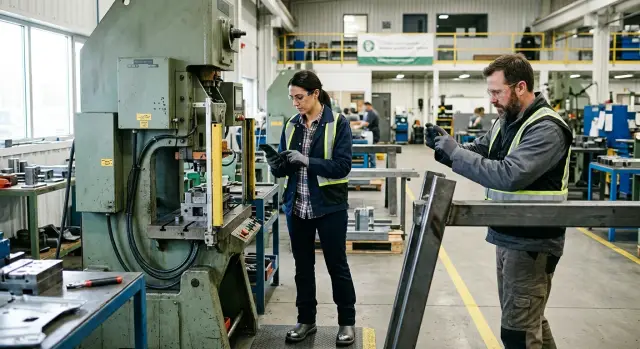
Recurring workplace checks look simple on paper. A supervisor inspects a fire exit each week, a technician checks equipment each month, or a site manager reviews a cleaning log after a shift. Problems start when the parts of an inspection sit in different places.
A paper form may stay on a clipboard. Photos may go to a personal phone or group chat. A spreadsheet may hold the result, while an email reminder tells someone when the next check is due. Staff have to remember where everything belongs, and someone later has to assemble the record. On a busy day, that work gets postponed.
Paper also makes ownership unclear. A form may show that a check happened, but it rarely says who must fix a failed item or when they need to finish. If a machine guard is loose, a tick box is not enough. The issue needs an owner, a deadline, and a manager's confirmation that the repair is complete.
Photos can lose their context too. An image of a damaged floor or blocked exit means little without the inspection name, location, date, and failed question. Staff then spend time searching messages and asking who took it.
These gaps affect more than formal compliance work. They appear in site walks, vehicle checks, kitchen hygiene checks, stockroom inspections, equipment maintenance, and process reviews. A missed check can leave a hazard in place for days. It can also leave a business unable to show what staff checked when an audit or incident occurs.
A mobile inspection app keeps the checklist, answers, photos, and follow-up work together. Staff can complete checks where the work happens, attach evidence to the exact item, and report a problem before moving on. Managers can see overdue checks and open actions without chasing forms, files, or old emails.
The goal is simple: remove the small handoffs that make routine checks disappear when the day gets busy.
Start with inspections that already follow a fixed schedule. Daily opening checks, weekly equipment checks, monthly fire safety reviews, and annual certification reviews are good candidates. They have a clear trigger, happen often enough to form a habit, and can create real problems when someone skips them.
List every recurring compliance check, along with its frequency, location, and usual inspector. A warehouse might run daily forklift walkarounds, weekly emergency-exit checks, and monthly first-aid stock reviews. Start with the checks that happen most often or get missed most often.
Do not treat every form as an inspection. Some tasks only need a record, such as confirming that a notice was posted or training took place. Others require action when something fails, such as a damaged guardrail or expired fire extinguisher. Begin with checks where a failed answer should send someone to fix a real issue.
Before building the form, map out the handoff:
This prevents a common failure: staff submit a failed inspection, but nobody acts because ownership is unclear. A cleaner may report a blocked exit, a facilities manager may review the report, and a maintenance worker may clear the obstruction. The app should follow that path rather than stop at a red "Fail" result.
Choose one inspection type for the first version. Pick a form detailed enough to test the process, but avoid one with 80 questions and several approval steps. A weekly site safety walk often works well because the same staff, locations, and checks return each week.
AppMaster lets teams create a no-code app around this routine, with roles for inspectors, reviewers, and repair owners. Once staff complete the first checklist reliably, they can add the next recurring check using the same pattern.
Each form should begin with basic context: inspection name, site or room, date, and inspector. Let staff choose a location from a short list rather than type "Warehouse A" in several different ways.
Keep every item short and observable. Avoid broad instructions such as "Review fire safety." Write what the person can check, such as "Emergency exit opens fully and the path is clear." The inspector can test it and select Pass, Fail, or Not applicable.
Use required answers when skipping a check could create a safety, legal, or operational problem. Make the emergency-exit question required. A minor housekeeping item that does not apply in every location may be optional. Too many mandatory fields slow people down and encourage rushed answers.
Ask for notes only when they add context. A failed exit check may need a note such as "Pallets blocking the east door." A pass usually needs no explanation. Completed forms stay easier to scan later.
Arrange the checklist around the route staff take through the site. In a warehouse, that may mean loading bays, storage aisles, equipment areas, emergency exits, and staff rooms. People make fewer mistakes when the form matches their physical walk.
Keep response choices consistent across the app. If one checklist uses Pass and Fail, do not switch to Yes and No on the next screen. Consistent wording reduces confusion for new inspectors and makes reports easier to read.
AppMaster provides visual form builders and location fields for digital inspection checklists. Teams can revise the form when procedures change. After a few completed inspections, remove vague questions and rewrite any item that produces unclear answers.
A checklist helps only when its answers show what staff saw on site. Give each question a response type that fits the condition. A fire exit inspection may use Pass, Fail, or Not applicable. A temperature log needs a number. A damaged handrail needs a short text response.
Use plain, consistent choices. Staff should not have to decide whether "acceptable," "good," and "pass" mean the same thing. For a weekly equipment check, ask: "Is the emergency stop button working?" The inspector selects Pass or Fail and adds a note only when context is needed.
Photos help a supervisor verify a condition or understand a fault, but they do not belong on every item. Requiring an image for routine passes can turn a five-minute check into a frustrating task and fill storage with photos nobody reviews.
Require photos for damage, leaks, blocked exits, missing safety signs, meter readings, labels, failed checks that need repair work, and before-and-after proof of completed actions.
Ask staff to take one photo of the wider area before taking a close image of the problem. A close photo of a cracked guardrail proves damage, but a wider shot shows its position near a loading bay and helps the repair team find it. The same approach works for spills, worn cables, and stock stored unsafely.
Record the inspection time automatically when timing matters. Record location when teams inspect several sites, floors, vehicles, or rooms. A warehouse manager can then see that a check happened at 8:15 a.m. in Bay 4 instead of relying on a vague note entered later.
Do not collect information because it might be useful someday. Each required answer should support a decision: accept the condition, investigate it, or assign someone to fix it. This keeps digital inspection checklists quick enough for regular use while preserving the details needed for corrective action tracking.
A failed answer should create a clear piece of work. If an inspector marks "Emergency exit clear" as failed, the mobile inspection app should create an action immediately instead of burying the problem in a completed checklist.
Write action titles that explain both the issue and the required fix. "Exit blocked by stored cartons - remove cartons and keep the route clear" gives far more direction than "Exit problem." Include the failed answer, inspector notes, location, and photo evidence in the action record.
Assign each action to one person. Shared ownership often means nobody acts, especially when the issue competes with daily work. The assignee needs enough authority to arrange the fix or involve the right person.
Set a due date that matches the risk. A blocked fire exit needs attention that day. A faded floor marking may have a longer deadline. If every task gets the same urgent date, staff will soon ignore reminders.
Keep the original inspection attached to the action until the assignee records completion. They should add a short note and, when useful, a new photo showing the repair. A supervisor can review the evidence before closing the action.
Use three simple action states:
Do not erase the failed result after the repair. The inspection records what staff found on that date, while the action records how the team responded. Keeping both records together helps managers find repeat problems, such as the same exit becoming blocked each week.
If a due date passes, send a reminder to the assignee and show overdue actions to the person who reviews inspections. Escalate only after the first reminder fails. Too many alerts become background noise.
With AppMaster, a team can set up this flow through visual business processes. A failed checklist answer can create an action, assign an owner, set a deadline, and keep the inspection details in the same app. The checklist then leads to documented fixes instead of a list of problems filed away after a visit.
A schedule needs to match both the requirement and the workday. A fire exit check may need a weekly slot before opening. Equipment guards may need inspection at the start of each shift. Do not schedule every task for Monday at 9 a.m. if staff use that hour for deliveries or site preparation.
Set two messages for each recurring compliance check. Send the first early enough for the assigned person to act, such as one business day before the deadline. Send an overdue notice soon after the due time passes. The notice should name the inspection, site, deadline, and responsible person.
Send routine alerts to the person who can complete the check. Copy a supervisor when a task becomes overdue or when a failed answer creates a corrective action. If every manager receives every reminder, they will ignore the messages within a week.
Keep schedules practical:
A warehouse may require a Friday forklift check. If the regular operator books a week off, the manager should assign the task to another trained operator before the absence begins. A reminder sent to an absent employee does nothing, while an unassigned overdue notice creates avoidable confusion.
Review results after the first month. If people regularly finish an inspection late, check the timing before blaming the team. The schedule may clash with a shift handover, a busy delivery window, or a closed location. Adjust the due time, reminder lead time, or assignee, then keep the routine consistent.
At 6:45 a.m., a warehouse supervisor completes the opening inspection on a phone before the first shift begins. One item asks whether every fire exit opens freely and stays clear. At the loading area, the supervisor finds two pallets in front of an exit door.
The supervisor marks the item as failed, adds a short note, and takes a photo showing the pallets, door, and exit sign. The mobile inspection app saves the time, location, inspector's name, and photo with that response. Staff do not need to recreate the issue from memory later.
The failed item creates a corrective action in the same inspection record. The supervisor assigns it to a facilities colleague and sets an 8:00 a.m. deadline, before the morning delivery arrives. The colleague receives a reminder and can see why the action exists.
After moving the pallets and checking the door, the facilities colleague marks the action complete. They upload a second photo of the clear exit and add a note: "Pallets moved to Bay 4. Exit tested." The app records who completed the work and when.
A manager reviews the action during the daily safety check. They compare the before-and-after photos, confirm the exit is clear, and close the record. If the fix is incomplete, they can return the action to the colleague with a new deadline instead of starting a separate email thread.
The warehouse now has a clear history of the failed response, the person assigned to fix it, the deadline and reminder record, proof of completion, and the manager's closure.
A mobile inspection app should make a site visit easier, not turn a paper form into a smaller screen with more taps. The most common mistake is copying every question from an old form, including duplicates, vague wording, and fields nobody uses.
Read each question as if you were standing in a noisy warehouse or busy kitchen. "Is the area satisfactory?" invites guesswork. "Is the emergency exit clear and unlocked?" gives the inspector a clear task and answer.
Remove repeated checks and split double questions. "Are extinguishers present and in date?" can hide a problem: an extinguisher may be present but overdue for service. Use separate questions when each answer could require a different fix.
Every failed answer needs a clear path. If staff can mark an item as failed and close the inspection, the problem can vanish into a list of old reports. Create a corrective action with an owner and due date, and ask for a short description of the required fix.
Photo evidence needs simple rules. Random images of a floor, doorway, or equipment rarely help a manager confirm an issue later. Tell inspectors what each photo should show. A damaged guardrail photo should include the damaged area and enough of the surroundings to identify the location.
Keep photo requests limited to checks where images help. A photo for failed items, plus another after repair, usually creates a more useful record than an image for every pass.
Changes to a live checklist can cause trouble too. Staff may expect a familiar inspection to take five minutes, then find new mandatory fields halfway through a shift. Tell users what changed, why it changed, and when they need to use the new version.
A short release note should state the checklist name and version date, list added, removed, or revised questions, explain new photo or deadline requirements, and give staff time to ask questions before the next scheduled check.
AppMaster lets teams update digital inspection checklists visually and regenerate the application code after changes. The team responsible for compliance should still approve the wording and notify inspectors before the revised checklist goes live.
Run the inspection through the app as the person on site would use it. Use a phone, stand in the work area, and complete every field. A checklist that looks clear on a large screen can feel slow when someone wears gloves, has poor signal, or needs to add a photo quickly.
Keep each item short and make the expected answer obvious. "Emergency exit clear?" works better than a long paragraph asking staff to interpret several conditions. If an item needs explanation, add a brief note under the question.
Test the full follow-up chain:
Ask a reviewer to find one completed inspection without help. They should see who completed it, the date and time, failed items, attached evidence, and current action status within a few taps. If they must search through messages or spreadsheets, the record is not ready for an audit.
Test permissions as well. An inspector should see only the work they need to complete. A manager needs a clear view of open and overdue actions. A maintenance worker needs enough detail to fix the problem, including location, photo, and deadline.
Run a small trial with one team before moving every recurring compliance check. Use it for two or three inspection cycles, then ask where people paused, skipped fields, or misunderstood an item. Fix those rough spots before adding more checklists.
Choose the recurring inspection that creates the most follow-up work. It may be a weekly warehouse safety walk, a vehicle check before each shift, or an equipment inspection that arrives late with missing photos. A small first project gives staff time to learn the app without changing every process at once.
Build the first version around decisions people already make on site. Include only questions that lead to a clear outcome: Pass, Fail, Not applicable, a required photo, or a follow-up task. Long digital inspection checklists invite rushed answers, so remove questions that nobody uses.
Ask the employees who complete the check to test it during normal work. Replace vague wording such as "Is the area safe?" with an observable question such as "Are emergency exits clear of boxes and pallets?" Add a photo field when a supervisor needs proof, but do not require photos for routine passing items unless they serve a clear purpose.
After two or three weeks, review submitted inspections with the people who own the work. Look for repeated failed items, overdue tasks, skipped questions, and reminders that arrive at inconvenient times. Move the due time if staff usually do the check at another point in their shift. Split broad questions, require photos only for failures, and remove fields that do not help anyone make a decision.
AppMaster can support this workflow in one no-code application. Teams can create mobile forms, store inspection records, assign actions, and give managers an overdue-action view. Start with a simple checklist people will use, then add detail only when it helps someone complete or review the work.
Do not wait for a perfect form. The first useful inspection will show where the friction is: unclear questions, unrealistic deadlines, or tasks with no named owner. Fix those issues, then apply the improved pattern to the next recurring compliance checks.
 Which inspection should we add to the app first?
Start with one check that already has a fixed schedule and often creates follow-up work, such as a weekly safety walk or a daily vehicle check. Keep the first form small enough for staff to complete during a normal shift.
What should a mobile inspection checklist include?Include the inspection name, location, date, inspector, and short observable questions. Use consistent answers such as Pass, Fail, and Not applicable so staff can complete the form quickly.
When should staff add photos to an inspection?Require photos when they help someone understand or verify a problem, such as damage, blocked exits, leaks, missing signs, or completed repairs. Routine passing items usually do not need a photo.
What should happen after someone marks an item as failed?The app should create a corrective action straight away. It needs the failed item, notes, location, photo evidence when available, one assigned owner, and a due date.
Who should own a corrective action?Assign each action to one person who can arrange or complete the fix. A named owner prevents problems from sitting in a shared task list while everyone assumes someone else will handle them.
How should we set due dates and reminders?Match the deadline to the risk. A blocked fire exit needs attention that day, while a faded floor marking may allow more time. Set reminders before the deadline and send an overdue notice if the task remains open.
Should we remove the failed result after a repair?Keep the inspection result and repair record together. The inspection shows what staff found, while the action shows who fixed it, when they finished, and what evidence they provided.
How can we make checklist questions easier to answer?Use short, specific questions that someone can check on site. For example, ask whether an emergency exit is clear and unlocked instead of asking whether the area is satisfactory.
How do we test the app before launch?Test it on a phone in the real work area, then run two or three inspection cycles with one team. Check whether staff can submit forms, attach evidence, receive actions, and review overdue work without using messages or spreadsheets.
What permissions do inspectors and managers need?Separate access by role. Inspectors need their assigned checklists, repair owners need action details and deadlines, and managers need a view of submitted inspections plus open and overdue actions.
Experiment with AppMaster with free plan.
When you will be ready you can choose the proper subscription.
 Jul 14, 20268 min
 Jul 13, 20268 min
 Jul 08, 20268 min