


 Jul 14, 2026
 8 min
8 minEquipment reservation app: prevent conflicts and track returns
Plan an equipment reservation app that prevents double bookings, records returns and damage, and places faulty items on maintenance hold.

Build a maintenance request portal that lets tenants report issues, add photos, set access preferences, and follow each repair update.
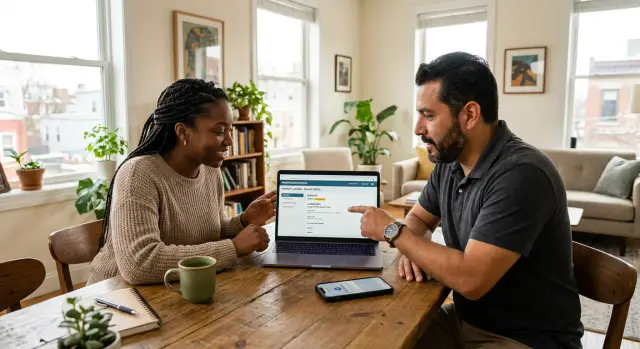
Phone calls, text messages, voicemails, and scattered emails create a poor repair record. A tenant might describe a leaking pipe during a busy call, then the property manager has to remember the details, find a contractor, and update the tenant later. One missed message can leave everyone unsure who owns the next step.
The first details often disappear. Staff may know that "the kitchen has a leak" but not the unit number, when the tenant noticed it, whether water is still flowing, or whether someone can enter the home. A photo of a cracked pipe, damp ceiling, or broken appliance often explains the problem better than a short text.
A maintenance request portal gives tenants one place to submit repair requests. The form can collect the property and unit, issue type, description, photos, contact details, and access preferences. Tenants spend less time repeating themselves, while staff get information they can use.
Staff also need one shared repair record. It should show who received the request, who will handle it, the current status, appointment notes, and messages sent to the tenant. Without this record, a leasing agent might tell a tenant that a contractor is booked while the maintenance team has not assigned anyone.
Urgent repairs need a separate path. The portal should tell tenants to call emergency services for immediate danger, such as fire, a suspected gas leak, or a medical emergency. It should also provide the property's emergency contact for serious building issues, such as active flooding or a total loss of heat where local rules require a prompt response.
Routine requests can follow a simple sequence: the tenant submits the issue with enough detail and photos, staff set a priority and assign the work, the assigned person records updates and an expected visit time, and the tenant checks progress without chasing several people.
Plain status updates matter. "Received," "scheduled," "in progress," and "completed" tell tenants what is happening. Avoid vague labels such as "open" when staff have already arranged a visit. A property maintenance app cannot make every repair faster, but it can keep a request from getting lost between inboxes.
Start with the everyday actions people need to take instead of adding every possible feature on day one. Tenants need a short path to report an issue, attach photos, state when someone can enter, and check the repair status later. A form that demands too much detail often pushes people back to phone calls and incomplete reports.
Staff need a fuller view. They must review each request, decide how urgent it is, assign it to a maintenance worker or contractor, add updates, and close the job when work is complete. Record every change. If a tenant asks why a repair took a week, staff should be able to see who received it, when they contacted a contractor, and what work took place.
Tenants should only see information that helps them understand the next step. Internal notes may include contractor contact details, cost estimates, suspected causes, or access problems. Keep those notes separate from tenant messages to prevent accidental disclosure.
Use a small set of plain statuses in the tenant portal:
Staff can use additional internal statuses, such as "waiting for parts" or "awaiting contractor quote." Tenants do not need to decode every operational detail. If a kitchen tap needs a replacement part, an update such as "We ordered the part and will confirm the visit date" is far more useful.
AppMaster can support separate tenant and staff screens, a request database, and visual business processes that control status changes. Build the basic request journey first, then add contractor workflows or automatic reminders once the team uses the portal consistently.
The form should collect enough detail to send the right person without turning a simple report into paperwork. Tenants should describe the problem once. Your team should not have to chase basic facts by phone or email.
Start each repair record with a short, plain-language title and a description. "Water under kitchen sink" tells a maintenance worker more than "plumbing issue." Ask the tenant to choose a location, such as kitchen, bathroom, bedroom, hallway, or a shared area. A category also helps staff route the job: plumbing, heating, electrical, appliance, pest, or general repair.
Use priority questions that tenants can understand. Rather than asking them to judge technical urgency, ask whether there is active water, no heat, a safety concern, or damage spreading. Staff can then set the repair priority.
The record also needs the tenant's unit number, name, phone number, and email address. If the tenant signs in, fill in these details automatically and allow them to correct a phone number if needed. This avoids reports that say "the light is broken" with no clear place to send help.
Photo attachments often prevent a wasted first visit. Allow several photos per request and keep them attached to the repair record, rather than sending them to a separate inbox. Ask tenants to photograph the problem area, not personal documents or other residents.
The repair team needs permission and timing details before scheduling work. Add simple access options: "I will be home," "You may enter when I am away," and "Contact me before entry." Include available dates or time windows and a field for practical notes.
That note might cover a pet in the unit, a sleeping child, a gate code, or a request to knock rather than ring. Limit who can view these details and keep them with the request so the assigned worker sees the latest instructions.
In AppMaster, you can model these fields in the Data Designer and connect the tenant form to a repair record through visual business processes. Keep status updates separate from the original report, so managers and tenants can always review the details that started the job.
A maintenance request portal should be simple enough to use when someone is tired, busy, or dealing with a leaking pipe. Use plain categories such as plumbing, heating, appliance, electrical, pest issue, and safety. Avoid labels that assume tenants understand how a building works.
Ask for the room or area early in the form. A short list, such as kitchen, bathroom, bedroom, hallway, or outside area, helps the maintenance team sort requests. Include an "other" option for shared laundry rooms, parking spaces, and other less common locations.
The description box needs a prompt, not just an empty field. Ask tenants when the problem began, what they can see or hear, whether it happens all the time, and whether water, power, heat, or access has changed. For example: "The kitchen sink leaks from the pipe under the cabinet whenever I run the tap. It started this morning."
Let tenants attach images directly from a phone or computer, and make the upload control easy to find. A photo of an appliance label, ceiling stain, or water around a fixture gives the repair team useful context before a visit.
Keep the standard form focused on ordinary repair requests. Put emergency guidance above the form in a separate notice. Tell tenants to call emergency services for immediate danger, such as fire, a gas smell, or a serious injury. Provide a separate emergency maintenance contact for urgent property problems such as a major active leak or total loss of heat.
A practical form can stay short:
AppMaster can help you create this type of property maintenance app with visual forms, file uploads, and a request record that staff can review. Keep optional fields optional. Tenants should be able to send a useful report in a few minutes, even if they do not have a photo or know the name of the broken part.
A repair team should never have to guess whether it can enter a tenant's home. Add an access choice to every request and keep the wording plain, especially for urgent issues.
Offer a small set of choices that cover normal situations: permission to enter while the tenant is away, an appointment before entry, contact the tenant first, or emergency entry for an urgent issue. Ask how the tenant wants staff to make contact, such as by phone, text, or email, then collect a few availability windows. A tenant might allow visits on weekdays after 5:30 p.m. but not during work hours. This saves missed appointments and repeated calls.
Treat entry instructions as sensitive information. Collect a gate code, building entry code, lockbox detail, or pet warning only when the repair requires it. Do not make these fields mandatory for every request. Limit access to them, and remove old instructions when a tenant updates their details or the repair closes.
Show the latest access preference near the work order status, where maintenance staff can see it before scheduling or starting a visit. If a tenant changes "permission to enter" to "appointment required," replace the old instruction rather than showing both.
For example, a tenant reports a leaking kitchen pipe and selects "contact first." The property manager calls, agrees on a Tuesday morning visit, and records the appointment. The plumber sees the confirmed time and current entry note before arriving. This simple handoff prevents an avoidable trip to a locked door.
A property maintenance app built with AppMaster can save access choices with the repair record and show current details only to approved staff. A status change can also prompt the team to confirm access before marking a visit as scheduled.
A tenant portal should answer one common concern: "What is happening with my repair?" A short status is better than a detailed work log that creates more questions.
Use the same wording for every request. Five stages are usually enough:
Avoid labels such as "open," "pending," or "assigned." They describe internal work but do not tell a tenant whether anyone will visit or whether they need to do anything.
Each request should show the date of the latest update and one next action. A tenant who reports a leaking tap might see: "Scheduled. Updated 12 May. A plumber will visit on 14 May between 9:00 a.m. and 12:00 p.m." If a needed valve is out of stock, the message could say: "Waiting. Updated 14 May. We ordered a replacement part and will contact you when it arrives."
Property staff, managers, and vendors often need private details, including a vendor quote, account history, building access note, or internal discussion about responsibility. Do not place these notes in the tenant view.
Create separate fields for internal notes and tenant-facing updates. Staff can record the full repair history while tenants see a calm summary, the next action, and appointment details. AppMaster supports this separation through role-based screens, so staff manage the repair record while tenants only see updates meant for them.
A completed status should include a brief closing message, such as "The plumber replaced the tap washer on 16 May." Give tenants a way to report that the issue remains. This keeps a repair visible when the first visit did not solve the problem.
Build the first version around one complete path: a tenant submits an issue, staff review it, a repair person gets assigned, and the tenant sees updates. AppMaster can create backend services, a web portal, and mobile apps from the same visual project, keeping the records connected.
Create tenant accounts and connect each account to the correct property and unit. Tenants should only see requests for their unit. Staff need access based on their role, such as property manager or maintenance coordinator.
Create a request form with a category, short title, description, photo upload, preferred visit time, and access preference. Require the category and description. For urgent problems such as an active leak, display an instruction to contact the emergency number as well.
Add a staff workspace that lists new requests first and filters by property, status, category, and date. Include fields for the assigned contractor, appointment date, internal notes, and repair cost if your team tracks it.
Set up statuses such as New, Reviewed, Scheduled, In progress, and Completed. When staff change a status, save the time and name of the person who made the change. This creates a repair history staff can check when a tenant calls.
Send notifications for a new request, an appointment, and tenant-facing status updates. Email or SMS can work, but do not notify tenants about every internal edit. Too many alerts make people ignore the useful ones.
Test the full portal with a sample account before inviting tenants. Submit a photo of a kitchen leak, choose an access preference, assign the request to a staff member, and mark it complete. Confirm that the tenant sees the right update while internal details remain private.
AppMaster's Data Designer can model units, tenants, requests, photos, and status history. Its Business Process Editor can route a new request to the right staff member and trigger notifications without hand-coding the workflow.
Maya notices water pooling beneath her kitchen sink after washing dishes. She opens the portal on her phone, chooses "Plumbing," and writes: "Water drips from the pipe under the sink when the tap runs. The cabinet floor is wet."
She adds two photos, one of the leaking pipe and one of the wet cabinet, then selects that the issue needs prompt attention because water could damage the cabinet and flooring. The form asks when staff may enter. Maya selects "Appointment required," adds that she is available after 4 p.m. on weekdays, and enters a phone number for scheduling updates. The portal creates request #1842 and shows "Received."
A property manager reviews the request that morning. The photos suggest a loose drain connection rather than a burst pipe, so the manager assigns a plumber and changes the status to "Scheduled." Maya sees the Tuesday appointment window, from 4:30 to 6:00 p.m., in the portal.
The plumber replaces a worn washer, tightens the connection, and tests the sink. They add a brief work note: "Replaced drain washer and tested sink for five minutes. No further leak found." Staff then mark the request as completed.
Maya receives a completion notice by email or text, depending on her chosen notification method. She can read the repair note and confirm that the cabinet stays dry. If water returns, she can reopen the same request instead of creating a duplicate.
This is where one shared repair record helps. AppMaster can keep the tenant's description, photos, access preference, appointment, staff notes, and final confirmation together, reducing calls, lost messages, and unclear repair status.
A maintenance request portal should make reporting easier, not shift property management work onto tenants. Small choices in a form or status system can leave people unsure whether anyone has read a serious problem.
Do not ask tenants to choose technical labels such as "urgent," "routine," or "preventive." Most people cannot judge whether a damp patch is minor or a growing leak. Ask plain questions about active water, heat loss, safety concerns, or spreading damage, then let staff decide the priority.
Keep internal information out of the tenant view. Staff notes may contain supplier prices, scheduling details, or discussions that tenants do not need to read. Do not publish a contractor's direct phone number unless the contractor has agreed to tenant contact.
"Pending" says very little. It could mean waiting for approval, a part, an appointment, or a reply from the tenant. Each status should tell the tenant what is happening and, when possible, what they need to do next.
Use updates such as:
Close a request only after a staff member records the work completed. A note such as "Replaced the failed sink trap and tested for leaks" gives the tenant a useful record and helps staff if the issue returns. When appropriate, leave the completed request visible and let the tenant say that the problem remains.
Photos help staff understand a fault, but they cannot replace immediate contact during a safety issue. A photo of smoke damage, exposed wiring, a gas smell, or major flooding might upload slowly or go unseen outside office hours. Put an obvious emergency instruction near the form. The portal can capture the report afterward, but it must not delay a safety response.
Test the portal as a tenant would before sharing it with a building. A form that looks fine on an office laptop can be awkward on a phone, where many residents will report issues.
Submit one test request on a phone and another in a desktop browser. Check that the form is easy to read, buttons remain visible, and a tenant can send a report without zooming or retyping details after an error.
Use a real photo in the test. Upload an image of a sample problem, then open the request in the staff view. Staff should see the image clearly and know which request it belongs to. Check what happens when a photo is large or the tenant loses their connection during upload.
Test access details too. Create one request where the tenant is home after 5 p.m., another that permits entry with notice, and one where staff must call first. Assign each request to a worker and confirm that the person receives the preference with the request details. Do not rely on a separate message or memory.
Walk one request through every planned status, including submitted, scheduled, in progress, and completed. Review every tenant notification. Each message should explain the change in plain language without exposing staff-only details.
Finally, test privacy with two tenant accounts. Each person should see only their own repair requests. They must not see internal notes, private worker contact details, or requests from other residents. For an AppMaster portal, test the same permission rules in both generated web and mobile interfaces. Fixing access rules before launch is much easier than explaining a privacy mistake later.
Start with one property or a limited group of units for a few weeks. Real requests will show where the form is unclear, which categories people choose incorrectly, and whether staff can move repairs forward without side messages.
Ask tenants and staff for specific feedback. A tenant may struggle to choose between "plumbing" and "water leak," while a maintenance coordinator may need a better way to record an appointment or part on order. Fix the points that slow people down before adding more options.
Keep the first version focused on the daily job: a simple repair form with photo uploads and access preferences, common problem categories, statuses that explain the work, a shared repair history, and notifications when staff need more details or change the status.
Review requests after the first month. If many people choose "other," add categories that match their actual problems. If tenants keep asking for updates after a request says "in progress," use more specific wording such as "appointment scheduled" or "waiting for a part." Plain language reduces unnecessary calls.
With AppMaster, you can create a no-code portal with repair records, forms, routing processes, and web or mobile screens for tenants and staff. Start with one request type and one staff review process, then add automatic assignment or more detailed workflows after the basic process works well.
A useful first test is simple: a tenant submits a photo of a leaking kitchen sink, chooses whether staff may enter when they are out, and receives updates until the repair is complete. If that path is clear for everyone, the portal is ready for a wider rollout.
 Why use a maintenance request portal instead of phone calls?
A portal puts each repair in one shared record instead of spreading details across calls, texts, and emails. Tenants can report the issue, add photos, state access preferences, and check updates without repeatedly contacting staff.
What should a tenant maintenance request form include?Ask for the issue category, room or area, a short description, when the problem started, photos if available, contact details, and access preference. Keep optional details optional so tenants can submit a useful report quickly.
Should tenants choose the repair priority?Use plain categories such as plumbing, heating, electrical, appliance, pest issue, safety, and general repair. Let staff set the actual priority after they review details such as active water, heat loss, or spreading damage.
How should the portal handle emergency repairs?Place emergency instructions above the standard form. Tell tenants to call emergency services for immediate danger, such as fire, a suspected gas leak, or serious injury, and provide a separate property emergency contact for urgent building problems.
Which repair statuses should tenants see?Five clear statuses usually work well: Received, Scheduled, In progress, Waiting, and Completed. Add a short tenant-facing message with each change, such as an appointment window or a note that staff ordered a part.
Can tenants see staff notes and contractor details?Keep internal notes separate from tenant updates. Staff may need to record contractor quotes, costs, access concerns, or private discussions, while tenants only need a clear summary of progress and the next action.
How do you collect access preferences safely?Offer simple choices such as appointment required, contact me first, or permission to enter while I am away. Collect availability and contact method, then show the latest instruction to the assigned worker before the visit.
Why should tenants upload photos with a repair request?Photos help workers identify the problem before visiting and can prevent an unnecessary first trip. Keep each upload attached to its repair record, and ask tenants to photograph the fault area rather than personal documents.
What should we test before launching the portal?Test the full journey on both a phone and desktop browser. Submit a request, upload a photo, change statuses, assign a worker, check notifications, and confirm that two tenant accounts cannot view each other's requests or staff-only notes.
How can AppMaster help build a maintenance request portal?AppMaster lets you create tenant and staff screens, model repair records and photo attachments, and build routing workflows without hand-coding. You can generate connected web and mobile applications from the same project, then add reminders or contractor workflows later.
Experiment with AppMaster with free plan.
When you will be ready you can choose the proper subscription.
 Jul 14, 20268 min
 Jul 13, 20268 min
 Jul 08, 20268 min