


 Jul 14, 2026
 8 min
8 minEquipment reservation app: prevent conflicts and track returns
Plan an equipment reservation app that prevents double bookings, records returns and damage, and places faulty items on maintenance hold.

Plan a handover checklist app that records unfinished work, priorities, files, and next-shift acknowledgment for clearer shift changes.
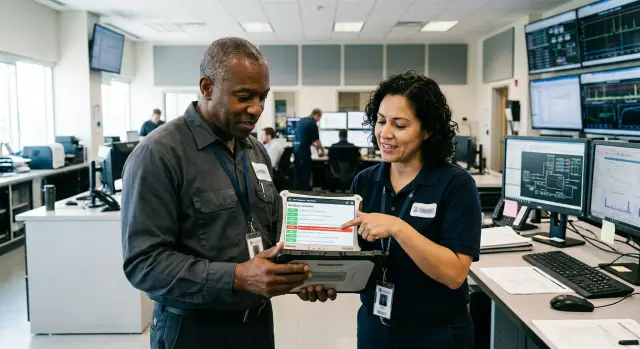
Shift changes happen when people have the least spare attention. One person wants to leave, the next needs to get started, phones ring, customers wait, and urgent issues interrupt conversations. A verbal update may cover the obvious task but miss the detail that changes what the next shift should do.
Consider a support desk. An agent promises to call a customer after checking a billing issue. If that promise exists only in a quick conversation, the next agent may see the open ticket but miss the deadline, the customer's frustration, or the manager already involved. The customer has to repeat the problem, and the team looks disorganized.
The stakes rise when missing information involves safety, equipment, or time-sensitive work. A warehouse worker may notice that a loading bay door sticks. If they do not record the warning clearly, the next shift could use the door before maintenance checks it. In healthcare, hospitality, manufacturing, and field service, unclear notes also cause duplicated work, missed checks, and poor decisions.
A handover checklist app gives updates one fixed home. It records what happened, marks what needs attention, stores supporting material when useful, and confirms that the incoming person received the information. Instead of relying on memory, the team has a dated record that names the person responsible for the next action.
A useful entry might say: "Order 1842 is packed but held for address confirmation. Call customer before 10:30. Photo of label attached." The next shift can see the status, required action, deadline, and supporting evidence. A priority label makes urgent items visible before routine notes.
The app does not need to replace a full project management system. Teams do not need long backlogs, complex roadmaps, or every conversation from every department at shift change. They need a short, reliable record of unfinished work and exceptions that the next person must know.
That boundary keeps the app practical during real handovers. Detailed work can stay in the ticketing, maintenance, or scheduling tool the team already uses. The handover record points to the immediate risk or task, captures context that might otherwise disappear, and records acknowledgment when the next shift takes over.
A handover record needs clear owners. If everyone can write or close it, the record soon becomes vague. Start by naming the people involved in one shift change: the outgoing worker, the incoming worker, and the supervisor who checks patterns or resolves missed items.
The outgoing worker creates the handover and records unfinished work before leaving. The incoming worker reads it, acknowledges it, and takes ownership of open tasks. A supervisor does not need to approve every entry, but should have access to the full record when a complaint, delay, or safety issue appears later.
Some teams need an extra reviewer. A support lead, for example, may check a handover when an urgent customer case has no clear owner. Limit that role to exceptions. Requiring a manager's approval for every normal shift change adds delay and encourages rushed notes.
One shared form works when people do similar work and need the same facts. A retail floor team might record customer issues, stock gaps, cash discrepancies, and open tasks. If every shift deals with the same kinds of issues, one form is easier to learn and maintain.
Separate forms make more sense when roles act on different information. A warehouse operator needs equipment status and loading delays. A customer support agent needs ticket numbers, promised follow-ups, and customer contact history. Forcing both groups into one long form leads people to skip fields or write notes in the wrong place.
Use a common core with role-specific sections. Most teams need the same basic details:
An AppMaster no-code operations app can keep the core handover record consistent while showing different fields to each role. This avoids duplicate spreadsheets and keeps each screen focused on the work people actually do.
Give the outgoing worker enough time to write useful notes. A practical rule is to open the record 30 to 60 minutes before shift end and allow edits until the worker submits it. When the shift ends, the app should mark an unfinished record as pending rather than quietly treating it as complete.
Set an acknowledgment deadline that matches the pace of work. A busy production line may need acknowledgment within 15 minutes of the new shift starting. A team with staggered remote schedules may allow an hour. If the deadline passes, notify the supervisor and keep the record visibly unacknowledged.
Keep records for items that may need follow-up: urgent work, incidents, missed deadlines, customer promises, equipment problems, attachments, and each person's submission or acknowledgment time. Casual observations do not all need permanent storage. Saving every minor comment makes later reviews harder.
A handover record should give the next person enough detail to take over without calling the previous shift for basic facts. Keep the form focused on actions, risks, and work that remains open. A long diary of the day hides urgent items.
Start with details that identify the handover: shift date and time, location, team, and outgoing worker. If one site has several areas, such as a warehouse, reception desk, and loading bay, include the specific area. The incoming worker needs to know exactly which work the notes cover.
Give each unfinished item its own entry instead of putting several tasks in one large text box. That makes the handover checklist app easier to scan and lets the team follow each item through to completion. Every open item should state:
"Delivery discrepancy" is too vague. "Delivery count differs from the order by six boxes. Supplier has been contacted. Check the revised manifest before 10:00" tells the morning shift what happened and what to do next.
Use a small priority choice that matches how the team already talks. "Urgent," "Today," and "Routine" work well for many teams. A security desk might use "Safety issue," "Needs follow-up," and "For information." Avoid numbered scales unless staff already use them, since one person's 2 can be another person's 4.
Keep context separate from the task itself. Context explains conditions that affect a safe or correct decision: a customer's access restriction, a machine noise that started during the shift, or a supervisor-approved temporary workaround. Staff can see the action first and open the added detail when they need it.
Allow attachments when they add proof or clarity. A photo of damaged stock, a signed delivery document, or a screenshot of an error can prevent a dispute later. Ask the outgoing worker to add a short caption so the incoming worker knows why the file matters.
Finish with acknowledgment for the next shift. Capture the incoming worker's name, the time they reviewed the notes, and any comment they add. An acknowledgment confirms that the person saw the handover. It does not turn an unresolved task into a completed one.
In AppMaster, these fields can sit in a simple handover form with separate records for open work items and attachments. That keeps the daily form quick while giving managers a clear history when an item carries into another shift.
The outgoing worker should start the handover before the last rushed minutes of the shift. They can open a new record while closing the shift, then add notes as they finish checks, speak with customers, or spot work that must continue.
Give every handover a clear date, shift name, location or team, and outgoing worker. Where possible, fill in the worker's name and current time automatically. This removes small typing tasks and makes the record easier to trace later.
Each unfinished item needs its own entry, not a vague note at the bottom of the page. The incoming worker must quickly see what needs attention, how urgent it is, and who owns the next action.
For each item, ask the outgoing worker to add:
Keep the action note short. "Customer reported a payment error" tells the next shift what happened. "Payment error on order 4821. Customer expects a call by 10:00 a.m.; billing team is checking the charge" gives them a usable starting point.
Attachments often prevent a second round of questions. Let workers add a photo of damaged equipment, a screenshot of an error message, or a document that explains a request. An optional caption is helpful. A photo called "IMG_0042" has little use during a busy morning.
When the outgoing worker completes the record, send it to the incoming shift. Allow edits until submission, then save a clear version of what they sent. If a late update is necessary, log it as an added note with a time and name instead of quietly changing the earlier record.
The incoming worker should see a short review screen first. Put urgent and high-priority unfinished work at the top, followed by normal notes and attachments. They can open an item, ask for clarification if the outgoing worker is still available, and confirm they understand the work.
Acknowledgment needs more than a checkbox. Save the incoming worker's name, the exact time, and a simple response such as "Reviewed" or "Reviewed with questions." If they select the second option, require a short note. This creates a useful record without forcing workers to write a formal report at every shift change.
A no-code operations app built in AppMaster can model this flow with separate handover, open-work-item, attachment, and acknowledgment records. Its visual business process editor can send the handover for review, notify the next team, and stop a record from closing before required details are present.
At 5:40 p.m., Maya is finishing an afternoon warehouse shift. A supplier's truck arrives late, so the team cannot put away all expected stock before the evening crew starts. During unloading, Maya finds four damaged boxes of coffee machines. One customer has also called twice about an order that should have left that day.
Maya opens the handover checklist app before leaving. She creates one record for the evening shift and writes a plain summary: 18 pallets remain on dock three, four coffee machine boxes have visible damage, and the customer order needs a call before 7 p.m. Clear language matters more than a long report when the next worker has minutes to get started.
She adds separate unfinished items so they do not disappear inside the notes:
Maya assigns a priority and named owner where possible. She marks the customer call as urgent and assigns it to Leo, who begins the evening shift. She attaches photos of the damaged cartons, the delivery receipt, and a screenshot of the customer order. Leo has something concrete to check instead of relying on a rushed verbal update.
Leo opens the record at 6 p.m. He reads Maya's summary, views the photos, and checks the delivery receipt against the pallets still on dock three. He can add a note if a detail seems wrong or missing. In this case, he accepts the handover and confirms that he owns the evening shift's open work. The app records his name and acceptance time.
At 6:25 p.m., Leo calls the customer and logs the agreed delivery date. He later updates the damaged-stock item after moving the boxes to the returns area. The pallet task stays open until his team completes it.
Two days later, the supplier disputes the damage claim. A supervisor searches the handover checklist app by delivery number or date. The record shows Maya's original notes, attached photos, Leo's acknowledgment, and each later update. That history answers who saw the issue, what they did, and when. It saves staff from reconstructing a busy shift from memory.
People often have only a few minutes to review work during a shift change. Put urgent unfinished items at the top of the handover screen, before routine updates or completed tasks. Use visible labels such as "Urgent," "Today," or "Monitor" so the incoming worker can decide where to start.
Each open item should answer one practical question: what should the next person do? Ask the outgoing worker for a short next-action note, not a long account of the whole shift. "Call the supplier at 8:30 about the delayed part" gives the next shift a usable instruction. "Supplier issue" does not.
A separate page full of files slows reviews. Place photos, PDFs, voice notes, or screenshots beside the task they support. A worker reviewing a damaged delivery should see the description, photo, and follow-up instruction together.
A simple item layout works well:
Limit required fields. Workers should record enough detail to prevent missed tasks, but the form should not feel like a report. A short text box, priority choice, due time, attachment button, and next-action field will cover most handovers.
Reading a handover and accepting responsibility are different actions. Show a distinct acknowledgment button after the incoming worker reviews open items. Label it plainly: "I have reviewed this handover." Record the person's name and time when they select it.
Do not treat opening the screen as acknowledgment. Someone may scan one item, get interrupted, and leave without seeing an urgent note. If work remains unacknowledged near the start of the next shift, flag it for a supervisor.
Supervisors need a compact view of late handovers, records that still lack acknowledgment, and urgent open work. They should see the shift, outgoing and incoming workers, overdue item, and current status without opening every record. That lets them act early instead of finding a gap after a task fails.
An AppMaster handover app can use status rules to move urgent work to the top, record acknowledgment, and give supervisors a filtered review screen. Keep the main screen focused on the next action, because that is what people need once the shift is moving.
A handover record helps only if the next person can act on it quickly and managers can check what happened later. Small design choices can turn a useful app into a pile of vague notes.
Do not let every worker invent priority words. One person may write "high," another "ASAP," and another "important." The next shift then has to guess which task needs attention first.
Use a fixed priority field with plain choices such as low, normal, high, and urgent. Add a short rule for each choice. For example, urgent could mean "needs action before the current shift ends or within one hour of the next shift starting." Consistent labels make sorting and reporting easier.
A shift should not close while an urgent item has no named owner. Show a clear warning and require the worker to assign the task to a person, team, or named next-shift role. This stops serious issues from sitting in a general notes field where nobody feels responsible.
Photos, documents, and screenshots can help, but an attachment alone creates confusion. A photo of a leaking pipe does not explain its location, whether someone shut off the water, or who called maintenance.
Ask the worker to add a short explanation with each attachment:
Do not count a sent notification or viewed record as proof that the next worker accepted the handover. People open alerts by accident, skim them while busy, or view a record before a break. The shift handover process needs active acknowledgment.
Require the incoming worker to confirm they reviewed urgent items, then capture their name and time. If they cannot take an item, let them add a note and reassign it. The team then has a clear record rather than an assumption.
Never overwrite an older handover to make room for a new one. Keep completed handovers searchable by date, location, team, priority, and item status. When a customer asks why a request took two days, or a fault returns, staff can see the original unfinished work record, attached evidence, and each acknowledgment.
An audit trail also protects workers. It shows what the outgoing shift reported, what the incoming shift accepted, and when the team closed the issue.
Start with one team, one shift pattern, and a short trial. A handover checklist app can look complete on a screen but fail when someone has two minutes left before clocking out. Ask the team to use it during real handovers for one or two weeks, then review the records together.
Every open item should show a clear status, priority, and next action. "Waiting for supplier reply" helps only when it also says who will follow up and when.
Test whether staff can mark work as open, in progress, blocked, or complete. Require a priority for every open item, and require a next action and named owner for unfinished work. Check that the incoming shift can acknowledge the full handover and that the app records the date and time.
Test attachments separately. Add a photo, document, or screenshot to an open task, then create several similar tasks. Workers should be able to open the correct file from the correct record without searching through a general upload folder. If an attachment changes, keep the earlier version or clearly show who replaced it.
The incoming team member should acknowledge the whole handover after seeing a summary of priority work, notes, and attachments. Their acknowledgment confirms they received the information. It does not mean they agree with every note or accept responsibility for work that belongs to someone else.
Supervisors also need a practical way to review history. Test searches and filters for date, team, open status, priority, and acknowledgment. A supervisor investigating a missed task should find the related record quickly, including who wrote it and who received it.
AppMaster is a practical option for building the first version without code. Create data fields for shifts, tasks, attachments, notes, and acknowledgments, then connect them with screens for outgoing staff, incoming staff, and supervisors. As the process settles, AppMaster can generate the backend, web app, and native mobile apps for the workflow.
Keep a short list of issues from the trial. Remove fields nobody uses, clarify labels staff misunderstand, and add details only when they solve a repeated problem. Once one team uses the handover checklist app consistently, copy the tested setup for another team and adjust it to fit that team's work.
 Who should create and acknowledge a handover?
The outgoing worker records unfinished work, risks, deadlines, and supporting files before leaving. The incoming worker reviews the record, acknowledges it, and takes ownership of assigned items. Supervisors review late, urgent, or unacknowledged handovers.
What information belongs in a shift handover?Include the shift time, location, outgoing worker, and separate entries for each open task. Each task needs a status, priority, next action, owner, and due time when one applies. Keep the summary short so urgent work does not get buried.
How should the app handle urgent tasks?Give urgent work a fixed label and a clear rule, such as action needed before the current shift ends or within an hour of the next shift starting. Put urgent items at the top of the review screen and alert a supervisor if nobody acknowledges them on time.
Is a checkbox enough for handover acknowledgment?No. A checkbox alone does not show who reviewed the information or when. Record the incoming worker's name, acknowledgment time, and a short comment when they select an option such as "Reviewed with questions."
Where should photos and documents appear in the app?Store attachments with the specific task they support, rather than in one general file area. Ask the outgoing worker to add a short caption that explains what the file shows, where it applies, and why the next shift needs it.
Should every department use the same handover form?Use separate forms when roles need different facts. Warehouse staff may need equipment and loading details, while support staff need ticket numbers and customer promises. Keep a shared core for shift details, open work, priority, ownership, and acknowledgment.
When should staff complete the handover?Open the handover 30 to 60 minutes before shift end so workers can add notes while they finish work. Let them edit it until they submit. If they leave it unfinished, mark the record as pending and show it to the supervisor.
How long should handover records stay available?Keep a searchable history of submitted handovers, later updates, attachments, and acknowledgments. Do not overwrite older notes. A dated history helps teams investigate delays, customer complaints, recurring equipment faults, and missed tasks.
How can we test a handover app before rolling it out?Start with one team for one or two weeks. Check whether staff can create an item quickly, find urgent work, attach the right evidence, and acknowledge the handover. Remove unused fields and fix confusing labels before you copy the setup to other teams.
Can I build a handover checklist app without coding?AppMaster lets you create records for shifts, open tasks, attachments, notes, and acknowledgments without writing code. You can build separate screens for outgoing staff, incoming staff, and supervisors, then use visual business processes for notifications, required fields, and status changes.
Experiment with AppMaster with free plan.
When you will be ready you can choose the proper subscription.
 Jul 14, 20268 min
 Jul 13, 20268 min
 Jul 08, 20268 min