


 Jul 14, 2026
 8 min
8 minEquipment reservation app: prevent conflicts and track returns
Plan an equipment reservation app that prevents double bookings, records returns and damage, and places faulty items on maintenance hold.

Plan a field issue reporting app that lets crews send photos, capture locations, save offline drafts, and update issue status with less typing.
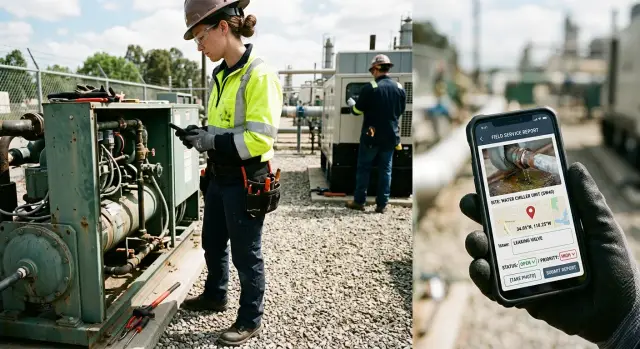
A field issue can start with a loose cable, damaged sign, or failed piece of equipment. The crew sees it immediately, but the person who can act may not hear about it for hours. Paper notes stay in a truck. A phone call leaves out details. Photos end up in a private message thread with no job reference.
That delay slows repairs. The office has to call back for the site, asset, urgency, or exact problem. By then, the crew may be elsewhere and the details are less clear.
Crews need a field issue reporting app that works at the moment they find a problem. A worker should be able to take a photo, confirm the location, choose an issue type, add a short note if needed, and send the report. Updating a status such as "New," "In progress," or "Resolved" should take a tap or two.
Long forms work against this habit. Someone in the rain, wearing gloves, or moving between jobs will not want to complete ten required fields. They may plan to finish later, then forget the asset number or lose the note. Required text boxes also produce vague entries such as "broken" when a photo and a simple category would tell the office far more.
A useful workflow asks only for details that affect the next action: a photo, location, issue type, urgency where appropriate, an optional note, and a clear status. The app should capture the reporter's name and submission time automatically. Asking people to enter information their phone already knows wastes time and creates errors.
Scattered channels create a second problem: nobody owns the full record. A supervisor may receive a call, a chat photo, and a follow-up text from another worker. Turning those messages into a repair request takes time, and urgent reports can disappear among routine conversations.
A single field app gives every issue one record. Dispatchers can see the photo, place, category, and current status together. Crews spend less time explaining what happened, while repair teams get enough context to decide what to do before they arrive.
A crew member should be able to submit a useful report in under a minute. Start with the smallest set of details that helps someone understand the problem, find it, and decide who should act.
For many teams, that means a photo, issue type, current location, status, and short note. A photo often explains a cracked pipe, blocked access route, or damaged sign faster than a long description. The note should add context the image cannot show, such as "Water is reaching the loading area" or "Gate will not lock."
Keep the first report focused on what the person on site knows:
Leave office work for the office. A technician should not need to assign a repair owner, estimate cost, or write a formal resolution. Managers can add those details after reviewing the report. This keeps mobile issue reporting quick while giving supervisors room to organize the work.
Make a field required only when the report cannot move forward without it. An issue type is usually necessary because it helps route the report. A photo may be required for damage claims, but it could slow someone reporting a safety concern in poor light. Notes should usually remain optional.
A simple rule helps: if a crew member must stop, search for information, or type more than a sentence, move that field to a later review step.
Test the form with a real example. Ask a crew member to report a broken fence while wearing gloves outdoors. If they hesitate over a field, rename it, remove it, or replace typing with a choice. The goal is enough evidence to act, without turning every issue into paperwork.
A crew member may have one hand free, bright sunlight on the screen, and a problem that needs attention now. The first screen should feel like a few taps, not an office form.
Put a large photo button near the top, then show a short set of issue types that match the work crews do. A maintenance team might choose "Damage," "Safety concern," "Equipment fault," or "Access problem." Avoid blank category fields. Workers should not have to guess which wording the office expects at a job site.
Keep the first screen focused on four actions:
Use visible status buttons such as "New," "In progress," and "Resolved." Make "New" the default for a report. A crew lead or supervisor can update it after assigning work. Buttons are often easier to use than a dropdown because the current state stays visible.
Notes still matter, but place them below the main actions and keep them optional. A prompt like "Add details if needed" works better than a large required text box. Someone can write "Water leaking near gate 3" when the photo needs context, then move on.
Each tap should lead to a real decision. If a field does not affect what happens next, remove it from the first screen and collect it later.
AppMaster can help teams create this kind of mobile interface with its visual UI builders and business logic tools. A team can build a short report form, connect photos and status changes to the same issue record, and adjust the screen after crews use it in real conditions.
Ask for location when it helps the repair team find a damaged asset, blocked access point, safety hazard, delivery problem, or completed work. A general supply request or shift note may not need it.
When a report does need a place, let the app request device permission once and capture current coordinates when the crew member starts or sends the report. Show a simple confirmation: a site name, address, or pin on a small map. The worker should not need to type coordinates or search for an address outside.
GPS can be inaccurate near tall buildings, inside warehouses, underground, or in poor weather. Give workers an easy way to correct it. They should be able to move the pin, search for a saved site, or select from known locations. Keep the automatic reading alongside the adjusted selection so a supervisor can see what changed.
Store more than a map point when it helps: the location source, capture time, selected site, and a short location note. "North loading bay" is more useful than a pin at the center of a large property.
For crews that visit the same places often, keep the choices tight. Use the device location for an incident found on site, select a saved customer or project, move the pin when needed, and add a landmark note only when the map cannot show the exact spot.
In AppMaster, teams can keep approved sites in the app's data model and place location capture beside photo and issue fields. That reduces repeated typing while leaving room to correct a bad GPS reading. For a warehouse leak, a crew member could take a photo, select "Bay 4," mark the pin near the loading doors, and send the report quickly.
Crews often work where the signal drops: basements, remote sites, and the far side of large facilities. The reporting workflow should save a draft on the device as soon as a crew member begins. Waiting until someone presses "Submit" is risky. A lost connection, app crash, or flat battery can turn a useful report into a second trip.
Treat the saved item as a draft until the system sends it successfully. Workers should be able to take photos, choose an issue type, add a note, and capture a location without service. The device keeps those details together instead of asking someone to remember them later.
Use plain labels that show where each report sits:
A small count on the home screen also helps. "3 waiting to upload" gives the crew a reminder before leaving a site with reliable reception.
When the device reconnects, completed reports should upload automatically where the app supports background sending. If several reports wait, send text and status first, then upload photos one at a time. A clear confirmation should remain in the report history with the report number, issue type, and time. The person who filed it may need to show that the office received it.
Test this under real conditions before rollout. Put a phone in airplane mode, create a report with several photos, close and reopen the app, then restore the connection. The report should remain intact and upload when the phone reconnects.
Issue types should match what crews encounter on a normal shift. Generic choices such as "Other" or "Problem" create messy records and force supervisors to read every note. Start with the incidents people report most often, then revise the list after a few weeks of use.
A site maintenance crew might use damaged equipment, safety hazard, blocked access, leak, missing material, and cleanup needed. A utility crew may need pole damage, meter issue, service outage, or excavation concern instead. Keep labels plain enough to scan quickly.
Avoid a long catalog. If people have to scroll through 25 types, they will choose the closest match or delay the report. Five to ten types usually provide enough structure at launch. If you include "Other," ask for a short note so the team can spot gaps in the list.
Give every new report a default status, usually "New." The person in the field only needs to report what they found. A supervisor can prioritize, assign, and schedule the work afterward.
Keep the status menu short:
Supervisors should be able to set an owner and due date from the report page. The owner needs a personal work list, while the reporter should see that someone has taken responsibility. This avoids the familiar "I thought someone else had it" problem.
Workers should also be able to make quick updates without rewriting the original report. A status change, short comment, and optional follow-up photo are often enough. A technician might report a leaking valve as "New" with two photos. After the repair, the repair lead can set it to "Resolved" and add a photo of the replacement part.
AppMaster can keep issue types in controlled lists, set "New" automatically on submission, and give supervisors a separate view for assignments and due dates. That keeps the crew workflow quick while managers maintain a clear queue of open work.
A maintenance crew arrives at a storage site for a routine visit. Near the entrance, a worker sees that a vehicle has bent the lower bar of a metal gate. The gate still closes, but it no longer locks properly.
The worker opens the reporting app and starts a new record. The site visit is already selected, so there is little to type. They choose "Damaged gate," take one photo of the full gate and another of the bent bar, then check the suggested map pin. A short note says, "Gate closes but latch will not catch."
The worker saves the report with the status "New." The site has weak signal, so the app keeps it as an offline draft with the photos, location, and time. The crew does not need to retry the form or write the details on paper.
When the phone reconnects, the report uploads. The supervisor sees the photos and location, assigns the repair, and changes the status to "Assigned." After the technician straightens the gate and replaces the latch, they add a completion photo and set the status to "Resolved."
The full record stays in one place: who reported the issue, where it occurred, when it was sent, who handled it, and the final result. A few taps at the gate replace a long explanation hours later.
A field reporting app fails when it asks a crew member to work like someone at a desk. A person beside a damaged sign, leaking pipe, or blocked access point needs to report the problem quickly, often with gloves on and a weak signal.
Long description fields are a common mistake. Keep the note optional and gather the facts through photos, issue type, location, and simple status controls. A worker can add "Water near valve" when needed, but the app should not demand a paragraph before saving.
Too many issue categories cause the same delay. If the first screen shows 25 labels, people will pause, choose the nearest option, or wait until later. Start with a small set that matches daily work, then refine it after the team has used the app.
Crews need to know whether the app kept their report. Show a clear draft label while the phone has no connection, upload progress when it reconnects, and confirmation after the report sends.
Keep status controls equally quick. Buttons such as "New," "In progress," and "Resolved" work better than a screen that asks people to type an update each time. Let users add detail only when the work requires it.
A report form that works on a new phone over office Wi-Fi proves very little. Test older phones, nearly full photo libraries, weak mobile data, brief connection drops, and large images.
Before rollout, check whether the app saves a complete draft if the connection drops during a photo upload, shows which reports still await upload, avoids duplicates when someone taps Save twice, and lets crews use the camera, location, and status controls with one hand.
Keep the first version narrow. Real crews will show where the friction is faster than a planning meeting can.
Test the app where crews work, not only at a desk with reliable Wi-Fi. Ask one or two workers to report a real minor problem, such as a damaged sign or leaking valve. Watch where they pause, tap the wrong control, or ask for help.
The first screen should focus on issue type, photo, optional note, and submission. Use large controls and sensible defaults. If workers must type a long description before saving, reports will arrive late.
Run a signal-loss test before release. Start a report, add a photo and location, then turn off mobile data. Confirm that the app saves the draft and clearly shows that it still needs to send. When the connection returns, workers should not have to enter anything again.
Check the supervisor view with the same care. Each record should show the attached photos, location, person responsible for the next action, and current status. Test the closing path too. A worker who fixed an issue should be able to open the assigned item, update its status, add a final photo if needed, and close it in a few taps.
If you build the app in AppMaster, test the mobile workflow on an actual phone after each change. Its visual screens and business process rules make it easy to add fields and approvals, but every extra step costs time in the field. Remove any field that does not help someone decide, assign, or confirm the fix.
Build the first version for one crew and one common job type. A week of normal use will show what needs attention. Ask workers to submit real reports during usual shifts, including photos, locations, and status changes.
Include only the details someone needs to understand and act on an issue: issue type, photo, location, optional note, and current status. If a supervisor cannot use a field to make a decision, leave it out for now.
A practical trial could involve five maintenance workers reporting site problems for five days. Review the reports with them afterward. Look for empty fields, repeated corrections, and labels that cause confusion.
Make direct changes based on what you find: remove fields crews skip, rename vague labels, combine issue types that people cannot tell apart, limit statuses to the updates the team uses, and confirm that offline drafts save and send correctly.
AppMaster suits a first build like this because teams can create the report data structure in the visual Data Designer, define report rules in the Business Process Editor, and build mobile screens without writing code. It can support a focused app with photo fields, coordinates, and statuses such as "New," "Assigned," and "Fixed."
Do not try to predict every exception before the trial. Crews may need a new issue type, while managers may find that two status labels mean the same thing. Revise the workflow after you see real reports. AppMaster regenerates applications when requirements change, which helps teams update the app without carrying old code forward.
After the trial, ask which screen took too long and which facts the office still had to request by phone. Fix those gaps, run another short test, and then expand to more crews.
 What details should a field issue report include?
Start with a photo, issue type, location, an optional note, and a default status such as "New." Capture the reporter and submission time automatically so crews do not type details the phone already knows.
How can crews submit reports faster?Keep the first screen to a few large actions: take a photo, choose an issue type, confirm the location, and submit. Put notes below those actions and make them optional.
Should the app capture location automatically?Use the phone's current location, then show a simple site name, address, or map pin for confirmation. Let workers correct a bad reading by moving the pin or choosing a saved site.
What should happen when there is no signal?Save the report as a draft on the device as soon as the worker starts it. The draft should keep photos, location, category, and notes together until the phone reconnects.
How do workers know an offline report was sent?Show plain labels such as Draft, Waiting to upload, Uploading, Sent, and Needs attention. A home-screen count of reports waiting to upload also helps crews check them before leaving a site.
How many issue types should we use?Begin with five to ten familiar categories that match common incidents, such as damage, safety concern, equipment fault, leak, or blocked access. Review real reports after a few weeks and adjust unclear or unused labels.
What status options work best for field reports?Use a short flow: New, Assigned, In progress, Resolved, and Closed. Make "New" the default, then let supervisors assign and schedule the work after they review the report.
Which fields should supervisors handle instead of crews?Ask workers to provide facts from the site, not office details. Supervisors can assign an owner, add a due date, estimate costs, and record formal resolution details later.
How should we test a field reporting app before rollout?Test it outdoors on real phones, with gloves, weak signal, large photos, and brief connection drops. Create a report in airplane mode, close and reopen the app, then reconnect and confirm that it uploads once without losing details.
What is the best way to launch the first version?Start with one crew and one common job type for about a week. Review where workers pause, which fields they skip, and what details the office still requests, then simplify the form before expanding.
Experiment with AppMaster with free plan.
When you will be ready you can choose the proper subscription.
 Jul 14, 20268 min
 Jul 13, 20268 min
 Jul 08, 20268 min