


 Jul 14, 2026
 8 min
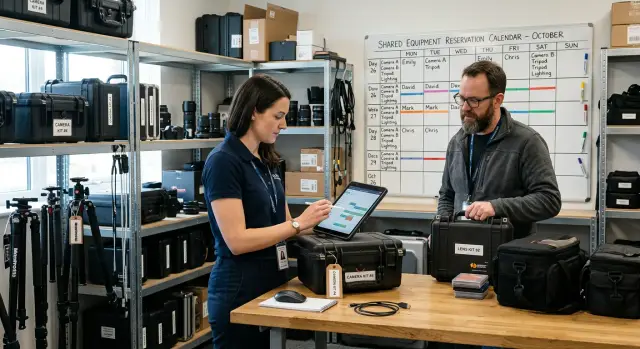
8 minEquipment reservation app: prevent conflicts and track returns
Plan an equipment reservation app that prevents double bookings, records returns and damage, and places faulty items on maintenance hold.

Design a business app for temporary staff with clear roles, guided tasks, limited access, and short training flows that help people start work faster.
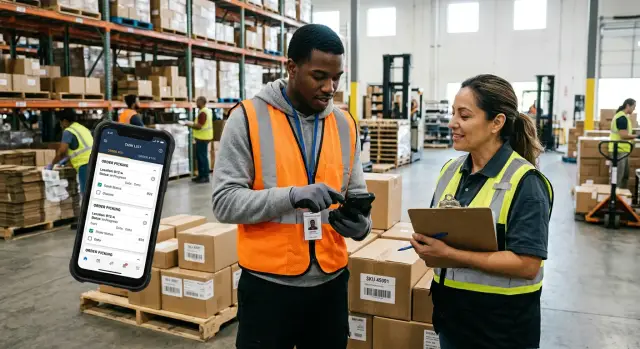
A business app for temporary staff should help someone complete today's shift, not teach them your whole company. Many temporary workers join for a few hours, a weekend, or a busy season. They need their schedule, assigned tasks, location details, and a clear way to report a problem.
A permanent employee can learn a large system over weeks. A first-day worker may check the app while standing at a venue entrance, stockroom, or service desk. If the home screen shows payroll settings, sales reports, customer records, and admin options, they must sort through information that does not help them do the job.
Plain language matters too. Internal labels such as "fulfilment exception" or "resource allocation" can confuse someone who has not heard your team's usual terms. Use "Report missing stock" or "Find your work area" instead. Short, direct labels reduce hesitation when a worker needs to act quickly.
Too much access creates another problem. A temporary worker rarely needs to change team schedules, download customer data, approve refunds, or edit company settings. Giving every user the same permissions increases the risk of accidental changes and exposes information they do not need.
A useful temporary staff app keeps the first screen focused on the current shift. It should show the start time, work location, supervisor contact, next task, required safety checks, and a clear option to ask for help or report an issue. Show only the records and actions needed for that role.
An event usher, for example, may need a guest check-in list and directions for visitors. They do not need ticket revenue, event setup tools, or the full staff directory. The app should open directly to their assignment and guide them through it.
This narrower experience helps workers start sooner and reduces mistakes. It also gives supervisors a clearer view of completed work because each person uses the same small set of actions for their role. AppMaster lets teams build separate screens, task logic, and permissions for each type of worker without writing code.
When the app matches the shift instead of the entire business, temporary staff can focus on serving customers, completing tasks, and getting help when they need it.
A business app for temporary staff works best when it follows the job rather than the company chart. List every person who will use it during a shift. A warehouse picker, front desk receptionist, event worker, and shift supervisor may work in the same operation, but each needs different screens and actions.
Keep role names practical. Use the terms workers hear on site instead of broad labels such as "operations" or "team member." If two people do different daily work, give them separate roles in the app.
For each role, write a simple shift outline: what the person does when they arrive, the work they repeat, and what they need to record before leaving. This makes it easier to decide which features belong in the app and which only add clutter.
A picker may need to view assigned orders and locations, scan or confirm each item, flag missing or damaged stock, mark an order ready for collection, and report that the shift is complete. A receptionist may instead check visitors in, view room bookings, issue passes, and contact a supervisor. Putting both sets of actions on one home screen creates hesitation. The picker should see orders first. The receptionist should see arrivals.
Temporary workers should record the work they complete. Supervisors should approve exceptions, change assignments, and view team status. Keep these responsibilities separate even when the same task moves between both people.
An event worker can report that a delivery arrived and attach a photo. The supervisor can confirm the delivery, assign its contents to an area, or reopen the report when details are missing. The worker does not need the full delivery log, staffing plan, or approval history.
This split makes mistakes easier to handle. The app can show a worker the next action while a supervisor sees items that need attention.
Do not start with a menu full of features. Use task notes to define a small set of screens for each role. For a first version, today's assignments, task details, an issue report, and a completion record may be enough.
AppMaster can help teams create role-specific views, connect them to business processes, and set permissions without code. Begin with tasks that happen every shift. Add less frequent requests, reports, and settings only when workers actually need them.
A business app for temporary staff should open on the work a person needs to do now. A shared dashboard creates clutter: a check-in worker sees inventory tools, while a stockroom worker sees guest lists. Those extra options slow people down and invite mistakes.
Give each role a focused home screen. A worker should recognize it within seconds and know where to tap first. Keep the layout consistent across roles, but change the tasks, alerts, and details to fit the job.
An event check-in worker might see today's shift time, a "Start shift" button, attendee lookup, and "Report issue." A stockroom worker might see delivery status, a restock list, and "Finish task." Neither person needs the other screen.
Place the next task near the top of the screen, where people can see it without scrolling. During a busy shift, temporary workers should not need to remember a sequence or search through tabs.
Use direct labels that describe the action:
Avoid labels such as "Operations," "Workflow center," or "Task management." They make users stop and interpret the screen. A clear verb tells them what happens after they tap.
Show only the details needed for that task. If a worker needs to confirm a delivery, show the order number, expected items, location, and a confirmation button. Keep supplier history, monthly reports, and account settings elsewhere.
Workers still need less frequent options such as profile settings, shift history, help, or language choice. Put these in a simple menu that stays in the same place on every screen. The menu should support the work rather than compete with it.
With a no-code platform such as AppMaster, a team can create separate screens for check-in, support, sales, or operations staff while using shared data and business rules. When a role changes, the team can update that role's screen without adding controls to every user's home page.
A good home screen answers one practical question: what should this person do next? If the answer takes more than a glance, remove or move something.
Temporary staff should see only what they need to finish today's work. A warehouse picker may need an assigned order list, item locations, and a way to report a missing product. They do not need payroll records, every customer's contact details, or controls for changing team schedules.
This keeps screens simpler, reduces accidental changes, and protects private information when people join for a single shift or short contract.
Start with the job, then list the records each person must view, edit, approve, or leave alone. Keep the first version narrow. Add access later when a real task requires it.
Temporary workers can view their own shifts, assigned tasks, and instructions. Team leads can assign tasks, check completion, and report attendance issues for their team. Supervisors can change schedules, approve timesheets, and view worker details needed for staffing. Administrators can manage roles, access rules, and company-wide settings.
Do not give supervisors full administrator access simply because they manage people. Schedule approval and user management are different jobs, so separate them where possible.
AppMaster can show a different home screen after each person signs in, based on their role. This lets teams create role-specific screens and business rules without asking temporary workers to sort through menus they will never use.
Set an end date when you create a temporary worker account. The app should remove access after the final shift unless a manager extends the assignment. Do not rely on someone remembering to disable accounts after a busy event or seasonal rush.
Use a separate test account for every role before launch. Sign in as a worker, team lead, supervisor, and administrator. Try common actions: open a shift, complete a task, approve a timesheet, and edit a worker record. If a worker can reach a supervisor screen, fix that rule before real staff use the app.
These tests catch the opposite problem too: a team lead may lack the one action needed to solve an issue during a shift. A short test with realistic accounts prevents delays and unwanted access.
Temporary workers often learn a process while they are already doing it. Guided task flows should keep the pressure low. Show one small action, explain it plainly, then move to the next screen. Do not put an entire procedure on one crowded form.
A shift check-in flow might start with "Select your location," then ask the worker to confirm their shift, complete a short safety check, and tap "Start shift." Each screen should have one clear purpose. A visible count such as "Step 2 of 4" helps people see how much remains.
Watch how someone completes the task in real life. Note each decision they make, each detail they enter, and each point where they stop to check something. Then turn those moments into screens.
A useful flow shows the task and context, asks for one action or answer, checks it before moving forward, and confirms completion. Keep choices concrete. Instead of asking a worker to write a long status update, offer options such as "Stocked," "Partly stocked," or "Cannot complete." If they choose the last option, the app can ask for a short reason and alert a supervisor.
Some fields cause repeat mistakes. Add a brief example directly below the field where workers need it. For a delivery reference, show "Example: DEL-10482." For a quantity field, state whether the worker should enter individual items, boxes, or cases.
Require information only when the next step depends on it. A missing incident description should block an incident report. A missing optional note about a routine task should not stop someone from finishing a shift. Too many required fields make a business app for temporary staff feel slow and punitive.
End every flow with a plain status message. "Inventory count sent to the supervisor at 3:15 PM" is clearer than a success icon. If the task needs review, say so: "Submitted. Your supervisor will check this report." Clear confirmation prevents duplicate submissions.
In AppMaster, teams can model these steps in the visual Business Process Editor and connect them to role-specific web or mobile screens. They can then update a task when the workplace process changes without rebuilding the whole app.
Temporary staff rarely have time for a long orientation, and most will forget a detailed tour before their first busy shift. A staff training app should teach the few actions a person needs on day one: log in, find assigned tasks, update task status, and ask for help.
Keep the first session to about 10 to 15 minutes. Save less common features for later, when the worker needs them. Someone checking guests into an event does not need training on inventory reports or manager settings.
A short practice task is easier to remember than a page of instructions. Use a realistic sample, but keep it separate from live work so new staff cannot accidentally change a real order, booking, or schedule.
A new warehouse picker could complete a practice assignment: open a pick list, confirm one item, report an item as unavailable, and submit the result. The app should explain each action in plain language as the person does it. Use the same labels, buttons, and status names that appear during a real shift. Supervisors should also be able to see whether a worker completed required practice.
Avoid quiz-style training unless a policy requires it. Watching someone choose the right button in a sample task tells you more than asking them to recall a rule from memory.
Long manuals fail when staff need an answer quickly. Put short help text next to unfamiliar fields and actions. A note beside "Report issue" can explain what details to add and when to contact a supervisor.
Give workers a visible help option on every main screen. It can open a brief instruction, display a contact method, or point to the right person on shift. Keep the wording specific: "Ask the shift lead if the customer is not on the list" is better than "Contact support."
People forget steps, especially when they work occasional shifts. Let them reopen training tasks from a help area without asking a manager to reset their account. AppMaster can support separate screens for practice tasks, live tasks, and role-specific help, so workers see guidance that fits the job in front of them.
Maya arrives at a conference venue for a one-day shift. She has never used the company's app and has ten minutes before doors open. A good business app for temporary staff gives her only the actions she needs for this shift.
On her phone, Maya sees a simple check-in screen. She confirms her name, taps "Start shift," and sees her assigned station: registration desk B. The screen also shows her start time, supervisor name, and a short dress code note.
The worker screen does not show the full staff schedule, payroll records, attendee contact lists, or notes from other stations. Maya does not need that information to do her job, and hiding it keeps the screen focused while protecting private data.
At registration desk B, the app gives Maya a short task flow. It explains how to greet guests, check a ticket, print a badge, and direct a guest with a problem to the help desk. She can mark a step complete or reopen it when she needs to check it again.
When Maya notices that badge holders are running low, she taps "Report an issue." The form already knows her station, so she selects "Supplies," chooses "Badge holders," and adds a brief note: "About 15 left." She can attach a photo if it helps explain the problem.
The supervisor sees a different screen with Maya's check-in status, station, and supply report. The supervisor can assign someone to bring more holders and send Maya a message: "More are on the way. Use lanyards from box two until then."
Maya sees only the message and instruction she needs. She cannot view staffing notes, reports from other workers, or the name of the person assigned to restock supplies.
If Maya gets stuck, a "Need help" button gives her two choices: message the supervisor or view the station guide. For an urgent safety concern, the app can display the event contact number and an instruction to call immediately.
At the end of the shift, Maya taps "End shift" and answers a short prompt about unresolved issues. The supervisor receives the update, and Maya's access to event details ends with her shift.
Many teams make a temporary staff app harder than the job by copying every screen, field, and permission from an office system. The app should help someone complete a shift with little explanation.
Temporary workers rarely need customer histories, payroll details, management reports, or company-wide settings. Extra access creates privacy risks and confusing menus. Give each person access only to the records and actions required for their assigned work.
A stockroom worker may need today's delivery list, item locations, and a way to report damaged goods. They do not need sales totals, schedules for other departments, or customer contact details. Role-based app permissions keep that boundary clear.
Long forms also slow people down, especially on a phone during a busy shift. Ask only for information someone can provide at that moment. A delivery check-in might need an order number, item count, and a photo of damage. It does not need ten optional notes and fields a manager can complete later.
Before keeping a field, ask which decision it supports. Remove fields that nobody uses.
Vague messages leave workers stuck. "Something went wrong" does not tell a person whether they lost connection, entered an invalid code, or lack permission. Write errors in plain language and give a clear next action.
Do not make workers complete a long training course before they can view their first task. They need immediate context: where to go, what to do, and who to contact. Show the first assigned task after a brief welcome, then place short tips inside the relevant screen.
A five-minute safety check may be necessary for some roles. Put it before the task only when the worker cannot safely begin without it. For everything else, show training when it helps the person act.
Run a realistic first-shift test before giving temporary staff access. Ask someone who did not help build the app to use it with only the instructions a new hire would receive. Watch where they pause, tap the wrong option, or ask for help.
The next action should be obvious within a few seconds. When a worker opens the app, show today's assignment first, such as "Check in at west entrance at 9:00" or "Restock aisle 4." Avoid a busy home screen with reports, settings, and tools they will not use.
Before launch, confirm that a new worker can find their next task quickly, each role sees only the required information and actions, and every task screen offers a clear way to report a problem. Run a full first-shift scenario, from sign-in through handoff.
Test more than the expected path. Give the test worker a changed shift, an unavailable item, or a task they cannot complete. Check that the app tells them who to contact and records enough detail for a supervisor to act.
Review permissions one more time. A worker may need to view a customer name and delivery note, but not payroll details, team schedules, or all customer records. Open each role with a test account and confirm that hidden information cannot appear through search, notifications, or an old bookmarked screen.
Test the supervisor's day as well. If ten people call in sick, the supervisor should be able to update assignments without editing every task by hand. In AppMaster, teams can model roles, screens, business processes, and access rules visually, then regenerate the application after a test reveals a needed change.
Record every point where testers hesitate. Fix the problems that block a shift before polishing colors or icons. The app passes its most useful test when a worker can check in, understand the job, report trouble, and complete the handoff.
A business app for temporary staff needs a trial before a full rollout. Ask a small group of new or recently hired workers to use it during a normal shift. Do not start with people who helped build the process. They already know what each label and button means.
Give each tester a real task, such as checking in, finding an assigned area, reporting a missing item, or marking work complete. Watch quietly at first. When someone stops, taps back and forth, or asks where to go, note the exact screen and action.
A short test often exposes problems office teams miss. A button called "Submit request" may make sense to a manager, while a worker expects "Report a problem." A five-field form may take only a minute, but it slows someone standing in a busy stockroom with one hand free.
Fix common pauses before adding features. Clear instructions, fewer fields, and a more obvious next button usually help more than a redesigned interface.
After each trial, note tasks workers could not finish without help, words or icons that caused confusion, and whether each role saw only the information it needed. Ask how long the first task took and where time went. Make one change, then test that task again with another new worker.
Do not ask only, "Did you like the app?" People often say yes to be polite. Ask "What did you expect this button to do?" or "What would you do next?" Their answers show whether the screen matches the work.
Temporary staffing processes change often. A venue may add a check-in rule, a warehouse may split one job into two roles, or a supervisor may need a new approval step. The app should adapt without forcing the team to start over.
With AppMaster, teams can keep roles, data, task logic, and mobile screens in one no-code project. Build an application for temporary staff, test it with a small group, then adjust permissions or guided task flows as the process changes. AppMaster regenerates the application when requirements change, which helps teams avoid carrying old code into a new workflow.
Repeat the trial after meaningful changes. When a new worker can complete a first shift with little help, the app is doing its job.
 What should temporary staff see when they open the app?
Show the current shift first: start time, location, supervisor contact, next task, and a clear way to report a problem. Hide reports, settings, and records that do not help the person complete today’s work.
Why should each temporary worker role have its own screen?Create separate roles when people do different daily work. A warehouse picker should open assigned orders and item locations, while an event check-in worker should open attendee tools and station instructions.
What labels work best for first-day workers?Use short labels that say exactly what happens after a tap, such as “Start shift,” “Scan item,” “Ask for help,” or “Report issue.” Replace internal terms that new workers may not understand.
What permissions should temporary workers have?Give workers access to their own shifts, assigned tasks, and instructions. Reserve schedule changes, approvals, staff records, and company settings for leads, supervisors, or administrators.
How do we remove access after a temporary assignment ends?Set an assignment end date when you create the account. Remove access after the final shift unless a manager extends it, rather than relying on someone to disable accounts later.
How should we design a guided task flow?Break the task into small screens with one action on each screen. Show progress such as “Step 2 of 4,” use concrete choices, and confirm what the app recorded at the end.
How can we keep task forms from slowing workers down?Ask only for details that affect the next step or help a supervisor act. For example, a damaged delivery report may need an order number, item count, and photo, but not a long set of optional notes.
How much training do temporary staff need?Keep initial training to about 10 to 15 minutes and focus on logging in, finding work, updating status, and getting help. Let workers practice with sample tasks that cannot alter live records.
Where should workers find help during a shift?Put a visible help option on every main screen. It should offer a short instruction, the right contact method, or role-specific guidance, such as telling a check-in worker when to call the shift lead.
How do we test an app before temporary staff use it?Test with people who did not build the app and give them realistic first-shift tasks. Watch where they pause or choose the wrong option, fix the most common blockers, then test again with another new worker.
Experiment with AppMaster with free plan.
When you will be ready you can choose the proper subscription.
 Jul 14, 20268 min
 Jul 13, 20268 min
 Jul 08, 20268 min