


 Jul 14, 2026
 8 min
8 minEquipment reservation app: prevent conflicts and track returns
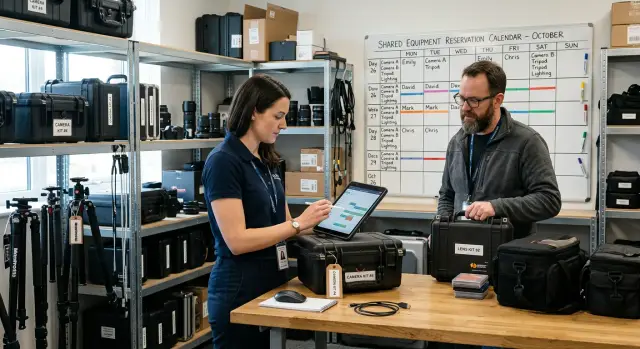
Plan an equipment reservation app that prevents double bookings, records returns and damage, and places faulty items on maintenance hold.

Learn how to avoid orphaned records in databases by defining owners, reassignment rules, archive actions, and clear escalation paths before launch.

An orphaned record still exists but no longer has a clear person or team responsible for it. This often happens when an employee leaves, a customer account changes hands, or teams merge. The data remains in the database, but work around it stops.
Consider a support ticket assigned to Maya. If an administrator deletes Maya's user account without moving her open tickets, those tickets can disappear from every agent's work queue. The customer waits for an answer while the support team assumes someone else owns the case.
Sales records create the same problem. A departing representative may own dozens of accounts, follow-up tasks, and quotes. Without a replacement owner, renewal dates pass and new enquiries sit untouched. Approval requests can also stall when they point to a manager who no longer works at the company.
The impact is practical:
To avoid orphaned records in databases, treat ownership as a rule that affects the whole app. A ticket may belong to an agent and a support team. An account may belong to a sales representative, while related invoices belong to finance. Define these relationships before people begin using the app.
A deleted user, an inactive user, and an archived record are different states. Deleting a user removes the account and can break links to records they owned. Marking a user inactive keeps the history but should stop the app from assigning new work to them. Archiving a record removes it from daily views while keeping it available for audits, reporting, or recovery.
For example, a completed support ticket can move to an archive after a set period. An open ticket owned by an inactive agent should move to a team queue or named replacement instead. That distinction stops records from becoming invisible when someone needs to act.
Define ownership before building forms or automations. For every record, decide whether a named employee, a team, or a system process is responsible for the next action. A customer support ticket may belong to an agent. A sales account may belong to a territory team. A scheduled import may belong to a system account.
List the records where an owner affects work. Common examples include customers, leads, deals, tasks, support cases, approvals, orders, and internal requests. Records that do not need action may not need an individual owner, but they can still need a team or system owner for reporting and error handling.
Do not assume that the creator is the current owner. Those roles often differ. A coordinator might enter a lead after an event while a sales representative handles the follow-up. When the history matters, store both fields: "Created by" identifies who entered the record, and "Current owner" identifies who must act now.
Use one source of truth for every ownership field. If the sales screen stores an account manager while the support screen stores a separate contact owner, staff will eventually see conflicting names. Keep the ownership field on the main record and display that field wherever the record appears. This helps avoid orphaned records in databases when staff leave or teams change.
Shared ownership needs boundaries. A label such as "Sales and support" sounds flexible but can leave both groups waiting for the other to respond. Assign one person or team responsibility for the next action, even when several people can view, edit, or contribute to the record.
Write the definition beside the field in plain language. For example: "Current owner is the person responsible for the next customer contact." That sentence gives builders a clear rule and gives staff a consistent way to assign work.
In a business app database design, ownership is a relationship that needs checks. The app should prevent users from selecting an inactive employee as an owner and show a fallback owner when a team has no active members. AppMaster can model these relationships in its Data Designer and apply the same ownership rule whenever users create or update a record through business processes.
Start with records, not pages. A screen can look tidy while the data behind it has unclear connections. Draw a simple map of the records your app needs, then connect each child record to the record that owns or explains it.
In a customer support app, a customer may have many tickets. Each ticket may have notes, tasks, attachments, and messages. The ticket is the parent for those work records, while the customer provides wider context. This map helps prevent orphaned records before anyone creates forms or dashboards.
Keep reference records apart from records that describe active work. Products, service categories, regions, and status labels are shared reference data. A ticket, sales opportunity, invoice, or internal request describes a specific event or piece of work.
A ticket can point to a product category, but the category does not own the ticket. If an administrator removes a category, the app should ask staff to choose a replacement category for affected tickets. It should not remove the tickets with it.
Write down each relationship in plain language. A small table or sketch is enough:
Some links must always exist. A support note without its ticket loses its meaning, so require that connection. Other links can remain empty for a short time. A new task might wait in an unassigned queue until a manager chooses an owner.
Make this distinction explicit in your business app database design. For every relationship, decide whether staff can leave it blank, whether the app fills it automatically, and what happens when the related record changes. Clear database record ownership makes reassignment, archiving, and reporting less prone to errors.
Build screens only after the map holds up. Forms can then require the right fields, hide irrelevant choices, and stop staff from creating records that nobody can trace later.
Every new record needs an owner when it enters the app. This includes records created through a staff form, customer portal, spreadsheet import, or automated workflow. If the app leaves ownership blank, even briefly, follow-up can slip through the cracks.
Set a default owner for each record type. A support request might go to the support queue, while a new sales lead might go to the sales operations team. A default does not always mean one person. A shared queue is often safer until the app can apply a clear assignment rule.
Use rules that match how people already work:
Save the reason for the assignment. A lead record could say, "Assigned to North sales because the customer selected Ontario." This helps a manager check whether the rule worked and gives staff a starting point when they need to correct it. Keep the assignment reason separate from informal comments so people can report on it later.
Some records will not match any rule. A form may omit a location, an import may contain an unfamiliar product code, or everyone in a queue may be unavailable. Do not leave these records ownerless. Send them to a monitored exception queue with a status such as "Needs assignment," and give a named team responsibility for checking that queue each business day.
Ownership rules should run as part of the same action that creates the record. In AppMaster, a visual business process can create the record, select an owner or queue, store the assignment reason, and notify the responsible team. The process should finish only after it assigns a valid owner or places the record in the exception queue.
This prevents missing tasks and unanswered customer requests before they become a cleanup job.
Staff changes can leave open work without a clear owner within hours. A sales representative resigns, a support agent joins another team, or a manager starts parental leave. Each event needs a written rule that states who takes over, what moves, and how quickly they must act.
Transfer active records, not every record ever created. An active sales opportunity, unresolved support ticket, approval request, or task due this month needs a new owner. Closed deals and completed tickets can remain connected to the former employee if the app keeps that history.
Set a backup owner for every team before someone is away. This can be a named colleague, team lead, or shared queue with a manager responsible for sorting it. Avoid assigning everything to a generic account. People often assume somebody else will pick up work there.
A reassignment rule should state:
Keep the former owner's name in record history. The current owner needs to know who last spoke to the customer, and managers may need an audit trail. Do not overwrite the old value without saving it elsewhere. A history entry such as "Owner changed from Maya Patel to Jordan Lee on 12 June due to team transfer" provides context without confusing current responsibility.
Set deadlines based on urgency. A manager might review high-priority tickets and opportunities within one business day, while lower-priority records can wait three business days. If the deadline passes, notify the manager or route the record to an escalation queue.
AppMaster teams can model the current owner, previous owner, transfer reason, priority, and review deadline in the Data Designer. A Business Process can move eligible records after a staff status change and create a review task for the manager. The rule stays visible in the app instead of living only in a handover spreadsheet.
Deletion feels tidy, but it often removes context that a team needs later. A closed customer request can explain a billing decision. An old supplier record may support a past purchase. Before launch, decide which records people may close, archive, or delete, and give each action a clear meaning.
Use closing when work has ended but the record still belongs in normal history. For example, a support agent closes a resolved ticket. Staff can read the ticket and its messages, but they cannot add a reply unless they reopen it.
Archive records that no longer belong in daily work but may matter for reporting, audits, or a later dispute. An archived account should disappear from default lists and search results, while authorized staff can still find it with an archive filter. Keep the owner, creation date, status history, related files, and reason for archiving. Those details answer a common question months later: who made this decision and why?
Delete only records with no legal, operational, or reporting use. Temporary drafts, duplicate test entries, and accidentally created blank records are typical candidates. Block deletion when a record has payments, completed work, signed documents, or other linked history.
An archive status needs rules behind it. If staff can keep adding tasks, changing amounts, or assigning the record to someone else, the archive label means little. Lock normal edits and stop automated reminders or follow-up tasks for archived items.
Allow a limited set of controlled actions:
A manager or administrator should usually decide who can restore records.
Write down how long each archive remains available. The period can differ by record type. A completed internal request may need less time than a customer account with transaction history. When the period ends, a designated administrator can review the record for permanent deletion under company policy.
In AppMaster, teams can model statuses such as Active, Closed, and Archived in the Data Designer. Business Process rules can block edits and hide archived data from daily screens, turning written policy into consistent app behavior.
Ownership rules will still meet awkward cases. A customer may belong to a team that no longer exists, an employee may leave before handover, or an import may create records without an owner. These records need a visible destination and someone responsible for sorting them.
Create a named exception queue, such as "Unassigned customer records" or "Ownership review." Send every record with no valid owner there automatically. Avoid a generic inbox that everyone can see but nobody feels responsible for.
Assign a manager or small operations group to review the queue. The app should record why each item entered it, when it arrived, and who last reviewed it. This history stops the same record from moving between people without a decision.
Set different review times for different records. A new support ticket with no owner may need attention within an hour, while an inactive supplier contact can wait several business days. Base the deadline on the cost of delay rather than one blanket rule.
For example:
When a deadline passes, notify a named manager. If that manager does not act, send the item to a second person or team after a defined interval. Keep the chain short. Long approval ladders leave customers waiting.
Staff often spot mistakes first. Give them a simple "Report assignment issue" action on each record. Ask for a short reason, such as "wrong territory" or "customer changed provider," then move the record to the exception queue without removing its history.
In AppMaster, you can model the queue with a status and owner field in the Data Designer. A Business Process can set deadlines and send email, SMS, or Telegram notifications. Staff report the issue through the app interface, and the process sends it to the right reviewer.
A clear escalation path keeps records active while people resolve uncertainty. It also gives managers a measurable list to review instead of a hidden pile of unowned business data.
A sales representative gives notice on Friday. They own 38 customer accounts, 11 open quotes, and several draft quotes. If the team simply deactivates their user account, those records can disappear from daily work queues or lose a clear owner. Small gaps quickly become missed renewals and unanswered customer requests.
The sales manager should begin with accounts that still need attention. The app can assign every active account to the territory team lead. That lead keeps responsibility until assigning each account to a new representative. This keeps database record ownership clear during a staff change, even when hiring takes time.
Open quotes should follow the account, not the departing representative. If an account moves to the North territory lead, its open quotes move there too. The new owner can see deal history, contact details, and the next action without searching through the former representative's records.
Draft quotes need a different rule. A draft with no customer contact, no planned follow-up, and no recent update may not deserve further work. The manager can archive it rather than delete it. Archived drafts remain available for reference, but they do not crowd active sales lists or trigger reminders.
Some accounts will have no territory data. Send these records to a manual review queue and notify the sales operations manager. That person checks the customer location, account notes, and current contract before assigning an owner. The app should show who handles the review and when they must finish it.
In AppMaster, a Business Process can check account status and territory when an administrator marks a representative as departing. It can reassign records, archive eligible drafts, and create a review task for exceptions. Each action leaves a clear trail instead of creating orphaned records.
Ownership rules can look fine on a diagram and fail in the first busy week. A short test round exposes gaps before real customer requests, invoices, or support cases get stuck under an inactive employee.
Use a copy of realistic data where possible. Create users with different roles, then give them records with related items: an account with contacts and deals, or a project with tasks and attachments. Test ordinary work as well as awkward edge cases.
Records enter through more than the main create form. Staff may import a spreadsheet, an integration may add a lead, or an automated process may create a support ticket overnight. Check that every route assigns an owner or sends the record to a shared queue.
Run a small set of checks:
An imported lead without an assigned sales representative should go to the sales queue rather than sit with an empty owner field. Empty ownership is often harder to spot than an error message.
Deactivate a test user who owns active work. Confirm that the app lists their records, transfers them to the chosen replacement or queue, and preserves the previous owner in the record history when the team needs that context. Then log in as the replacement and make sure they can open and update the transferred work.
Also try to archive a parent record that still has active child records. A customer account with open tickets should trigger the action your rules require: block the archive, archive related records, or ask a manager to decide. The app should never quietly leave child records without a usable parent.
Finish with a permission review. A regular employee may need to change an owner within their team, while only a manager can move work between teams or reassign records from a departed colleague. Test these limits with real role accounts, not only an administrator account.
AppMaster can help teams build these checks into a business app. Use business processes to require an owner, route unassigned work to a queue, and block archive actions when related records still need attention. Test the same processes before publishing the app, then fix the rule instead of relying on staff to remember it.
A business app needs a final ownership review before real work begins. Run it with the people who manage sales, support, operations, and user accounts. Each important record must still have a person or team responsible for it when staff roles change.
Use a test copy of realistic records where possible. Create a customer, deal, support request, invoice, and internal task. Then check what each screen shows after you change an owner's status.
Ask staff to perform these checks without help from the person who built the app. If a manager cannot transfer 30 open customer requests in a few minutes, the rule may exist only on paper. The app needs a clear action, a confirmation message, and a record of who made the change.
Test permissions as well. A support agent may need to see an archived case but should not reopen it. A department lead may reassign work within their team but should not move a sensitive record to an unrelated group.
In AppMaster, build these checks into the app's business processes and test them before deployment. Add an exception queue for records with no valid owner, then make its status visible to the person assigned to clear it. A queue nobody reviews only hides the problem until a customer or colleague notices it.
Write ownership rules before building the workflow. Keep the wording plain enough that a manager, support agent, and developer would make the same decision. For example: "Each customer account has one active account owner. When that person leaves, the sales manager assigns a replacement within one business day. The former owner remains in read-only history."
Turn every rule into fields, statuses, and actions in the app. An account record might need an owner, team, assignment date, and archive status. A reassignment action should require the new owner and create a timestamped record of who made the change. This gives staff a clear process instead of a spreadsheet workaround.
AppMaster helps teams create this kind of internal app without writing the application by hand. Use the Data Designer to model accounts, contacts, tasks, and their relationships. Then use the Business Process Editor to route reassignment requests, check whether a new owner exists, and alert a manager when a request waits too long.
A practical first version can include an unowned-records list, a reassignment form that requires a reason, an archive action that preserves history, a manager queue for exceptions, and a report showing overdue assignments.
Review that report often during the first few weeks. If records collect in the manager queue, find the cause. One team may receive too many transfers, a manager may lack permission to assign work, or the app may accept an archive without checking open tasks.
Adjust the routing rules, then test the changed path with realistic staff changes. Create an account, assign tasks and contacts, remove the owner, reassign the account, and confirm every related record still appears where staff expect it.
The goal is not to predict every exception. Give people a visible place to handle exceptions before customer history, work items, or responsibility disappear. Build and test the workflow in AppMaster before releasing it to staff, so daily ownership changes remain routine.
 What is an orphaned record?
An orphaned record remains in the database after it loses a valid person, team, or parent record. For example, an open ticket may still point to an employee whose account was deleted, leaving nobody responsible for replying.
Why can deleting a user cause problems?A deleted user can break ownership links and remove work from normal queues. Mark the user inactive first, transfer active records, then keep their past activity in the record history.
How do I stop new records from becoming unowned?Give every record one current owner, a shared queue, or a named fallback team when it enters the app. Apply the rule to forms, imports, customer portals, and automated workflows.
When should I use a shared queue instead of one owner?Use a team queue when the app cannot choose one person safely. Assign a manager or operations group to review that queue on a fixed schedule and move each item to a valid owner.
Should the record creator always be the owner?Store both when you need the history. "Created by" shows who entered the record, while "Current owner" shows who must take the next action.
What should move when an employee leaves?Transfer active work such as open tickets, live opportunities, due tasks, and pending approvals. Keep closed records linked to the former employee when that history helps staff understand past decisions.
How can I keep reassignment history?Keep the former owner in a history entry, along with the new owner, transfer date, and reason. Staff can then see who last handled the record without confusing past ownership with current responsibility.
When should I archive a record instead of deleting it?Archive records that no longer belong in daily work but may matter later for reporting, audits, disputes, or recovery. Delete only drafts, duplicates, and similar records that have no operational or legal value.
What happens when no assignment rule matches?Use a named exception queue for every record without a valid owner. Record why it entered the queue, set a review deadline, and alert a named manager if the deadline passes.
What should I test before launching the app?Test manual entry, imports, integrations, and automated processes. Also deactivate a test user, try to archive parents with active child records, and confirm the right roles can reassign or restore records.
Experiment with AppMaster with free plan.
When you will be ready you can choose the proper subscription.
 Jul 14, 20268 min
 Jul 13, 20268 min
 Jul 08, 20268 min