


 Jul 14, 2026
 8 min
8 minEquipment reservation app: prevent conflicts and track returns
Plan an equipment reservation app that prevents double bookings, records returns and damage, and places faulty items on maintenance hold.

What changed email digest design helps teams summarize record updates with smart batching, relevance rules, and clear next actions to reduce notification fatigue.
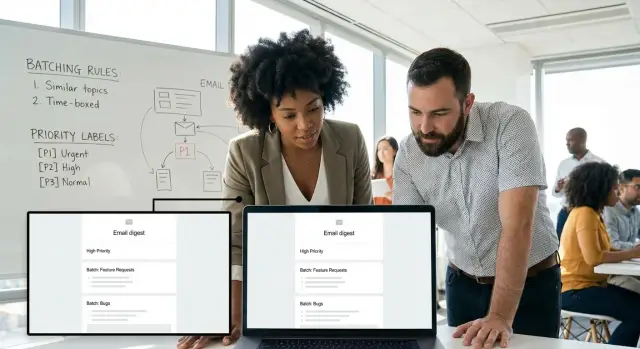
Many products start with good intentions: every time a record changes, send an email. Then the volume creeps up. A deal gets reassigned, a ticket gets another comment, a status flips twice in a day, and suddenly people have dozens of “update” emails. The result is predictable: inbox rules, mute buttons, and important changes getting missed because everything looks the same.
A “what changed” digest is a scheduled summary that groups many small record updates into one message. Instead of interrupting someone all day, it answers a simple question: what changed since the last time you checked, and what (if anything) needs your attention?
The goal isn’t just fewer emails. It’s higher signal. A good digest helps readers spot meaningful changes, understand why they matter, and take a clear next step. If a change doesn’t affect a decision, a task, or a customer, it usually shouldn’t compete for attention.
Teams use digests in places like CRM records (deals, accounts, pipeline stage moves), support tickets (status changes, SLA risk, customer replies), inventory and orders (stock drops, backorders, shipment updates), approvals (requests waiting too long, decisions made, exceptions), and internal ops records (handoffs, escalations, policy acknowledgments).
A digest also sets expectations. It’s not a real-time alert system. If something is truly time-critical (fraud, production outage, security access, a VIP customer escalation), it needs an immediate notification with a clear owner.
Digests work best for the “important but not urgent” layer: lots of small movements that matter in aggregate. When the summary arrives at a predictable time (daily, weekly, or per shift), people learn to trust it, scan it quickly, and act on it. That trust is what keeps notification fatigue from creeping back in.
A good what changed email digest design starts with one decision: who is this digest for? If you try to serve everyone with one email, you end up with a long, noisy summary that nobody trusts.
Most teams have a few clear recipient groups. Record owners need the items they’re accountable for. Assignees need what they must do next. Watchers want awareness, but not every tiny edit. Managers usually want trends and exceptions, not a full play-by-play.
Next, be strict about what a “record” is in your digest. Pick record types that match real work, like support tickets, customer accounts, orders, tasks, or invoices. Mixing unrelated record types in the same email gets confusing unless the reader’s job truly spans them.
Define what counts as a change in plain language. A status change is usually important. A new comment might matter if it includes a question or blocks progress. A field update is often important only for specific fields (for example, “due date” or “priority”), while others are mostly noise.
Be just as clear about what should never be emailed. Auto-updates destroy trust fast. If a system updates “last viewed,” recalculates a score, or syncs a timestamp, readers shouldn’t see it.
A practical way to lock scope before you build anything:
A concrete example: for managers, a ticket digest might include only “new high priority,” “breached SLA,” and “stuck for 3+ days.” For assignees, it might include “assigned to you,” “customer replied,” and “due date moved up.” Same system, different scope.
If you’re building on AppMaster, this scope definition maps cleanly to your data model (record types) and business logic (what counts as a change) before you ever design the email.
Batching is the difference between a digest people trust and a digest they mute. The goal is simple: group changes into predictable bundles, sent at times that match how people work.
Start by choosing a cadence that fits the urgency of the records. A sales team might want quicker updates than a finance team closing the month. Common options are hourly (only for truly time-sensitive records), daily (most common), weekdays-only, per time zone (send “morning” in the recipient’s local time), or event-triggered with a minimum gap (send at most once every X hours).
Then define the batching window in plain terms. People should understand what “today’s digest” includes. A clean rule is: “Changes made from 9:00 to 8:59 are included in the next 9:05 digest.” Pick one cutoff time, document it internally, and keep it stable so the digest feels predictable.
Quiet hours matter as much as cadence. If you send at 2 a.m., you create an unread pile that competes with real morning work. A good default is to hold non-urgent digests overnight and send shortly after local business hours start. If you support multiple time zones, compute the send time per recipient, not per company, unless the company explicitly wants a single shared schedule.
Spikes are where batching plans break. A big import, a workflow run, or a busy support day can turn a digest into a wall of text. Put a hard cap on items per email and carry the rest into the next digest window. Keep the behavior intentional and visible: cap the number of records (for example, 25), add a “+X more updates queued” line, keep rollover order stable (newest-first or highest-priority-first), and merge multiple changes on the same record into one entry that shows the latest state plus a short change count.
Idempotency is the quiet hero. Digests often rerun after retries, deploys, or queue delays. Your batching logic should be safe to run twice without sending the same update twice. One practical approach is to store a digest run ID and the event IDs it included, then check before sending.
If you build this in AppMaster, keep the rules as explicit fields (cadence, quiet hours, cap, time zone mode) so you can adjust them without rewriting the whole flow.
A digest only works if most items feel “for me.” If readers keep seeing low-value changes, they stop trusting the email, even when a truly important update shows up. Relevance rules matter more than layout.
Think in signals, not guesses. The strongest signals usually come from who the record belongs to and what changed. Ownership (I own it, I’m assigned, it’s in my queue) is a strong signal. Direct mention (someone @mentioned me or replied to my comment) is another. Priority and impact signals include severity, SLA breach risk, VIP customers, and revenue at risk. Status movement (Open -> Pending -> Resolved), reopening, and escalation are usually high-signal. Timing can matter too: it changed since my last digest, and it changed more than once (an activity spike).
Before you reach for complex math, use a simple three-level score: High, Medium, Low. Give each signal a few points and pick a threshold per bucket. High goes into the digest headline area, Medium goes into the main list, and Low is hidden by default or grouped.
Some changes should always be included, even if the score is low. These are “you can’t miss this” events, and they should override batching and thresholds:
On the other side, some changes are rarely worth a personal alert. Treat them as grouped items, or suppress them unless they pile up: formatting edits, auto-populated system fields, “viewed” markers, minor metadata tweaks.
Personalization is where relevance becomes real. A manager might want a higher threshold (only High, plus always-include), while a frontline agent might want Medium included for their own records. Start with role-based defaults, and let people tune one simple control: “More detail” vs “Only important.”
Concrete example: a support lead gets a digest that includes escalations and reopened tickets (always-include), but routine tag edits only appear as “12 tickets had tag changes.” An agent sees any status change on tickets assigned to them as Medium, because it affects what they do next.
Good digest emails feel predictable. People should understand what happened, how much changed, and whether they need to act before they even open it.
Your subject line should answer two questions: how many changes, and for what time window. Keep it short and consistent so it stands out in a crowded inbox.
Examples that work well:
Use preview text to name the top one or two highlights, not a generic intro. For example: "2 high priority tickets reopened. 1 customer escalated." If your system can rank items, the preview should match the top-ranked changes.
Inside the email, keep the block order the same every time. Readers learn where to look and stop scrolling.
A layout that scans fast:
For each update line, lead with the record name, then the change, then the impact. Example: "Ticket #1842: Priority low -> high (customer waiting 3 days)." If you include actions, label them clearly as buttons or bold text, but keep them limited so the email doesn’t become a menu.
Make the “why you got this” visible near the top, not buried in the footer. A small line like "You are receiving this because: Assigned to you" reduces confusion and unsubscribes.
Scannable is also accessible. Use short lines, clear headings, and whitespace.
A few rules that hold up:
If you’re building this in AppMaster, the same structure maps cleanly to a template: generate highlights first, then render grouped updates from your database query, and always include the reason line based on the user’s subscription rules.
People open a digest to answer one question fast: what should I do next? The summary needs to be short, but it also has to preserve details that change decisions.
A reliable pattern is to group by record first, then list the changes inside that record. Readers think in terms of “this ticket” or “that deal,” not “all status changes in the system.” Start each record with a one-line headline that captures the net effect, then add the supporting changes.
When it helps scanning, add a light second grouping by change type inside the record. Status, assignment, and new comments are usually the highest-signal categories. Noise (auto-updated timestamps, view counts, minor formatting edits) shouldn’t take up space in the email.
Practical rules that keep detail without clutter:
Before/after values help, but only when they’re easy to read. Show them for a small set of fields where the direction matters. Use a compact format like “Priority: Low -> High” and avoid repeating unchanged context. For text fields (like descriptions), a full diff is usually too heavy for email. Instead, summarize: “Description updated (2 lines added)” and include only the first sentence of the newest note if it’s short.
A concrete example for a support team digest:
If you build digests in AppMaster, treat these as display rules, not just data rules. Store raw change events, then generate a human summary per record at send time. That keeps the email readable while preserving an audit trail when someone needs the full history.
A good digest starts as a simple pipeline: capture changes, decide who should know, group them, then send one clear message. Build it in small steps so you can test each part.
Decide which event types count as “a change” (status moved, owner changed, new comment, file added). Then convert every event into the same shape so later steps stay simple: record ID, change type, who changed it, timestamp, and a short “before -> after” summary.
Keep the text small and consistent. For example: “Priority: Low -> High” is better than a paragraph.
Start with the obvious recipient rules: record owner, watchers, and role-based groups (like “Support leads”). Add filters early so you don’t notify the wrong people, such as “don’t email the person who made the change” or “only notify if the record is in my team’s queue.”
If you build internal tools in AppMaster, this maps cleanly to database relations (owner, watchers) and simple logic in a visual Business Process.
Relevance doesn’t need to be fancy. A simple points system is enough: status changes might be high, minor field edits low, and repeated edits within minutes even lower. Then add hard rules like “always include payment failures” or “never include typo fixes.”
Choose a batching window (hourly, daily, weekdays-only). Within each window, merge similar items so one record doesn’t take over the email. Dedupe in a way that fits your data (often record ID + change type) and keep the latest summary.
A practical payload usually includes the recipient ID and digest window, top changes (high relevance), other changes grouped by record, a short count (“12 updates across 5 records”), and an idempotency key so retries don’t resend duplicates.
Render a template that matches the payload and send it. Then log exactly what you sent (recipient, time, record IDs, change IDs). This log is your safety net when someone says “I never got it” or “why am I seeing this?”
Give people one or two controls: digest frequency and the ability to mute a specific record. Even this small choice reduces complaints and keeps trust high.
Notification fatigue usually isn’t caused by “too many emails.” It happens when people open one digest, feel it wasted their time, and stop trusting the next one.
The fastest way to get there is sending an “everything changed” dump with no prioritization. If every field update looks equal, readers have to sort it in their head, and they won’t do that twice.
Another common problem is letting system churn dominate the digest. Auto-updated timestamps, sync markers, “last viewed,” or background status pings create noise that pushes real work off the screen. If it doesn’t change a decision, it shouldn’t be in the main summary.
Over-personalizing too early also backfires. When rules differ from person to person and aren’t visible, two teammates compare digests and see different stories. That creates confusion (“Why didn’t I get that?”) and support requests. Start with simple, team-wide rules, then add personal tuning with clear controls.
Length is a silent killer. Long emails often happen because the same header repeats for every tiny update, with no grouping by record, customer, or owner. Readers end up scrolling past boilerplate instead of seeing the few items that matter.
A digest also needs an escape hatch. If users can’t mute a record, reduce frequency, or set quiet hours, they’ll use the only control they have: unsubscribe or spam.
Finally, don’t break trust with bad counting. Wrong totals (“12 updates” but only 6 shown), missing a critical change, or showing an update that never happened teaches people to ignore the digest.
Five mistakes to watch for before you ship:
If you’re building this in AppMaster, keep your change tracking and counting logic in one place (for example, one Business Process that produces the digest rows). That reduces “missing update” bugs when the UI, database, and email template evolve at different speeds.
Before you ship your digest, open a real sample email and do a 10-second scan. If you can’t answer “why did I get this?” immediately, readers will treat it like spam, even if the content is useful.
Quick checks that usually decide whether a what changed email digest design earns trust or creates fatigue:
A practical test: pick one power user and one casual user, then replay a week of real changes. If both can spot the important updates without scrolling and can reduce frequency when it gets noisy, you’re ready to launch.
A customer support team has about 200 open tickets at any time. Agents need to know what changed on the tickets they own, while a manager needs the big picture: what is stuck, what is escalating, and where the workload is shifting. The old setup sends an email for every update, so people start ignoring all of them.
A digest design that fixes it starts by triggering on a small set of changes that matter in daily work: a status change (for example, “Waiting on customer” to “Needs reply”), reassignment (ticket owner changes), and mentions (someone @mentions an agent or team in an internal note). Everything else still gets recorded, but it doesn’t automatically create email.
Batching stays simple and predictable. Most changes land in one morning digest sent at 8:30 AM local time. Urgent exceptions break through immediately, but only when they cross a clear threshold, like:
Relevance rules change what each person sees. The same underlying updates produce different summaries. An assigned agent gets full detail on their tickets (latest customer message snippet, next required action, who mentioned them, and what changed since yesterday). The team manager gets a rollup view (counts by status, list of tickets at risk, top reassignment movements, and only the most important notes).
The email itself stays scannable. Put the action list first (tickets needing reply today), then the risk list (SLA/urgent), then FYI (reassignments, mentions, and closed tickets). Each ticket entry shows only the delta: what changed, when, and what to do next.
Before: agents get 30 to 80 emails a day, miss the one reassignment that mattered, and follow-ups slip. After: most people get one morning digest plus rare urgent alerts. Follow-ups happen faster because the email points to the next action, not a wall of noise.
To prototype this quickly, you can model tickets, events, and recipients in AppMaster, then implement batching and relevance rules in workflow logic. Once it looks right, generate and deploy the backend and email workflow, and adjust thresholds based on real “ignored vs acted on” behavior. For teams that want full control over where the app runs, AppMaster also supports deployment to major clouds or exporting source code for self-hosting via appmaster.io.
 What is a “what changed” email digest, and when should I use one?
A digest is a scheduled summary that groups many small record updates into one message. Use it when changes are frequent but not time-critical, and people mainly need a predictable check-in they can scan quickly.
How do I decide what records and changes belong in the digest?Start by picking one recipient group and one clear job-to-be-done for the email, like “help assignees act” or “help managers spot exceptions.” Then include only the record types and change types that directly affect that job, and suppress auto-updates and low-value fields.
What’s a good default cadence for digests (hourly vs daily vs weekly)?Daily is usually the best default because it matches how most teams plan work. If people miss important moves between digests, shorten the window, but keep a stable cutoff time so everyone understands what “today” includes.
How should I handle quiet hours and multiple time zones?Send shortly after the recipient’s local workday starts and avoid overnight delivery for non-urgent updates. If your users span time zones, schedule per recipient so the digest arrives at a consistent “morning” moment for each person.
What do I do when there are too many updates for one email?Set a hard cap on how many records appear, and carry the rest into the next window so the email doesn’t become unscannable. Merge multiple changes on the same record into one entry that shows the latest state, so bursts don’t flood the message.
How do I prevent duplicate updates if the digest job retries?Make each digest run safe to retry by tracking what events were included and ensuring the same event can’t be sent twice. A simple approach is storing a digest run identifier and the event IDs it contained, then checking that log before sending.
How do I rank updates so the digest feels relevant to each reader?Use a small set of strong signals first: relationship to the record (owner/assignee/watcher), meaningful change types (status, assignment, due date, priority), and risk indicators (SLA, VIP, revenue). A simple High/Medium/Low score is usually enough to keep the top of the email relevant.
Should managers and frontline users get the same digest?Assignees typically need actionable detail on their own records, while managers usually want trends and exceptions rather than a play-by-play. Create separate digest scopes or views per role, even if the underlying change events come from the same system.
Which updates should bypass the digest and send immediately?Treat truly critical events as immediate alerts with a clear owner, not as digest items. If you must include them in the digest, they should be prominently surfaced and never suppressed by scoring or caps.
How can I implement this digest pipeline in AppMaster without overcomplicating it?Capture raw change events, then generate a human summary per record at send time so you can merge multiple edits into one readable entry. If you’re building on AppMaster, model records and change events in the database, implement batching and scoring in a Business Process, and keep digest settings as explicit fields so you can tune behavior without rebuilding the whole flow.
Experiment with AppMaster with free plan.
When you will be ready you can choose the proper subscription.
 Jul 14, 20268 min
 Jul 13, 20268 min
 Jul 08, 20268 min