


 Jul 14, 2026
 8 min
8 minEquipment reservation app: prevent conflicts and track returns
Plan an equipment reservation app that prevents double bookings, records returns and damage, and places faulty items on maintenance hold.

Use this Vue 3 admin UI performance checklist to speed up heavy lists with virtualization, debounced search, memoized components, and better loading states.
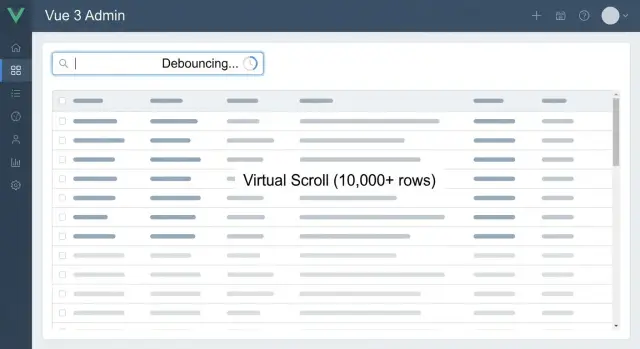
Users rarely say, "this component is inefficient." They say the screen feels sticky: scrolling stutters, typing lags, and clicks land a beat late. Even when the data is correct, that delay makes people hesitate. They stop trusting the tool.
Admin UIs get heavy fast because lists aren't "just lists." A single table can include thousands of rows, lots of columns, and custom cells with badges, menus, avatars, tooltips, and inline editors. Add sorting, multiple filters, and live search, and the page starts doing real work on every small change.
What people usually notice first is simple: scrolling drops frames, search feels behind your fingers, row menus open slowly, bulk select freezes, and loading states flicker or reset the page.
Under the hood, the pattern is also simple: too many things re-render too often. A keystroke triggers filtering, filtering triggers a table update, and every row rebuilds its cells. If each row is cheap, you get away with it. If each row is basically a mini app, you pay for it every time.
A Vue 3 admin UI performance checklist isn't about winning benchmarks. It's about keeping typing smooth, scrolling steady, clicks responsive, and progress visible without interrupting the user.
The good news: small changes usually beat big rewrites. Render fewer rows (virtualization), reduce work per keystroke (debounce), keep expensive cells from re-running (memoization), and design loading states that don't make the page jump.
If you tune without a baseline, it's easy to "fix" the wrong thing. Pick one slow admin screen (a users table, ticket queue, orders list) and define a target you can feel: fast scrolling and search input that never lags.
Start by reproducing the slowdown, then profile it.
Record a short session in the browser Performance panel: load the list, scroll hard for a few seconds, then type into search. Look for long tasks on the main thread and repeated layout/paint work when nothing new should be happening.
Then open Vue Devtools and check what actually re-renders. If one keystroke causes the entire table, filters, and page header to re-render, that usually explains input delay.
Track a handful of numbers so you can confirm improvements later:
Finally, confirm where the bottleneck is. A quick test is to reduce network noise. If the UI still stutters with cached data, it's mostly rendering. If the UI is smooth but results arrive late, focus on network time, query size, and server-side filtering.
Virtualization is often the biggest win when an admin screen renders hundreds or thousands of rows at once. Instead of putting every row in the DOM, you only render what's visible in the viewport (plus a small buffer). That cuts render time, lowers memory use, and makes scrolling feel steady.
Virtual scrolling (windowing) is best when users need to scroll through a long dataset smoothly. Pagination is better when people jump by pages and you want simple server-side queries. A "Load more" pattern can work when you want fewer controls but still avoid huge DOM trees.
As a rough rule:
Virtual lists work best when each row has a predictable height. If row height changes after render (images loading, text wrapping, expanding sections), the scroller has to re-measure. That leads to jumpy scroll and layout thrash.
Keep it stable:
Example: if a ticket table shows 10,000 rows, virtualize the table body and keep row height consistent (status, subject, assignee). Put long messages behind a details drawer so scrolling stays smooth.
A search box can make a fast table feel slow. The problem usually isn't the filter itself. It's the chain reaction: each keystroke triggers renders, watchers, and often a request.
Debounce means "wait a moment after the user stops typing, then act once." For most admin screens, 200 to 400 ms feels responsive without feeling twitchy. Also consider trimming spaces and ignoring searches shorter than 2 to 3 characters if that fits your data.
Filtering strategy should match the dataset size and the rules around it:
When you call the server, handle stale results. If the user types "inv" and quickly finishes "invoice," the earlier request might return last and overwrite the UI with the wrong data. Cancel the previous request (AbortController with fetch, or your client's cancellation feature), or track a request id and ignore anything that isn't the latest.
Loading states matter as much as speed. Avoid a full-page spinner for every keypress. A calmer flow looks like this: while the user is typing, don't flash anything. When the app is searching, show a small inline indicator near the input. When results update, show something subtle and clear like "Showing 42 results". If there are no results, say "No matches" instead of leaving a blank grid.
Many slow admin tables aren't slow because of "too much data." They're slow because the same cells re-render again and again.
Repeated updates often come from a few common habits:
When props and handlers change identity, Vue assumes the child might need to update, even if nothing visible changed.
Start by passing smaller, stable props. Instead of passing an entire row object into every cell, pass row.id plus the specific fields the cell shows. Move derived values into computed so they only recalculate when their inputs change.
If part of a row rarely changes, v-memo can help. Memoize static parts based on stable inputs (for example, row.id and row.status) so typing in search or hovering a row doesn't force every cell to re-run its template.
Also keep expensive work out of the render path. Pre-format dates once (for example, in a computed map keyed by id), or format on the server when it makes sense. A common, real win is stopping a "Last updated" column from calling new Date() for hundreds of rows on every small UI update.
The goal is straightforward: keep identities stable, keep work out of templates, and update only what actually changed.
A list often feels slower than it is because the UI keeps jumping around. Good loading states make waiting predictable.
Skeleton rows help when the shape of the data is known (tables, cards, timelines). A spinner doesn't tell people what they're waiting for. Skeletons set expectations: how many rows, where actions will appear, and what the layout will look like.
When you refresh data (paging, sorting, filters), keep the previous results on screen while the new request is in flight. Add a subtle "refreshing" hint instead of clearing the table. Users can keep reading or double-checking something while the update happens.
Not everything needs to freeze. If the table is loading, keep the filter bar visible but temporarily disabled. If row actions need extra data, show a pending state on the clicked row, not the whole page.
A stable pattern looks like this:
Reserve space for toolbars, empty states, and pagination so controls don't move when results change. A fixed min-height for the table area helps, and keeping the header/filter bar always rendered avoids page jump.
Concrete example: on a ticket screen, switching from "Open" to "Solved" shouldn't blank the list. Keep the current rows, disable the status filter briefly, and show the pending state only on the updated ticket.
Pick one slow screen and treat it like a small repair. The goal isn't perfection. It's a clear improvement you can feel in scrolling and typing.
Name the exact pain first. Open the page and do three things: scroll fast, type in the search box, and change pages or filters. Often only one of these is truly broken, and that tells you what to fix first.
Then work through a simple sequence:
After each step, re-test the same action that felt bad. If virtualization makes scrolling smooth, move on. If typing is still laggy, debounce and request cancellation are usually the biggest next win.
Imagine a "Users" table with 10,000 rows. Scrolling is choppy because the browser is painting too many rows. Virtualize so only the visible rows render.
Next, search feels delayed because every keystroke triggers a request. Add a 250 to 400 ms debounce, and cancel the previous request with AbortController (or your HTTP client's cancellation) so only the latest query updates the list.
Finally, make each row cheap to re-render. Keep props simple (ids and primitives when possible), memoize row output so unaffected rows don't redraw, and show loading inside the table body instead of a full-screen overlay so the page stays responsive.
Teams often apply a couple of fixes, see a small win, then get stuck. The usual reason: the expensive part isn't "the list." It's everything each row does while it renders, updates, and fetches data.
Virtualization helps, but it's easy to cancel it out. If each visible row still mounts a heavy chart, decodes images, runs too many watchers, or does expensive formatting, scrolling will still feel rough. Virtualization limits how many rows exist, not how heavy each row is.
Keys are another quiet performance killer. If you use the array index as a key, Vue can't track rows correctly when you insert, delete, or sort. That often forces remounts and can reset input focus. Use a stable id so Vue can reuse DOM and component instances.
Debounce can backfire too. If the delay is too long, the UI feels broken: people type, nothing happens, and then results jump. A short delay usually works better, and you can still show immediate feedback like "Searching..." so users know the app heard them.
Five mistakes that show up in most slow list audits:
If you're using a Vue 3 admin UI performance checklist, treat "what re-renders" and "what refetches" as first-class problems.
Use this checklist when a table or list starts to feel sticky. The target is smooth scrolling, predictable search, and fewer surprise re-renders.
Most "slow list" issues come from rendering too much, too often.
:style="{...}"). Create them once and reuse them.Make the list feel fast even when the network isn't.
A support team keeps a ticketing screen open all day. They search by customer name, tag, or order number while a live feed updates ticket status (new replies, priority changes, SLA timers). The table can easily hit 10,000 rows.
The first version technically works, but it feels awful. While typing, characters appear late. The table jumps to the top, scroll position resets, and the app sends a request on every keypress. Results flicker between old and new.
What changed:
After debouncing, typing lag disappeared and wasted requests dropped. Keeping previous results stopped flicker, so the screen felt stable even when the network was slow.
Virtualization was the biggest visual win: scrolling stayed smooth because the browser no longer had to manage thousands of rows at once. Memoizing the row prevented "whole table" updates when a single ticket changed.
One more tweak helped the live feed: updates were batched and applied every few hundred milliseconds so the UI didn't reflow constantly.
Outcome: steady scroll, fast typing, and fewer surprises.
A fast admin UI is easier to keep fast than to rescue later. Treat this checklist as a standard for every new screen, not a one-time cleanup.
Prioritize fixes users feel most. Big wins usually come from reducing what the browser has to draw and how quickly it reacts to typing.
Start with the basics: reduce DOM size (virtualize long lists, don't render hidden rows), then reduce input delay (debounce search, move heavy filtering off each keystroke), then stabilize rendering (memoize row components, keep props stable). Save tiny refactors for last.
After that, add a few guardrails so new screens don't regress. For example, any list over 200 rows uses virtualization, any search input is debounced, and every row uses a stable id key.
Reusable building blocks make this easier. A virtual table component with sensible defaults, a search bar with debounce baked in, and skeleton/empty states that match your table layout do more than a wiki page ever will.
One practical habit: before merging a new admin screen, test it with 10x data and a slow-network preset once. If it still feels good then, it will feel great in real use.
If you're building internal tools quickly and want these patterns to stay consistent across screens, AppMaster (appmaster.io) can be a good fit. It generates real Vue 3 web apps, so the same profiling and optimization approach applies when a list gets heavy.
 What’s the fastest first fix for a slow Vue 3 admin table?
Start with virtualization if you render more than a few hundred rows at once. It usually gives the biggest “feel” improvement because the browser stops managing thousands of DOM nodes during scroll.
How do I tell if the slowdown is rendering or the API?When scrolling drops frames, it’s usually a rendering/DOM problem. When the UI stays smooth but results arrive late, it’s usually network or server-side filtering; confirm by testing with cached data or a fast local response.
What does “virtualization” actually change in a table?Virtualization renders only the visible rows (plus a small buffer) instead of every row in the dataset. That reduces DOM size, memory use, and the amount of work Vue and the browser do while you scroll.
Why does my virtualized list feel jumpy or unstable?Aim for a consistent row height and avoid content that changes size after render. If rows expand, wrap, or load images that change height, the scroller has to re-measure and can become jumpy.
What debounce delay should I use for admin search?A good default is around 250–400 ms. It’s short enough to feel responsive, but long enough to avoid re-filtering and re-rendering on every keystroke.
How do I prevent stale search results from showing up out of order?Cancel the previous request or ignore out-of-date responses. The goal is simple: only the most recent query is allowed to update the table, so older responses can’t overwrite newer results.
What typically causes unnecessary re-renders in table rows?Avoid passing large reactive objects when only a few fields are needed, and avoid creating new inline functions or objects in templates. Once props and handler identities stay stable, use memoization like v-memo for row parts that don’t change.
How can I stop formatting (dates, currency) from slowing down the table?Move expensive work out of the render path so it doesn’t run for every visible row on every UI update. Precompute or cache formatted values (like dates and currency) and reuse them until the underlying data changes.
What loading state makes heavy lists feel faster?Keep the previous results on screen during refresh and show a small “updating” hint instead of clearing the table. This avoids flicker, prevents layout jumps, and keeps the page feeling responsive even on slower networks.
Do these Vue 3 performance tips apply if I build the admin UI with AppMaster?Yes, the same techniques apply because AppMaster generates real Vue 3 web apps. You still profile re-renders, virtualize long lists, debounce search, and stabilize row rendering; the difference is you can standardize these patterns as reusable building blocks across screens.
Experiment with AppMaster with free plan.
When you will be ready you can choose the proper subscription.
 Jul 14, 20268 min
 Jul 13, 20268 min
 Jul 08, 20268 min