


 Jul 14, 2026
 8 min
8 minEquipment reservation app: prevent conflicts and track returns
Plan an equipment reservation app that prevents double bookings, records returns and damage, and places faulty items on maintenance hold.

Build a time tracking to invoice app that captures project hours, turns them into invoices, and generates branded PDF files for clients.
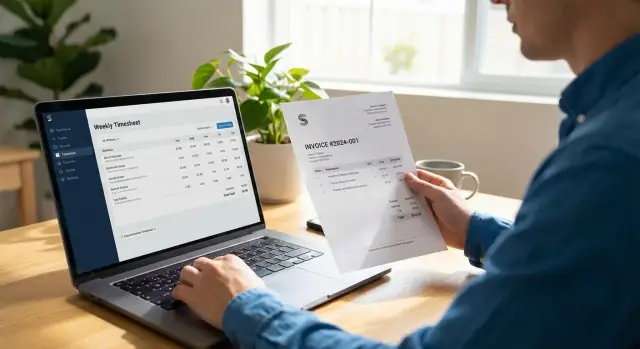
A time tracking to invoice app fixes a common mess: hours end up scattered across calendars, chats, and notes. Then invoice day arrives and someone has to reconstruct the month by hand. That’s where mistakes show up: missed billable time, wrong rates, duplicate lines, or totals that don’t match.
This app is for anyone who bills by the hour and wants a repeatable process: freelancers juggling clients, agencies with multiple people logging time to the same project, and internal teams that charge time back to clients or departments.
The goal is practical: capture time entries by project, roll them up into an invoice record, and generate a branded PDF the client can understand. When that workflow is reliable, invoicing stops being a monthly scramble.
Keeping “simple first” usually means:
A small scenario: a two-person studio tracks time for “Client A - Website Updates.” Each person logs entries during the week. On Friday, you create an invoice for that project and date range, the app turns entries into invoice lines, and the PDF is ready to send without retyping anything.
If you’re using a no-code platform like AppMaster, get the data and workflow right before adding extras like receipts, multi-currency, discounts, or approvals. Those are easier to add once the core flow is fast, accurate, and hard to break.
A small first version gets you to “sendable invoices” sooner. Focus on three things: capture time, turn time into clear invoice lines, and produce a PDF the client can read without follow-up questions.
Start with a few core records (you can rename later, but the structure matters): Client, Project, Time Entry, Invoice, and Invoice Line.
Keep your invoice workflow simple with a single status field on the Invoice record. Draft, Sent, and Paid covers most teams for a long time.
Your must-have actions should match what happens every week:
“Branded” doesn’t mean fancy. It means consistent and trustworthy: logo, business details, invoice number and dates, clear totals, and payment instructions.
What to leave out at first: taxes, discounts, multiple currencies, and attachments. They’re useful, but they introduce edge cases (rounding, jurisdiction rules, exchange rates, file storage) that slow down the first release.
A time tracking to invoice app lives or dies by its data model. Keep it small and predictable so totals always match what you promised the client.
A minimal set of tables usually looks like this:
Rates are where apps get messy. Pick one approach and stick to it: per project rate, per person rate, or fixed per task/service.
Even if you store a default rate on the project or person, copy the actual rate into each time entry as rate_at_time when the entry is created (or approved). That prevents surprises when rates change later. Invoices should reflect what was true when the work happened.
For time entries, you can often skip a separate status and rely on whether invoiced_invoice_id is empty or not. For invoices, keep statuses tight: Draft, Ready, Sent, Paid (and add Void if you need a clean cancellation state).
In AppMaster, the Data Designer maps cleanly to PostgreSQL and makes it easier to keep relationships clear without duplicating fields everywhere.
Time capture is where the app either feels effortless or gets ignored. Keep the first version boring and fast: one screen, one primary action, and as few choices as possible.
Choose one capture method to start. Manual entry usually wins early because it works for everyone and is easy to review. A timer can come later once you’ve learned how people actually track their day. If you add a timer, still allow manual edits for missed stops.
Make the fields that protect billing quality required:
Decide rounding rules early because they affect trust and totals. A common approach is 6-minute increments (0.1 hour). Be clear about whether you round each entry or the daily total. Rounding each entry is simpler to explain and audit.
If more than one person touches billing, add a lightweight approval step. A practical rule: once approved, entries are locked for edits by default. If something must change, require a manager role to reopen it and record who changed it and why.
The roll-up is where raw logs become invoice lines a client can understand. Keep the rules simple and repeatable so you can trust every invoice you generate.
Start with one action: pick a client and a date range, then pull only unbilled time entries that match. That filter is the guardrail that prevents double invoicing. If an entry is missing a client or project, treat it as “not ready to bill” and keep it out of the roll-up until it’s fixed.
Grouping determines how many lines you create and how easy it is for the client to review. Pick a default, and add one optional switch if you need flexibility.
Common grouping options:
Whatever you choose, each line should show: a clear label, total hours, rate, and line amount. If rates can change, use the rate_at_time saved on each entry (or a rate table with “effective from” dates), not a single “current rate.”
When you add entries to an invoice, store the invoice ID on each time entry. That creates an audit trail and prevents the same entry from being pulled again.
Corrections happen. If you remove a line from an invoice, don’t delete history. Unlink the affected time entries (clear invoice ID), recalculate totals, and store a short note like “Removed 2.0h, wrong project.”
In AppMaster, this fits well as a single business process: query unbilled entries, group them, create invoice lines, then update each entry with the invoice reference.
The invoice record is the container you can send, track, and audit later. It should remain stable even if someone edits a project name or changes a default rate.
A practical invoice header includes:
Keep totals predictable. Subtotal is the sum of invoice lines. Then apply discount (fixed amount or percent), calculate tax (often on the discounted subtotal), and store the final total. Save the exact tax rate and discount values used so you can reproduce the invoice later.
Invoice numbering doesn’t need to be fancy. Pick a pattern and stick to it: sequential (000123), per year (2026-00123), or client prefix plus sequence (ACME-014). Consistency matters more than perfection.
Status should stay focused on communication and internal control:
A good invoice PDF answers two questions quickly: what is being billed, and how to pay. Generate the PDF from the invoice record (not from raw time entries) so the document always matches the invoice number, totals, and status.
Most clients expect the same blocks every time:
Branding matters, but readability matters more. Keep one accent color, use a clean font, and make totals easy to scan.
Layout issues show up with real data. Test with long descriptions and 30+ line items. Make sure column headers repeat on new pages and the totals block stays together.
If you’re generating PDFs in AppMaster, treat the PDF as an artifact of the invoice: save the file (or storage reference) on the invoice record with a generated timestamp and version. That makes it easy to resend the exact document the client saw.
Decide what’s “source of truth.” Time entries are raw facts. Invoices are a snapshot you can send and audit later.
Create the tables and relationships, then add a few quality fields once the basics are stable:
Keep the UI minimal:
A web UI is usually enough for admin and reviews. Add mobile screens later if people log time on the go.
Build a flow like: select client + date range, fetch unbilled entries, group them, create invoice lines. Mark entries as billed only after the invoice is approved or moved to Ready.
Add a “Generate PDF” action that pulls invoice header, client details, and lines into a template, then saves the output to the invoice record.
A 3-person agency has one client, Northstar Co, and bills for two projects over two weeks: Website Refresh and Monthly Support. The team is Alex (design), Priya (dev), and Sam (PM). Everyone logs time daily, choosing the client, project, date, and a short note.
Each day, entries are saved as Draft. On Friday afternoon, Sam opens a review screen filtered to “This week, Northstar Co”. He fixes two notes (“Homepage hero” instead of “Hero”), confirms billable vs non-billable, and locks the week.
Here’s a sample of entries that week:
| Date | Person | Project | Hours | Note |
|---|---|---|---|---|
| Mon | Priya | Website Refresh | 2.5 | Header layout fixes |
| Tue | Alex | Website Refresh | 3.0 | New homepage mock |
| Tue | Sam | Monthly Support | 1.0 | Client call |
| Wed | Priya | Website Refresh | 4.0 | Contact form logic |
| Thu | Alex | Monthly Support | 1.5 | Banner update |
| Thu | Priya | Monthly Support | 2.0 | Email template tweak |
| Fri | Sam | Website Refresh | 1.0 | QA and handoff |
When Sam clicks “Create invoice”, the app rolls entries into invoice lines using simple rules: group by project and billable rate, sum hours, and bring over a short description. The invoice ends up with 3 lines:
| Line | Description | Qty | Rate | Amount |
|---|---|---|---|---|
| 1 | Website Refresh (Design) | 3.0 hrs | $120 | $360 |
| 2 | Website Refresh (Development/PM) | 7.5 hrs | $140 | $1,050 |
| 3 | Monthly Support | 4.5 hrs | $110 | $495 |
The system assigns an invoice number (like NS-2026-014), calculates subtotal and tax, and sets status to Ready. One more click generates a branded PDF (logo, client address, line details, totals, payment notes). After sending, the status updates to Sent and the underlying time entries are marked invoiced so they can’t be billed twice.
Most problems aren’t math problems. They’re workflow problems.
Not locking billed time entries. If people can edit or reselect the same entries for a new invoice, double billing eventually happens. Fix it with an invoice reference on each time entry, and hide billed entries from the “ready to invoice” view.
Rewriting history when rates change. If you calculate using only a “current” project or user rate, changing that rate will change old invoices. Copy the effective rate into rate_at_time on each entry.
Editing approved time without an audit trail. Add “Approved by,” “Approved at,” and a short change note for edits after approval.
PDFs that break with real data. Long descriptions, many line items, and large numbers will stress your template.
Quick fixes that prevent most layout issues:
A fuzzy status flow. Without clear rules, invoices get sent twice or never sent.
A simple, safe flow is: Draft -> Ready -> Sent -> Paid. Only allow roll-ups while in Draft, and only allow PDF generation when totals are locked.
Before you send an invoice, do a quick review. It prevents the most common issues: wrong totals, missing details, and PDFs that look fine on screen but break when printed.
Pre-send checklist:
Then preview the PDF with “printer eyes.” Check logo placement, long addresses, table wrapping, and page breaks. Test both a short invoice (1-2 lines) and a long one (20+ lines).
Next steps once the basics are stable:
If you want to build and iterate quickly without writing everything from scratch, AppMaster (appmaster.io) is a practical option for creating a no-code invoicing app with a real database, business logic, and PDF generation, then regenerating clean source code as requirements change.
If you only improve one thing this week, make “unbilled time” impossible to miss. That alone saves hours and protects revenue.
 What’s the simplest workflow for turning time entries into an invoice?
Start by making sure every time entry has a project, date, duration, and a short description. Then create an invoice by selecting a client and date range, pulling only unbilled entries, grouping them into invoice lines, and generating the PDF from the invoice snapshot.
What data tables do I need for a basic time-to-invoice app?Use five records: Client, Project, Time Entry, Invoice, and Invoice Line. Keep fields minimal but include rate_at_time on each time entry and an invoiced_invoice_id reference so billing history stays consistent and double billing is prevented.
How do I handle hourly rates without rewriting history when rates change?Store the rate used at the time of work on each time entry (for example, rate_at_time). Defaults can live on a project or person, but invoices should always calculate from the saved rate so old invoices don’t change when rates are updated later.
How should I round time so invoice totals don’t cause disputes?Pick one rounding rule and stick to it, then make it visible in your process. A common approach is rounding each entry to 6-minute increments (0.1 hour) because it’s easy to audit and keeps invoice totals predictable.
What invoice statuses should I use in the first version?Use one status field on invoices and keep it tight: Draft, Ready, Sent, Paid (add Void only if you need cancellations). Set clear rules like “roll-up only in Draft” and “lock totals in Ready” so people don’t accidentally change what was already sent.
How do I prevent double invoicing the same time entries?Filter invoice creation to only pull time entries where invoiced_invoice_id is empty, and set that field as soon as the entries are attached to an invoice. Also hide billed entries from the “ready to invoice” view so the same time can’t be selected again.
What should a client-friendly branded invoice PDF include?Generate the PDF from the invoice record, not from raw time entries, so it always matches the invoice number, totals, and status. Include a clear header, client details, line items, totals, and payment instructions, and test with long descriptions and 30+ lines to catch layout breaks.
What’s the safest way to fix mistakes after an invoice is created?Don’t delete history. Unlink the affected time entries from the invoice (clear the invoice reference), regenerate invoice lines and totals, and store a short correction note so you can explain what changed later without losing an audit trail.
Should I build a timer, or start with manual time entry?Start with manual time entry because it’s fast to build and easy to correct. A timer adds extra edge cases (missed stops, edits, device issues), so it’s best added after your core workflow reliably produces accurate invoices.
What features should I leave out of version 1 to ship faster?Build the core flow first: time entry capture, approval/locking, invoice creation from unbilled time, and PDF generation. Skip taxes, multi-currency, discounts, and attachments initially because they create edge cases that slow you down and complicate calculations.
Experiment with AppMaster with free plan.
When you will be ready you can choose the proper subscription.
 Jul 14, 20268 min
 Jul 13, 20268 min
 Jul 08, 20268 min