


 Jul 14, 2026
 8 min
8 minEquipment reservation app: prevent conflicts and track returns
Plan an equipment reservation app that prevents double bookings, records returns and damage, and places faulty items on maintenance hold.

SMS OTP vs authenticator apps for MFA: compare delivery issues, phishing risk, user friction, and the support tickets you will actually see.
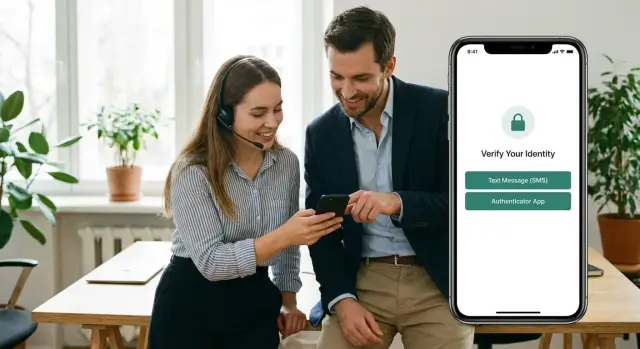
Most people only notice MFA when it fails. A code arrives late, a phone has no signal, or an app gets wiped during a device upgrade. The user gets stuck at the login screen, and what should feel like extra safety turns into “I can’t do my job.”
That’s why SMS OTP vs authenticator apps isn’t just a security argument. It’s a product decision that changes your support queue, churn risk, and how often your team ends up doing manual identity checks.
When MFA breaks, users usually do one of three things: retry a few times, abandon the flow, or contact support in a panic because they think their account was hacked. Even when the cause is simple, the emotional tone is often urgent, which makes tickets slower and more expensive.
To predict support load before you ship, focus on four areas: real-world reliability (messaging and device changes), phishing and takeover risk, user friction (setup and every login), and the ticket types you’ll see in practice.
SMS codes are common in consumer apps because they feel familiar and require almost no setup. Authenticator apps are common in workplaces and admin tools because they remove carrier dependency and reduce some telecom-related risks.
SMS feels simple, but “delivered” isn’t the same as “received and usable.” This is where teams get surprised by support volume.
Sometimes SMS is instant: same country, strong signal, and a carrier that doesn’t throttle verification traffic. Other times it drags. Carriers delay messages during peaks, apply spam filters, or throttle repeated sends. The result is a code that arrives after it expires, or multiple codes arrive at once and the user tries the older one.
International use adds sharp edges. Some countries have limited coverage for certain routes. Some carriers block verification messages by default. Roaming can reroute traffic in ways that add minutes. If your users travel, you’ll see “works at home, fails abroad” tickets.
Phone numbers change more often than teams assume. Users switch SIMs, lose access, or enter a typo once and never notice. Recycled numbers are worse: a lapsed number gets reassigned, and a future SMS login can land on the wrong person.
Resend flows are where frustration spikes. If users can tap “Resend” without clear limits and clear feedback, you create resend loops: many sends, delayed arrivals, and confusion about which code is valid.
What’s worth monitoring (and exposing in admin tools) is straightforward: send attempts per login, delivery confirmations when your provider reports them, time-to-code (sent time vs submit time), provider error reasons (blocked, invalid number, throttled), and resend/lockout triggers.
Example: a customer in Singapore tries to sign in while roaming in Germany. They tap “Resend” twice, get three messages at once, and enter the first code. If you log time-to-code and resend count, the ticket becomes a quick triage instead of a long back-and-forth.
Authenticator apps are usually more consistent than SMS because they generate time-based codes on the device, even offline. No carrier delays, no blocked messages, no roaming surprises.
Setup is simple on paper: scan a QR code once, then type the 6-digit code at login. In real life, people get stuck in that first minute, especially when they’re moving between laptop and phone and aren’t sure what they’re looking at.
Most problems aren’t about the authenticator app itself. They’re about the phone and the user’s expectations:
Usability matters more than teams expect. Switching apps mid-login, copying codes, and racing a countdown can be stressful. Clear prompts help: say exactly where to find the code, show what to do if it fails, and support autofill where the platform provides it.
Users often ask for multiple devices (phone plus tablet, personal plus work). If you don’t allow it, say so during enrollment, not after they’re locked out.
A few signals catch friction early: enrollment completion rate (who starts but never finishes), repeated code failures (often time sync), recovery paths used (lost phone, new device, deleted app), drop-off after the MFA prompt, and support tags by cause.
Phishing is where the real gap shows up.
With SMS OTP, a common attack is a real-time relay. A user lands on a fake login page, enters their password, then receives an SMS code. The attacker uses that same code on the real site while the user is still looking at the fake page. The code is valid, so the login succeeds.
SMS also carries telecom risk. SIM swap and number port-out attacks let someone take control of a phone number and receive OTP messages without the user noticing until it’s too late. For high-value accounts, this is brutal: an attacker can reset passwords and keep retrying until they get in.
Authenticator apps are better against SIM swap because there’s no phone number to steal. But the codes can still be phished using the same real-time relay pattern if your login accepts any valid code without checking context.
If you want stronger protection than typed codes, push-based approvals can help, especially with number matching or clear details like app name and city. Push can still be abused through approval fatigue, but it raises the bar compared to typing a 6-digit code into a fake page.
Practical ways to reduce takeover risk with either method:
People rarely quit because they “hate security.” They quit because login feels slow, confusing, or unpredictable.
The biggest difference in friction is timing. SMS makes users wait. Authenticator apps ask users to set something up.
With SMS, the first-time flow is familiar: enter phone number, receive a code, type it in. The friction spikes when the message doesn’t arrive fast, arrives on an old number, or arrives on a device the user isn’t holding.
With an authenticator app, the first-time flow has more steps: install an app, scan a QR code, save a backup option, then enter a code. During signup or checkout, that can feel like too much.
The most common drop-off moments are predictable: waiting 30 to 90 seconds for an SMS and then getting multiple codes; typing mistakes while switching apps; switching devices (new phone, wiped phone, work phone that can’t install apps); travel issues (roaming, new SIM, a number that can’t receive messages abroad); and cases where the user doesn’t reliably control the “second factor” device.
“Remember this device” reduces friction, but it’s easy to overdo it. If you never re-prompt, takeover risk goes up when someone steals a laptop. If you re-prompt too often, users abandon flows or choose weaker recovery options. A workable middle ground is to re-prompt on new devices, after sensitive actions, or after a reasonable time window.
Watch your funnel. If step 1 (enter phone) looks fine but step 2 (enter code) drops sharply, suspect SMS delays or code confusion. If drop-off happens right after the QR screen, the setup is too heavy for that moment.
Most MFA support work isn’t about “security.” It’s about people being blocked at the worst moment: a login during shift change, a password reset before a demo, or an admin trying to onboard a new hire.
If you’re comparing SMS OTP vs authenticator apps, plan your support queue around failure modes, not the happy path.
You’ll see the same patterns repeatedly.
For SMS: “code never arrives,” “arrives late,” “arrives twice,” wrong number, changed numbers, carrier blocks, roaming issues, and short codes filtered.
For authenticator apps: lost phone, new device, reinstalled app, “codes don’t match,” confusion about which app/account/profile holds the code.
Admins will also open policy and audit tickets: “User is locked out, reset MFA,” and “Who reset MFA for this account?” Those need a clean process and a paper trail.
A good triage form saves time on every ticket. Ask for the account identifier and MFA method, timestamp and timezone of the last attempt (and whether any code was received), last successful login time and method, device details (model and OS version), and whether the device recently changed. For SMS specifically, capture phone country and carrier if known.
With that, support can choose the next step quickly: resend (with guardrails), verify the phone number, wait for rate limits, or start a secure MFA reset.
Keep responses plain and non-blaming. A simple macro covers most cases:
“Please confirm the time you tried (with your timezone) and whether you received any SMS at all. If you changed phones or reinstalled your authenticator app recently, tell me when. If you’re locked out, we can reset MFA after verifying your identity.”
Start with one honest question: what are you protecting, and from whom? A consumer newsletter has a different risk profile than payroll, healthcare data, or an admin panel.
Also write down user constraints early: countries you serve, how often users travel, whether they carry a second device, and whether they’re allowed to install apps.
A rollout plan that avoids support fires:
Define your threat model and constraints. If phishing and takeover are top concerns, favor methods that are harder to trick. If many users lack smartphones or can’t install apps, plan alternatives.
Pick one default method plus a backup. Defaults should work for most people on day one. Backups are what save support when phones get lost, numbers change, or users travel.
Design enrollment and recovery before launch. Recovery shouldn’t rely on the same thing that can fail (for example, only SMS). Decide how you’ll handle lost device, new phone number, and “I never received a code.”
Roll out gradually and explain the why in plain words. Start with high-risk roles (admins, finance) or a small percentage of users.
Train support and track failures. Give agents a simple decision tree and clear rules for identity checks. Watch delivery failures, lockouts, time-to-enroll, and recovery requests.
Most MFA rollouts fail for simple reasons: the policy is too rigid, recovery is weak, or the UI leaves people guessing.
A frequent trap is making SMS the only way back into an account. Phone numbers change, SIMs get swapped, and some users can’t receive texts while traveling. If SMS is both the second factor and the recovery method, you eventually create “locked out forever” accounts.
Another common mistake is letting users change their phone number using only a password and an SMS code sent to the new number. That turns a stolen password into a clean takeover. For sensitive changes (phone, email, MFA settings), add a stronger step: verify the existing factor, require a recent session re-check, or use a manual review flow for high-risk cases.
The traps that generate the most avoidable support pain tend to be:
Pressure-test the login flow the way real users will hit it: tired, traveling, switching phones, or locked out five minutes before a meeting. The best method is the one your users can complete reliably and your team can support without risky shortcuts.
Ask these questions:
If your answer is “maybe” on recovery, pause. Most account takeovers happen during resets, and most angry users show up when recovery is confusing.
A practical test: ask someone outside your team to set up MFA, then lose their phone and try to get back in using only your documented steps. If that turns into a chat with engineering, you’ll see the same thing in real tickets.
A 6-person team runs a customer portal used by 1,200 active users across the US, India, the UK, and Brazil. They also give access to 40 contractors who come and go. Password resets already create noise, so they add MFA and hope it reduces account takeovers without flooding support.
They start with SMS OTP as the default. In week one, everything looks fine until a carrier delay hits one region during peak hours. Users request a code, wait, request again, then get three codes at once. Some try the oldest code, fail, and lock themselves out. Support gets a wave of tickets: “No code received,” “My code is always wrong,” “I’m traveling and my number changed.” Even without an outage, deliverability issues show up for VoIP numbers, roaming users, and strict spam filtering.
They add authenticator apps as an option and notice a different pattern. Most logins are smooth, but failures are spikier: a user upgrades phones and the app doesn’t transfer codes, someone deletes the authenticator, or a contractor misses the “scan QR” step and gets stuck. Those tickets sound like: “New phone, can’t log in,” “Codes don’t match,” and “I lost my device.”
A setup that reduces surprises often looks like this:
Pick a default MFA method that fits most of your users, then add a backup.
For a consumer audience, SMS is often the easiest default, with an authenticator app available for people who travel, use VoIP numbers, or want tighter security. For a workforce or admin-heavy product, an authenticator app is often the better default, with SMS reserved for recovery.
Before rollout, write a simple support playbook and decide what you’ll log. You don’t need a mountain of data. You do need enough to answer: did we send it, did the user receive it, and what happened during verification.
Logs that usually pay off: MFA method and timestamp, delivery provider response (accepted, queued, failed), verification attempts count with the last error reason, and the last successful MFA method and date.
Make support faster with one small screen: user MFA status, recent failures, and a controlled reset flow with an audit trail.
If you’re building a portal without heavy coding, AppMaster (appmaster.io) can help you assemble the backend, web app, and mobile app around these flows, including the admin views and event logging that reduce guesswork when tickets come in.
Roll out in a pilot first, watch failure metrics for a week, then expand. Track completion rate, resend rate, time to complete MFA, and ticket volume per 1,000 logins. Tighten the flow, update the playbook, then scale.
 Which is usually the better default: SMS OTP or an authenticator app?
Default to what your users can complete reliably. If you have admins, contractors, or frequent travelers, authenticator apps usually cause fewer “code never arrived” issues. If many users don’t have smartphones or can’t install apps, SMS can be the easier default, but plan for higher deliverability-related support.
Do I need a backup MFA method, or is one method enough?Offer at least one backup that doesn’t depend on the primary factor. If SMS is primary, add an authenticator app or recovery codes so a phone number change doesn’t lock someone out. If an authenticator app is primary, recovery codes plus a support-assisted reset flow usually prevents dead ends.
How can I reduce “I pressed resend and now nothing works” SMS tickets?Add a short cooldown, show a clear countdown, and invalidate older codes when a new one is issued to reduce “multiple codes” confusion. Also explain on-screen that the newest code is the only one that will work. These small UX changes typically cut resend loops and angry tickets.
How do I handle users who can’t receive SMS while traveling or roaming?Expect “works at home, fails abroad” cases and treat them as normal, not edge cases. Make it easy to switch to a non-SMS method before travel, and keep a recovery option that works without cellular service. Support should be able to see resend counts and recent failures to triage quickly.
Why do authenticator codes sometimes “never match,” and what should users do?The most common cause is incorrect device time or timezone, especially when time is set manually. Tell users to enable automatic time and retry, and consider showing a hint after a couple failed attempts. Logging repeated failures helps you spot this pattern fast.
Can users use an authenticator app on more than one device?Set expectations during enrollment. If you allow multiple devices, provide an easy “add another device” step and show how to confirm it worked. If you don’t allow it, say so clearly and offer recovery codes so users aren’t trapped when they switch phones.
Are recovery codes worth it, and how should I use them?Recovery codes work best when users are prompted to save them at setup and can regenerate them later from a trusted session. Don’t show them only once with no reminder, and don’t bury them in settings. They’re a simple way to avoid expensive manual identity checks when a device is lost.
How do I protect against phishing if both methods use 6-digit codes?Typed codes can be phished with real-time relay attacks, whether they come from SMS or an authenticator app. Reduce risk by adding step-up checks for sensitive actions, rate-limiting suspicious attempts, and re-prompting on new devices or unusual sign-ins. If you can, add stronger prompts like context-aware approvals instead of just a 6-digit code.
What should I log to troubleshoot MFA issues without guesswork?Capture enough to answer three questions quickly: did you send a challenge, did the user attempt verification, and why did it fail. Practical fields include MFA method, timestamps, send/provider status for SMS, verification attempt count, last error reason, and last successful MFA method. These logs turn a long ticket thread into a quick decision.
How should support reset MFA safely without creating account takeover risk?Use a controlled reset that requires identity verification appropriate to your risk level, and record who performed the reset and when. Avoid resets based on easily spoofed info like an email reply alone. In AppMaster, you can build an internal admin view that shows MFA status and recent failures, then routes resets through an audited workflow so support doesn’t improvise under pressure.
Experiment with AppMaster with free plan.
When you will be ready you can choose the proper subscription.
 Jul 14, 20268 min
 Jul 13, 20268 min
 Jul 08, 20268 min