


 Jul 14, 2026
 8 min
8 minEquipment reservation app: prevent conflicts and track returns
Plan an equipment reservation app that prevents double bookings, records returns and damage, and places faulty items on maintenance hold.

SLOs for internal tools made simple: set measurable uptime and latency goals, then map them to alerts a small team can maintain without burnout.
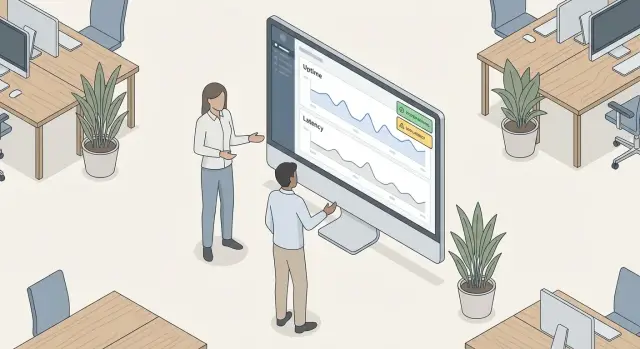
Internal tools feel small because the audience is small. The impact often isn’t: if your ops dashboard is down, orders pause; if your support console is slow, customers wait; if your admin panel breaks, fixes stack up.
Without clear reliability targets, every outage becomes a debate. One person shrugs at a 10-minute glitch, another treats it like a crisis. You lose time to noisy chats, unclear priorities, and surprise work at the worst moment.
SLOs fix that by setting simple expectations you can measure. They answer two practical questions: what must work, and how well must it work for people to do their jobs.
The hidden cost of “we’ll keep it pretty stable” shows up fast. Work stops while teams wait for a tool to recover. Support pings multiply because nobody knows what’s normal. Engineers get dragged into urgent fixes instead of planned improvements. Product owners stop trusting the system and start asking for manual backups. Small issues linger because they never cross a clear line.
You don’t need a full reliability program. A small team can start with a few user-focused goals like “login works” or “search results load fast,” plus a small set of alerts tied to real action.
This applies no matter how the tool is built. If you’re using AppMaster (appmaster.io) to create internal apps, pick the actions people rely on, measure uptime and response time, and alert only when it affects work.
These three terms sound similar, but they’re different kinds of reliability language. Mixing them up is a common source of confusion.
An SLI (Service Level Indicator) is a measurement. It’s something you can count, like “percent of requests that succeeded” or “how long the page took to load.” If you can’t measure it reliably, it’s not a good SLI.
An SLO (Service Level Objective) is the goal for that measurement. It answers: what level is good enough for users most of the time? SLOs help you decide what to fix first and what can wait.
An SLA (Service Level Agreement) is a promise, usually written down, often with consequences. Many internal tools don’t need SLAs at all. They need clear goals, not legal-style commitments.
A quick example:
Notice what’s missing: “never down” or “always fast.” SLOs aren’t about perfection. They make tradeoffs visible so a small team can choose between features, reliability work, and avoiding unnecessary toil.
A practical rule: if meeting the target would require heroics, it’s not an SLO, it’s wishful thinking. Start with something your team can maintain calmly, then tighten it later if users still feel pain.
Internal tools fail in specific ways: the admin panel loads but saving a record spins forever; an ops dashboard opens but charts never refresh; a staff portal works except login breaks after an update. You get the most value by focusing on the actions people rely on every day, not every page and button.
Start by naming the tool type, because it hints at the critical paths. Admin panels are about “change something safely.” Ops dashboards are about “see what’s happening now.” Portals are about “get in, find info, and submit a request.”
Then write down the top user journeys in plain language. A good starting set:
For each journey, define what counts as failure. Be strict and measurable: a 500 error is a failure, but so is a timeout, a page that never finishes loading, or a form that returns success while the data is missing.
Keep the scope small at first. Pick 1 to 3 journeys that match real pain and real risk. If on-call pages are usually “nobody can log in” and “the save button hangs,” start with Login and Submit form. Add Search later once you trust the measurements and the alerts.
Good SLIs are boring. They come from data you already have, and they match what users feel when the tool works or fails. If you need a whole new monitoring setup just to measure them, pick simpler SLIs.
Start with availability in terms people understand: can I open the tool and can I finish the task? For many internal tools, two SLIs cover most pain:
Then add latency, but keep it narrow. Choose one or two screens or endpoints that represent the wait users complain about, like loading the dashboard or submitting a form. Measuring everything usually creates noise and arguments.
Decide the measurement window up front. A rolling 30 days is common for steady tools; weekly can work when you release often and want fast feedback. Whatever you choose, stick with it so trends mean something.
Finally, pick one source of truth per SLI and write it down:
Example: if your internal app is built on AppMaster, you can measure uptime with a synthetic ping to the backend, success rate from API responses, and latency from backend request timings. The key is consistency, not perfection.
Start by picking an uptime number you can defend on a bad week. For many internal tools, 99.5% is a good first SLO. It sounds high, but it leaves room for normal change work. Jumping straight to 99.9% often means after-hours pages and slower releases.
To make uptime feel real, translate it into time. A 30-day month has about 43,200 minutes:
That allowed downtime is your error budget. If you burn it early, you pause risky changes and focus on reliability until you’re back on track.
For latency, avoid averages. They hide the slow moments users remember. Use a percentile (usually p95) and set a clear threshold tied to a real action. Examples: “p95 page load for the dashboard is under 2 seconds” or “p95 Save completes under 800 ms.”
A simple way to set the first number is to watch a week of real traffic, then choose a target that’s slightly better than today but not fantasy. If p95 is already 1.9 seconds, a 2.0-second SLO is safe and useful. A 500 ms SLO will just create noise.
Match SLOs to your support capacity. A small team should prefer a few achievable targets over many strict ones. If nobody can respond within an hour, don’t set goals that assume they can.
A tighter SLO sounds comforting, but it has a price. If you move a tool from 99.5% to 99.9% uptime, you’re also saying “we accept far fewer bad minutes,” which usually means more paging and more time spent on reliability instead of new features.
The simplest way to make this real is to talk in an error budget. With a 99.5% monthly target, you can “spend” about 3.6 hours of downtime in a 30-day month. With 99.9%, you only get about 43 minutes. That difference changes how often you’ll stop feature work to fix reliability.
It also helps to match expectations to when people actually use the tool. A 24/7 target is expensive if the tool is only critical 9am to 6pm. You can set one SLO for business hours (stricter) and a looser one off-hours (fewer pages) so the team can sleep.
Planned maintenance shouldn’t count as failure as long as it’s communicated and bounded. Treat it as an explicit exception (a maintenance window) rather than ignoring alerts after the fact.
Write down the basics so everyone sees the tradeoffs:
After 4 to 6 weeks of real data, review the target. If you never burn error budget, the SLO may be too loose. If you burn it quickly and features stall, it’s probably too tight.
Alerts aren’t your SLOs. Alerts are the “something is going wrong right now” signal that protects the SLO. A simple rule: for each SLO, create one alert that matters, and resist adding more unless you can prove they reduce downtime.
A practical approach is to alert on fast SLO burn (how quickly you’re using up error budget) or on one clear threshold that matches user pain. If your latency SLO is “p95 under 800 ms,” don’t page on every slow spike. Page only when it’s sustained.
A simple split that keeps noise down:
Concrete thresholds (adjust to your traffic): if your uptime SLO is 99.5% monthly, page when availability drops below 99% for 10 minutes (clear outage). Create a ticket when it drops below 99.4% over 6 hours (slow burn). For latency, page when p95 is over 1.5 s for 15 minutes; ticket when p95 is over 1.0 s for 2 hours.
Make ownership explicit. Decide who is on call (even if it’s “one person this week”), what acknowledge means (for example, within 10 minutes), and what the first action is. For a small team running an internal app built on AppMaster, that first action might be: check recent deployments, look at API errors, then roll back or redeploy if needed.
After every real alert, do one small follow-up: fix the cause or tune the alert so it pages less often but still catches real user impact.
Alert fatigue usually starts with good intentions. A small team adds “just a few” alerts, then adds one more each week. Soon, people stop trusting notifications, and real outages get missed.
One big trap is alerting on every spike. Internal tools often have bursty traffic (payroll runs, end-of-month reports). If an alert fires on a 2-minute blip, the team learns to ignore it. Tie alerts to user-impact signals, not raw metric noise.
Another trap is thinking “more metrics = safer.” More often it means more pages. Stick to a small set of signals users actually feel: login fails, page loads too slowly, key jobs not finishing.
Mistakes that tend to create the most noise:
Dashboards still matter, but they should help you diagnose after an alert fires, not replace the alert.
If you don’t have clean measurements yet, don’t pretend you do. Add basic instrumentation first (success rate, p95 latency, and a “can a user complete the task” check), then set thresholds based on a week or two of real data.
Before you enable alerts, do a short pre-flight. Most alert fatigue comes from skipping one of these basics, then trying to fix it later under pressure.
A practical checklist for a small team:
Next, make sure the alert can actually be acted on. An alert that fires when nobody is available trains people to ignore it.
Decide these operations details before the first page:
If you build or change the tool (including in AppMaster), rerun the checklist. Regenerated code and new flows can shift latency and error patterns, and your alerts should keep up.
An ops team of 18 people uses an internal dashboard all day to check order status, resend failed notifications, and approve refunds. If it’s down or slow, work stops fast.
They pick two SLOs:
Now they add three alerts that a small team can handle:
What matters is what happens next week. If the error budget alert fired twice, the team makes a clear call: delay a new feature and spend two days fixing the biggest latency cause (for example, an unindexed table scan). If they built the tool in AppMaster, they can adjust the data model, regenerate, and redeploy clean code instead of stacking quick fixes.
SLOs only help if they stay connected to real work. The trick is to treat them like a small habit, not a new program.
Use a cadence that fits a small team and attach it to an existing meeting. A quick weekly glance catches drift, and a monthly adjustment is enough once you have real data.
A lightweight process that holds up:
Keep improvements small and visible. If “slow page loads every Monday morning” shows up three times, do one concrete change (cache one report, add an index, schedule a heavy job later), then watch the SLI next week.
Use SLOs to say no, politely and clearly. When a request comes in for a low-value feature, point to the current error budget and ask: “Will this change risk our save or approval flow?” If you’re already burning budget, reliability wins. That’s not blocking, it’s prioritizing.
Keep documentation minimal: one page per tool. Include the key user actions, the SLO numbers, the few alerts tied to them, and the owner. If the tool is built on AppMaster, add where you view logs/metrics and who can deploy changes, then stop.
The easiest way to make reliability real is to keep the first setup tiny. Pick one internal tool that causes real pain when it breaks (on-call handoffs, order approvals, refunds, inventory edits), and set targets around the few actions people do every day.
A smallest workable setup most teams can copy:
Once that’s stable, expand slowly: add one more action, or one more tool per month. If you can’t name who will own an alert, don’t create it yet.
If you’re building or rebuilding internal tools, AppMaster can make the maintenance side easier to sustain. You can update data models and business logic visually and regenerate clean code as needs shift, which helps keep SLOs aligned with what the tool actually does today.
Try building one internal tool and adding basic SLOs from day one. You’ll get clearer expectations, fewer surprises, and alerts your small team can keep up with.
 Do internal tools really need SLOs if only a small team uses them?
SLOs stop reliability arguments by turning “pretty stable” into a clear target you can measure. Even with 20 users, an outage can pause orders, slow support, or block approvals, so small tools can still have big impact.
What should we measure first for an internal admin panel or ops dashboard?Pick a few user actions that people do every day and that block work when they fail. Common starters are login, loading the main dashboard with fresh data, searching/filtering, and submitting a create/update form successfully.
What’s the difference between an SLI, an SLO, and an SLA?An SLI is the metric you measure (like success rate or p95 latency). An SLO is the goal for that metric (like 99.5% success over 30 days). An SLA is a formal promise with consequences, and most internal tools don’t need that.
What’s a realistic uptime SLO for a small team?A good first uptime SLO for many internal tools is 99.5% monthly, because it’s achievable without constant heroics. If the tool is truly mission-critical during work hours, you can tighten it later once you’ve seen real data.
How do we translate uptime percentages into downtime people understand?Translate the uptime percent into minutes so everyone understands the tradeoff. In a 30-day month, 99.5% allows about 216 minutes of downtime, while 99.9% allows about 43 minutes, which often means more paging and more reliability work.
How should we set latency SLOs without creating noise?Use a percentile like p95, not an average, because averages hide the slow moments users feel. Set the target on a real action (like “p95 dashboard load under 2s during business hours”) and choose a threshold you can maintain calmly.
What SLIs are easiest to measure without building a big monitoring system?Start with server metrics and logs you already have: availability (reachable and responding), success rate for key actions, and p95 latency for one or two critical endpoints or screens. Add synthetic checks only for the most important flows so measurement stays consistent and simple.
How many alerts should we set up for one internal tool?Default to a small set of alerts tied to user impact, and page only on sustained problems. A useful split is one urgent page for “tool is effectively broken” and one non-urgent ticket for “slow burn” degradation you can handle during work hours.
What causes alert fatigue with internal tools, and how do we avoid it?Most alert fatigue comes from paging on every spike or on symptoms like CPU instead of user impact like errors and latency. Keep alerts few, give each one an owner, and after every real alert either fix the cause or tune the alert so it fires less often but still catches real issues.
How do we apply SLOs if we build our internal tools in AppMaster?Pick the key actions in your app, then measure uptime, success rate, and p95 latency for those actions using a consistent source of truth. If you build internal tools in AppMaster, keep the targets focused on what users do (login, save, search), and adjust measurements and alerts after major changes or regenerations so they match current behavior.
Experiment with AppMaster with free plan.
When you will be ready you can choose the proper subscription.
 Jul 14, 20268 min
 Jul 13, 20268 min
 Jul 08, 20268 min