


 Jul 14, 2026
 8 min
8 minEquipment reservation app: prevent conflicts and track returns
Plan an equipment reservation app that prevents double bookings, records returns and damage, and places faulty items on maintenance hold.

Secure admin impersonation helps support teams fix issues fast without risking user data. Use just-in-time access, reason codes, tight scope, and logs.
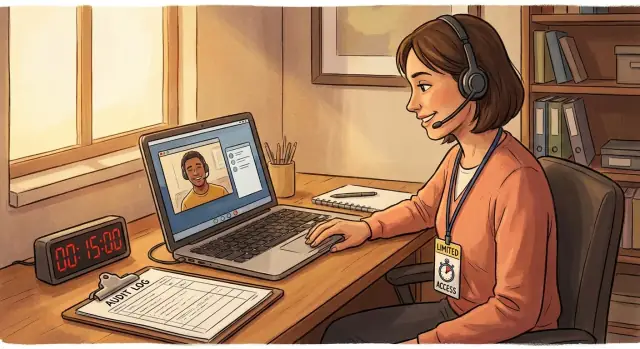
Support teams use impersonation for a simple reason: it’s often the fastest way to see what the customer sees. When someone says, “The button does nothing,” screenshots and step-by-step instructions can miss the real issue. A short, controlled session can confirm settings, reproduce a bug, or complete a setup step without a long back-and-forth.
It also comes up in everyday cases like checking why a payment failed, confirming a plan change, or verifying that an email notification went out. Done well, secure admin impersonation reduces support time and user frustration.
The risk is that impersonation can quietly turn into “superuser mode.” An agent might be able to view private data the customer never expected to share, change security settings, reset MFA, or trigger actions that leave the customer exposed. Even without bad intent, one rushed click can create a serious incident.
Before enabling impersonation, keep three goals in view: solve one specific problem quickly, keep access as small and short as possible, and make the session provable later (who, what, when, and why).
A realistic example: a customer can’t invite a teammate. The agent impersonates only to check workspace role settings, confirms the missing permission, fixes it, and exits. If the same session also allows viewing billing details or exporting customer data “just because it’s there,” you’ve created a security hole.
Impersonation is when a support agent temporarily steps into a user’s account inside your product using a controlled tool. The agent uses their own identity, but is granted limited, temporary access to view what the user sees and resolve issues faster.
That’s different from logging in with shared credentials, where responsibility gets blurry because you can’t prove who did what. It’s also different from screen sharing, where the user stays in control and the agent can only guide.
A secure design usually supports two modes:
Confusion sets in when the UI makes it look like the agent is literally “the user.” Users may assume full trust, and agents may forget they’re acting with elevated power. Good systems keep the agent’s identity visible, clearly label the session as impersonation, and record actions as “agent X did Y while impersonating user Z.”
Impersonation solves real support problems, but it’s also a shortcut around normal controls. Without planning, “helping a user” turns into access that’s too broad, too quiet, and too hard to prove later.
Most threats are basic and human: an agent sees data they shouldn’t, makes changes that should require extra approval, or acts in ways the customer never expected. Rushing increases mistakes, and a malicious insider gets a powerful tool.
Common incident impact falls into a few buckets:
Compliance adds another layer. It’s not enough to say “support accessed the account.” Auditors and customers will ask who accessed what, when, from where, and why. If you can’t answer that with confidence, you’ll struggle with internal reviews, customer security questionnaires, or regulatory expectations.
A small example: an agent impersonates a user to fix billing, then notices the user can’t log in and resets MFA “to be helpful.” If that wasn’t required for the ticket, you now have an account-security event, not a support interaction.
Impersonation is useful when support needs to see what a user sees. Without guardrails, it becomes a quiet way to bypass controls. The safest default is simple: support gets only the smallest, shortest access needed to fix one specific problem.
Start with least privilege. Most support work doesn’t need full admin rights, database access, or the ability to change billing, passwords, or security settings. Create a dedicated “support impersonation” role with a tight permission set, and block high-risk actions unless there’s a second, explicit approval.
Make access time-bound by design. Sessions should expire automatically even if the agent forgets to end them. Short time windows reduce damage from mistakes, compromised accounts, or “just this once” habits that slowly become permanent power.
Finally, require purpose and traceability. If someone can’t explain why they’re impersonating, they shouldn’t be able to start.
Practical guardrails work best as a set: require a reason code and case ID, limit scope to the specific user and task, auto-expire sessions, keep an immutable audit log, and separate duties (support vs billing vs security).
If you’re building your admin panel in AppMaster, treat these guardrails as product behavior, not policies. Put them directly into the workflow so the safe path is the easiest path.
Just-in-time (JIT) access means an agent can impersonate only when there’s an active need, and that access ends automatically. It’s one of the most effective ways to reduce damage from mistakes, stolen credentials, or “just checking something” curiosity.
Treat each session like opening a controlled door that closes on its own. Avoid permissions that sit in a role for months.
Keep the time window short and adjustable. Many teams start with 10-15 minutes and tune based on real cases. The key is auto-revoke: the session ends even if the agent forgets to log out, their browser crashes, or they walk away.
JIT is stronger when each session requires fresh approval tied to a specific user and case, not a blanket “support can impersonate anyone” permission. Approval can come from a manager, an on-call lead, or a policy engine that adapts to risk.
A solid JIT setup includes a short session timer, auto-revoke on inactivity, an approval step per session, hard limits on extensions, and a clear “end session” button that immediately drops elevated access.
The first control should happen before the session starts: make the agent state why they need access. A required reason code turns “I felt like it” into a clear, reviewable justification.
Keep reasons simple and specific. For example: login or account recovery, billing or payment issue, data correction requested by the user, bug reproduction for support, and account settings help.
Add a short note field for context (ticket number, what the user reported, what you plan to do), and keep it tight. Long narratives get messy and invite copying sensitive data into the wrong place.
Reason codes aren’t just paperwork. They help you spot abuse and weak training. Over time you can report patterns like which agents impersonate most, which reasons trigger the most sessions, and which teams are repeatedly involved.
If a reason code is missing or constantly “Other,” treat it as a signal: your categories need work, or your process is being bypassed.
Impersonation should never mean “full access as the user.” The safer model is a pre-set scope that matches a support task.
Start by limiting what can be viewed. Many issues can be solved without exposing secrets like API tokens, recovery codes, full payment details, or private messages. Mask sensitive fields by default and reveal only what the ticket truly needs.
Next, limit what can be changed. Support agents rarely need access to high-impact actions such as changing security settings, editing payout details, or granting roles. Treat these as separate, explicit approvals.
Also limit where impersonation applies. A good scope keeps the agent inside the right boundary: the specific tenant or workspace, the specific user, the specific feature area (billing vs profile vs orders), the relevant record types, and a short time window.
Example: an agent needs to confirm why a report export fails. They enter a session that only allows access to the reporting screen and related settings, while hiding tokens and blocking password or payout changes.
Your logs should answer one hard question: “What exactly happened, and who did it?” Strong audit trails help investigations and discourage misuse because everyone knows sessions are traceable.
Log the session itself: the staff account that started impersonation, the target user, start and end time, reason code, and technical context like IP address and device or browser fingerprint. If you use a ticket or case number, record it.
Then log what happened inside the session. “Viewed profile” is rarely enough. For sensitive actions (email, roles, payment settings, shipping address, API keys), capture before and after values or a safe summary, such as a masked diff. That preserves evidence without turning the audit log into a new privacy problem.
Treat logs as append-only. Avoid “edit” and “delete” permissions, and push events to tamper-resistant storage where possible. If you’re implementing this in AppMaster, it’s worth designing admin actions so every sensitive operation emits an audit event automatically rather than relying on people to remember to log.
Impersonation should feel like entering someone else’s office. The user should be able to see it, understand it, and control it. Silent access might feel convenient, but it creates suspicion and makes abuse harder to spot.
Use clear, user-facing indicators during the session, like a persistent banner that says support is viewing the account. Keep it consistent across web and mobile so it’s easy to recognize.
Consent doesn’t have to be complicated. Choose defaults that match your risk level. Many teams notify users when sessions start and end, allow opt-in approval per request, and require explicit approval for high-risk actions (changing email, resetting MFA, exporting data). Some products let users disable impersonation entirely unless regulated support requirements apply.
After the session, send a short factual summary: what was viewed, what changed, and the provided reason. Give the user a clear way to report concerns or restrict future access.
A safe support flow makes impersonation the exception, not a habit. The goal is to help quickly while keeping every session limited, time-bound, and provable.
A practical workflow looks like this:
If you build internal tools in AppMaster, this maps cleanly to an approval workflow in the Business Process Editor with role-based permissions and audit events captured on each session action.
Escalate out of impersonation and into a supervised flow when the user reports takeover or fraud, payment details are involved, bulk export or deletion is requested, the scope would exceed the original ticket, or the timer expires.
Most impersonation problems don’t start with bad intent. They start with a “temporary” shortcut that turns into a permanent backdoor.
One classic trap is granting global impersonation rights to every support agent “just in case.” The wider the group, the harder it is to review behavior, and the easier it is for one compromised account to do real damage. Treat impersonation as a privileged tool.
Time controls are another frequent failure. If sessions don’t expire automatically, they’ll be forgotten, reused, or left open in a tab. It’s also risky to allow one-click extensions with no second check.
Logging is often too shallow. Some systems record only that impersonation happened, not what occurred during the session. That creates a trust gap during incident response.
If you see any of these, impersonation stops being a support tool and becomes a security risk: broad access, no automatic expiry, no strict scoping, logs that capture only start/stop, or shared admin accounts.
Before enabling secure admin impersonation, sanity-check the basics. If any item is missing, you’re not “almost ready.” You’re creating a blind spot.
Make sessions temporary by default, require a reason code plus ticket or case ID, limit scope to the minimum actions needed, ensure complete logging of session start/stop and key actions, and notify the user with time and purpose.
A one-time setup check isn’t enough. You also need a habit of reviewing usage.
Review usage regularly for outliers, define clear ownership for approvals and rule changes, make audit trails easy to export for security and legal, and document a single fast revocation process that you can verify.
If you build support tooling with AppMaster, treat these as build requirements so enforcement lives in the product, not in a wiki.
A customer writes in at 4:40 pm: they need a finance report for a 5 pm deadline, but the report page says, “You don’t have permission.” The agent could ask for screenshots and guess, but that wastes time. Impersonation helps if it’s tightly controlled.
The agent opens the support case and requests JIT access for this specific user. They choose a reason code like “Report access issue” and add a short note: “Customer blocked from Q4 Summary report, deadline 5 pm.” A manager approves a 10-minute session with strict scope: read-only across the account, plus permission to edit only report-sharing settings.
Inside the session, the agent checks report settings, sees the user is missing a required role, applies the minimum change, confirms the report loads, and ends the session. They don’t browse unrelated pages or touch billing because the scope doesn’t allow it.
After the session ends, it expires automatically. The customer receives a short summary of what changed, when, and why. Later, a manager reviews the audit trail: who requested access, the reason code, what actions were taken, and whether the scope matched the ticket.
Treat secure admin impersonation like privileged access, not a convenience. Roll it out in phases so you can learn what people actually need and catch problems early.
Start with read-only access and strong audit logging. Once that’s stable, add a short list of narrowly defined actions and keep everything else blocked by default. Track outcomes that matter: fewer reopened tickets, faster resolution time, and zero unexplained sessions.
Assign clear owners so policy doesn’t drift. Security owns guardrails and monitoring, support leads own training and daily standards, product owns customer impact and allowed actions, and engineering owns implementation and log integrity.
Set a review cadence (weekly at first, then monthly). Sample sessions, confirm reason codes match case notes, and remove permissions that aren’t being used.
If you’re already building an admin portal or internal support tools in AppMaster, it’s a good moment to model JIT approvals, role-based access, and audit events directly in the app so the rules are enforced consistently.
Finally, practice the “stop” path. Everyone should know how to revoke access fast, preserve logs, and notify the right people when something looks off.
 Why do support teams use admin impersonation at all?
Admin impersonation lets support see the exact screens, roles, and error states the customer sees, so you can reproduce issues without long back-and-forth. It’s most useful for permission problems, setup mistakes, and workflow bugs where screenshots don’t show the full context.
When should we use impersonation versus asking the user to screen share?Use impersonation when you need to verify something inside the product that the user can’t easily explain, and when it will resolve a specific ticket faster. If the task involves high-risk changes like MFA, payout details, or refunds, default to a supervised or separate approval flow instead of a broad impersonation session.
What’s the biggest security risk with impersonation?The biggest risk is that it quietly becomes “superuser mode,” letting agents view or change things outside the ticket scope. That can lead to data exposure, accidental security changes, or actions that look like the user did them unless your system clearly records the agent identity.
What are the minimum guardrails we should implement first?Start with least privilege: create a dedicated support role that can do only what support truly needs, and block sensitive areas by default. Add short, auto-expiring sessions and require a reason tied to a real case so access is both limited and reviewable.
What is just-in-time access in the context of impersonation?Just-in-time (JIT) access means an agent can impersonate only for a short period when there’s an active support need, and access ends automatically. This reduces damage from mistakes, forgotten sessions, and compromised staff accounts because the elevated access doesn’t linger.
How do reason codes and ticket IDs actually prevent abuse?Make a ticket or case ID mandatory and require a reason code before the session starts, so every session has a clear purpose. Keep the reasons simple and specific, and require a short note that states what the agent intends to do, without copying sensitive customer data into the note.
How do we limit what an agent can see and do while impersonating?Set the session scope to the smallest set of screens, records, and actions needed to solve the ticket, and keep everything else inaccessible. Mask sensitive fields by default and require an extra approval step for high-impact actions like role grants, email changes, API key resets, exports, or billing changes.
What should an audit log capture for impersonation sessions?You should be able to answer “who did what, when, and why” with confidence, including the staff identity, target user, time window, reason, and key actions taken. For sensitive changes, record a safe before/after summary so you can investigate later without turning logs into a new privacy risk.
Do we need user consent or notifications for impersonation?At minimum, notify users when a session starts and ends, and show an in-product banner so it’s never silent. For higher-risk actions, require explicit user approval or an additional internal approval, and send a brief after-session summary of what was viewed or changed.
How can we implement secure impersonation in an internal admin tool built with AppMaster?If you’re building an admin portal with AppMaster, implement the guardrails as workflow behavior rather than relying on policy documents. Use role-based permissions, an approval step in the Business Process Editor, short session timers, and automatic audit events on sensitive actions so enforcement is consistent even under pressure.
Experiment with AppMaster with free plan.
When you will be ready you can choose the proper subscription.
 Jul 14, 20268 min
 Jul 13, 20268 min
 Jul 08, 20268 min