


 Jul 14, 2026
 8 min
8 minEquipment reservation app: prevent conflicts and track returns
Plan an equipment reservation app that prevents double bookings, records returns and damage, and places faulty items on maintenance hold.

Save-and-resume multi-step wizard patterns for drafts, partial validation, and resumable links so users can finish later without losing progress.
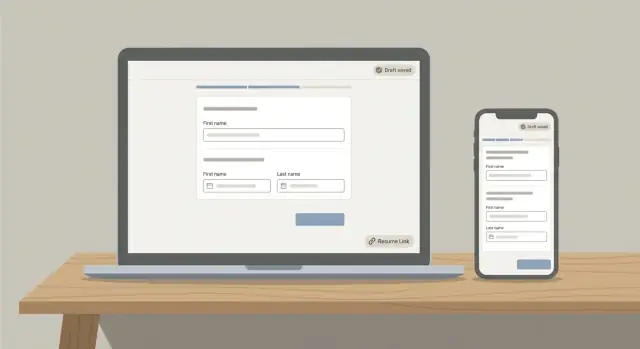
A multi-step wizard breaks one long form into smaller steps, like profile details, billing, preferences, and review. It helps when the task is long, the data is complex, or people need to follow a clear order. Done well, it feels lighter than a single page that never ends.
People still drop off because life interrupts them. They may need a document they do not have, wait for a manager, lose a connection, or switch from phone to laptop. Some stop because the wizard feels risky: one mistake or refresh could wipe everything.
Save-and-resume changes the deal. Users can pause without fear, come back later, and continue from the right step with their progress intact. Teams benefit too: fewer abandoned submissions, clearer support conversations (“open your draft and continue”), and better visibility into where users get stuck.
To keep the promise that progress will not be lost (even across devices), most wizards need a few basics:
A save-and-resume wizard is easiest to design when you treat it as two different things: a draft and a submitted record.
A draft is temporary and changeable. A submitted record is official, and should follow stricter rules.
“State” is just the label for what that record is right now. Common states include draft, submitted, approved, rejected, and archived. If you only need two, start with draft and submitted. Keeping that line sharp makes reporting, permissions, and support much simpler.
What you store at each step depends on what you truly need to resume later. Save only the user inputs for that step, plus basic metadata like who owns it and when it was last updated. Avoid storing sensitive extras “just in case” (for example, full card data, documents you have not asked for yet, or internal notes that could surface later and confuse the user).
Progress tracking should be boring and explicit. Two fields cover most cases:
current_step (where the user lands when they resume)completed_steps (what is already done)Some teams store completed_steps as a list of step IDs. Others use a simple count.
A practical mental model:
created_at, updated_at, submitted_atWhen should you create the draft?
If your flow is anonymous or you want resumable links, create it as soon as the wizard opens so you have an ID to save against. If the user is signed in and you want fewer empty drafts, create it on the first real “Next” or “Save” action.
A good draft model does two things well: it saves partial input without breaking, and it makes the final submit feel predictable. If the data model is messy, the wizard will feel unreliable even with a great UI.
This is the simplest approach. You store everything in one table (or one main entity) and add fields like status (draft/submitted) and current_step (1-6). Each save updates the same record.
It works best when the form maps cleanly to one “thing” (one application, one order, one profile).
Here you keep a Draft table for messy, partial data and a Final table for clean, validated data. On submit, you create the Final record from the Draft, then lock or archive the Draft.
This pattern shines when the final data must be strict (billing, compliance, reporting), but the draft can be flexible. It also makes “delete draft” safer because it never touches submitted records.
If you need to know who changed what and when, store history. Two common ways:
Use this when approvals, disputes, or regulated data are involved.
Repeatable sections (like line items or attachments) are where drafts often break. Model them as child tables tied to the draft (and later to the final record). For example, an onboarding wizard might have many “team members” and “documents.” Save each item independently. Avoid stuffing arrays into one field unless you truly do not need querying, sorting, or per-item validation.
Partial validation is the difference between a wizard that feels helpful and one that feels like a wall. Let people move forward when they have done enough, but do not let clearly broken input sneak into the draft.
Most wizards need both:
To allow incomplete fields without saving bad data, separate “missing” from “invalid.” Missing can be fine in a draft. Invalid should be blocked or clearly flagged because it creates confusion later.
Example: an empty phone number might be fine in a draft. A phone number with letters should be rejected or marked clearly.
What to validate immediately vs later:
Errors should be specific and local. Instead of “Fix errors to continue,” point to the field, explain what is wrong, and say how to fix it. If a step has warnings (not errors), let the user continue but keep a clear “needs attention” badge.
One practical pattern is to return a structured response from the server with:
A good save-and-resume wizard starts working from the first screen. Do not wait until step 3 to create a record. As soon as the user enters anything meaningful, you want a draft you can keep updating.
status = draft, and the fields from step 1 (even if incomplete).status = submitted.During drafting, validate only what is needed for the current step. Save partial data with clear flags like “missing” or “needs review” instead of treating everything as a hard error.
A resumable link is a URL that carries a one-time (or short-lived) token. When someone opens it, your app looks up the draft the token points to, confirms it is still valid, and sends the user back to the right step. This can make the experience feel effortless, especially when people switch devices.
A typical flow looks like this: create draft -> generate token tied to that draft -> store a hashed copy of the token -> send or show the link -> redeem token to resume -> rotate or invalidate the token.
Decide a few rules up front so support is not guessing later:
A practical example: someone starts an application on their phone, taps “Email me a resume link,” then continues on a laptop at home. If you rotate tokens on each resume, the old link stops working after one use, which reduces accidental sharing.
Be explicit.
Avoid silently creating a new draft. Users may assume their original data is still there.
Save-and-resume only helps if people trust it.
Never put personal or business data in the URL. The link should carry only a random token that means nothing by itself.
Treat resume tokens like passwords. Generate them with enough randomness, keep them short enough to paste, and store only a hashed version in your database. Hashing helps limit damage if logs or backups leak.
Reusable tokens are convenient but riskier. One-time tokens are safer because they die after the first successful resume, but they can frustrate users if they click an old email twice. A practical middle ground is a reusable token that expires soon (hours or days), plus an easy “send a new link” option.
Sane defaults for most products:
Access control depends on whether users must be signed in.
If the wizard is for logged-in users, the token should be optional. Resume should also require the account session, and the draft must be owned by that user (or their org). This prevents “forwarded link” problems.
If the wizard supports anonymous resume, limit what the draft contains. Avoid storing full payment details, government IDs, or anything harmful if exposed. Consider encrypting sensitive draft fields at rest, and show only a masked summary when resuming.
Add basic abuse protection too. Rate limit token checks and resume endpoints, and lock out tokens after repeated failures.
Save-and-resume fails most often in the UI, not the backend. People leave when they feel lost, unsure what happens next, or worried they will lose their work.
Start with a clear sense of place. Show a progress indicator with step names users recognize, like “Company details” or “Payment method,” not internal labels. Keep it visible, and let users review completed steps without punishment.
Make saving feel real, but do not make it noisy. A small “Saved” state near the primary action plus a “Last saved 2 minutes ago” timestamp builds trust. If saving fails, say it plainly and tell them what to do next.
Give an easy exit. “Save and finish later” should be normal. If the user closes the tab, remember where they were and show a simple resume screen when they return.
Mobile is where drop-off often spikes, so design steps to fit a small screen. Prefer short steps with fewer fields, large tap targets, and keyboards that match the field type (email, number, date).
A quick UI checklist that usually helps:
The fastest way to increase drop-off is to treat a wizard like a final exam. If you block progress on step 1 because step 6 is incomplete, people quit. A save-and-resume wizard should feel forgiving: let users move forward, and save often.
A common trap is over-validating early. Do step-level checks (is this step usable?) and reserve strict submission-level checks for the final review.
If you need guardrails without blocking, use soft warnings (“You can finish later”) and highlight what will be required at the end.
Many teams create drafts too late. If you only create a draft after step 3, early data is fragile: a refresh, tab crash, or login timeout can wipe it out. Create a draft as soon as you have a stable identity (account session or email), and save on every step transition.
Also define ownership clearly. Decide who can resume and edit a draft: the original user only, anyone in the same organization, or a specific invited teammate. Make that rule visible in the UI.
Other pitfalls to plan for:
Before release, do a pass on the basics that drive drop-off and support tickets.
Resumable links are temporary keys. Keep them private, time-limited, and safe to share only intentionally.
A practical rule: if someone forwards the email to the wrong person, that person should not be able to see sensitive draft data. Use short expiration and require re-auth for high-risk steps.
Picture a B2B onboarding wizard with six steps: company details, contacts, billing, compliance documents, product setup, and final review. The goal is to get a working account without forcing people to finish everything in one sitting.
The tricky part is step 4 (compliance documents). Some customers do not have the files ready. Others need a manager to approve what gets uploaded. So the wizard saves a draft after every step and keeps a clear state like Draft, Waiting for documents, Waiting for approval, or Submitted.
A common drop-off moment: a user finishes step 3 (billing) and leaves. When they return, they do not see an empty form. They land on a “Resume onboarding” screen that shows progress (3 of 6 complete), what is missing (documents), and one button to continue from step 4. That is the heart of save-and-resume: it treats leaving as normal, not as failure.
If the user started from an email invite or needs to switch devices, a resumable link can take them back to the exact draft and step, after whatever checks you require (sign-in, one-time code, or both).
On the team side, support and sales can see draft progress in an admin view: which step each customer reached, how long the draft has been idle, and what is blocking submission.
Start small. Pick one wizard that already has drop-off (checkout, onboarding, application) and add drafts first. A basic “Save” plus automatic saving on step change often reduces abandonment faster than a redesign.
Measure before you change anything, then measure again after release. Track step-to-step completion, time-to-finish, and how many people resume after leaving. Also watch support tickets and “stuck” events (users who bounce between two steps or fail validation repeatedly).
Assume the wizard will change. New steps get added, questions get renamed, and rules get stricter. The easiest way to avoid breaking old drafts is to version what you save. Store a wizard_version on each draft, and keep small migration rules so older drafts can still open.
If you want to build a save-and-resume wizard without hand-coding the whole stack, AppMaster (appmaster.io) is one option. You can model a Draft entity in the database, build step-by-step logic as a business process, and ship the same flow across web and native mobile apps.
 When do I actually need save-and-resume in a multi-step wizard?
Save-and-resume lowers the risk users feel when a flow is long or interruptible. If a call drops, a tab refreshes, or they need a document, they can come back later without losing work, which usually reduces abandonment and support tickets.
What’s the simplest way to think about drafts vs submitted records?Start with two states: draft and submitted. A draft is flexible and can be incomplete; a submitted record is “official” and should be locked down with stricter rules, permissions, and reporting.
When should my backend create the draft record?Create it as soon as you have a stable way to save against it. If users are anonymous or you want resumable links, create the draft when the wizard opens; if users are signed in and you want fewer empty drafts, create it on the first real save or “Next.”
How often should a wizard save draft data?Default to saving on every step transition, then add autosave for steps with lots of typing. The goal is that a refresh or short disconnect doesn’t wipe progress, but you also don’t hammer the server on every keystroke.
What data should I store in the draft, and what should I avoid?Store enough to reliably restore the UI: the fields from completed steps, ownership info, and timestamps. Avoid storing sensitive data you don’t need to resume, because drafts tend to live longer and get accessed more casually than final submissions.
How do I validate partial data without blocking users too early?Use step-level validation while drafting and full validation on final submit. Let “missing” be acceptable in a draft when it’s not required yet, but treat clearly invalid input (like a broken email format) as something to fix right away so users don’t carry confusion forward.
Should I keep drafts and final submissions in the same table or separate ones?Use one evolving record when the wizard maps cleanly to one “thing” and your final data isn’t radically stricter than the draft. Use separate Draft and Final records when submission must be clean for billing, compliance, or reporting, because it keeps messy input away from your official tables.
How do resumable links work without leaking private information?A resumable link should contain only a random token, not user data. Store only a hashed token server-side, set an expiry, and consider rotating the token after each successful resume to reduce the impact of accidental sharing.
What UI details make save-and-resume feel trustworthy?Show a clear progress indicator and a small, trustworthy saved status like “Saved” with a recent timestamp. Also make “Finish later” a normal action, and if saving fails, say it plainly and tell the user what to do next so they don’t assume their work is safe when it isn’t.
How can I build a save-and-resume wizard in AppMaster without writing everything from scratch?Model a Draft entity, store status, current_step, and timestamps, then implement save/resume logic as a backend workflow so every step persists predictably. In AppMaster, you can build the draft data model visually, orchestrate step logic in a Business Process, and ship the same wizard across web and native mobile apps without hand-coding the full stack.
Experiment with AppMaster with free plan.
When you will be ready you can choose the proper subscription.
 Jul 14, 20268 min
 Jul 13, 20268 min
 Jul 08, 20268 min