


 Jul 14, 2026
 8 min
8 minEquipment reservation app: prevent conflicts and track returns
Plan an equipment reservation app that prevents double bookings, records returns and damage, and places faulty items on maintenance hold.

Safe bulk imports help you avoid bad data and surprise changes. Use preview, validation, row errors, and rollback-friendly commit patterns.
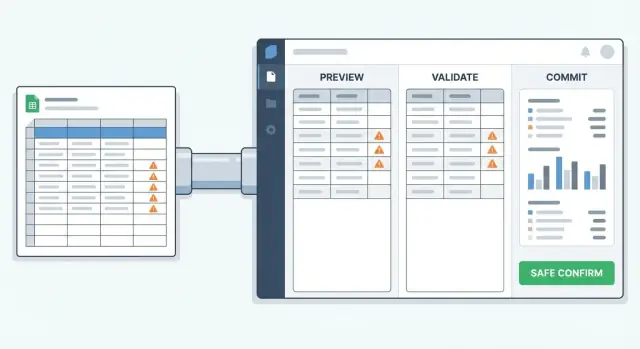
Bulk changes fail for boring, real-life reasons. The file is almost right, but a column name is off. A required field is blank in a handful of rows. IDs don’t match what’s in the database because someone exported last week and the records have changed since. Or the data is valid, but mapped to the wrong field, so phone numbers end up in the notes column.
What makes this scary is speed. One bad assumption can touch hundreds or thousands of records before anyone notices. Safe bulk imports aren’t just a backend problem. They’re a trust problem.
Users expect one simple thing: show me what will happen before it happens. The most reliable pattern is preview, validate, then commit.
People also expect protection from two types of failure.
Fixable issues should be handled per row. If 12 rows have an invalid email format or a missing ZIP code, the user wants to correct those rows (download a report, edit in place, or re-upload) and keep the rest ready.
Blocking issues should stop everything. If the mapping is wrong, the import would overwrite key fields, or the file is for the wrong workspace or customer, the best experience is a hard stop with a clear explanation.
Users also want a paper trail: a run ID, timestamps, who launched it, what file was used, what changed, and what failed. That’s what makes support faster, and it’s what makes cleanup possible when something goes wrong.
Bulk changes feel risky because one click can touch thousands of records. The simplest way to reduce that risk is to split the work into three phases, each with its own output.
Take the input (CSV, pasted rows, selected records) and turn it into a prepared batch. The job here is to show what the system thinks will happen, before anything changes.
A good preview answers three questions: what will be changed, how many items are affected, and what looks suspicious.
At minimum, include counts (total rows, matched records, new records, skipped rows), a small sample of real rows, and clear warnings for anything risky (missing required fields, ambiguous matches, unusual values). Also make the matching rule explicit (for example, “match by email” or “match by external ID”), and give the batch an identity: a name, timestamp, and unique batch ID.
A dry run means no writes to the database. Run the same checks you’ll use during the real update, but only produce a report.
Validation should cover both row rules (is this row valid?) and cross-row rules (do these rows conflict with each other?). The output shouldn’t be a vague pass/fail. It should be a summary plus a list of issues tied to specific rows, so people can fix problems without guessing.
Commit is the point of no return, so it should only be available after a successful dry run. The user isn’t confirming “the file.” They’re confirming a specific prepared batch that was previewed and validated.
That decision point matters. If the file changes, mapping changes, or data is re-uploaded, create a new batch and ask for confirmation again.
Example: you import 5,000 customers. Preview shows 4,920 matched by email, 60 new, 20 skipped due to missing email. Dry run flags 12 rows with invalid phone formats. Only after those 12 are fixed does “Commit batch” become available for that exact batch ID.
Many bulk jobs fail before validation even starts. The input is messy, the columns don’t match your fields, or the system can’t tell whether a row should create a new record or update an old one.
Bulk operations usually start from a CSV export, pasted spreadsheet rows, selected records inside the app (mass update), or an API-triggered batch job. No matter the source, you need a clear mapping from “what the user has” to “what your system stores.”
Mapping should cover column-to-field matching, small transformations (trim spaces, parse dates, normalize phone numbers), and defaults for missing values. Don’t hide what happens when a column is empty. Users need to know whether an empty cell leaves the existing value alone, clears it, or applies a default.
Identity is the next big decision: how do you match each row to an existing record?
Prefer stable identifiers, and be explicit about what happens when there’s no match or there are multiple matches. Common choices include internal IDs (best, if users can export them), external system IDs (great for integrations), and emails (useful, but watch duplicates and case issues). Sometimes a composite key is the right fit, like account_id + invoice_number. In other cases you may offer a “create only” mode that never matches and always creates new records.
Finally, apply permission rules at bulk scale. Someone who can edit one record shouldn’t automatically be able to update every field across thousands of records. Decide which roles can run imports, which fields are allowed to change, and when extra approval is needed.
The preview is where people decide whether they feel safe clicking “Commit.” If the preview is vague, users assume the system is guessing. A good preview reads like a receipt: what will change, how confident the system is, and what will block the update.
Start with a tight summary. Most users only need a few numbers to get oriented: total rows, how many will be skipped, creates vs updates (and deletes if you allow them), how many rows have warnings vs hard errors, and the matching rule used (for example, “matched by email”). If you can, group the most common warning categories so users see patterns quickly.
Then let people spot-check real data. Show a small, scrollable sample and include a before vs after view for updates. Seeing “old value -> new value” prevents surprises like overwriting a phone number with a blank cell. A practical UI pattern is to show 10 to 50 rows with search and filters (like “only warnings”), while processing the full file in the background.
Uncertainty should be visible. If a row could match multiple existing records, say so and show the candidates. If a required field is empty, point to the exact cell. If the import creates duplicates, call it out with a short reason (for example, “same email appears twice in the file”). People trust a system more when it admits what it can’t know.
Also make the next actions clear. Users should be able to download an error report with row numbers and exact messages, fix and re-upload without rebuilding the mapping, cancel with no changes, or proceed only when the risk is low and they have permission.
Good validation is what makes bulk imports feel calm instead of risky. The goal is to find issues before anything changes, and explain them in a way people can fix.
One giant “invalid” message creates confusion. Treat checks as separate buckets because each bucket suggests a different fix.
Format checks cover things like types, date formats, number ranges, and phone/email patterns. Required-field checks catch missing values, empty strings, and confusing cases like 0 vs blank. Referential checks verify that IDs exist and statuses are allowed. Business rules enforce the real constraints: credit limits, role permissions, or “can’t close an order with open items.”
A key rule: validate using the same logic you use when committing. If preview and commit follow different rules, users will lose trust quickly. Reuse the same validators, the same data lookups, and the same permission checks end to end.
Large files can take time, so validation should feel responsive. Validate in chunks (for example 500 to 2,000 rows), show progress and an estimated time, and cache reference data you reuse so you don’t repeatedly fetch the same lists of valid IDs.
Cross-row rules need special care because they require seeing the whole upload. Common examples are duplicates inside the file (same email twice) or conflicts (two rows try to set different values for the same record). Build a lightweight index while parsing, then flag both rows involved so the user can choose what to keep.
Row-level errors are where trust is won or lost. A wall of red text makes people stop. Clear, fixable items keep them moving.
Start by separating severity. A blocking error means the row can’t be applied as-is (missing required value, invalid format, record not found). A warning means the row can be applied, but the user should make a choice (value will be trimmed, a default will be used, a potential duplicate exists).
Good row-level feedback is specific and repeatable. Each issue should include a row identifier (file row number plus a stable key like email or external ID), the field name (the column and the destination field), a plain message (“Phone must be E.164 format,” not “Validation failed”), and a suggested fix (an example value or allowed range). Keep severity tags consistent.
Partial success should be a deliberate option, not an accident. Only allow it when rows are independent and the result won’t create a broken state. Updating customer tags can be partial. Updating invoices and their line items usually shouldn’t be.
Plan for retries as part of the UX. Users should be able to fix the source file and re-run without redoing mapping and without losing context. A practical pattern is to keep an “import run” record that stores mapping choices and row-level results, so the next run can highlight “still failing” vs “now fixed.”
The commit step is where bulk imports either earn trust or break it. Users already saw the preview and fixed issues. Now they expect the system to apply exactly what was validated.
Two commit modes are common, and both can be good if the rule is clear.
Atomic (all-or-nothing) means if any row fails, nothing is written. It’s best for money, inventory, permissions, and anything that must stay consistent. Partial commit (best-effort) means valid rows are applied and invalid rows are skipped and reported. It’s often best for CRM updates or profile enrichment where some progress is better than none. Some teams use a hybrid threshold: commit only if failures stay under a limit (for example, stop if more than 2% fail).
Whatever you choose, make it visible on the commit screen and in the final summary.
Use an import job ID (batch ID) created at preview time. The commit request should reference that ID, not re-uploaded data.
This prevents a common mistake: someone previews one file, then uploads another, then hits commit. It also helps when multiple admins work at once.
People double-click. Browsers retry. Tabs refresh. A commit must be safe to run twice.
The simplest approach is idempotency: use a unique idempotency key per job (and per row when needed), use upserts where the data model allows it, and lock the job state so it can move from Validated -> Committing -> Committed only once.
After commit, show a tight summary and let users download or copy the results. Include counts for created, updated, skipped, and failed, plus short reasons. This turns a scary bulk change into something users can verify and explain.
A rollback plan turns bulk imports from “hope this works” into something you can run on a Monday morning. If the results are wrong, you should be able to get back to the previous state without guessing what changed.
The right approach depends on batch size, how long the operation takes, and whether you’re touching external systems (emails, payments, messages) that can’t be un-sent.
For small batches that finish quickly, a single database transaction is the simplest safety net. Apply all changes, and if any step fails, the database discards everything. This works well for a few hundred or a few thousand rows when you’re only updating your own PostgreSQL tables.
For larger imports, staging-first is usually safer. Load the file into a staged table, validate it there, and only then promote the staged data into production tables. If something looks off, drop the staged data and nothing in production is touched. This also makes retries easier because you can keep the staged dataset and adjust mapping or rules without re-uploading.
When true rollback isn’t possible, plan compensating actions. If your bulk update triggers an email or a payment action, you can’t rewind time. Your undo plan might be “mark records as canceled,” “issue refunds,” or “send a correction message.” Define the undo steps before you run the job, not after.
A simple way to choose:
Rollback depends on knowing exactly what happened. Capture who ran the job, when it ran, the source file or job ID, and what records changed (before/after values, or at least a change summary).
Concrete example: a support lead bulk-updates 5,000 customer statuses. With staging, they spot 200 mismatched rows before promotion. If they still commit and later realize the mapping was reversed, the audit log lets them run a targeted revert for only the affected records instead of rolling back the entire system.
Bulk jobs fail in predictable ways. Most problems aren’t “bad data,” they’re mismatched expectations: the user thought one thing would happen, and the system did another.
A major trap is validating with one set of rules and committing with another. It happens when preview uses quick checks (or a different service) and the commit path has extra constraints or different defaults. Users see “all good,” then the real job fails, or worse, succeeds with different results. Keep one shared parser, one shared rule set, and the same matching logic end to end.
Unclear matching logic is another classic failure. “Match by email” sounds simple until you hit duplicates, case differences, or users who changed emails. The UI should state exactly how matching works and what happens when there are multiple hits or no hits. Example: a sales admin imports 2,000 contacts expecting updates, but the system creates new records because matching only checked email and half the file uses phone numbers.
Be careful with “helpful” auto-fixes. Silent truncation, auto-trimming, or guessing date formats can hide data loss. If you normalize values, show it in the preview (old value -> new value) and flag risky conversions. If a field will be cut to fit a limit, make that a visible warning.
Don’t let users lose the outcome. If they close the tab and the report is gone, support tickets follow. Store each import run as an object with a status, a results file, and a clear summary.
Plan for scale too. Without batching, timeouts and partial writes show up under real volumes. Protect your system with batching and progress updates, rate limits and backoff, idempotency keys, clear handling for partial success, and a saved “re-run failed rows” option.
Bulk changes feel safe when everyone knows what will happen, what could go wrong, and how you’ll notice problems quickly.
Do a small reality check on the data, not just the UI. Pick a handful of rows that represent common cases and the weird edge cases.
Pause for a human decision. If an import affects customers, billing, or inventory, get an owner to approve the preview and the counts. If a sales manager expects 1,200 contacts to update and your preview shows 12,000, don’t proceed until you know why.
Once commit finishes, verify reality again, but keep it focused.
If you’re building this workflow in a no-code platform, it helps to treat imports as a real product feature, not a one-off admin script. For example, in AppMaster (appmaster.io) teams often model an Import Run record in PostgreSQL, implement dry-run and commit logic in the Business Process Editor, and keep a clear audit trail so bulk updates stay repeatable and supportable.
 What’s the safest default flow for bulk imports?
Use a three-step flow: preview, validate, then commit. Preview shows what will change, validation runs a dry run with the same rules as commit, and commit only becomes available after validation passes for that exact batch.
What should a good preview screen show?A preview lets users spot obvious mistakes before anything is written, like wrong mapping, surprising create vs update counts, or blanks that would overwrite data. It should show totals and a small before-and-after sample so users can sanity-check the impact.
What does “validate (dry run)” actually mean?A validation dry run applies the same parsing, matching, permission checks, and business rules as the real update, but it doesn’t write to the database. The output should be a clear summary plus row-specific issues so people can fix problems without guessing.
When should the system stop the entire import vs allow per-row fixes?Treat it as a hard stop when the job is unsafe overall, like wrong workspace, dangerous mapping, or an import that would overwrite key fields. For fixable problems like a bad phone format on a few rows, allow users to correct those rows and keep the rest ready to commit.
How should I identify records: internal ID, external ID, or email?Be explicit about the match key and the outcome for no match or multiple matches. Stable IDs are best, external IDs work well for integrations, and email can work but needs duplicate handling and consistent normalization to avoid accidental creates.
What should happen when a CSV cell is empty?Don’t hide it. Decide one clear rule per field, such as “empty means leave unchanged” for updates, or “empty clears the value,” and show that rule in preview so users aren’t surprised by silent data loss.
How do you make row-level errors easy to fix?Show a row number plus a stable identifier like email or external ID, name the column and destination field, and use a plain message that suggests a fix. The goal is that a user can repair the source file quickly and re-run without interpreting cryptic errors.
Should bulk commits be all-or-nothing or partial success?Atomic commits are best when consistency matters, like money, inventory, or permissions, because any failure writes nothing. Partial commits are fine for independent updates like contact enrichment, as long as the UI clearly states that some rows may be skipped and reported.
How do you prevent double-applying changes if a user retries or refreshes?Use an idempotency key tied to the validated batch and lock the job state so it can only move through commit once. This protects against double-clicks, retries, and refreshes that could otherwise apply the same changes twice.
How can I build this preview-validate-commit workflow in AppMaster?Model an Import Run record in PostgreSQL, store the batch ID, mapping choices, validation results, and final outcomes, then implement dry-run and commit logic in a Business Process flow. That gives you a repeatable process with an audit trail, and it’s easier to support when something goes wrong.
Experiment with AppMaster with free plan.
When you will be ready you can choose the proper subscription.
 Jul 14, 20268 min
 Jul 13, 20268 min
 Jul 08, 20268 min