


 Jul 14, 2026
 8 min
8 minEquipment reservation app: prevent conflicts and track returns
Plan an equipment reservation app that prevents double bookings, records returns and damage, and places faulty items on maintenance hold.

Private distribution for internal mobile apps made simple: compare testing tracks, TestFlight, and MDM, plus tips for fast, secure updates.
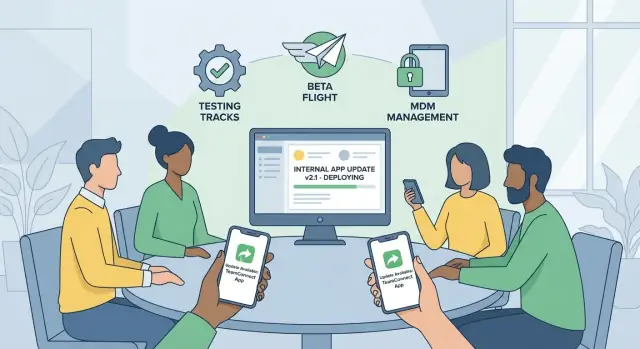
Private distribution for internal mobile apps means getting your app onto the right employees' phones without publishing it in the public App Store or Google Play.
Internal apps change often. A small tweak to an approval flow, a new form field, or an updated login rule can affect daily work immediately. If updates aren't shipped in a safe, repeatable way, teams end up with a mix of versions, and support turns into guesswork.
The pain usually shows up in three places: access control (who can install, and how access is removed when someone changes roles or leaves), version confusion (people keep using an old build), and device setup differences (permissions, profiles, OS versions) that lead to "it works on my phone" problems.
Email links and shared files (like sending an .apk or .ipa in a chat) can work for a tiny pilot. They break down as soon as you have more than a handful of testers or frequent updates. People lose the file, install the wrong one, forward it to someone who shouldn't have it, and you get no clean audit trail of who installed what.
Private distribution solves this by giving you a controlled path for installs and updates. In practice, that means a clear list of who can access the app, one "current" build to reduce confusion, faster rollbacks when something goes wrong, basic reporting on installs and versions, and a repeatable update routine the team can follow.
This matters even more with no-code tools, where teams can ship improvements quickly. AppMaster, for example, regenerates apps when requirements change, so a dependable release path keeps that speed from turning into chaos.
Most teams land in one of three lanes. The best choice depends less on the no-code tool you used and more on who owns the devices, how tightly you must control access, and how fast you need updates.
Android teams often use internal testing tracks (or similar options like closed testing). You upload a build, choose a tester group, and the store handles installs and updates. It feels familiar if you've shipped a public app, and it's usually quick once the track is set up.
The downside is that you're still working inside store rules and processing steps. It's private, but it's not the same level of control as a company-managed device fleet.
For iOS, TestFlight is the standard route for internal betas. You invite testers, they install the TestFlight app, and updates arrive there.
It's friendly for mixed device ownership (company and personal phones) because users can opt in easily. The tradeoffs are build expirations, tester limits, and the usual Apple upload process.
If devices are owned and managed by your company, MDM (mobile device management) is the most controlled option. IT can push installs, enforce policies, and remove access when someone changes roles.
MDM is a strong fit for strict environments, but it takes longer to set up and usually needs IT involvement.
A simple way to compare them:
If you build with a no-code platform like AppMaster, the options don't change. You're still producing signed builds, then choosing the channel that matches your reality.
Choosing private distribution starts with a few practical questions about devices, platforms, and how tightly you need to control access.
If you can answer these quickly, the right option usually becomes clear:
Company-owned devices push you toward MDM because it can enforce policies like passcodes, app removal, and access rules. BYOD often fits better with TestFlight (iOS) and internal testing tracks (Android) because it avoids taking over someone's phone.
If you ship often, you want the least manual work per release. Internal testing tracks and TestFlight support quick iteration: upload a build, assign testers, and push a new version when you're ready.
MDM is best when control matters more than speed. It's common for regulated teams, shared devices (warehouse scanners, kiosks), or situations where you must prove who had access.
A mix is normal. An ops team might use MDM for field devices that the company manages, while office staff on BYOD get the same app through TestFlight or an internal testing track.
If you build with AppMaster or another no-code tool, plan around how you operate: frequent small releases favor tracks or TestFlight, while stricter governance favors MDM even if releases take more coordination.
Internal testing tracks are one of the simplest ways to push updates to employees without exposing the app publicly. They work best when your team can sign in with company accounts and you want a familiar store-based install flow.
Before you start, have three basics ready: a build package (AAB or APK, depending on the store), a consistent signing setup (keystore and app signing settings), and a tester list (usually email addresses tied to store accounts). If you use a no-code tool, treat the exported build like any other: consistent signing is what allows updates to install over the previous version.
Start with a tight group of 5 to 20 people who will actually report issues. Create a named group like "Ops-internal" or "Support-pilot" and assign it to the internal track.
Keep the list clean as staff changes. Old addresses create "I can't access the test" noise, and new hires get blocked when they need the app most.
A practical rhythm looks like this: upload the new build and release notes, wait for processing, then install it yourself on at least two devices. Collect feedback for a short window (even a few hours helps). If it's stable, promote the same build to a wider testing track. Only then consider moving it to production.
If you're using AppMaster for mobile apps, keep versioning consistent between regenerations so testers can tell which build they have when reporting a bug.
If a build breaks sign-in or crashes on launch, don't ask users to reinstall until it works. Stop the rollout by replacing the track release with the last known good build, then ship a hotfix with a clear version bump.
When you message testers, keep it simple: one sentence on what changed, and a short checklist for install failures (confirm they're using the invited account, update the store app, sign out and back in, then retry).
TestFlight is a good fit when you want fast, controlled iOS updates without a public App Store release. It's especially useful when your internal app changes often.
Before you start, make sure you have an iOS build and the right signing setup. If you built the app with a no-code platform like AppMaster (which generates native iOS code with SwiftUI), the rule is the same: the build must be signed with the correct Apple team and uploaded to App Store Connect.
A flow that avoids most confusion:
Build numbers matter more than most teams expect. If two versions look identical to a tester, the build number is often the only reliable way to confirm what's installed. Put it in a settings screen (or a small "About" page) so support can confirm it in seconds.
Processing time is the hidden delay. Builds can sit in "processing" longer than expected, and external testing can add extra review steps. When that happens, keep the last approved build available, communicate the delay early, and avoid telling teams to pause work until the update lands.
When someone leaves the company or changes teams, remove their TestFlight access the same day. It's a small task that prevents long-term access leaks.
MDM is the most controlled option for internal app distribution. It fits teams with regulated data, shared iPads, strict device rules, or a need to push updates without relying on each person to install them.
Before you ship anything, confirm devices are enrolled and shown as managed in your MDM console. On Apple, that usually means having a clear policy for managed Apple IDs or a device-based assignment approach. On Android, it typically means Android Enterprise enrollment is in place.
If you build your app with AppMaster, treat MDM as the last mile: you still produce a signed iOS/Android build, but rollout and control happen inside the MDM.
Most MDM rollouts follow the same pattern: create a new signed build (iOS .ipa, Android .apk/.aab as required), upload it to the MDM app catalog, and assign it to a group or device pool. Start with a pilot group, then expand in waves. Monitor status across installed, pending, and failed.
For users, the experience is usually simple: the app updates automatically on managed devices, or they get a prompt with a short explanation. On shared devices, this is ideal because you can keep every kiosk or warehouse tablet on the same version.
Offline devices are normal. Plan for pending installs that apply the next time the device checks in. For staggered rollouts, release to 5-10% first, then broaden once you see installs succeed and key screens behave as expected.
A basic support plan prevents most rollout delays:
Security issues in internal apps usually come from small gaps: a test server used in production, a build uploaded by the wrong person, or logs that quietly collect sensitive data. A few simple rules reduce most of that risk, no matter which private distribution method you use.
Keep environments separate. Use different backends for dev, test, and production, and make it obvious which environment the app is connected to (for example, a small "TEST" label in the header). Also separate data. Never point a test build at the production database "just for a quick check."
Treat signing keys and certificates like cash. Store them in a locked, access-controlled place, not in a shared drive or chat thread. If someone leaves the company, rotate credentials and remove their access the same day.
Define clear release roles so mistakes don't slip through:
Do basic data safety checks before each release. Review what your app logs, who can access admin screens, and whether each role has only the permissions it needs. If you're using AppMaster, apply the same thinking to your visual logic and APIs: keep admin actions behind strict roles, and don't expose internal endpoints broadly.
Use versioning rules everyone can follow. Pick one format and stick to it (for example, 1.7.3), bump it on every build, and write a one-sentence change note. When an incident happens, fast rollback starts with knowing exactly which version is running where.
Picture a warehouse team using a simple ops app for receiving, pick lists, and issue reporting. Some staff have company iPhones, others use managed Android devices, and a few leads use their own phones.
The team builds the app with a no-code platform like AppMaster, so updates can be generated quickly without rewriting everything by hand. The goal is to roll out safely, while still moving fast when something breaks.
They start with 10 testers: one supervisor per shift, two people from inventory, and one support rep. For the first week, every update goes only to this group. Feedback stays tight, and the wider team isn't distracted by constant changes.
Once the main flows are stable, they expand to 100 employees. At that point, the distribution channel matters more than the build process. Tracks are often the fastest way to push the same store-style update flow. TestFlight works well on iOS when you need quick access control and users are comfortable installing builds through a separate app. MDM is best when devices are managed and updates should be enforced, not suggested.
Then comes a same-day bug fix: a barcode scanner screen freezes after a network drop. If most devices are managed, MDM can be the quickest way to get the update onto every phone by the next shift. If devices are mixed, an internal testing track plus a short message telling users to update immediately is often the practical path.
A contractor needs access for two weeks to help with process mapping. The clean approach is to grant access only through the chosen channel, set an end date, and remove them from the tester or MDM group when the contract ends.
"Done" looks like this: a 90%+ install rate in the first week, updates landing within 24 hours of each release, and fewer support tickets about outdated screens or inconsistent workflows.
Most teams don't get blocked by the store or the tool. They get blocked by small details that create rework, especially when they ship often.
A common slip is publishing the right code with the wrong packaging details. A mismatched version number, wrong bundle ID, or incorrect signing profile can make a build impossible to install, or it installs but won't upgrade cleanly. If you use a no-code platform that outputs native apps (including AppMaster), treat versioning and signing as part of the release checklist, not an afterthought.
Access control also drifts over time. Tester groups and device lists change, but many teams never remove people who left or switched roles. That turns a simple internal update into a security issue and creates noise when old devices start failing installs.
Another release killer is silence. If you ship without release notes, you get messages like "it broke" with no clue what changed. Even two lines help: what was added, what users should watch for, and whether they need to log out or refresh.
Data mistakes are harder to spot. Mixing test and production data in one backend means a tester can trigger real actions (like creating a real order) or pollute reports with fake records. Keep separate environments and clear labels in the app.
Avoid the "everyone gets it now" approach. Roll out in waves and plan how you'll back out:
A short pause before you push an update can save hours of confusion. Internal releases usually fail for simple reasons: the wrong people get access, the rollout is unclear, or support has no idea what changed.
This pre-flight checklist works for internal testing tracks, TestFlight, and MDM. It also fits no-code builds, including apps generated by platforms like AppMaster, where you might ship often as processes change.
One practical habit: show the version number and environment (for example, "Staging" vs "Production") on a settings screen inside the app. When a manager reports a bug, you can confirm in seconds whether they're on the right build.
If you can answer every item above in one minute, you're ready to ship.
The goal of private distribution isn't just getting the next build out. It's making updates feel boring: predictable, fast, and safe.
Write your distribution flow on one page so a new teammate can follow it without asking around. Include who approves a release, where the build goes (track, TestFlight, or MDM), and what "done" means.
Pick a cadence that matches how your team works. Weekly is common for internal apps, with a clear path for urgent fixes when something breaks.
To keep improving, track a few simple metrics: installs and active devices, update adoption after 24/48/72 hours, the top failure reasons (install blocked, login issues, crashes, permissions), and the time from "fix ready" to "available to users."
No-code tools can speed up internal apps, but updates get messy when changes are patched in ad hoc. Your build pipeline should regenerate cleanly when requirements change, and versions should be tagged so you can reproduce any release.
If you're building with AppMaster, it can help to keep backend, web admin screens, and native mobile apps in one place, then deploy to your preferred infrastructure or export source code for self-hosting. That consistency makes internal releases easier to maintain as the app grows.
Schedule a short release review every month. Repeated issues are usually process problems you can fix once instead of fires you fight every week.
 What does “private distribution” mean for an internal mobile app?
Private distribution is the practice of installing and updating an internal mobile app only for specific people (like employees or contractors) without publishing it publicly. It gives you a controlled way to manage who can install the app, which version is “current,” and how updates roll out.
Why shouldn’t we just email the .apk or .ipa to employees?Emailing an APK or IPA works briefly, but it quickly creates version confusion and weak access control. Files get forwarded, people install the wrong build, and you lose a clear record of who has what installed, which makes support and offboarding much harder.
When should we use internal testing tracks instead of MDM?Use store-based internal testing tracks when you want a familiar install/update flow and you don’t need full device control, especially on Android. It’s usually the easiest path for frequent updates as long as tester access is managed carefully and signing stays consistent.
When is TestFlight the right choice for iOS?TestFlight is best when you need a practical way to share iOS builds with a defined group without a public App Store release. It works well for mixed ownership (company and personal phones) because people can opt in, but you still need to plan for processing delays and build expiration rules.
When do we actually need MDM for internal app distribution?MDM is the best fit when the company owns and manages the devices and you need enforced policies, remote removal, or tighter audit needs. It takes more setup and usually requires IT involvement, but it reduces “it works on my phone” issues by standardizing devices and updates.
How do we avoid employees running different app versions?Keep one simple rule: always bump the version/build number for every release, even hotfixes. Then surface the installed version inside the app (for example in Settings/About) so support can confirm it in seconds instead of guessing.
What’s the most common signing mistake that breaks updates?Use the same signing identity and bundle/package identifiers across releases so the new build can install as an update over the old one. If signing or IDs change, devices may treat it as a different app, causing failed updates, duplicates, or forced reinstalls.
What’s the safest way to handle a bad release or urgent hotfix?Start by pausing the rollout or replacing the release with the last known good build, then ship a hotfix with a clear version bump. Don’t ask users to reinstall unless you have to; most of the time, a controlled rollback and a clean update message is faster and less disruptive.
How do we remove access quickly when someone leaves the company?Remove access the same day in whatever channel you use: tester groups for tracks/TestFlight or device/user groups in MDM. Also review any shared credentials, certificates, and backend access tied to the app so offboarding doesn’t leave a hidden path back in.
Does building with AppMaster or other no-code tools change how private distribution works?The distribution choices stay the same, but no-code teams often ship more frequently, so the process matters more. AppMaster generates native mobile apps and regenerates them when requirements change, so a consistent signing and release routine helps you keep that speed without turning updates into chaos.
Experiment with AppMaster with free plan.
When you will be ready you can choose the proper subscription.
 Jul 14, 20268 min
 Jul 13, 20268 min
 Jul 08, 20268 min