


 Jul 14, 2026
 8 min
8 minEquipment reservation app: prevent conflicts and track returns
Plan an equipment reservation app that prevents double bookings, records returns and damage, and places faulty items on maintenance hold.

A pet daycare daily report card app helps you log meals, meds, playtime, and photos, then send owners an automatic daily summary they trust.
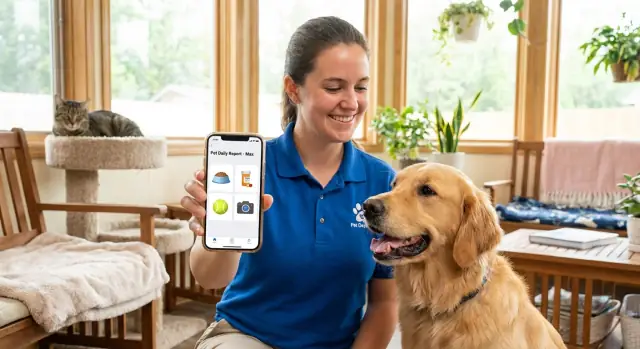
When someone leaves a pet at daycare, they’re trusting strangers with the small details that matter. Most owners don’t want a long story. They want quick proof that the basics went well and their pet felt safe.
The worries are usually the same at almost every drop-off: Did they eat and drink? Were meds given, and when? Were they happy or stressed? Did anything unusual happen? Did they get enough play and breaks?
A short, consistent daily summary also prevents the same questions from piling up at pickup. Without a clear update, staff end up answering variations of “Did she eat?” and “Was he okay with the other dogs?” right when the lobby is busiest. A predictable report turns that into a quick confirmation instead of a five-minute recap.
Consistency builds trust. If the update always includes meals, meds, play/rest, and one plain-language note, owners learn what to expect and worry less. It also reduces disputes because there’s a written record of what happened, not just a rushed memory.
When updates are missing or too vague (“Great day!”), owners fill in the blanks themselves. That leads to follow-up calls, tense pickup conversations, and bad reviews after one confusing day.
A daily report works when it answers the same questions every time, in under a minute. It’s not a diary. It’s a clear record that prevents mix-ups.
Start with basics owners can reference later: date, check-in and pick-up time, and who cared for the pet. Then cover the three areas owners care about most:
Medication needs extra clarity. If something wasn’t given, say why in plain language (for example, “owner didn’t supply refill” or “pet refused treat”). That protects pets and staff.
For potty breaks, a simple note like “soft stool” or “straining” is more useful than vague comments.
If you want the report to stay useful even on hectic days, these five fields do most of the work:
Leave space for one short “today’s highlight” line. Owners remember that sentence, and it makes the update feel human.
If staff have to type long paragraphs, reports will be late, messy, or skipped. The app should feel like checking boxes during the day, not writing a diary at 6 pm.
Design each entry so it takes a few taps. For meals, meds, potty breaks, and playtime, use simple choices with an optional note. Most days are normal, so the normal path should be the fastest.
Presets save time and keep wording consistent, so owners don’t have to guess what “kinda ate” means.
Keep the presets short and specific:
Then add one short free-text note for exceptions, like “Spit out the pill once, took it with cheese.” Keeping the note box small helps it stay readable.
People make mistakes when they’re busy. Make it easy to review and fix entries before the summary is sent.
A workflow that matches real daycare life:
Example: If Luna’s breakfast is logged by the opener and meds are logged by the mid-shift, both should land in the same daily card.
A daily report is only as good as the profile behind it. If staff have to remember details (or hunt through old messages), mistakes happen fast: the wrong treat, a missed pill, or an update sent to the wrong person.
Build a simple pet profile that rarely changes, then pull that info into each day’s report automatically. That keeps reports consistent even when different team members handle the pet.
Capture these details up front:
Owner preferences matter more than people think. One owner wants photos and play notes. Another mostly cares about meds and bathroom breaks. If you record that once, staff don’t have to guess.
Example: Luna’s profile says “allergic to chicken” and “med at 2:00 PM, give after lunch.” That prevents a well-meaning mistake and makes the summary clearer without extra typing.
A daily report works best when fields are specific enough to be useful, but not so detailed that staff skip them. Each entry should answer three questions fast: what happened, when, and does anyone need to do anything next.
Keep meals, meds, and playtime in separate sections so nothing gets buried in a long note. Use dropdowns and checkboxes whenever you can, and save free-text for exceptions.
For example:
For status tags, keep the options simple so staff will actually use them:
Example: If Luna skipped lunch but took her 2 pm allergy tablet, staff can mark “Meals: none + note (too excited)” and “Meds: given at 2:05, administered by Sam, confirmed,” then tag the day “Normal day.”
A report only works if the workflow is obvious. Before you build screens, write down the exact questions the report must answer for an owner. If a question doesn’t reduce worry or prevent confusion, drop it.
Most daycares end up with the same core questions:
Then draft a one-screen daily form for staff. One screen reduces scrolling, missed fields, and “I’ll fill it in later” delays.
Decide when entries are logged. If your day has clear blocks, logging right after each activity is most accurate (meals, meds, nap, group play). If staffing is tight, do quick taps during the day and finish the final note before pickup.
Define who does what so nothing gets stuck:
Test the flow with one pet and one staff member for two days. Watch where they hesitate, what they skip, and what they type repeatedly. That’s what you fix first.
Reports stay consistent when they go out at the same point in the day. Pick a send time that matches your routine, like after the last potty break or before the pickup rush. Staff shouldn’t have to remember who needs an update. The system should handle the “who and when.”
Keep the message short and skimmable. Owners want highlights, not a wall of text. A good app can compile a few clean bullets from what staff already logged.
A simple format that works:
Handle exceptions clearly:
A quick review step prevents most problems. For example, after the afternoon shift finishes logging, a manager sees a “Ready to send” screen, fixes a typo, and taps Approve.
Photos are what most owners remember, but they can also become a time sink. A good rule is 1 to 3 photos per pet per day. That’s enough to prove “Yep, they had a good day” without turning pickup into a photo album review.
Context matters more than quantity. Attach each photo to a moment you already log, like playtime, nap, grooming, or enrichment. When the photo sits next to the activity, owners instantly understand what they’re seeing.
Keep captions short and match the log. Write like you’re texting a friend who knows the dog: “Tug time with Luna. Took breaks, then drank water.” If the note is sensitive, keep it factual: “Ate half breakfast. Took allergy med at 9:10 am.”
Try to avoid other pets or people in the background when possible. It prevents mix-ups (“Is that my dog?”) and reduces privacy concerns.
Store each photo and caption inside the same daily entry, not in a separate camera roll. That way, when an owner asks “How was she last Thursday?” you can pull up the full day in seconds.
Here’s what a clean, easy-to-read day can look like without turning the report into a novel. Imagine Luna, a 3-year-old Lab mix, coming to daycare on a typical Wednesday.
Morning check-in (8:10 AM): Staff confirm Luna’s plan in her profile: 1 cup kibble at lunch, no breakfast, and one anxiety chew with food. They also note a detail from drop-off: “Slept poorly last night, may be a little clingy.”
Midday (12:05 PM): Lunch is logged as “Ate 90%.” Supplements are marked “Given” with a timestamp. Playtime is recorded as “Group play - gentle group, 25 min.” One photo is added with a short caption: “Hung close to us at first, then joined the group.”
Afternoon (3:40 PM): Potty and rest are quick checkboxes. Staff select “Potty: yes” and “Rest: 45 min,” then add one note: “Scratched left ear a bit after nap, no redness seen.”
End of day (6:00 PM): A quick review catches typos and confirms nothing is missing. The app sends a one-screen summary the owner can scan in 10 seconds.
When the report reads like this, owners usually stop texting for extra updates, and pickup feels calmer because they already know how the day went.
Most “owners didn’t read it” problems are really “the report wasn’t clear” problems. The app should make the right details hard to miss and the wrong details hard to enter.
One common issue is too much free text. Notes like “ate fine” or “normal energy” sound helpful, but they mean different things to different people. Owners want specifics they can compare day to day.
These mistakes cause the most confusion:
Replace vague text with small, clear fields. For meals, capture “how much” plus one appetite note. For playtime, capture “type” (group, solo, enrichment) and one intensity option. For meds, always capture time and staff initials.
Don’t rely on memory for identity checks. If you have two dogs named Bella, “Bella got her pill” is a guaranteed support call. Add a quick confirmation like pet photo, breed, or a unique tag (for example, “Bella G. - Blue harness”).
Before you hit send, take 30 seconds to scan for the details that prevent follow-up texts.
Start small so you can learn fast. A simple v1 is enough: one staff form, one automatic daily summary, and photos as optional. The goal is to prove staff can complete it in under a minute per pet without slowing the team down.
Before you build, ask a few regular owners what they actually read. Pick 3 to 5 people who will give honest feedback and ask: “What would make you feel confident your pet had a good day?” You’ll usually hear the same needs: meals, meds, potty, energy level, and one clear note.
Pilot it with a small group for one week, then refine the fields. If staff keep skipping a field, it’s either unclear or not worth tracking. If owners keep asking the same question, add one simple checkbox or preset.
A practical v1 build plan:
If you want to build this without hiring a full dev team, AppMaster (appmaster.io) is a no-code platform that can generate a complete solution (backend, web app, and native mobile app) from one set of data models and workflows. It’s a solid fit for internal tools like staff logging and owner updates, where speed and consistency matter most.
 What should a pet daycare daily report include every time?
Include the basics owners check first: date, check-in and pickup times, and who handled the pet. Then log meals/water, medications, potty breaks, play/rest, and one short plain-language note that explains anything unusual.
How long should the daily report be so owners actually read it?Aim for something an owner can scan in 10–20 seconds. If staff can complete the update in under a minute per pet, it’s far more likely to be done consistently and on time.
How do we handle missed medication without upsetting owners?Give the fact first, then the reason and next step in simple language. For example, note that the dose was missed, why it happened (not supplied or refused), and what you did (retried, called, or will retry at a specific time).
Do we really need timestamps for meals, meds, and potty breaks?Timestamps prevent confusion and protect both pets and staff when questions come up later. They also reduce “Did it happen?” follow-ups, because the report shows exactly when meals, meds, and potty breaks were logged.
What presets make staff reporting faster without losing important detail?Start with a small set of clear presets so the “normal day” takes just a couple taps. Keep free-text for exceptions only, so wording stays consistent and owners aren’t guessing what “ate fine” means.
How should the workflow work when multiple staff handle the same pet?Use one shared daily card per pet so multiple staff can add events throughout the day, then have one quick review before sending. This prevents duplicate updates and makes it obvious what’s missing before owners see it.
How many photos should we send, and how do we keep it from becoming a time sink?A reliable rule is 1–3 photos per pet per day, attached to a logged moment like playtime or rest. The key is context, so add a short caption that matches the activity and the pet’s mood.
How do we avoid privacy issues and mix-ups in photo updates?Keep notes factual and avoid identifying other pets or people when possible. Also store photos and captions inside the pet’s own daily entry, so you don’t accidentally send the wrong image to the wrong owner.
How do we tailor updates to different owner preferences without extra work?Ask owners once, then save their priorities in the pet profile so staff don’t have to guess every day. Some owners mainly care about meds and stool, while others care more about social behavior and energy, and the report should reflect that.
What’s the simplest way to build a daily report card app without hiring a full dev team?Build a simple v1: pet profiles, daily logs, a review step, and an automatic daily summary. A no-code platform like AppMaster can generate the backend, web app, and native mobile apps from one set of data models and workflows, which is helpful when you need to iterate quickly based on staff and owner feedback.
Experiment with AppMaster with free plan.
When you will be ready you can choose the proper subscription.
 Jul 14, 20268 min
 Jul 13, 20268 min
 Jul 08, 20268 min