


 Jul 14, 2026
 8 min
8 minEquipment reservation app: prevent conflicts and track returns
Plan an equipment reservation app that prevents double bookings, records returns and damage, and places faulty items on maintenance hold.

Passwordless login with magic links checklist for UX and security: expiration, one-time use, reuse rules, device sessions, and email deliverability basics.
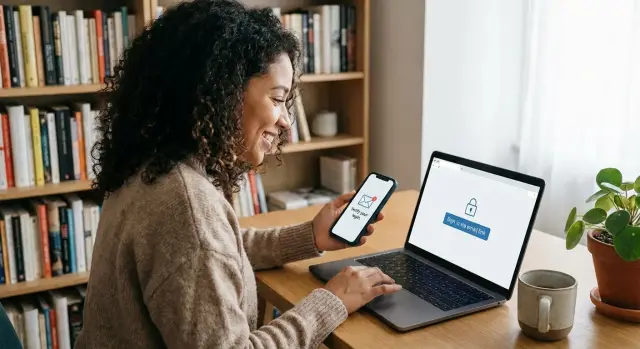
A magic link is a one-time sign-in link sent to your email. Instead of typing a password, you open the email, tap the link, and you are logged in.
This can be a nice fit when people hate passwords, forget them often, or sign in only occasionally. It can also reduce password reuse across sites, since there is no password to reuse. But it does not remove the need for security. It simply moves the main “key” to your email inbox.
That is the tradeoff to be clear about: passwordless login with magic links is only as safe as the user’s email account and their ability to keep access to it private. If someone can read your email, they can often sign in as you.
Here are the most common ways magic links go wrong in real life:
A small example: someone requests a link on a work laptop, then checks email on a personal phone. They tap the link, the phone signs them in, and the laptop still shows the login screen. If your flow does not explain what happened, support tickets follow.
If you build this in a product made with AppMaster, treat the email step like a sensitive action, not a convenience-only feature. Clear messaging, short-lived links, and simple session controls are what make the experience feel safe.
Passwordless login with magic links works best when the goal is fast access with minimal friction, not maximum protection. It is a great fit for products where people sign in occasionally and forget passwords, and where an email inbox is already the “home base” for the user.
A simple way to decide is to ask: if someone gets into the wrong account, what is the worst realistic damage? If the answer is “annoying, but fixable,” magic links can be a good default.
Good fits often include:
Be cautious or avoid magic links as the only sign-in method when:
If your product has sensitive moments rather than sensitive accounts, use email sign-in for entry, then add a second factor or step-up check for risky actions. For example, require an extra confirmation when changing payout details, exporting data, or adding a new admin.
Also decide what email should be allowed to do. “Login-only” magic links are safer and easier to reason about. “Login + account recovery” is convenient, but it means anyone with email access can take over the account. If you support changing the email address, treat it like a high-risk action.
If you are building an app in a no-code platform like AppMaster, this decision still matters: the UI can be simple, but your policy around sensitive actions and recovery should be explicit from day one.
Magic links feel simple to users, but a lot of small choices sit under the hood. A clean flow keeps people moving, and it keeps support tickets down.
Most products follow the same path: the user enters an email, receives a message, taps the link, and lands signed in.
A common improvement is a final confirmation step after the link opens. Instead of instantly signing in, you show a short screen like “Confirm sign-in to Acme” with a single button. This helps when someone taps the link on the wrong device or the email was opened by a preview tool.
On mobile, decide what “tap the link” means. If you have a native app, the best experience is usually: tap link -> open the app -> finish sign-in. If the app is not installed, fall back to mobile web and offer an “Open the app” option later.
Before you build passwordless login with magic links, lock these rules so the experience is predictable:
Already signed in is easy to overlook. If a logged-in user taps a new magic link, you can (a) keep them in the same account and show “You are already signed in,” or (b) treat it as an account switch and ask for confirmation. For apps built in AppMaster (like customer portals or internal tools), option (a) is usually safer unless account switching is a real feature.
A magic link is only “passwordless” if it feels effortless. Expiration is the part that can quietly break that promise. Too short, and people hit expired links in their inbox and give up. Too long, and a forwarded or exposed email becomes a bigger risk.
A practical starting point for passwordless login with magic links is an expiration window between 10 and 30 minutes. Shorter windows (3 to 10 minutes) fit higher-risk actions like signing in to an admin area or approving a payment. Longer windows (30 to 60 minutes) can work for low-risk apps, but only if you have strong session controls and good device management.
Make the expiration clear in the email and on the “Check your email” screen. Don’t hide it in tiny text. Use simple wording like “This link expires in 15 minutes.” If you can, show a countdown on the waiting screen, but don’t rely on the user’s device clock for accuracy.
Email delays and clock differences are common. Some providers hold messages for a few minutes, and some users open the email on a different device than the one that requested it. A few rules help avoid confusion:
When a link is expired, the best experience is a one-tap resend from the landing page. Keep it safe: only allow resend after a short cooldown, and avoid revealing whether an email exists in your system. The page can say “If this email is registered, we’ll send a new link.”
A small detail that reduces support tickets: include the exact email address the link was sent to (partially masked) on the waiting screen, plus a “Change email” option. If you’re building the flow in a no-code tool like AppMaster, this is usually just a couple of UI states, but it prevents a lot of “I never got the email” confusion.
For most products, default to one-time use magic links. It protects users from common accidents like email forwarding, shared inboxes, or someone reopening an old message weeks later. It also makes support simpler: if a link was used, it is done.
The key is deciding what “used” means in real life. People click twice, open on the wrong device, or tap the link in an email preview. Your rules should be secure, but they also need to feel fair.
A good baseline: the first successful login consumes the token, and any later open shows a clear message like “This link was already used. Request a new one.” Avoid vague errors. If you want to reduce frustration, you can offer a small safety window before consumption, for example: only mark it used after the session is created.
Here are user-friendly patterns that stay safe:
Decide this upfront and be consistent. The safest default is: each new request invalidates all previous outstanding links. This limits damage if someone gains access to an inbox later.
If you keep multiple links valid at once, you need stronger protections (short expiration, strict one-time use, and clear device/session controls). Otherwise “passwordless login with magic links” can quietly turn into long-lived access keys sitting in email.
Avoid reusable links that work over and over. Even if it feels convenient, it trains users to treat email as a permanent key and makes account takeover much harder to contain.
If you build your auth flow in a no-code tool like AppMaster, write these rules down as plain language states (valid, used, expired, replaced) so your UI messages match what your backend actually enforces.
Most support tickets around magic links are not security bugs. They are “I never got the email”, “I clicked it and nothing happened”, or “Is this phishing?”. Good UX prevents all three.
After the user submits their email, show a dedicated “Check your email” screen instead of a tiny toast. Make it calm and specific: tell them which address you sent to, what to do next, and what to try if it does not arrive.
A strong check-email screen usually includes:
Trust is won in the email itself. Use a consistent sender name and subject, and keep the content predictable. Add one or two details that help users feel confident it is legit, like “Requested from Chrome on Windows” or “Requested at 3:42 PM”. Avoid scary copy. Simple is better: “This link signs you in. If you did not request it, you can ignore this email.”
Also plan for the most common failure: delayed or filtered email. Your UI should not dead-end. If the link might take a while, tell users what to do while they wait, and offer a friendly fallback.
One practical fallback is including a short one-time code in the same email as the link. Then the check-email screen can offer “Enter a code instead” for cases where the link opens on the wrong device or is blocked by an email security scanner.
A small but important detail: if a user clicks an old or already-used link, show a helpful message and a single clear next step like “Send me a new link”, not a generic error.
A magic link is only as safe as the token behind it. Treat that token like a temporary key to the account: it must be hard to guess, short-lived, and usable only in the way you intended.
Start with unpredictability. Generate long, random tokens (not based on email, time, or incremental IDs). Store as little as possible. A common pattern is to store a hashed version of the token (so if your database leaks, the raw link can’t be reused) plus just enough metadata to validate it.
Binding the token to context can prevent easy forwarding. You do not always want strict binding (people switch devices), but you can add light checks to catch obvious abuse. Examples: tie the token to the email address it was requested for, and optionally to a coarse fingerprint like user agent family or the first IP range seen. If the context doesn’t match, you can ask for a fresh link instead of hard-blocking.
Rate limiting matters more than fancy math. Without it, attackers can spam your login form, annoy users, and probe whether emails exist.
Finally, log what you will actually need when a user says “I didn’t do this.” Capture events like link requested, email sent, link opened, token accepted/failed (and why), and session created. Include timestamp, IP, and user agent. In a tool built with AppMaster, these events can be recorded as part of your login business process so support and security have a clear trail without digging through server internals.
Magic links remove passwords, but users still think in terms of devices: “I logged in on my phone” or “I used a shared laptop.” If you do not give them a simple way to see and end sessions, support tickets go up fast.
Start with one decision: how many active sessions can one account have at the same time. For most consumer products, multiple sessions is fine (phone + laptop). For sensitive tools (admin panels, finance, internal ops), you may cap it or ask for a fresh magic link when a new device appears.
A small “Devices” or “Active sessions” page makes this easy to understand. Keep it plain and slightly imperfect rather than over-precise. A good row usually includes:
From there, give two clear actions. “Log out” should end only that session. “Log out of all devices” should end everything, including the current device, and force new magic links everywhere.
Between those actions, define what happens when a device is lost or shared. The safest default is: logging out invalidates all existing sessions and any unused magic links that were already sent. Users do not need the details; they just need the guarantee that the old access is gone.
Here is a simple behavior set that users rarely find surprising:
If you are building this in AppMaster, you can model sessions in the Data Designer, show them in a basic web/mobile UI, and add one-button actions in a Business Process. Users get a familiar “active sessions” view without you turning it into a security textbook.
Magic links feel simple, but email is messy. People forward messages, share inboxes, and mistype addresses. If you design for the perfect case only, you will end up with confusing lockouts and hard-to-handle support requests.
Forwarding is the biggest surprise. A passwordless login with magic links should assume the link might be opened by someone else, on another device, minutes or hours later. The safest baseline is one-time use plus a clear “this link was already used” message, with a fresh request button. If you want extra protection, show a lightweight confirmation step after the click when the device is new (for example, “Was this you?” plus a quick cancel option that revokes the session).
Shared inboxes need a product decision, not a technical patch. If multiple people legitimately read the same email (like support@ or sales@), magic links turn into shared access by default. Consider requiring an additional step for “team” accounts (like an invite to a personal email) or making it clear in the UI that email access equals account access.
Typos create “ghost accounts” and awkward privacy issues. Avoid silently creating new accounts on first login unless your product truly needs it. A safer approach is to confirm intent in the app before onboarding, and keep the email response neutral (same message whether the account exists or not).
Aliases matter too. Decide how you treat plus-addressing (name+tag@) and provider aliases:
Support is where things can go wrong fast. Don’t ask users to forward emails, paste tokens, or share screenshots of links. Instead, offer simple in-product actions like “send a new link,” “sign out of other devices,” and “report this wasn’t me,” so support can help without touching sensitive data.
Before you launch passwordless login with magic links, decide what you want to happen in the messy real world: slow email delivery, people tapping the link twice, and users switching between phone and laptop.
Start with the rules that control risk and support load. If you get these wrong, the UI cannot save you.
Next, check the parts users actually see. Most complaints come from unclear emails and confusing mobile behavior.
If you are building this in a tool like AppMaster, map each checklist item to a concrete screen and a business rule in your logic, so the behavior stays consistent across web and mobile.
Maya works in support. On Monday morning she opens the customer portal on a new laptop. She enters her work email and taps “Send me a sign-in link”. The email arrives with a magic link that expires in 10 minutes.
She clicks it, the browser opens, and she lands inside the portal. Behind the scenes, the link is accepted once, then marked as used. The portal creates a new session for “Maya - Laptop Chrome” and keeps her signed in for 14 days unless she signs out.
Later that day, Maya tries to log in from her phone. She reuses the old email from the morning and taps the same link again. The app shows a clear message: “That link was already used. Request a new one.” She requests another link, but she gets distracted. Fifteen minutes later she taps it and sees: “This link expired. Send a fresh one.” She requests again, taps immediately, and the phone session is created as “Maya - iPhone Safari”.
On Friday, Maya helps a teammate on a shared office laptop. She signs in, finishes the task, then goes to “Devices” and taps “Sign out of this device”. Before she leaves, she also removes the shared laptop session from her account so it cannot be used again.
Here are the simple rules the app followed:
To build this flow in AppMaster, start with the authentication module and enable email sign-in. Store sessions in your database (user, device name, created time, last used time). Use the email messaging module to send the login email, and a short business process to validate token state (unused, unexpired), then create or revoke sessions. If you want passwordless login with magic links without heavy custom code, you can create the screens and logic in the visual editors and try it now.
 What is a magic link sign-in?
A magic link is a one-time sign-in link sent to a user’s email. The user opens it to access the app without entering a password.
When are magic links a good fit?Use magic links for low to medium risk apps, occasional users, and products where password resets cause friction. Do not rely on email alone for money movement, sensitive records, or high-privilege accounts.
How long should a magic link stay valid?Start with a 10 to 30 minute expiry. Use a shorter window, such as 3 to 10 minutes, for admin areas or risky actions, and state the expiry clearly in the email.
Should a magic link work only once?Yes. The first successful sign-in should consume the link. Later attempts should explain that the link was already used and let the user request a new one.
Should a new magic link cancel older links?Usually, yes. Invalidating earlier unused links when someone requests another link reduces the risk from old emails, forwarded messages, and inbox access later on.
What should users see after requesting a link?Show a full check-email screen with the masked address, a change-email option, resend timing, and advice to check spam or company filters. Keep the message neutral so it does not reveal whether that address has an account.
Are magic links safe with shared email inboxes?Email access should equal account access. Shared mailboxes can give several people access to the same account, so use personal-email invites or add another verification step for team accounts.
How do you secure magic links behind the scenes?Use long random tokens, store token hashes rather than raw tokens, enforce short expiry and one-time use, and limit requests by email and IP. Record requests, opens, failures, and created sessions for support and security review.
How should device and session management work?Give users an Active sessions page that shows device or browser, rough location, and recent activity. Let them end one session or sign out everywhere, and cancel unused links when they revoke all sessions.
When should an app ask for extra verification?Use email sign-in for normal access, then ask for an extra check before actions such as changing payout details, exporting data, adding an admin, or changing the account email.
Experiment with AppMaster with free plan.
When you will be ready you can choose the proper subscription.
 Jul 14, 20268 min
 Jul 13, 20268 min
 Jul 08, 20268 min