


 Jul 14, 2026
 8 min
8 minEquipment reservation app: prevent conflicts and track returns
Plan an equipment reservation app that prevents double bookings, records returns and damage, and places faulty items on maintenance hold.

Passwordless login for business apps: compare magic links, passkeys, and OTP with clear security, deliverability, and device recovery tradeoffs.
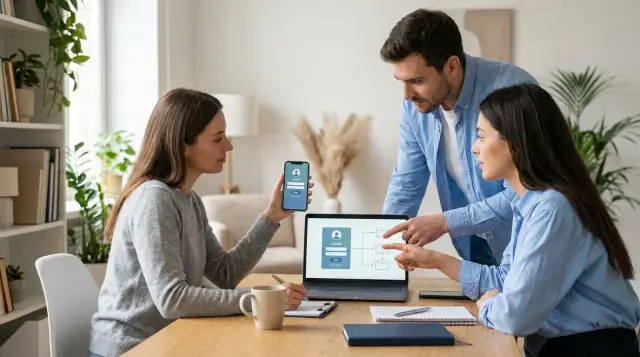
“Passwordless” doesn’t mean “no security.” It means users don’t create or remember a long-lived secret string. Instead, sign-in is approved with something they have (a device, an email inbox, a phone number) or something built into the device (biometric unlock), usually backed by short-lived proof like a link, a code, or a cryptographic key.
For business apps, the goal is practical: remove the two biggest day-to-day problems with passwords. People forget them and reset them. And people reuse them, which makes phishing and credential stuffing far more effective. That turns into support tickets, account takeovers, and frustrated employees who can’t access the tools they need.
Teams usually move away from passwords because it changes operations:
Passwordless also introduces new failure modes. If login depends on email, delays or spam filtering can block access at the worst time. If it depends on a phone, a lost device or a number change can lock someone out. If it depends on shared resources, like a shared inbox or a shared phone on the factory floor, it’s easy to drift into “shared accounts,” which hurts audit trails and offboarding.
The expectation to set early is simple: there isn’t one method that fits every user, device, and work setting. Most business apps end up with a primary sign-in method plus a backup method for recovery.
If you’re building an internal tool or customer portal in AppMaster, plan sign-in like any other core feature. Decide who your users are, what devices they use, and what your support team can realistically handle when someone can’t log in.
“Passwordless login” usually means users prove it’s them without creating or remembering a password. The main options are magic links, one-time codes (OTP), and passkeys. All three reduce password reuse, but they behave very differently in real operations.
Magic links sign a user in through a unique link sent to their email. The link typically works once and expires quickly. It feels easy because the user just opens their inbox and taps. The tradeoff is that the inbox becomes the gatekeeper: if email is delayed, filtered, or the user is logged out of email on that device, sign-in stalls.
OTP codes are short, time-limited numbers users type in. They can be delivered by email, SMS, or generated in an authenticator app. Email OTP has the same deliverability dependency as magic links, but it works even if the user can’t open links. SMS OTP can help when email is slow, but it adds cost and can be vulnerable to phone number takeover.
Passkeys are device-based credentials stored on a phone, laptop, or hardware key. Users confirm with a fingerprint, face scan, or device PIN. It’s often the smoothest experience once set up, and it resists phishing better than links or codes. The hard part is recovery: people lose devices, switch phones, or use shared workstations.
A common hybrid setup is:
If you’re building an internal tool in a platform like AppMaster, treat sign-in as part security, part support workload. The “best” method is the one your users can complete reliably, even on their worst Monday morning.
The key security question is straightforward: what can an attacker realistically steal, and how easily can they trick a real employee into handing it over?
Passkeys are the hardest to phish in normal use because the login is tied to the real app or site and doesn’t rely on a code you can read out loud or paste into a fake page. OTP codes (SMS or authenticator) are easiest to social-engineer because users are trained to share them under pressure. Magic links sit in the middle: many people will click a link that looks like a sign-in email, especially if the attacker can imitate your email style.
A useful comparison is to ask what the attacker needs:
Even strong login can be undermined by sloppy session handling. Set these defaults early and keep them consistent across web and mobile:
Admin and support flows are the quiet risk. If a helpdesk agent can “just change the email” or “skip verification” to unblock someone, that path will be abused. In an internal finance approval portal, for example, an attacker only needs one convincing support chat to get a new email set and then receive magic links. Require audited steps for recovery and admin actions, and separate “help” permissions from “account takeover” permissions.
Email-based login (magic links or one-time codes) looks simple, but deliverability can become the biggest operational cost. The most common support ticket isn’t “I forgot my password.” It’s “I didn’t get the email.”
Delays and missing emails usually come from spam filters, strict corporate gateways, and user mailbox rules. A magic link that arrives three minutes late isn’t just annoying. It can trigger repeated requests, lockouts, and frustrated users who start sharing inbox screenshots with your support team.
Sender reputation matters more than most teams expect. At a high level, your domain needs to prove it’s allowed to send login emails and that messages weren’t altered. The usual building blocks are SPF (who can send), DKIM (message signatures), and DMARC (what to do when checks fail).
Even with those in place, your sending patterns can still hurt you. If a user taps “send again” five times, you can quickly look like a spammer, especially when many employees sign in at once after a meeting or shift change.
Rate limits and retries need a plan. Slow down repeated sends without trapping legitimate users. A workable setup usually includes a short resend cooldown, a visible timer, a “check spam” hint, and a fallback method (like SMS OTP or a passkey) for blocked inboxes. Also log bounces, blocks, and delivery times, and show support-friendly error messages that name the problem.
If you’re building an internal tool, corporate filtering is the real test. One department might receive the emails fine while another never sees them. Platforms like AppMaster can help you wire email flows quickly, but the long-term work is monitoring delivery and designing a graceful fallback so “I didn’t get the email” doesn’t become a daily fire drill.
SMS one-time codes feel simple: type your phone number, get a text, enter the code. That simplicity can be a real advantage when users aren’t ready for passkeys or when email is unreliable.
The first problem is delivery. Text messages don’t arrive evenly across countries and carriers. Roaming can delay or block them, and some corporate phones filter unknown senders. Number changes are also common. Users switch carriers, lose SIMs, or keep an old number tied to an account they still need, and “quick login” becomes a support ticket.
Security is the bigger concern. SMS proves control of a phone number, not a person. That creates sharp edges:
Cost and reliability matter, too. Each login attempt can trigger a paid message, and some teams only notice the bill after launch. SMS providers and carriers also have outages. When texts fail during a shift change, your help desk becomes the login system.
So when does SMS make sense? Usually as a fallback, not your main door. It works well for low-risk roles (for example, read-only access to a simple directory), or as a last-resort recovery option when a user can’t access email or a passkey.
A practical approach is to reserve SMS for recovery and require an extra check for sensitive actions, like changing payout details or adding a new device.
Passkeys feel great when everything is normal. A user taps “Sign in,” confirms with Face ID or Touch ID (or types a device PIN), and they’re in. There’s no password to mistype, no code to copy, and phishing is much harder.
The problems show up on the worst day, not the best day. A phone is lost. A laptop is replaced. Someone joins with a new device and can’t access the old one. With passkeys, “forgot password” becomes “how do I prove it’s me without the device that proves it’s me?”
Cross-device use is also messier than it sounds. Passkeys can sync inside an ecosystem, but many teams are mixed: iOS and Android phones, Windows laptops, shared Macs, or contractor devices. Shared work devices are especially tricky because you usually don’t want a passkey stored on a kiosk or a shift computer.
A practical policy balances speed and recovery:
Example: a warehouse supervisor uses a shared tablet. Passkeys are perfect on their personal phone, but on the shared tablet you may require a short-lived session plus a second factor. If you build the app in AppMaster, treat this as a product requirement early so you can model recovery, auditing, and role-based admin resets alongside the login flow.
Start with who is signing in and what they’re doing. An employee with a managed laptop can use passkeys comfortably, while a contractor on shared devices might need a one-time code. The best setup is usually one primary method plus one fallback, not three options that confuse everyone.
Walk through these questions in order:
Next, set clear time windows. Magic links should expire quickly, but not so fast that people who switch apps can’t use them. OTP codes should be short-lived, with a resend cooldown to reduce brute force attempts and “spam the inbox” tickets.
Also decide what happens on repeated failures: temporary lockout, step-up verification, or manual review.
Logging isn’t optional. Capture successful logins, failed attempts (with reason), and delivery status for email or SMS (sent, bounced, delayed). This makes deliverability problems visible and helps support answer “did it send?” without guessing.
Finally, write the support script. Define how staff verify identity (for example, employee ID plus manager confirmation) and what they’re allowed to change (email, phone, device). If you’re building this in AppMaster, map these rules into your auth flows and business processes early so recovery is consistent across web and mobile.
Picture an operations portal used by 50 staff and a handful of contractors. It covers shift handoffs, incident notes, inventory requests, and approvals. People sign in multiple times a day, often while moving between desks, warehouses, and trucks.
The constraints are messy, like most real teams. A few roles use shared email aliases (for example, night-shift leads rotating weekly). Field workers sometimes have spotty cellular service, and some areas have no signal indoors. Managers mostly use iPhones and expect fast, familiar sign-in. Contractors come and go, so access needs to be easy to grant and remove.
A practical setup in this situation looks like:
Why this works: employees get one-tap sign-in most of the time, while the fallbacks cover the weird days (new phone, forgotten laptop, poor reception). Contractors can be kept on email OTP only, so you don’t depend on their personal device passkey setup.
After 30 days, success looks like fewer blocked sign-ins (especially for managers), fewer “I never got the email” complaints because OTP is mainly backup, and fewer reset tickets because passkeys remove the “forgot password” loop. If you’re building the portal in a platform like AppMaster, it’s easier to test this mix early because you can wire authentication and messaging flows quickly, then adjust based on real support data.
Most passwordless rollouts fail for boring reasons: the sign-in works in a demo, then real users hit edge cases and support gets flooded.
A frequent issue with magic links is being too generous. If a link stays valid for hours (or days), or can be used more than once, it turns into a transferable key. People forward emails to a coworker, open the link on the wrong device, or pull up an old link from inbox search later. Tight validity windows and one-time use reduce that risk and cut down on “why did I get logged in as someone else?” tickets.
OTP logins create their own mess when resends are unlimited. Users mash “resend” five times, your email provider sees a burst, and future login emails start landing in spam. Then users resend even more, making deliverability worse. Put in a short cooldown, show a clear timer, and cap total attempts per hour.
Another common slip is not binding the sign-in to the right context. Some apps should allow “click link on phone, continue on laptop.” Others shouldn’t. For sensitive internal tools, it’s safer to bind a magic link or OTP flow to the same browser session that started it, or require an extra confirmation when the device changes.
The most expensive mistake is skipping a real recovery path. When users lose a phone or switch devices, teams improvise and admins start manually approving logins in chat. That quickly becomes an identity-check problem.
A simple policy that prevents chaos:
If you’re building in a platform like AppMaster, treat these as product requirements, not afterthoughts. They shape both your security posture and your support load.
Before you roll out passwordless login, run a quick “support ticket” check. Most problems aren’t crypto problems. They’re timing, delivery, and recovery problems.
Start with time limits. A magic link or one-time code should expire fast enough to reduce risk, but not so fast that slow email, weak cell service, or a user switching devices makes it fail. If you pick five minutes, test it with real inbox delays and real people.
Pre-ship checklist:
Do one small rehearsal: ask a coworker to sign in with a new device, with a full inbox, and with airplane mode on, then recover access after “losing” their primary device. If that journey feels confusing, users will open tickets.
If you’re building the app in AppMaster, plan where these events will be recorded (sign-in attempts, delivery results, step-up prompts) so your team can debug issues without guessing.
Treat passwordless as a product change, not a checkbox. Start with a small pilot: one team, one primary method (for example, passkeys), and one fallback (for example, email OTP). Keep the group small enough that you can talk to people when something breaks, but large enough to see real patterns.
Decide upfront what “working” means and track it from day one. The most useful signals are simple: delivery failures (bounced or delayed emails, SMS not received), average sign-in time (from tap to being in the app), support tickets and top reasons, lockouts and recovery requests, and drop-offs (people who start sign-in but never finish).
Then add controls based on what you learn, not what sounds best on paper. If email links are delayed, improve inbox placement and tighten link expiry. If SMS OTP is being abused, add rate limits and step-up checks. If passkeys confuse people on shared devices, make the “use another method” option obvious.
Keep the loop tight: ship a small improvement every week, and write the reason in plain language. For example, “We reduced magic link expiry from 30 to 10 minutes because forwarded links caused two account takeovers.”
If you’re building the app yourself, AppMaster can help you test these changes quickly: set up auth screens in the UI builders, send email or SMS via pre-built modules, and control rules (rate limits, retries, recovery steps) in the Business Process Editor without rewriting everything.
When the pilot looks stable, expand team by team. Keep the fallback until your data shows you can remove it safely, not until you feel like you should.
 Does “passwordless” mean there’s no security anymore?
Passwordless means users don’t create or remember a long-lived password. They sign in using a short-lived proof (like a code or link) or a device-bound credential (like a passkey), often confirmed with biometrics or a device PIN. Done right, it reduces resets and password reuse without removing security.
What’s the best passwordless method for an internal business app?For most business apps, default to passkeys for employees on personal, managed devices, with email OTP as a fallback for new devices and recovery. This combination is usually fast day-to-day and still workable when someone loses a device. The best choice is the one your users can complete reliably under real conditions, not just in a demo.
Are magic links safe enough for business use?Magic links are easy to start with, but they depend heavily on email deliverability and user inbox access. Common failures are delayed emails, spam filtering, and users being logged out of email on the device they’re using. If you use magic links, keep them short-lived, single-use, and always provide a backup sign-in method.
Which option is most resistant to phishing: passkeys, OTP, or magic links?Passkeys are typically more phishing-resistant because the credential is tied to the real app or site and users don’t copy/paste secrets into a fake page. OTP codes can be tricked out of users more easily because people are trained to repeat or type them under pressure. Magic links sit in between and still depend on keeping the email inbox secure.
Why do users say “I didn’t get the login email,” and what should we do?Email-based login often fails because of spam filters, corporate gateways, mailbox rules, or sender reputation issues. The fix is operational as much as technical: set up proper sender authentication, add resend cooldowns, surface clear error messages, and log delivery outcomes so support can see what happened. You should also offer a fallback like passkeys or SMS recovery so email problems don’t block work.
Is SMS OTP a good idea, or should we avoid it?SMS OTP can be useful as a fallback when email is unreliable, but it has real security and reliability downsides. SIM swaps, recycled numbers, and lock-screen notification leaks can all expose codes, and delivery can be inconsistent across carriers and locations. In many business apps, SMS is better reserved for recovery or low-risk roles rather than the main sign-in method.
What happens when someone loses their phone with a passkey on it?Plan recovery from the start by allowing multiple passkeys per user and encouraging users to add a second device during onboarding. Keep a secondary method like verified email OTP, plus an admin-assisted recovery path with audit logs for edge cases. Without a defined recovery flow, teams end up “approving logins in chat,” which becomes an account-takeover risk.
How do we handle shared devices or shared roles without creating shared accounts?Shared devices and shared inboxes tend to push teams into shared accounts, which breaks audit trails and makes offboarding unreliable. A better default is separate user accounts with role-based access, and short-lived sessions on shared devices rather than saving long-term credentials there. If you must support shared environments, be explicit about how identity is verified and logged.
What expiry and rate-limit rules should we use for passwordless login?Keep links and codes short-lived (minutes), make them single-use, and invalidate older ones when a new one is issued. Add resend cooldowns and attempt limits to reduce brute force and to avoid “resend storms” that hurt deliverability. Also define clear session revocation actions like logging out all devices and revoking a device, so a lost laptop or contractor offboarding is simple.
How can we implement passwordless login in AppMaster without creating support chaos?Model sign-in as a product feature: choose a primary and fallback method, then implement delivery logging, lockouts, and recovery steps as first-class flows. In AppMaster, you can build the UI for auth screens, orchestrate verification and rate limits in Business Processes, and integrate messaging modules for email/SMS while keeping audit events consistent across web and mobile. The important part is to design for failures—delayed email, new device, lost phone—so support doesn’t become your login system.
Experiment with AppMaster with free plan.
When you will be ready you can choose the proper subscription.
 Jul 14, 20268 min
 Jul 13, 20268 min
 Jul 08, 20268 min