


 Jul 14, 2026
 8 min
8 minEquipment reservation app: prevent conflicts and track returns
Plan an equipment reservation app that prevents double bookings, records returns and damage, and places faulty items on maintenance hold.

Plan offline-first mobile app background sync with clear conflict rules, retry logic, and a simple pending changes UX for native Kotlin and SwiftUI apps.
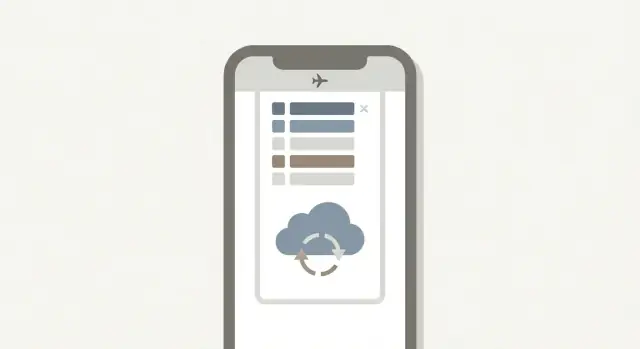
Someone starts a task with a good connection, then walks into an elevator, a warehouse corner, or a subway tunnel. The app keeps running, so they keep working. They tap Save, add a note, change a status, maybe even create a new record. Everything looks fine because the screen updates right away.
Later, the connection comes back and the app tries to catch up in the background. That’s where background sync can surprise people.
If the app isn’t careful, the same action can be sent twice (duplicates), or a newer change from the server can overwrite what the user just did (lost edits). Sometimes the app shows confusing states like “Saved” and “Not saved” at the same time, or a record appears, disappears, and reappears after sync.
A conflict is simple: two different changes were made to the same thing before the app had a chance to reconcile them. For example, a support agent changes a ticket priority to High while offline, but a teammate online closes the ticket. When the offline phone reconnects, both changes can’t be applied cleanly without a rule.
The goal isn’t to make offline feel perfect. The goal is to make it predictable:
This is true whether you hand-code in Kotlin/SwiftUI or build native apps with a no-code platform like AppMaster. The hard part isn’t the UI widgets. It’s deciding how the app behaves when the world changes while the user is offline.
An offline-first app assumes the phone will lose the network sometimes, but the app should still feel usable. Screens should load and buttons should work even when the server isn’t reachable.
Four terms cover most of it:
A useful mental model is to separate reads from writes.
Reads are usually straightforward: show the best available data (often from the local cache), then refresh quietly when the network returns.
Writes are different. Don’t rely on “saving the whole record” in one shot. That breaks as soon as you’re offline.
Instead, record what the user did as small entries in a change log. For example: “set status to Approved,” “add comment X,” “change quantity from 2 to 3.” Each entry goes into the sync queue with a timestamp and an ID. Background sync then tries to deliver it.
The user keeps working while changes move from pending to synced.
If you’re using a no-code platform such as AppMaster, you still want the same building blocks: cached reads for fast screens, and a clear queue of user actions that can be retried, merged, or flagged when a conflict happens.
Offline-first can sound like “everything works without a connection,” but that promise is where many apps get into trouble. Pick the parts that truly benefit from offline support, and keep the rest clearly online-only.
Think in terms of user intent: what do people need to do in a basement, on a plane, or in a warehouse with spotty service? A good default is to support the actions that create or update everyday work, and block actions where “latest truth” matters.
A practical set of offline-friendly actions often includes creating and editing core records (notes, tasks, inspections, tickets), drafting comments, and attaching photos (stored locally, uploaded later). Deleting can work too, but it’s safer as a soft delete with an undo window until the server confirms it.
Now decide what must stay real-time because the risk is too high. Payments, permission changes, approvals, and anything involving sensitive data usually should require a connection. If the user can’t be sure the action is valid without checking the server, don’t allow it offline. Show a clear “needs connection” message, not a mysterious error.
Set expectations for freshness. “Offline” isn’t binary. Define how stale data is allowed to be: minutes, hours, or “next time the app opens.” Put that rule in the UI in plain words, like “Last updated 2 hours ago” and “Syncing when online.”
Finally, flag high-conflict data early. Inventory counts, shared tasks, and team messages are common conflict magnets because multiple people edit them quickly. For those, consider limiting offline edits to drafts, or capturing changes as separate events instead of overwriting a single value.
If you’re building in AppMaster, this decision step helps you model data and business rules so the app can store safe drafts offline while keeping risky actions online-only.
When a user works offline, don’t try to “sync the database.” Sync the user’s actions. A clear action queue is the backbone of background sync, and it stays understandable when things go wrong.
Keep actions small and human, aligned with what the user actually did:
Small actions are easier to debug. If support needs to help a user, it’s much easier to read “Changed status Draft -> Submitted” than to inspect a giant blob of changed JSON.
For every queued action, store enough metadata to replay it safely and detect conflicts:
That expected version is the key to honest conflict handling. If the server version has moved on, you can pause and ask for a decision instead of silently overwriting someone else.
Some actions must be applied together because the user sees them as one step. For example, “Create order” plus “Add three line items” should succeed or fail as a unit. Store a group ID (or transaction ID) so the sync engine can send them together and either commit all of them or keep all of them pending.
Whether you build by hand or in AppMaster, the goal is the same: every change is recorded once, replayed safely, and explainable when something doesn’t match.
Conflicts are normal. The goal isn’t to make them impossible. The goal is to make them rare, safe, and easy to explain when they happen.
Name the moment a conflict happens: the app sends a change, and the server says, “That record isn’t the version you started editing.” This is why versioning matters.
Keep two values with every record:
If expected version matches, accept the update and bump the server version. If it doesn’t, apply your conflict rule.
Different data needs different rules. A status field isn’t the same as a long note.
Rules users tend to understand:
In AppMaster, these rules map well to visual logic: check versions, compare fields, then choose the path.
Deletes are the tricky case. Use a tombstone (a “deleted” marker) instead of removing the record right away. Then decide what happens if someone edits a record that was deleted elsewhere.
A clear rule is: “Deletes win, but you can restore.” Example: a salesperson edits a customer note offline, while an admin deletes that customer. When sync runs, the app shows “Customer was deleted. Restore to apply your note?” This avoids silent loss and keeps control with the user.
When sync fails, most users don’t care why. They care whether their work is safe and what will happen next. A predictable set of states prevents panic and support tickets.
Start with a small, visible status model and keep it consistent across screens:
Retries should be gentle on battery and data. Use quick retries at first (to handle brief signal drops), then slow down. A simple backoff like 1 min, 5 min, 15 min, then hourly is easy to reason about. Also retry only when it makes sense (don’t keep retrying a change that is invalid).
Treat errors differently, because the next action is different:
Idempotency is what keeps retries safe. Every change should have a unique action ID (often a UUID) that’s sent with the request. If the app re-sends the same change, the server should recognize the ID and return the same result instead of creating duplicates.
Example: a technician saves a completed job offline, then enters an elevator. The app sends the update, times out, and retries later. With an action ID, the second send is harmless. Without it, you might create duplicate “completed” events.
In AppMaster, treat these states and rules as first-class fields and logic in your sync process, so your Kotlin and SwiftUI apps behave the same way everywhere.
People should feel safe using the app offline. Good “pending changes” UX is calm and predictable: it acknowledges that work is saved on the device, and it makes the next step obvious.
A subtle indicator works better than a warning banner. For example, show a small “Syncing” icon in the header, or a quiet “3 pending” label on the screen where edits happen. Save scary colors for real danger (like “can’t upload because you’re signed out”).
Give users one place to understand what’s happening. A simple Outbox or Pending changes screen can list items with plain language like “Comment added to Ticket 104” or “Profile photo updated.” That transparency prevents panic and reduces support tickets.
Most people only need a few actions, and they should be consistent across the app:
Keep the status labels simple: Pending, Syncing, Failed. When something fails, explain it like a person would: “Couldn’t upload. No internet.” or “Rejected because this record was changed by someone else.” Avoid error codes.
Only block actions that truly require being online, like “Pay with Stripe” or “Invite a new user.” Everything else should still work, including viewing recent data and creating new drafts.
A realistic flow: a field tech edits a job report in a basement. The app shows “1 pending” and lets them keep working. Later, it changes to “Syncing,” then clears automatically. If it fails, the job report stays available, marked “Failed,” with a single “Retry now” button.
If you’re building in AppMaster, model these states as part of each record (pending, failed, synced) so the UI can reflect them everywhere without special-case screens.
Offline mode changes your security model. A user can take actions when they have no connection, but your server is still the source of truth. Treat every queued change as “requested,” not “approved.”
Tokens expire. When that happens offline, let the user keep creating edits and store them as pending. Don’t pretend actions that require server confirmation (like payments or admin approvals) are finished. Mark them as pending until the next successful auth refresh.
When the app is back online, attempt a silent refresh first. If you must ask the user to sign in again, do it once, then resume sync automatically.
After re-login, re-validate each queued item before sending it. The user identity may have changed (shared device), and old edits must not sync under the wrong account.
Permissions can change while the user is offline. An edit that was allowed yesterday might be forbidden today. Handle this explicitly:
Example: a support agent edits a customer note offline on a flight. Overnight, their role is removed. When sync runs, the server rejects the update. The app should show “Can’t upload: you no longer have access” and keep the note as a local draft.
Store the minimum needed to render screens and replay the queue. Encrypt offline storage, avoid caching secrets, and set clear rules for logout (for example: wipe local data, or keep drafts only after explicit user consent). If you’re building with AppMaster, start with its authentication module and design your queue so it always waits for a valid session before sending changes.
Most offline bugs aren’t fancy. They come from a few small decisions that feel harmless when you test with perfect Wi-Fi, then break real work later.
One common failure is silent overwrites. If the app uploads an older version and the server accepts it without checking, you can erase someone else’s newer edit and nobody notices until it’s too late. Sync with a version number (or “last updated” stamp) and refuse to overwrite when the server has moved on, so the user gets a clear choice.
Another trap is a retry storm. When a phone regains a weak connection, the app can hammer the backend every few seconds, draining battery and creating duplicate writes. Retries should be calm: slow down after each failure and add a little randomness so thousands of devices don’t retry at the same moment.
The mistakes that most often lead to lost work or duplicates:
A quick example: a field tech creates a new “Site Visit” offline, then edits it twice before reconnecting. If the create call is retried and creates two server records, the later edits may attach to the wrong one. Stable IDs and server-side deduping prevent this.
If you’re building this with AppMaster, the rules don’t change. The difference is where you implement them: in your sync logic, your data model, and the screens that show “failed” vs “sent” changes.
A field technician, Maya, is updating a “Job #1842” ticket in a basement with no signal. She changes the status from “In progress” to “Completed” and adds a note: “Replaced valve, tested OK.” The app saves instantly and shows it as pending.
Upstairs, her teammate Leo is online and edits the same job at the same time. He changes the scheduled time and assigns the job to a different technician, because a customer called with an update.
When Maya gets signal again, background sync starts quietly. Here’s what happens in a predictable, user-friendly flow:
Now add one failure moment: Maya’s login token expired while she was offline. The first sync attempt fails with “Sign in required.” The app keeps her edits, marks them as “Paused,” and shows one simple prompt. After she signs in, sync resumes automatically without retyping anything.
If there’s a validation problem (for example, “Completed” requires a photo), the app shouldn’t guess. It marks the item as “Needs attention,” tells her exactly what to add, then lets her resubmit.
Platforms like AppMaster can help here because you can design the queue, conflict rules, and pending-state UX visually, while still shipping real native Kotlin and SwiftUI apps.
Treat offline sync like an end-to-end feature you can test, not a pile of fixes. The goal is simple: users never wonder whether their work is saved, and the app doesn’t create surprise duplicates.
A short checklist to confirm the foundation is solid:
Once that’s in place, verify the experience is just as strong as the data model. Users should be able to see what’s pending, understand what failed, and take action without fear of losing work.
Test with scenarios that match real life:
Prototype the full flow before polishing the UI. Build one screen, one record type, and one conflict case (two edits to the same field). Add a simple sync status area, a Retry button for failures, and one clear conflict screen. When that works, repeat for more screens.
If you’re building without coding, AppMaster (appmaster.io) can generate native Kotlin and SwiftUI apps alongside the backend, so you can focus on the queue, version checks, and user-facing states instead of wiring everything by hand.
 What does offline-first mean in a mobile app?
Store every offline edit on the device first, then send it when the connection returns. Show a clear pending status so people know the app saved their work locally.
How should background sync work after the connection returns?Save the exact action, such as changing a status or adding a note, in a sync queue. When the device reconnects, send each queued action to the server and confirm the result.
How do I prevent duplicate records during retries?Give each queued action a unique idempotency key. If the app retries after a timeout, the server recognizes the same action and returns the prior result instead of creating another record.
What is an offline sync conflict?A conflict happens when someone changes the same record on the server while another person edits an older copy offline. The app must compare versions before it applies the offline change.
Which conflict rule should I use?Use a rule that fits the data. Merge independent fields, keep simple preferences with the newest edit, and ask the user to review changes involving prices, permissions, totals, or other sensitive values.
Why do queued changes need record versions?Use a version number, revision, or server update timestamp with each queued change. If the version the phone edited no longer matches the server version, pause the item and apply the chosen conflict rule.
What should happen when sync fails?Keep the change in the queue and retry gradually when a connection is available. A visible status such as Pending, Syncing, Failed, or Needs review tells the user whether they need to act.
What should users see while changes are pending?Keep a quiet pending count or syncing indicator near the work area, plus an Outbox screen for details. Let users retry, edit again, discard a local change, or copy details when an item needs attention.
Which actions should work offline?Allow everyday work such as drafts, notes, inspections, and record edits when the risk is low. Require a connection for payments, permission updates, approvals, and actions that need current server data.
How do I handle expired login or changed permissions offline?Store only the data needed for the screen and sync queue, encrypt it on the device, and recheck permissions on the server before sending every queued action. If access changed, keep the local draft and explain why the upload stopped.
Experiment with AppMaster with free plan.
When you will be ready you can choose the proper subscription.
 Jul 14, 20268 min
 Jul 13, 20268 min
 Jul 08, 20268 min