


 Jul 14, 2026
 8 min
8 minEquipment reservation app: prevent conflicts and track returns
Plan an equipment reservation app that prevents double bookings, records returns and damage, and places faulty items on maintenance hold.

Design notification preferences with per-event toggles, quiet hours, digests, and delivery tracking so people stay informed without feeling spammed.
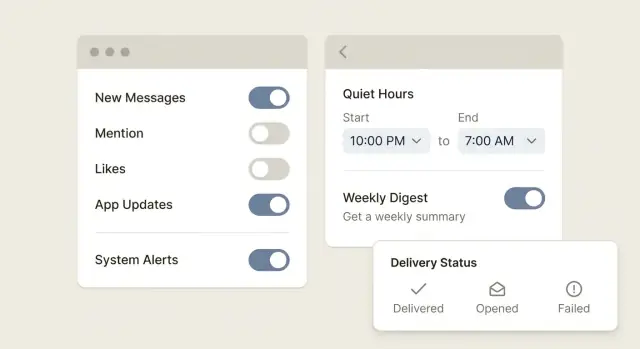
Most people don’t hate notifications. They hate getting interrupted for no good reason. When alerts arrive too often, repeat themselves, or show up at the wrong moment, users stop reading and start swiping.
The core problem usually isn’t volume. It’s mismatch. What’s urgent for your system can be irrelevant to a person. A sales rep may need a lead assignment right away, but not a “weekly tips” ping at 9:07 PM. When everything looks equally important, nothing feels important.
People turn notifications off for predictable reasons: they’re too frequent, not relevant to their role, badly timed (sleep, meetings, commute), unclear about what to do next, or confusing about where they came from.
Helpful alerts reduce effort. Noise adds effort. A good notification answers three questions quickly: What happened? Does it matter to me? What should I do next?
There’s also a hidden cost when users rage-disable everything: they miss the one message that actually matters. A locked account, a payment failure, or a security warning gets ignored because the user opted out after weeks of low-value pings. That’s how “annoying” becomes “support ticket.”
Good notification preferences do one job: give people control with clear choices, and make behavior predictable. If a user turns off one type of alert, it should stay off. If they set quiet hours, the app should respect them every time, across channels.
Good notification preferences start with one question: what is the user trying to keep up with, and what can wait.
If someone turns on alerts for “new orders,” they usually mean “tell me quickly so I can act.” If they want “weekly product tips,” they mean “I’ll read this when I have time.” Build settings around that intent, not around your internal event list.
Keep the number of events small and distinct. If you have five variants of “status changed,” most people will either switch everything off or leave everything on and regret it. Combine similar events into one clear option, and only split when the next action is truly different.
Defaults matter more than most teams think. For anything non-critical, start quiet by default, then let people opt in. A new user should be able to do nothing and still feel respected.
Use plain language. Avoid terms like “workflow,” “ticket lifecycle,” or “webhook failure” unless your users actually say those words. Write labels the way someone would explain them to a coworker.
When someone taps a toggle, they should understand three things:
Before you build a long list of notification preferences, decide which events deserve a setting at all. Most settings screens feel annoying because they offer choices for noisy, low-value events, while the few that truly matter are buried.
Start by grouping events by purpose so people can predict what they’ll get:
Within each group, separate events into critical, informational, and promotional. Critical means action is needed or risk is high. Informational means “good to know.” Promotional means “nice to have.” For each event, define urgency and acceptable delay. A payment failure might need instant delivery. A weekly report can wait for a digest.
Be careful with events you “never allow to be turned off.” If something must stay on, keep the list very short and explain why (usually security and certain billing alerts). Everything else should be user-controlled.
A practical rule: write one sentence per event that says what happened and why it matters. Example: “A new device signed into your account, so you can spot suspicious access.” If you can’t write that sentence without sounding vague, the event probably doesn’t deserve its own toggle.
Per-event toggles work when they map to moments users actually care about. If the event could cost them money, time, or trust, it deserves its own switch. If it’s mostly “FYI,” consider bundling it into a digest instead of adding another toggle.
Name toggles like real events, not feature areas. “Payment failed” is clearer than “Billing updates.” This is the difference between preferences that feel respectful and ones that feel like a settings maze.
Under each toggle, show a one-line example of what the message looks like. It sets expectations and makes it easier to decide.
Category toggles are only helpful when categories are obvious and stable. “Security,” “Billing,” and “Account access” are usually clear. “Product updates” or “Activity” often hide too much.
Avoid hidden dependencies. If turning off “Comments” also disables “Mentions,” say so right there. Better yet, separate them. Surprises are what make people distrust the whole screen.
Add a global pause that doesn’t erase choices. “Pause all notifications for 1 hour / 1 day / until I turn it back on” is a safety valve for busy days, while keeping per-event settings intact.
Quiet hours should mean one thing: no non-urgent messages during the times a user says they don’t want to be bothered.
Time zones are what make quiet hours feel either “right” or broken. Some people travel and want quiet hours to follow their current location. Others want a fixed “home” schedule even on trips. Offer both with plain labels like “Use my current time zone” and “Use my home time zone.”
Quiet hours also need clear exceptions. Users accept bypasses when they’re rare and easy to understand. Keep the bypass list short and based on risk, not marketing:
Edge cases matter. Daylight saving time can shift schedules by an hour, so show the next “quiet starts at” and “quiet ends at” times in the UI.
For weekends, avoid making users build two schedules from scratch. Provide a simple “Weekdays only” switch, or let them pick days with one tap.
Presets help people finish quickly: “Night (10 PM to 8 AM)” plus “Custom.” Make presets editable after selection so they never feel like a trap.
A digest is a promise: “We’ll keep you informed, just not interrupted.” It works best for noisy, low-urgency updates like reactions, routine activity, or daily stats. It works badly for anything that blocks work, needs a fast reply, or has a deadline.
A digest option should start by separating events into two buckets. Keep high-urgency events real-time (security alerts, payments, approvals, outages). Move high-volume events to digest (busy comment threads, follower activity, routine summaries).
Keep frequency choices familiar:
Let users pick a digest send time, and confirm the time zone. A digest that lands at 3 AM feels broken, even if it’s “correct.”
Clarity beats fancy controls. Label each event as “Real-time” or “Digest” so users don’t have to guess. If changing an event moves it into digest, say so next to the control.
A preview removes anxiety. Show a small sample of what the digest will contain: a few headings, counts, and the most important items. For example, “3 new comments, 2 status changes, 1 mention,” with short snippets.
“Sent” only means your system handed a message to a provider. Users care about what happened next. For a critical alert, “we tried” isn’t the same as “you got it.”
A simple model looks like this:
When something fails, track the reason where possible. “Failed” is too vague to act on. Better examples are blocked (carrier filtering), bounced (mailbox rejected), invalid address/number, or expired token (push token no longer valid). Even if you can’t get perfect detail from every provider, store what you do know.
Temporary failures need retry rules. A good default is limited retries with backoff so you don’t spam providers or drain batteries. For example: retry after 1 minute, then 5, then 30, then stop and mark it failed. Permanent errors like “invalid number” shouldn’t retry.
For critical messages, show a simple status to the user. If someone says, “I never got the password reset code,” a visible line like “SMS failed: invalid number” prevents frustration and helps them fix the real issue.
Keep an audit trail for support and compliance. Store who the message was for, which channel was chosen, timestamps for each status, and the last known error.
Treat notification preferences like product logic, not a pile of toggles. If you build the rules first, the UI and sending system stay consistent as you add more events.
Start with an inventory of what you might notify about. For each event, decide how urgent it is and which channels make sense (push, email, SMS). Then pick defaults so most people never need to touch settings.
A practical check: if you can’t explain a toggle in one short sentence, it probably combines multiple events and should be split.
Make sure every send goes through the same decision point. That’s where you apply the user’s choices, quiet hours, and digest logic before anything leaves your system.
Store preferences in a structure that matches how people think: by event, by channel, and by timing. Add scheduling for quiet hours and digest windows, including time zone handling and exceptions for critical alerts. Log the full chain: send attempt, provider response (delivered, bounced, failed), and user actions (opt-outs, changes).
Example: a user turns off “weekly tips” email but keeps “security alerts” email on, with quiet hours 10 PM to 7 AM. Your rules should still allow an urgent password reset email at 2 AM, while holding low-priority messages for the morning digest.
Most people don’t mind getting updates. They mind feeling trapped, confused, or ignored. A few design mistakes can turn your notification preferences screen into a place users visit once, get annoyed, and never touch again.
Common patterns:
Two fixes prevent most of this. First, make every control answer one question: which event, on which channel, at what timing. Keep names concrete, like “New invoice paid” instead of “Billing.” Second, treat delivery as more than “sent,” or you’ll claim success even when an email bounced or a push never reached the device.
Before you ship notification preferences, do a quick run-through like a real user. Pretend you’re tired, busy, and only here to stop the noise without missing something important.
Start with the single loudest event. If someone can’t turn off one noisy trigger without also losing critical alerts, the settings will feel unfair.
Then check timing. Users shouldn’t have to guess whether a message will arrive now, later in a digest, or not at all. The UI should say it clearly, and the preview text should match what actually happens.
Pre-ship checklist:
Quiet hours are where confusion sneaks in. The control should show a simple window like “10:00 PM to 7:00 AM,” and it should explain what happens to blocked notifications (muted, delayed, or moved to the next digest). If you allow exceptions, label them in plain words like “Always allow security alerts.”
Finally, test the loop from action to proof. If a user reports “I never got it,” your system should answer: was it queued, handed off to the provider, delivered to device, or rejected?
Maya leads a 12-person support team. She wants to know about anything that could put customer data at risk, but she doesn’t want her phone buzzing for every comment, emoji, or routine update. She’s also often in meetings, so she needs a setup that’s quiet by default and loud only when it must be.
Her preferences look like this:
She uses a digest for the background noise like ticket activity, status changes, and non-urgent comments. If something becomes urgent, it’s an alert, not part of the digest.
Quiet hours are set to weekdays 9 PM to 7 AM in her local time zone, with one exception: security alerts bypass quiet hours. If there’s a suspicious login at 2 AM, she still gets it.
Delivery tracking is where her setup stops feeling like guesswork. When Maya requests a password reset, she can see it was delivered to her email provider, not just marked as “sent” by the app. On the other hand, the monthly invoice email for a customer shows a bounce, so the team knows it didn’t reach the inbox.
When someone says, “I never got it,” support has a clear path:
Start with a written event list. For each event, decide if it’s critical (security, billing, account access) or optional (comments, likes, tips). If you can’t explain why an event exists in one sentence, it probably doesn’t belong in your first release.
Write user-facing labels like you’re talking to a busy person. Keep them specific (“New login from a new device”) and add a one-line preview (“We’ll alert you right away for account safety”).
Before you ship, add delivery logging so support can answer the real question: “Did it reach me?” Track the path from created to queued to provider handoff to delivered or failed, plus opened when available.
If you’re building the preference center inside a no-code platform like AppMaster, it helps to treat notifications as first-class product features: define events, store per-user settings in PostgreSQL, and keep one shared decision step in your business logic. AppMaster (appmaster.io) is designed for this kind of app logic, where backend rules and UI settings need to stay aligned as the product grows.
Roll out to a small percentage first, then watch opt-out rates, “mute all” usage, support tickets about missing alerts, and the themes behind complaints. If one event drives most opt-outs, fix that event before adding more.
 Why do users turn notifications off even when the feature is useful?
Because the alert doesn’t match the user’s intent. People tolerate frequent notifications when they clearly help them act, but they disable them when messages are repetitive, irrelevant, or arrive at the wrong time.
What should the default notification settings be for a new user?Default to quiet for anything non-critical, then let users opt in. Keep critical items like security and certain billing alerts on by default, and make everything else easy to control so new users feel respected without touching settings.
How do I know if I have too many notification toggles?Group similar events when the next action is the same, and only split when the decision changes. A good rule is: if you can’t explain the toggle in one short sentence that includes what happened and what to do, it’s probably too vague or too broad.
What’s the best way to label notification preferences so they feel understandable?Name toggles as real events with clear outcomes, not as product areas. “Payment failed” or “New login from a new device” sets expectations, while labels like “Updates” or “Activity” force users to guess and usually lead to opt-outs.
Which notifications should users never be allowed to turn off?Only use “can’t disable” for rare, high-risk alerts, mainly security and certain billing failures that could lock someone out or stop service. If you must keep something on, explain the reason in plain language so it feels protective, not controlling.
How should quiet hours behave to avoid confusing users?Quiet hours should consistently delay or mute non-urgent notifications during the user’s chosen window, while allowing a short list of exceptions for high-risk events. It should also handle time zones correctly so the same setting doesn’t feel “broken” when someone travels or daylight saving time changes.
When should I offer a digest instead of real-time notifications?Use digests for high-volume, low-urgency updates like routine activity, reactions, or background stats, and keep anything urgent real-time. The key is predictability: users should never get both digest and real-time for the same event unless you clearly tell them that will happen.
What’s the difference between “sent” and “delivered,” and why does it matter?“Sent” only means you handed the message to a provider, not that the user received it. Track later states like delivered, bounced, blocked, or invalid destination so support can answer “did it reach you?” and users can fix issues like a wrong email or expired push token.
How should I handle retries when notification delivery fails?Use limited retries with backoff for temporary failures, then stop and mark the message as failed with a reason you can act on. Don’t retry permanent errors like an invalid phone number, and avoid rapid repeats that look like spam or drain battery.
How do I implement notification preferences without creating a messy system?Store preferences per user by event, channel, and timing, then route every notification through one shared decision step that applies those rules before sending. In AppMaster, this typically means modeling preferences in PostgreSQL and enforcing quiet hours, digests, and exceptions in one business process so the UI and backend stay consistent as you add more events.
Experiment with AppMaster with free plan.
When you will be ready you can choose the proper subscription.
 Jul 14, 20268 min
 Jul 13, 20268 min
 Jul 08, 20268 min