


 Jul 14, 2026
 8 min
8 minEquipment reservation app: prevent conflicts and track returns
Plan an equipment reservation app that prevents double bookings, records returns and damage, and places faulty items on maintenance hold.

Design NFC and barcode scanning in business apps with a clear data flow, solid error handling, and offline storage so front-line teams can work fast and reliably.
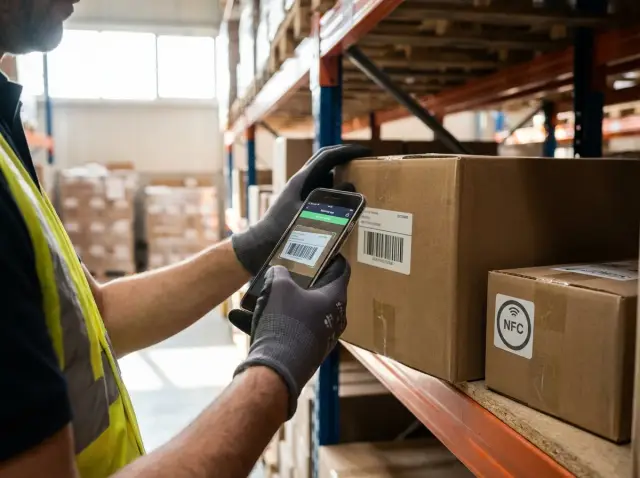
Front-line scanning isn’t a calm desk task. People scan while walking, wearing gloves, holding a box, or balancing a phone in one hand. Lighting can be harsh, the room can be noisy, and the network can drop without warning.
Speed mostly comes from removing hesitation. The app should make each scan feel finished right away, even if the server is slow or unreachable. That’s the difference between a scanning app workers trust and one they avoid when things get busy.
Scanner flows fail in small, predictable ways: glare on labels, shaky hands, NFC taps that are too fast or not close enough, and buttons that are easy to hit by mistake.
Connectivity is the biggest hidden constraint. If every scan needs a round trip to the backend, the line slows down. People rescan, duplicates pile up, and the app loses trust.
Pick a few success metrics and design the UI and data flow to hit them:
Even simple workflows share the same rhythm: capture, check, interpret, attach to the current task, and confirm. Keep that rhythm consistent so users don’t have to think.
On every scan, the app should:
Example: a receiver scans a carton barcode, then taps an NFC tag on a pallet. The app should show “Added to Receiving: PO-1842” immediately, even if the detailed product name loads a second later. If lookup fails, the user should still see a saved record with a clear next step, like “Saved offline, will verify when connected” or “Needs review: unknown code.”
Scanning only feels instant when you plan for every way an identifier can enter the app, not just the happy path. Treat each input as the same type of thing: a candidate ID that must be captured, checked, and either accepted or rejected quickly.
Most teams need more than one input method because conditions change (gloves, low light, broken labels, dead batteries). Common inputs include camera scanning, hardware scanners (Bluetooth or built-in triggers), NFC taps, and manual entry. A short “recent scans” list also helps when someone needs to reselect an item without rescanning.
Once inputs are clear, define scan triggers and events like a small state machine. That keeps the UI predictable and makes logging and debugging much easier:
For every scan read, decide what you store even if validation fails. Save the raw value (exact string) and parsed fields (like SKU or GTIN). For barcodes, keep symbology when available (QR, Code 128, EAN-13) and any scanner metadata. For NFC, store the tag UID and, if you read NDEF, the raw payload.
Capture context too: timestamp, device model, app version, and “where” (warehouse, location, user, session, workflow step). That context is often the difference between a vague support ticket and a quick fix.
Speed starts with a data model that’s boring on purpose. The goal is to save every scan quickly, understand what it meant, and prove later who did what, where, and when.
Start with stable core entities such as Item, Location, Task/WorkOrder, User, and Device. Keep them consistent so the scan flow doesn’t depend on complex joins or optional fields.
Then add one central event table: ScanRecord. Treat it as an immutable log. If something needs correction, create a new record that references the old one instead of rewriting history.
A practical ScanRecord usually includes:
Keep parsed fields small and predictable. If a barcode encodes multiple parts, store both the raw value and the parsed parts so you can re-parse later if rules change.
Idempotency prevents double-processing when someone scans twice, taps Save twice, or the network retries. Generate an idempotency_key per business action, not per API call. A simple rule is: task_id + scan_type + scanned_value + time_bucket(2-5 seconds). On the server, reject duplicates and return the original result.
Example: during receiving, a worker scans a pallet NFC tag, then scans three item barcodes. Each scan becomes its own ScanRecord tied to the same Task. If the device goes offline, the app still shows “captured” immediately, and later sync can replay safely without creating duplicate receipts.
A fast scan flow comes down to two rules: confirm instantly, and never lose the scan even when the network drops.
As soon as the camera decoder or NFC reader returns a value, treat it like an event. Confirm locally right away: a short beep, a vibration, and a quick on-screen “Saved” chip or highlight. Do this before any network call.
Store the raw input immediately (for example: rawValue, symbology or tagType, timestamp, device id, user id). That makes the UI feel responsive and gives you something to save even if later steps fail.
Run cheap checks on the device: expected length, check digit (for common codes), known prefixes, and allowed NFC tag types. If it fails, show a short message that tells the user what to do (“Wrong label type. Scan the bin label.”), then keep the scanner ready for the next attempt.
Convert the raw scan into business meaning (SKU, asset id, location id). Start with locally cached reference tables so most scans don’t need the network. If the code is unknown, decide whether to call the server now or accept it as “unresolved” and proceed, depending on the workflow.
Apply rules locally: quantity defaults, allowed location, task state (receiving vs picking), duplicate handling, and any required fields.
Then write to the local database as a single transaction:
This “append a scan record, then derive totals” approach makes audits and fixes much easier.
Create a sync event that points to the saved scan record, mark it pending, and return control to the user. Advance to the next field, keep scanning in a loop, or move to the next step without waiting.
Assume the network will fail at the worst time: in a back corner of a warehouse, inside a truck, or during a busy shift when nobody can wait for a spinner.
Offline-first works well here: the local database is the source of truth while the user is working. Every scan writes locally first. Sync is a background job that catches up when it can.
Decide what must be available offline. Most teams do best when they cache only what’s needed for the current shift, not the entire company database: a subset of SKUs for active tasks, open receiving or pick lists, locations and container IDs, a permissions snapshot, and basic reference data like units and reason codes.
To keep writes safe, use an outbox queue. Each scan that changes server data creates a queued command (for example, “receive item X qty 3 into bin B”). The app shows success as soon as the command is saved locally, then sync sends commands in order.
Keep outbox rules strict:
Conflict rules should match the real world. For inventory, the server is often authoritative for quantities, but you shouldn’t block scanning unless you must. A common approach is: allow scans offline, then resolve conflicts on sync with a clear “needs review” state (for example, the bin was locked or the task was closed). Block locally only when the action would be unsafe (permission denied, unknown location).
Plan for restarts. After an app reboot, reload the cache, rehydrate the outbox, and resume syncing without asking the user to redo anything.
Example: a receiver scans 40 cartons in airplane mode. Every carton appears as “received (pending sync).” Later, when Wi-Fi returns, the app uploads the outbox. If 2 cartons were already received by another worker, those lines switch to “conflict” with a short action: “remove from this receipt” or “assign to a different task.”
Front-line scanning fails in a few predictable ways. Name those failures clearly and handle each one on purpose, and people stop guessing.
A simple taxonomy helps:
What the user sees matters more than the technical reason. A good message answers three things:
Examples: “Couldn’t read the barcode. Hold steady and move closer. Turn on the flashlight if the label is glossy.” Or: “This item is not on the receiving list. Check the PO number or choose Manual entry.”
Treat errors as blocking or non-blocking. Blocking errors stop the workflow because the app can’t trust the scan, or because proceeding would create bad inventory. Non-blocking errors shouldn’t stop the line. If the server is down, save locally with timestamp, device ID, user, and the raw value, mark it “pending sync,” and let the user continue.
Build automatic recovery so the user doesn’t babysit the app. Retry network calls with short backoff, refresh stale caches, and fall back to offline lookup when possible. When it’s safe, allow a supervised override (for example, receive an unknown code with a reason note and manager PIN).
When people scan hundreds of items per hour, the app has one job: accept the next scan instantly. Treat the scanner screen like a home base that never blocks, never jumps, and never makes users wait for the network.
Stop doing “one scan, one server call.” Save locally first, then sync in batches. If you must validate something like “is this SKU allowed on this order?”, prefer fast local checks using preloaded reference data and escalate to the server only when something looks wrong.
A few small choices make a big difference:
Debouncing needs a rule users can trust. “Same payload + same context (order, location, user) within a short window = duplicate” is easy to explain. Still allow an override for legitimate repeats, like two identical items with the same barcode.
If you don’t measure the pipeline, you’ll guess wrong. Log timings per scan so you can see whether capture, parsing, storage, or sync is the bottleneck:
Example: preload purchase order items and expected quantities when the shift starts. Each scan writes a local receipt line immediately. Sync happens in the background in chunks. If connectivity drops, scanning stays the same speed, and the user only sees a small “Sync pending” counter.
Scanning often happens in busy, public places. Assume codes can be photographed, copied, or shared. Treat scanned values as untrusted input, not proof of identity.
A simple rule keeps you safer without adding taps: store only what the user needs to finish the job. If a scan is only a lookup key, save the key and the result you showed on screen, not the full payload. For local caches, expire data after a shift or after a short idle window, especially on shared devices.
Fast validation prevents bad data from spreading. Do cheap checks immediately, before network calls or expensive parsing:
If a scan fails validation, show a one-line reason and one recovery action (Rescan, Enter manually, Pick from recent). Avoid scary wording. The user just needs the next step.
Audit shouldn’t require extra screens. Capture it at the moment the app accepts a scan:
Example: in receiving, the app scans a pallet barcode, then taps an NFC tag on a location. Save both events with timestamps and the resulting move. If offline, queue audit events locally and append a server receipt ID when synced.
A truck arrives with a mixed pallet: some cases have a printed barcode, some also have an NFC tag inside the label. The receiver’s goal is simple: confirm the right items for the purchase order, count fast, and put stock away without stopping the line.
The receiver opens the “Receive PO” screen, selects the PO, and starts scanning. Each scan creates a local ScanRecord immediately (timestamp, user, PO id, item identifier, raw scanned value, device id, and a status like pending). The screen updates totals from local data first, so the count feels instant.
The loop should stay simple:
If the network drops mid-pallet, nothing stops. Scans continue and validate against cached PO lines and location rules downloaded when the PO was opened. Each record stays pending in an offline queue.
When the connection returns, sync runs in the background: upload pending records in order, then pull updated PO totals. If another device received the same PO at the same time, the server may adjust remaining quantities. The app should show a clear notice like “Totals updated after sync” without interrupting the next scan.
Keep errors specific and action-driven:
Before you ship, test on the floor with a real device. Speed depends on what the user sees, and what the app keeps doing when the network is bad.
Quick checks that catch most issues:
Pressure-test the workflow the way people actually work:
Operational habits matter too. Teach a simple rule: if a scan fails twice, use manual entry and add a note. Define how to report bad labels (photo, mark “unreadable,” set aside) so one bad label doesn’t block the line.
If you want to build this kind of offline-first scanning app without starting from scratch, AppMaster (appmaster.io) lets you model data, business logic, and mobile UI in one place and generate production-ready backend, web, and native iOS/Android apps.
 How do I make a scanning screen feel fast even when the backend is slow?
Aim for instant local confirmation: a beep or vibration plus a clear on-screen “saved” state as soon as the scanner returns a value. Do not wait for a server response; write the scan locally first and sync in the background.
Which input methods should a front-line scanning app support?Design for camera scanning, hardware triggers (built-in or Bluetooth scanners), NFC taps, and manual entry as a fallback. Treat them all as the same thing: a candidate ID that gets captured, validated, and accepted or rejected quickly, with the same confirmation behavior.
What should I store for every scan event?Always store the raw scanned value (exact string or NFC payload), scan type, timestamp, user, device, and workflow context (task, location, step). Also store parsed fields when possible so you can troubleshoot and re-parse later if rules change.
Should scan records be editable, or should they be immutable?Use a simple event table like ScanRecord as an immutable log and avoid rewriting history. If something needs correction, create a new record that references the old one so you can audit what happened without losing the original scan.
How do I prevent duplicate processing when a worker scans twice or the network retries?Generate an idempotency key per business action so retries and double-scans don’t create duplicates. A practical default is combining task context plus the scanned value and a short time bucket, then having the server return the original result when it sees the same key again.
What validation should happen on the device versus on the server?Do cheap checks on-device first: expected length, allowed prefixes, check digits for common codes, and allowed tag types for NFC. If validation fails, show one short instruction and immediately keep the scanner ready for the next attempt.
What’s the simplest offline-first approach that won’t lose scans?Make the local database the source of truth during the shift: save every scan locally first, then queue a sync command in an outbox. Sync should retry automatically with backoff, preserve order when needed, and recover cleanly after app restarts without asking users to redo work.
How should error messages be written so workers can recover in seconds?Use a small, consistent set of error types: read failure, validation error, business rule failure, and server error. Each message should say what happened, what to do next, and one quick hint, and only block the workflow when proceeding would create unsafe or untrustworthy data.
What performance patterns matter most for high-volume scanning?Avoid “one scan, one server call.” Save locally, batch uploads every few seconds or after N scans, preload task reference data, and keep the scanning UI stable with no per-scan spinners so the next scan is always immediately accepted.
How do I handle security and audit trails without slowing scanning down?Treat scanned values as untrusted input and validate structure and length before deeper processing. Capture audit data automatically at acceptance time (who, when, where, what, and action), and keep local caches minimal and short-lived on shared devices so security doesn’t add extra taps.
Experiment with AppMaster with free plan.
When you will be ready you can choose the proper subscription.
 Jul 14, 20268 min
 Jul 13, 20268 min
 Jul 08, 20268 min