


 Jul 14, 2026
 8 min
8 minEquipment reservation app: prevent conflicts and track returns
Plan an equipment reservation app that prevents double bookings, records returns and damage, and places faulty items on maintenance hold.

A multi-location operations dashboard works best when it shows a few shared KPIs, clear drill-downs, and alerts that point managers to action.
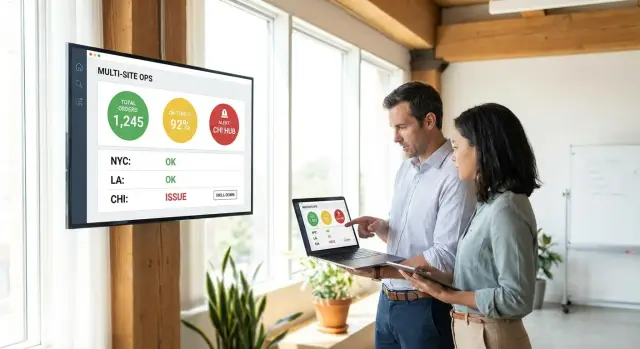
Managers ignore dashboards when the screen answers every question except the urgent one: what needs attention today?
That happens when a dashboard is packed with charts, colors, and filters. Sales, staffing, inventory, service time, customer feedback, and local notes all end up on one page. Each chart may look useful on its own, but together they compete for attention. A manager opens the dashboard, feels slightly lost, and closes it.
Comparison is another reason dashboards lose trust. One location may be in a busy city center, another in the suburbs, and a third open different hours. If the dashboard shows raw numbers without context, the comparison feels unfair. Managers quickly see that the data does not match how their location actually works.
Once that happens, trust starts to drop. One store looks worse only because traffic is higher. A number changes, but nobody knows why. The dashboard shows symptoms, not the next step. Staff tell one story, while the screen tells another.
The biggest warning sign is simple: the numbers move, but the action is unclear. If labor cost rises, should the manager adjust schedules, review overtime, or check for a data error? If customer wait time jumps, should they call the shift lead, open another register, or review staffing by hour? A dashboard that does not point toward a decision feels like extra work.
And once managers stop believing the data, they go back to habits they trust more: calls, spreadsheets, and gut checks. Those methods are slower, but they feel safer.
The dashboards people keep opening are usually boring in the right way. They show a small set of numbers that managers can compare fairly, understand quickly, and act on without a long meeting.
A useful dashboard starts with one rule: every location must measure the same thing in the same way.
If one branch counts a sale when the order is placed and another counts it when payment clears, the comparison is already broken. This is where many dashboards fail. They collect plenty of data, but the numbers do not mean the same thing from one site to the next. Once trust is gone, usage drops fast.
For multi-location operations, fewer metrics usually work better. Start with five to seven numbers that every manager can recognize at a glance. That is enough to spot patterns without turning the page into noise.
A balanced set usually includes these areas:
That mix matters because one category alone can mislead. A location may handle high volume, but if service is slow or errors are rising, performance is not really strong. Managers need a view that shows tradeoffs, not just activity.
Keep metric definitions simple and written down. A short internal note for each metric can prevent weeks of confusion later. Local one-off numbers should stay out of the main view. A downtown store may care about tourist traffic, while an airport site may track missed flights. Those details can still matter, but they belong in a local report, not in the top row everyone compares.
If a metric cannot be collected consistently across all locations, it does not belong on the main dashboard yet. Comparable beats clever every time.
A dashboard becomes hard to use when every number looks equally important. Managers need to know what is normal, what needs a closer look, and what cannot wait until tomorrow.
Start with a normal range, not a single target. Real locations are never identical. A store with heavier foot traffic may have slightly different labor cost or average order time than a quieter site, even when both are healthy.
If average prep time is usually 6 to 8 minutes, that range says more than a fixed target of 7. Anything inside the range is fine. A result at 8.5 may need review today. A result above 10 may need action now.
Many teams get this wrong by setting thresholds based on guesswork or whatever looks bad on a chart. Thresholds should connect to a real business effect: lost sales, customer complaints, wasted labor hours, or stockouts.
A simple structure works well:
This works better than a crowded screen full of colors and extra widgets. Managers can scan it quickly and decide what to do next.
Keep warning and urgent levels clearly separate. Warning should mean, "Pay attention before this becomes a problem." Urgent should mean, "This is already hurting performance." If both levels trigger for minor changes, people learn to ignore alerts.
It also helps to tune thresholds by metric type. Sales conversion, labor cost, on-time fulfillment, and refund rate should not all use the same sensitivity. A 2% change in one metric may be normal, while the same shift in another may be expensive.
Clear visuals help, but clear decisions matter more. If targets reflect real business impact, managers trust the dashboard and keep using it.
A good dashboard answers one question first: where should I look next?
The first screen should give a clear company view. Show only the few numbers that matter across every location, then let each number open the next layer of detail. If labor cost is high or service time is slipping, the dashboard should make it obvious where the problem sits.
A useful drill-down path usually follows the same order managers already use in real life: company, region, location, then team or shift. That keeps people from jumping into tiny details before they know whether the issue is local or widespread.
At each level, show the current value beside a short trend. A single number without context can mislead. If a location is at 82% today, managers should also see whether that is rising, flat, or falling over the past week or month.
A regional manager, for example, might open the company view and see that one region is missing its target. One tap shows the locations in that region. Another tap shows that the late shift at one site is driving most of the drop. That is a useful drill-down path because it saves time.
Filters should help, not slow people down. Limit them to a few practical choices, such as date range, region, and location type. If someone gets lost in filtered views, a visible reset option should bring them back in one click.
The way back matters just as much as the way in. Managers should always know where they are and how to return to the previous level. Simple breadcrumbs, a clear back button, and page titles that match the current level are often enough.
When the path is clear, even simple visuals feel fast and helpful. When the path is confusing, more detail does not fix it.
More charts rarely help a manager who is already short on time. What gets attention is a clear signal that something needs a look right now.
A useful dashboard highlights exceptions. It should not force someone to scan ten widgets and guess what matters.
That means alerting on changes that break a rule, not every small movement. If one store is 2% below yesterday, that may be normal. If one store is 25% below its usual lunch sales, or refunds suddenly double in one shift, that is worth flagging. Managers learn to trust alerts when they point to real issues instead of normal daily variation.
Each alert should also explain why it fired. "Labor cost high" is too vague. "Labor cost is 18% above target because staffing stayed at weekday levels while foot traffic dropped" gives context quickly. A manager should not need to open three screens just to understand the problem.
A good alert also points to the next place to inspect. If stock is low, send the manager to item-level inventory for that location. If service times rise, take them to shift, hour, or team details. Good reporting starts with a warning, then leads straight to the screen that helps confirm the cause.
It also helps to let managers close the loop. They should be able to acknowledge an alert, add a short note, mark it resolved, and reopen it if the same issue returns. That creates a record of what happened and stops teams from chasing the same problem twice.
Before launch, cut alert noise hard. Test thresholds with real data from several locations and check how many alerts appear in a normal week. If managers would get flooded, raise the bar or narrow the rules. Too many alerts turn into wallpaper.
Picture a small service business with five locations across one metro area. Each branch does the same kind of work, so the team can compare performance without arguing about whether one site is different.
Every morning, the regional manager opens one simple view with the same four numbers for each location:
Together, those numbers tell a clear story. Response time shows service speed. Open issues show where work is getting stuck. Labor hours show staffing pressure. Daily sales show whether that effort is turning into revenue.
Most of the week, the five locations stay close to target. Then one branch slips below target for two days in a row. Sales are down, response time is up, and open issues are starting to pile up. The other four locations look normal, so the manager knows this is not a company-wide problem.
Instead of staring at more charts, the manager clicks into that one location and follows a short path. First comes the daily trend, then the shift view. There the problem becomes obvious: the evening shift ran short on staff both days while demand stayed normal.
One experienced employee called out sick, and the replacement schedule was never updated. The remaining team covered urgent work first, which pushed response time up and left more issues open at the end of the day. Sales dropped because fewer jobs were completed before closing.
The dashboard sends an exception alert as soon as the second day ends below threshold. The manager does not wait for the weekly review. Before noon, they move one floater from a nearby location, approve two extra hours for the evening team, and reassign several open jobs.
By the next day, response time is back within target and the open issue count starts dropping. That is what managers actually need: a small set of comparable metrics, a clear drill-down, and an alert that points to a same-day fix.
A dashboard fails quickly when managers stop trusting what they see. The most common reason is simple: one location is measured differently from another. If Store A counts canceled orders in sales and Store B does not, the comparison is already broken.
Managers usually notice a mismatch once, then assume every number might be off. A shared dashboard only works when each metric uses the same formula, date range, and business rules across every site.
Too much design can break it just as easily. If the screen is packed with colors, gauges, heatmaps, mini charts, and side widgets, the important signal gets buried. Busy managers do not want to decode a control panel. They want to spot what changed, what is off target, and where to tap next.
Another common mistake is treating data quality like a shared problem with no owner. When everyone can edit inputs but nobody owns the final check, errors sit there for days. A missing labor figure, duplicate ticket count, or delayed inventory update can make the whole dashboard feel unreliable.
Good teams assign ownership. One person or role should be responsible for each critical data source, and someone should know exactly what to do when the numbers look wrong.
A dashboard also becomes decoration when it tracks metrics with no target and no next action. If a manager sees "Returns: 6.2%" but has no threshold, no context, and no playbook, the number does not help much.
A quick test works here. Can managers explain how the number is calculated? Do they know what good and bad look like? Is there an obvious next step when it misses target? Can they reach the likely cause with one tap or two?
One more mistake shows up after launch: ignoring mobile use. Many managers check updates between meetings, on the floor, or while moving between locations. If the dashboard only works on a large desktop screen, adoption drops. Filters become awkward, tables get cut off, and key alerts disappear below the fold.
If you want people to keep opening the dashboard, keep it plain, consistent, and easy to act on. Clear formulas, fewer visual elements, named data owners, useful targets, and a clean mobile layout matter more than extra features.
Before sharing the dashboard widely, test it with one real manager, not the project team. The first screen should answer one question fast: what needs attention right now?
A simple 10-second test works well. Show the dashboard briefly, hide it, and ask what stood out. If the person cannot name the main issue, the page still has too much noise or the wrong things are getting emphasis.
It also helps to test with a known issue from a recent day or week. Pick a real example, like one location missing its labor target or seeing a drop in orders. If the dashboard cannot make that problem obvious, it will not help much during a busy shift.
A short launch checklist is usually enough:
The best test is even simpler: hand the dashboard to a regional manager and stay quiet. Ask them to compare two sites, explain one alert, and find the detail behind it. If they can do all three without help, the dashboard is close to ready.
The best launch plan is smaller than most teams expect. Start with one region, one group of managers, and one clear goal: find out whether the dashboard helps them act faster during a normal week.
A pilot works best when it feels like real work, not a demo. Use actual store data, actual targets, and the same managers who will use the final version.
For the first two weeks, watch behavior more than opinions. Which numbers do managers open first? Which alerts lead to action? Which chart gets ignored every day?
Keep the review simple:
This is where many teams make the dashboard worse by adding more detail. Do the opposite. If a metric creates confusion, cut it or rename it. If two charts answer the same question, keep the clearer one.
Thresholds also need a real-world check. A target that looks precise on paper but fires too often on a busy Monday morning will get ignored fast.
After the pilot, the second version should be simpler, not bigger. Keep the metrics people use. Tighten the drill-down path where they hesitate. Adjust alert thresholds based on what led to action and what only created noise.
A final test works well: ask a manager to complete three common tasks without help - spot the worst-performing location, find the reason, and decide what to do next. If they cannot do that in a minute or two, the dashboard still needs work.
If you want to turn this into a real internal tool, AppMaster is one option for building a custom no-code web or mobile app around the metrics, business logic, and alerts your team actually uses. That makes it easier to test quickly, adjust the workflow, and keep the dashboard practical as operations change.
 What should be on the first screen of a multi-location dashboard?
Put only the few numbers that answer one question fast: what needs attention today. A good first screen shows comparable metrics across all locations, highlights exceptions, and makes the next click obvious.
How many metrics should I show for each location?Usually five to seven metrics are enough. That gives managers a quick view of performance without turning the page into noise.
Which metrics are best for comparing locations?A balanced set usually covers volume, speed, quality, cost, and outcome. For example, managers can compare orders completed, service time, error rate, labor cost per order, and revenue or margin per shift.
Why do managers stop trusting the dashboard?Trust drops when locations are measured differently or numbers have no context. If managers feel the comparison is unfair or cannot tell what action to take, they stop using the dashboard.
Should I use one target number or a range?Use a normal range first, not a single fixed number. A range reflects real operating differences and helps managers see what is fine, what needs review, and what needs action now.
What is a simple drill-down path that works?Start high level, then move step by step into detail. Company to region to location to shift works well because it matches how managers investigate problems in real life.
When should the dashboard send an alert?Send alerts only when a metric breaks a meaningful rule, not for every small change. The alert should explain why it fired and open the next screen that helps confirm the cause.
How do I stop alerts from becoming noise?Test thresholds with real data before launch and raise the bar if normal weeks create too many notifications. If managers get flooded, they will start ignoring alerts even when a real issue appears.
How should I test the dashboard before rollout?Use a real manager and a real recent problem. If they can spot the issue quickly, explain one alert in plain language, and reach the likely cause without help, the dashboard is close to ready.
Can I build this as a custom no-code tool?Yes. A custom internal tool can work well when you need your own metrics, business logic, and alerts. AppMaster can be used to build a no-code web or mobile app with backend workflows, dashboards, and notification logic so teams can pilot quickly and adjust as operations change.
Experiment with AppMaster with free plan.
When you will be ready you can choose the proper subscription.
 Jul 14, 20268 min
 Jul 13, 20268 min
 Jul 08, 20268 min