


 Jul 14, 2026
 8 min
8 minEquipment reservation app: prevent conflicts and track returns
Plan an equipment reservation app that prevents double bookings, records returns and damage, and places faulty items on maintenance hold.

Set up a landscaping quote-to-job tracker that captures site notes, sends estimates, schedules crews, and tracks job status in one simple flow.
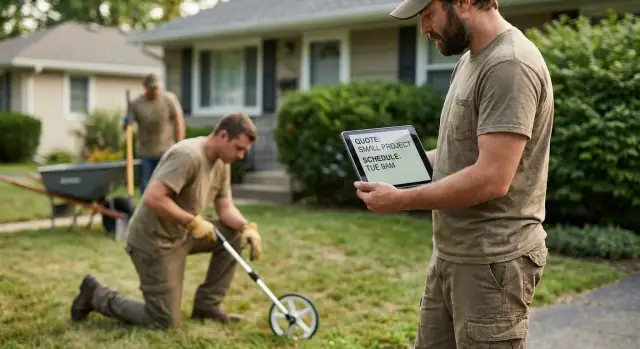
For a small landscaping team, quotes end up scattered. A few details are in a notebook, photos are in someone’s camera roll, and the address is buried in a text thread. When the week gets busy, that estimate is easy to forget.
In most “small teams,” the owner is also the estimator and scheduler, plus 1 to 10 people rotating between jobs. That’s enough moving parts for mistakes, but not enough office time to keep paperwork perfect.
The failures are usually boring, and they cost real money. Notes disappear after a site visit. Follow-ups happen late because nobody can see who’s waiting on an estimate. Two jobs get booked for the same morning because the schedule lives in one person’s head.
Most missed work comes from a few repeat patterns:
The fix isn’t “more admin.” It’s treating quoting, scheduling, and completion tracking as one connected flow. When the estimate is approved, it should become a job without retyping. When the job is scheduled, the crew should see the same scope, photos, and access notes that were captured on-site.
That’s the point of a landscaping quote-to-job tracker: fewer missed jobs, faster follow-ups, and a workload everyone can see. Instead of wondering, “Are we booked next Tuesday?” you have one source of truth for what’s proposed, what’s sold, what’s scheduled, and what’s done.
Small teams do best with one clear path that every request follows. Your landscaping quote-to-job tracker should make the next step obvious, not just store notes.
A practical flow looks like this: new lead, site visit, quote sent, approved, scheduled, in progress, done, invoiced. You can rename stages to match how you talk, but keep the order consistent so nobody has to guess.
The biggest mistake is trying to collect everything on day one. Capture only what you need to move to the next stage.
A status only helps if it prompts a next step.
When you move a lead to Site visit, it should create a task to book a time and remind you the day before. When it becomes Quote sent, it should set a follow-up date. When it flips to Approved, it should create a job card and put it on the schedule.
Pick one source of truth. Customer info and job details should live in one place, and every text, call note, and crew update should point back to that record.
A site visit is where good quotes are won or lost. The goal isn’t to write a novel. It’s to capture the details that prevent callbacks, change orders, and “Where do we park?” messages on job day.
Start with the basics that let you follow up fast: the customer’s name, the exact service address, and how they want to be contacted (call, text, email). If there’s more than one decision maker, note who can approve the work. That one detail can save days.
Then capture what your crew needs to arrive and work safely. Access notes matter more than most people expect: a gate code, where to park the trailer, a dog in the yard, low wires near a tree, a steep slope after rain, or “don’t block the neighbor’s driveway.” These are the small things that decide whether the morning goes smoothly.
A “fast but complete” checklist for a landscaping quote-to-job tracker:
Keep pricing capture lightweight on-site. Rough quantities (like “mulch: 12-14 yards”) are fine if the scope is clear enough that you don’t quote one thing and deliver another.
Example: you walk a backyard mulch refresh. You snap three photos (front bed, side bed, back bed), note “gate is 36 inches, wheelbarrow only,” and record “dog in yard, call before entering.” The customer asks for a small discount if they book this week, so you note it, plus “deposit required” and “quote expires in 14 days.” When they approve, you log who approved and any change (like switching from brown to black mulch). Scheduling is easier when those details are already attached to the job.
A quote gets accepted faster when it reads like a simple plan, not a long story. For a small team, consistency matters. Every estimate should look familiar to you and to the customer, even if a different person wrote it.
Use one repeatable format so nothing important is missed. A solid template includes:
Options can raise the average job size without confusing people. Keep it to three clear choices and label them in plain language. For example: Basic (mulch refresh), Plus (mulch + edge beds), Premium (Plus + weed barrier and touch-up plants). Each option should stand alone so the customer doesn’t have to do math.
Make approval obvious and easy. Choose one primary way to say yes, with one backup for busy customers:
Treat changes as normal, but track them. Add a version number (v1, v2), a short note on what changed, and who requested it. That way your crew doesn’t install Premium when the customer approved Basic.
A good flow feels like one continuous conversation, not six separate chores. Every request should become either a clear “not moving forward” or a scheduled job with owners, dates, and next steps.
Treat the first call as a real record, even if it’s just a quick voicemail. Capturing the basics early prevents “recreating” the job later.
After the site visit, don’t let the estimate sit in someone’s head. Turn your notes into a quote while the details are still fresh, then make approval easy.
One small habit that changes everything: assign an owner to each step. Someone should always be responsible for the next action.
Example: a customer calls for a spring cleanup. You log the lead, book a Tuesday visit, snap three photos, note “haul away included,” send the estimate the same afternoon, then convert it to a Friday job as soon as they reply “approved.”
A tracker only helps if the crew can open a job and know what to do in 10 seconds. Keep the job record focused on action: what type of work it is, what “done” looks like, and what prevents surprises on site.
Use job types your team already says out loud: mowing, spring cleanup, mulch, small hardscape, irrigation check. For each type, add a simple default set of steps so nobody rewrites the same plan every time. Defaults also make training easier when you add a new crew member.
A phone-friendly job checklist:
Photos beat long notes. Add “before” photos during the site visit and “after” photos when the job is finished. Pair each set with one short note like “Stay off the new sod by the left fence” or “Gate is tight, lift to close.”
Keep time tracking simple. For a one-off job, record arrival and finish (or just total hours). For recurring work like mowing, track visits: each visit gets a quick status (done, reschedule, blocked by weather) and a short note.
Example: a mulch job can be one record with job type “mulch,” default steps, a material line like “12 bags black mulch,” and three photos pointing out bed edges. When the crew arrives, they don’t need the quote history. They need the steps, the photos, and a fast way to mark the visit complete.
Most scheduling problems aren’t caused by “bad planning.” They happen because information is split across texts, paper calendars, and one person’s memory.
Start with one calendar view for the whole team, then add a per-crew view. The team view helps you spot overloaded days and gaps you can fill. The per-crew view keeps the morning simple: each crew sees only their jobs, addresses, and start times.
Double booking usually happens when travel time and buffers are missing. A few simple rules help a lot:
Constraints matter as much as the date. Store customer availability windows (like “after 3pm only”), noise limits, and HOA rules. Put these constraints on the job so they follow it wherever it gets scheduled.
Don’t schedule a start date unless materials are ready. A simple materials status field (Needed, Ordered, Delivered) prevents crews from showing up without mulch, plants, or pavers. If you want a rule, make it this: no “Scheduled” until materials are marked Delivered.
Field updates only work when they take less time than a phone call. Aim for one simple job screen that a crew can open, update, and close in under a minute. If your landscaping quote-to-job tracker requires long typing, it won’t get used on busy days.
A mobile-friendly job card should answer what the crew asks on arrival: where is it, who do we talk to, what are we doing, and what does “done” mean.
Keep updates limited to a few quick actions: Start, Pause, Complete, Add photo, Add note. “Pause” matters because it captures real reasons jobs run long (waiting on customer, rain, missing materials) without a long explanation.
Plan for weak signal. The rule is capture now, sync later. Let the crew mark status, save photos, and write short notes offline, then sync automatically with a timestamp when the phone reconnects.
Customer updates should be template-based so nobody has to write from scratch:
Tracking feels like extra admin when your system is really three systems at once: texts, a spreadsheet, and a stack of paper notes. The fix isn’t more discipline. It’s one place where the same information is reused from the first call to the final invoice.
A big trap is mixing leads and jobs with no clear statuses. If New request, Quoted, and Scheduled all look the same, you’ll chase people who already said no and forget the one who said yes. Give every request a status that answers one question: what’s the next action, and who owns it?
Another time sink is rewriting the same details over and over. If the address, gate code, photos, and measurements live in someone’s original note, the crew will ask again. That creates more calls, more texts, and more missed details. Capture it once, then reuse it.
Quotes also get messy when they have no expiration date or clear approval method. “Looks good” in a text thread is hard to turn into a scheduled job. Put an expiry on every estimate and make approval explicit: approve, request changes, or decline.
Revisions are where scope disputes start. If you update a quote but don’t track what changed, the customer remembers the old price and you remember the new scope. Keep a simple version history: what changed, when, and who approved.
Scheduling chaos usually comes from ignoring real-world constraints:
Start with statuses and reusable job fields. Dashboards can wait. The goal is fewer messages, fewer rewrites, and fewer surprises on job day.
A tracker only helps if it gets used when things are busy. An easy way to tell is a quick morning test. If you can answer these in a minute, your system is doing its job.
If two or more items fail, fix those before adding new features. Most small teams don’t need more fields. They need fewer steps.
A new customer calls about a quick yard cleanup and fresh mulch. You want it logged once, priced fast, and turned into work your crew can finish without a bunch of calls.
At the site visit, you create a new lead with the basics: name, address, and best contact method. Then you capture the details that prevent surprises later.
Recorded on-site in under five minutes:
Back at the shop, you turn that into an estimate with clear line items: “Bed edge and light weeding,” “Haul away green waste,” and “Install 6 yards of brown mulch.” Add one plain note like: “Price includes delivery and install. Flower replacements not included.”
Send the estimate the same day. When the customer approves, the record becomes a job, keeping the same photos, notes, and price so nothing gets retyped.
Then schedule it: pick a date, assign a two-person crew, and set a time window. The crew view shows only what they need: address, access notes, materials, and the photos from the site visit.
After the job, the crew marks it complete from a phone, adds two after photos, and leaves a quick note: “Used 6.5 yards, added extra edging by driveway with ok from customer.”
What you see as the owner stays clean and predictable: the quote moved to Scheduled, the calendar updated, and a completed jobs list with proof photos and final notes.
If you want to build this as a real system (not another spreadsheet), AppMaster (appmaster.io) is one option for creating a no-code operations app where a quote can convert into a scheduled job and the same record updates from the field. Keep it simple at first: one record, clear statuses, and a crew-friendly job screen.
 What’s the simplest way to stop estimates from getting lost?
Start with one shared record per request and a simple status path you all agree on. Capture only the basics on day one (name, address, what they want, best contact), then add details only when the job moves forward.
How do I make sure I actually follow up on quotes?Make “Quote sent” automatically create a follow-up date, then check one “pending approval” view every morning. If you don’t hear back by the follow-up date, send a short message asking for approval, changes, or a decline so the request stops drifting.
What should I capture during a site visit without slowing down?Take a few wide photos, one close-up of problem areas, and write access notes that prevent day-of questions (parking, gate code, pets, hazards). Add one plain-language scope line that matches what the customer expects, because that’s what your crew will rely on later.
What makes an estimate easier for customers to approve?Use a consistent template with scope, assumptions, price, and a start window, and keep the approval method obvious. Most delays happen when the customer isn’t sure what’s included or how to say yes, so remove those two points of friction.
How do I handle changes without starting arguments about scope or price?Use versions (v1, v2) and write one sentence on what changed and who requested it. Keep old versions for reference, but only one “current” version should be marked as approved so the crew never works from the wrong scope.
How can I prevent double booking and last-minute schedule chaos?Don’t mark a job as scheduled until you’ve blocked travel time and a small buffer for cleanup and surprises. Also track material readiness (needed, ordered, delivered) so you don’t send a crew out to a site with nothing to install.
What should a crew member see on a phone job card?Keep the job screen focused on what they need in the first 10 seconds: address, access notes, scope summary, photos, and a short checklist. Updates should be quick taps like start, pause, complete, plus an optional photo and a short note.
What if the crew has bad cell service on job sites?Allow updates to save offline and sync later, including photos and timestamps. If your tool can’t handle weak signal, crews will stop using it and you’ll end up back in texts and calls.
How do I track recurring work like weekly mowing without making a mess?Treat recurring visits as one customer/job with multiple dated visits, each marked done, rescheduled, or blocked by weather. That keeps history and notes in one place without creating a new record every week.
Can I build a custom tracker without hiring a developer?Yes, if you keep the first version small: one record, clear statuses, a calendar view, and a mobile job card. AppMaster is a no-code option where you can build a custom quote-to-job flow, convert an approved quote into a scheduled job, and let the field update the same record without retyping.
Experiment with AppMaster with free plan.
When you will be ready you can choose the proper subscription.
 Jul 14, 20268 min
 Jul 13, 20268 min
 Jul 08, 20268 min