


 Jul 14, 2026
 8 min
8 minEquipment reservation app: prevent conflicts and track returns
Plan an equipment reservation app that prevents double bookings, records returns and damage, and places faulty items on maintenance hold.

Indexing for admin panels: optimize the filters users click most: status, assignee, date ranges, and text search, based on real query patterns.
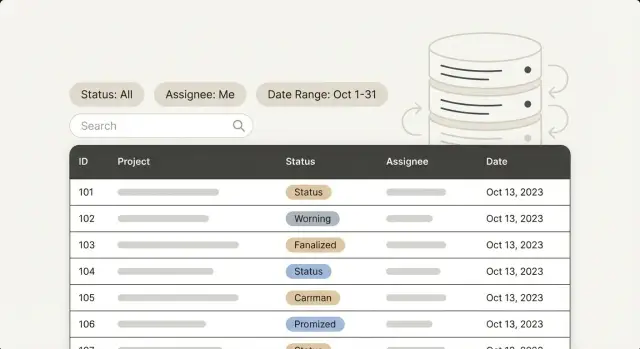
Admin panels usually start out feeling quick. You open a list, scroll, click a record, and move on. The slowdown shows up when people filter the way they actually work: "Only open tickets", "Assigned to Maya", "Created last week", "Order ID contains 1047". Every click triggers a wait, and the list starts to feel sticky.
The same table can be fast for one filter and painfully slow for another. A status filter might touch a small slice of rows and return quickly. A "created between two dates" filter might force the database to read a huge range. An assignee filter can be fine on its own, then slow down once you combine it with status plus sorting.
Indexes are the shortcut a database uses to find matching rows without reading the whole table. But indexes are not free. They take space, and they make inserts and updates a bit slower. Adding too many can make writes slower and still not fix the real bottleneck.
Instead of indexing everything, prioritize the filters that:
This stays intentionally narrow. The first performance complaints in admin lists almost always come from the same four filter types: status, assignee, date ranges, and text fields. Once you understand why these behave differently, the next steps are clear: look at real query patterns, add the smallest index that matches them, and verify you improved the slow path without creating new problems.
Admin panels are rarely slow because of one giant report. They get slow because a few screens are used all day, and those screens run lots of small queries over and over.
Ops teams usually live in a handful of work queues: tickets, orders, users, approvals, internal requests. On these pages, the filters repeat:
The database work depends on intent:
Admin panels also combine filters in predictable ways: "Open + Unassigned", "Pending + Assigned to me", or "Completed in the last 30 days". Indexes work best when they match those real query shapes, not when they match a list of columns.
If you build admin tools in AppMaster, these patterns are usually visible just by looking at the most-used list screens and their default filters. That makes it easier to index what actually drives daily work, not what looks good on paper.
Treat indexing like triage. Don’t start by indexing every column that appears in a filter dropdown. Start with the few queries that run constantly and annoy people the most.
Optimizing a filter nobody touches is wasted effort. To find the real hot paths, combine signals:
In many teams, that default view is something like "Open tickets" or "New orders". It runs every time someone refreshes, switches tabs, or returns after replying.
Before adding an index, group your common queries by how they behave. Most admin list queries fall into a few buckets:
status = 'open', assignee_id = 42created_at between two datesORDER BY created_at DESC and fetch page 2Write down the shape for each top screen, including WHERE, ORDER BY, and pagination. Two queries that look similar in the UI can behave very differently in the database.
Start with one priority target: the default list query that loads first. Then pick 2 or 3 more high-frequency queries. That’s usually enough to cut the biggest delays without turning your database into an index museum.
Example: a support team opens a Tickets list filtered to status = 'open', sorted by newest, with optional assignee and date range. Optimize that exact combination first. Once it’s fast, move to the next screen based on usage.
Status is one of the first filters people add, and one of the easiest to index in a way that doesn’t help.
Most status fields are low-cardinality: only a few values (open, pending, closed). An index helps most when it can narrow results to a small slice of the table. If 80% to 95% of rows share the same status, an index on status alone often won’t change much. The database still has to read a large chunk of rows, and the index adds overhead.
You usually feel the benefit when:
A common pattern is "show me open items, newest first." In that case, indexing the filter and the sort together often beats indexing status by itself.
The combinations that tend to pay off first:
status + updated_at (filter by status, sort by recent changes)status + assignee_id (work queue views)status + updated_at + assignee_id (only if that exact view is used heavily)Partial indexes are a good middle ground when one status dominates. If "open" is the main view, index only open rows. The index stays smaller, and write cost stays lower.
-- PostgreSQL example: index only open rows, optimized for newest-first lists
CREATE INDEX CONCURRENTLY tickets_open_updated_idx
ON tickets (updated_at DESC)
WHERE status = 'open';
A practical test: run the slow admin query with and without the status filter. If it’s slow either way, a status-only index won’t save it. Focus on the sort and the second filter that actually shrinks the list.
In most admin panels, assignee is a user ID stored on the record: a foreign key like assignee_id. That’s a classic equality filter, and it’s often a quick win with a simple index.
Assignee also shows up with other filters because it matches how people work. A support lead might filter to "Assigned to Alex" and then narrow to "Open" to see what still needs attention. If this view is slow, you often need more than a single-column index.
A good starting point is a composite index that matches the common filter combo:
(assignee_id, status) for "my open items"(assignee_id, status, updated_at) if the list is also sorted by recent activityOrder matters in composite indexes. Put equality filters first (often assignee_id, then status), and put the sort or range column last (updated_at). That aligns with what the database can use efficiently.
Unassigned items are a common gotcha. Many systems represent "unassigned" as NULL in assignee_id, and managers filter for it a lot. Depending on your database and query shape, NULL values can change the plan enough that an index that works great for assigned items feels useless for unassigned.
If unassigned is a first-class workflow, pick one clear approach and test it:
assignee_id nullable, but make sure WHERE assignee_id IS NULL is tested and indexed when needed.If you’re building an admin panel in AppMaster, it helps to log the exact filters and sorts your team uses most, then mirror those patterns with a small set of well-chosen indexes instead of indexing every field that happens to be available.
Date filters usually show up as quick presets like "last 7 days" or "last 30 days", plus a custom picker with a start and end date. They look simple, but they can trigger very different database work on large tables.
First, be clear about which timestamp column people actually mean. Use:
created_at for "new items" viewsupdated_at for "recently changed" viewsPut a normal btree index on that column. Without it, every "last 30 days" click can turn into a full table scan.
Preset ranges often look like created_at >= now() - interval '30 days'. That’s a range condition, and an index on created_at can be used efficiently. If the UI also sorts newest first, matching the sort direction (for example, created_at DESC in PostgreSQL) can help on heavily used lists.
When date ranges combine with other filters (status, assignee), be selective. Composite indexes are great when the combo is common. Otherwise, they add write cost without paying you back.
A practical set of rules:
(status, created_at) can help.created_at index and avoid lots of composites.Timezone and boundaries cause a lot of "missing records" bugs. If users pick dates (not times), decide how to interpret the end date. A safe pattern is inclusive start and exclusive end: created_at >= start and created_at < end_next_day. Store timestamps in UTC and convert user input to UTC before querying.
Example: an ops admin picks Jan 10 to Jan 12 and expects to see items from all of Jan 12. If your query uses <= '2026-01-12 00:00', you’ll drop almost everything from Jan 12. The index is fine, but the boundary logic is wrong.
Text search is where many admin panels slow down, because people expect one box to find everything. The first fix is to separate two different needs: exact match (fast and predictable) vs contains search (flexible, but heavier).
Exact match fields include order ID, ticket number, email, phone, or an external reference. These are perfect for normal database indexes. If admins often paste an ID or email, a simple index plus an equality query can make it feel instant.
Contains search is when someone types a fragment like "refund" or "john" and expects matches in names, notes, and descriptions. This is often implemented as LIKE %term%. The leading wildcard means a normal B-tree index can’t narrow the search, so the database scans lots of rows.
A practical way to build search without overloading your database:
term%), a standard index can help and often feels good enough for names.LIKE %term%.Input rules matter more than most teams expect. They cut load and make results consistent:
A small example: a support manager searches "ann" to find a customer. If your system runs LIKE %ann% across notes, names, and addresses, it can scan thousands of records. If you first check exact fields (email or customer ID), then fall back to a smarter text index only when needed, search stays fast without turning every query into a database workout.
Indexes are easy to add and easy to regret. A safe workflow keeps you focused on the filters your admins rely on, and helps you avoid "maybe useful" indexes that slow down writes later.
Start with real usage. Pull the top queries in two ways:
For admin panels, these are usually list pages with filters and sorting.
Next, capture the query shape exactly as the database sees it. Write down the precise WHERE and ORDER BY, including sort direction and common combinations (for example: status = 'open' AND assignee_id = 42 ORDER BY created_at DESC). Small differences can change which index helps.
Use a simple loop:
Pagination deserves its own check. Offset-based pagination (OFFSET 20000) often gets slower as you go deeper, even with indexes. If users routinely jump to very deep pages, consider cursor-style pagination ("show items before this timestamp/id") so the index can do consistent work on large tables.
Finally, keep a small record so your index list stays understandable months later: index name, table, columns (and order), and the query it supports.
The quickest way to make an admin panel feel slow is to add indexes without checking how people actually filter, sort, and page through results. Indexes cost space and add work to every insert and update.
These patterns cause most problems:
LIKE '%term%'.A common scenario: a support team filters tickets by Status = Open, sorts by updated time, and pages through results. If you only add an index on status, the database may still have to gather all open tickets and sort them. An index that matches the filter and sort together can return page 1 quickly.
Before and after admin UI changes, do a short review:
WHERE + ORDER BY pattern.LIKE '%term%') and decide if contains search is truly needed.If you build admin panels in AppMaster on PostgreSQL, make this review part of shipping new screens. The right indexes tend to follow directly from the filters and sort orders your UI actually uses.
Before adding more indexes, confirm the ones you already have are helping the exact filters people use every day. A good admin panel feels instant on common paths, not on rare one-off searches.
A few checks catch most issues:
WHERE and ORDER BY, not just one piece.A practical next step is to write down your golden paths as plain sentences, like: "Support agents filter open tickets, assigned to me, last 7 days, sorted by newest." Use those sentences to design a small set of indexes that clearly support them.
If you’re still early in the build, it helps to model your data and default filters before you create too many screens. With AppMaster (appmaster.io), you can iterate on admin views quickly, then add the few indexes that match what your team actually uses once real usage makes the hot paths obvious.
 What should I index first in an admin panel?
Start with the queries that run constantly: the default list view admins see first, plus the 2–3 filters they click all day. Measure frequency and pain (slowest and most-used), then index only what clearly reduces wait time on those exact query shapes.
Why is one filter fast but another painfully slow on the same table?Because different filters force different amounts of work. Some filters narrow to a small set of rows, while others touch a big range or require sorting large result sets, so one query can use an index well and another can still end up scanning and sorting a lot of data.
Should I always add an index on a status column?Not always. If most rows share the same status, an index on status alone often doesn’t cut much work. It helps more when the status is rare, or when you match the real view by indexing status together with the sort or another filter that truly shrinks the results.
How do I speed up the common “Open items, newest first” view?Use a composite index that matches what people actually do, like filtering by status and sorting by recent activity. In PostgreSQL, a partial index can be a clean win when one status dominates, because it keeps the index small and focused on the common workflow.
What’s the best way to index assignee filtering?A simple index on assignee_id is often a quick win, because it’s an equality filter. If “my open items” is a core workflow, a composite index that starts with assignee_id and then includes status (and optionally the sort column) usually performs better than separate single-column indexes.
Why does filtering for “unassigned” items stay slow even after indexing assignee_id?Unassigned is often stored as NULL, and WHERE assignee_id IS NULL can behave differently from WHERE assignee_id = 123. If unassigned queues matter, test that query specifically and add an index strategy that supports it, often a partial index targeted to unassigned rows if your database supports it.
How should I index date range filters like “last 7 days”?Add a btree index on the timestamp people actually filter on, usually created_at for “new items” and updated_at for “recently changed.” If you also sort by newest, an index that matches the sort direction can help, but keep composites limited to the few combinations you know are heavily used.
How do I avoid timezone and end-date bugs in admin date filters?Most missing-record bugs come from date boundaries, not indexes. A reliable pattern is inclusive start and exclusive end, converting user-selected dates to UTC and querying >= start and < end_next_day, so you don’t accidentally drop everything that happened later on the end date.
Why doesn’t a normal index fix “contains” search in text fields?Because a “contains” query like LIKE %term% can’t use a normal btree index to jump to matches, so it scans lots of rows. Treat exact lookup (ID, email, order number) as a first-class fast path, and only add true contains search when needed using a search method designed for it.
Can I just index every filterable column to avoid slowdowns?Adding too many indexes increases storage and makes inserts and updates slower, and you can still miss the real bottleneck if the index doesn’t match the WHERE + ORDER BY pattern. A safer loop is to change one index at a time, re-measure the exact slow query, and keep only changes that clearly improve the hot path.
If you build admin screens in AppMaster, log the exact filters and sorts your team uses most, then add a small set of indexes that mirror those real views instead of indexing every available field.
Experiment with AppMaster with free plan.
When you will be ready you can choose the proper subscription.
 Jul 14, 20268 min
 Jul 13, 20268 min
 Jul 08, 20268 min