


 Jul 14, 2026
 8 min
8 minEquipment reservation app: prevent conflicts and track returns
Plan an equipment reservation app that prevents double bookings, records returns and damage, and places faulty items on maintenance hold.

Set up a household bills calendar that tracks due dates, autopay status, and sends email or SMS reminders only for manual bills.
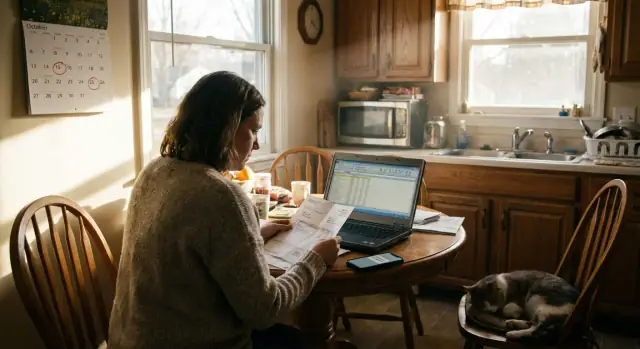
Bills get missed even by people who feel organized. The problem usually isn’t “I forgot everything.” It’s normal life: a due date shifts, a card expires, an email lands in spam, or you assumed something was on autopay when it wasn’t.
A bills calendar solves the biggest issue: scattered information. When due dates live in different portals, inbox threads, and sticky notes, it’s hard to feel confident you’re caught up. One place to see what’s due (and when) is calmer, and it makes planning around paydays easier.
The most important distinction is simple, but easy to blur in real life:
Reminders fail because they try to solve the wrong problem. If you set alerts for everything, you train yourself to ignore them. After a few weeks, your phone becomes a wall of “due soon” messages, and the one manual payment that actually needs attention gets lost.
Reminders usually turn into noise for predictable reasons: they fire too early, they’re duplicated across channels, they don’t match how you actually pay, or they stay active after you move a bill to autopay.
The goal is straightforward: keep all due dates in one view, and only get nudges for bills marked manual. That way every reminder means “do something,” not “this exists.”
A bills calendar works when each bill has enough detail to answer one question fast: “Do I need to do something, and when?” Keep the fields consistent and you won’t have to chase old emails.
Start with the basics: a clear bill name (what you recognize at a glance), the company, and the usual amount. For variable bills, record a range like “$40 to $90” so a higher month doesn’t feel like an emergency.
Next, be specific about how it gets paid. “Autopay” vs “manual” covers most cases, but many households have a third category: bills that are usually autopay but flip to manual when a card expires or a balance is past due. Mark those as sometimes manual so your reminder rules can handle reality.
Keep one row per bill with a small, consistent set of fields:
For autopay items, add two “trust signals”: the last successful payment date and where you confirm it (bank transaction, email receipt, or provider portal). Also note which account gets charged (checking, card name, or “joint card”) so you can spot issues like a canceled card.
Finally, add notes that reduce friction: where the login is stored (not the password), a support number if you ever need to call, and any special rules like “must pay from this bank” or “late fee after 5pm.”
Example: If your electric bill is autopay but occasionally fails, set it to “sometimes manual,” add a 3-day buffer, and note “confirm in bank transactions.” You’ll only get reminders when it actually needs attention.
This works best when you do one focused “bill sweep” first. Set aside 30-45 minutes, open your bank and card statements, and write down every recurring payment.
Start with the big categories most homes have, then fill in the smaller ones:
Then add irregular but predictable items that still cause late fees if forgotten: annual renewals (car registration, memberships), quarterly taxes, school fees, and twice-a-year insurance premiums.
It also helps to decide what counts as a bill versus a budget line item:
Finally, capture ownership so reminders go to the right person. Mark each item as “you,” “partner,” “roommate,” or “shared,” plus where it’s paid from (which card/account). One line like “shared, paid from joint checking, roommate submits manually” prevents the classic “I thought you did it” late fee.
To keep the list current, add one habit: whenever you start or cancel a service, update the calendar the same day. Two minutes now beats chasing a mystery charge later.
This only works if it fits your habits. If you live in your phone calendar, build around that. If you check a spreadsheet once a week, make the spreadsheet the source of truth. The best tool is the one you’ll keep updating.
Two setups cover most households:
A shared calendar is enough when you just need visibility on dates. It’s not enough when you need approvals, receipts, or a reliable “who paid it” history. In that case, keep a master list (spreadsheet or notes) as the source of truth, and use the calendar mainly for reminders.
Adding bills directly to Google/Apple/Outlook calendars can be convenient because alerts show up next to real life plans. The downside is clutter: recurring events can hide appointments, and it’s easy to forget to edit an event when a due date changes or a bill moves from manual to autopay.
Also decide where reminders should come from. Calendar alerts are simple. Email rules work if you always see your inbox. SMS is great for “must not miss” items, but it gets noisy fast.
Keep privacy basic. Your calendar isn’t a vault:
Start by putting everything in one place. You want a single source of truth you can sort and scan, even if it begins as a simple table.
Create one table and add a row per bill (rent, water, streaming, insurance, credit card, daycare). Include the fields you chose, plus two that make reminders smarter: recurrence and payment status.
Set payment status to manual by default. It prevents false trust. Switch a bill to autopay only after you confirm it actually drafts.
Create recurring calendar events from your table. Use clear titles (for example, “Electric - pay by 20th”). If a due date moves (like “last weekday”), choose a safe earlier date and note the rule in the description.
Before adding reminders, do a quick duplicate check. Many people already have “Pay rent” in a calendar somewhere, and duplicates create noise.
A simple reminder setup works well for most people:
Review the first month closely. If you got reminders after you already paid, your timing is off. If you missed a bill, tighten the due date rule.
The easiest way to avoid reminder fatigue is to alert only for bills marked manual. That keeps the system quiet and trustworthy.
Use a schedule that matches how you actually pay. A solid default is 7 days before (time to plan), 2 days before (time to act), and the morning of the due date (last call). If you tend to pay on weekends, shift the “2 days before” reminder to the nearest day you can realistically do it.
Email works well when you want a searchable record or you share payments with a partner or roommate. Keeping one thread per bill (same subject line each month) makes it easy to find later.
SMS is best for urgent nudges. Keep it short and never include sensitive details. Treat SMS like a doorbell, not a receipt.
Include only the essentials in each reminder:
Example SMS: “Manual bill: Water (varies) due Tue 16th. Pay today.”
To keep things safe, avoid account numbers, full addresses, and login hints in SMS. It also helps to lock down who can edit the bill list. One person can be the editor while everyone else is a viewer, so an accidental change doesn’t turn off the wrong reminders.
Autopay is great until it quietly stops working. The safest way to trust fewer reminders is to verify autopay with real payments, not with a setting that says “on.” Once a month, open your bank or card activity and confirm the last payment actually cleared.
A simple habit helps: create a separate “autopay check” reminder after your busiest billing week. This reminder isn’t about paying anything. It’s only for confirming that payments posted and the balance makes sense.
Watch out for partial autopay. Many credit cards default to minimum-payment autopay, which avoids late fees but can still leave interest and a growing balance. If you want full autopay, confirm it’s set to “statement balance” (or your preferred fixed amount), then confirm the result in your transaction history.
Autopay often fails when something changes: a new due date, a replacement card, a new bank account, or an updated plan price. When anything changes, do a quick two-step check: update the payment method, then confirm the next cycle posted correctly.
Have one clear rule for failed payments so nothing sits unnoticed:
Example: your internet bill is on autopay, but the provider switches processors and the next charge fails. Your “autopay check” catches it, you pay manually once, then you watch the following month to make sure autopay is truly back.
Sam and Priya share an apartment. They split rent and utilities, but keep their own credit cards and pay those separately. They want one shared view of what’s due, without getting pinged for bills that are already on autopay.
They set up a shared calendar with simple color tags: green for autopay, orange for manual, and gray for info-only dates (like statement close).
Their first month includes:
The calendar shows every due date, but reminders only trigger for the orange items. Autopay bills stay visible so they can spot problems, but they don’t generate routine alerts.
Their reminder timing is consistent:
Sample email reminder:
Subject: Rent due in 5 days (manual)
Body: Rent is due on Feb 1. Amount: $2,100. Status: Manual payment. Mark as paid after you submit it.
Sample SMS reminder:
“Reminder: Rent ($2,100) due Feb 1. Manual payment. Reply PAID after you send it.”
Mid-year, the internet provider shifts the due date because of a holiday, moving it from the 18th to the 20th. Sam updates that single event (and the recurring rule if it becomes permanent). The next reminders follow the new date automatically. If the amount increases, they update the amount field too, so the reminder stays useful.
Late fees usually happen for boring reasons, not because your system is “missing features.” A bills calendar works only if it matches how payments really move: weekends exist, banks take time to process, and autopay can fail silently.
A common trap is marking a bill as autopay and never checking the first successful payment. Many providers require a first manual payment, a confirmation step, or they only start autopay next cycle.
Another issue is reminders that fire on the due date. That’s often too late. If the due date lands on a weekend, or a payment needs 1-3 business days to post, “today” reminders can still lead to late fees.
Mistakes that show up in almost every household:
A simple fix is to add one verification reminder after any autopay change, and keep reminders only for bills marked manual. If you ever want this to run as a lightweight app instead of a spreadsheet, you can build a small internal tracker on AppMaster (appmaster.io) using the same fields (due date, payment status, owner) and send notifications only when a bill is manual and still unpaid.
This system works if it stays true to real life. The goal isn’t more reminders. It’s fewer surprises.
Keep one short routine you can repeat even on busy weeks. A quick review catches the small changes that usually cause late fees: a shifted due date, a replaced card, a bill that quietly moved from manual to autopay, or an autopay that failed.
A simple maintenance plan:
Two habits make the list easier to trust: record outcomes, not intentions (“paid on Jan 12” beats “to pay Jan 12”), and keep notes for weird bills (ones that vary, require a login code, or need extra processing time).
A spreadsheet or shared calendar is enough for many homes. You’ll outgrow it when you need a clearer workflow: two people paying different bills, approvals before large payments, receipts that must be saved, or a history you can trust after a busy month.
If you keep asking “Did anyone pay this yet?” or you’re digging through email for proof, an app can be worth it. The goal isn’t fancy. It’s accuracy, with reminders sent only when a bill is marked manual.
If you build one, keep the first version small:
If you want to build this without coding, AppMaster can be a practical option because it’s designed for full applications (backend, web app, and native mobile). You can model bills and payments in a PostgreSQL database, add a basic status flow in a visual logic editor, and send notifications through built-in messaging integrations like email/SMS or Telegram. Test for one month, then expand only if you actually need more (approvals, reports, or subscription reviews).
 What should I include in a household bills calendar?
Track the bill name, due date, frequency, usual amount, payment status, payment account, and owner. Add a short note for unusual rules, such as extra processing time or a required bank transfer.
Should I set reminders for autopay bills too?Use reminders only for bills that need a person to act. Autopay bills can stay visible on the calendar, but routine alerts for them usually create noise.
What is the difference between manual, autopay, and sometimes manual?Use manual as the default until you see the first payment draft successfully. A bill marked sometimes manual needs attention when a card expires, a payment fails, or the provider changes its process.
How far ahead should bill reminders be sent?Start with a reminder 3 days before and another 1 day before the due date. Add a due-date reminder only for bills where a same-day payment posts immediately.
How do I know whether autopay is really working?Check bank or card activity once a month to confirm each charge actually cleared. Also review autopay after replacing a card, changing bank accounts, or changing a plan.
How can roommates or partners avoid paying the same bill twice?Give each shared bill an owner and note which account pays it. For manual bills, agree that the payer marks it paid right after submitting the payment.
Do I need a spreadsheet if I already use a calendar?Use a shared calendar for due-date visibility and keep a spreadsheet or notes list as the master record. The master list can hold payment status, amounts, owners, and confirmation notes without crowding the calendar.
What information should I keep out of bill reminders?Avoid full account numbers, passwords, login details, security answers, and sensitive addresses. Use simple labels such as “Water bill” and keep private account details in the provider portal.
What should I do when an autopay payment fails?Check whether the payment method expired, the account lacked funds, or the provider changed something. Pay the bill manually if needed, record the cause, and set a one-time check for the next billing cycle.
When should I turn my bills calendar into an app?A calendar works well when you only need due dates and simple reminders. A small app makes sense when several people need approvals, receipt storage, payment history, or a clear unpaid status. AppMaster can help you build that tracker without coding.
Experiment with AppMaster with free plan.
When you will be ready you can choose the proper subscription.
 Jul 14, 20268 min
 Jul 13, 20268 min
 Jul 08, 20268 min