


 Jul 14, 2026
 8 min
8 minEquipment reservation app: prevent conflicts and track returns
Plan an equipment reservation app that prevents double bookings, records returns and damage, and places faulty items on maintenance hold.

A food truck preorder app lets customers choose pickup windows, pay ahead, and get a ready for pickup message to keep lines short and service fast.
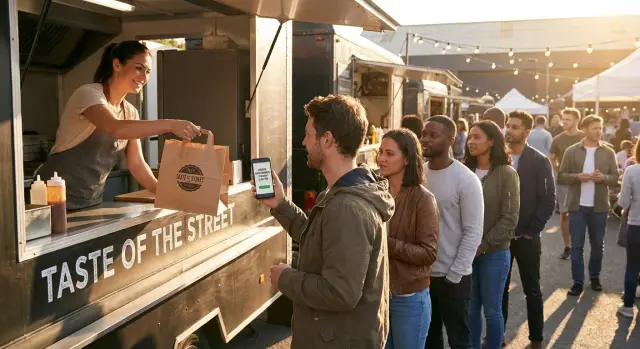
Most food truck chaos starts with one simple bottleneck: everyone has to do everything at the window. Customers browse the menu, ask questions, decide, pay, and only then does the kitchen start that order. When ten people do that in a row, the line stops being a line and becomes a wall.
Small hiccups pile on. One person needs to split a bill. Someone changes an order after paying. A card reader fails and you have to retry. Meanwhile, new customers keep walking up asking how long it will take, which pulls attention away from cooking.
Long lines cost more than time. People leave when the wait feels uncertain, mistakes go up because everyone rushes, and staff stress climbs fast when the window becomes the help desk. Reviews often take a hit too, because customers remember the wait more than the taste. Even regulars show up less when service feels unpredictable.
People abandon a line for different reasons, but the pattern is consistent: if they can’t tell when they’ll eat, they stop committing. A parent with kids, someone on a short lunch break, or a group trying to stay together will bail the moment the line looks stalled.
That’s what a preorder app with pickup time slots changes day to day. Ordering and paying happen earlier, when the customer has a minute. The truck gets a paced queue instead of a sudden wave. And the window becomes what it should be: a quick handoff point, not the place where every decision gets made.
Add a simple “ready for pickup” message and customers stop hovering near the counter. They arrive in a clearer window, grab their order, and the line stays shorter even during the rush.
A preorder and pickup slot system turns your line into a schedule. Instead of guessing when food will be ready, customers pick a clear pickup window (like 12:10-12:20). That one choice helps you spread demand across the rush so the kitchen can cook in a steadier rhythm.
A good food truck preorder app also captures the order before anyone reaches the window. The menu stays in a consistent format, modifiers are chosen from a list, and special notes are typed once. That cuts down on misheard toppings, repeated questions, and last-second changes that slow everyone down.
Prepaying is the second big shift. Customers pay ahead, get an instant confirmation, and know their order is locked in. Staff stops juggling cash, card taps, and change during the busiest minutes, and you reduce the number of abandoned orders.
On your side, the system is basically a queue with a few clear statuses: new (paid and confirmed), in progress (being cooked), ready for pickup (bagged and labeled), and picked up (closed).
When you mark an order as ready, the customer gets a short “ready for pickup” message. That replaces shouting names into a crowd and keeps pickup calm, even when the sidewalk is packed.
Example: a customer orders two tacos with no onions and picks the 12:20-12:30 window. You make it during that slot, tap “Ready,” and they walk up, show the order name or number, grab the bag, and leave. The line stays for new walk-ups instead of turning into a waiting room.
Before you build anything, make a few choices that shape the whole experience. A food truck preorder app can feel calm and predictable or confusing and stressful depending on how you set time slots, limits, and rules.
Start with pickup time slots. Fixed windows (like 10 or 15 minutes) are easy for customers to understand and easy for staff to manage during a rush. Custom times (like “12:07”) can feel precise, but they often create arguments at the window and make batching orders harder.
Next, decide what “capacity” means for your truck. You can cap each slot by number of orders or by items. Orders-per-slot is simple, but it breaks when one order has 12 burritos. Items-per-slot is fairer for the kitchen, but it needs a clear item-count rule (for example: a combo counts as 2 items).
Lead time is the guardrail that keeps you from promising the impossible. If your average prep is 8 minutes, setting the earliest pickup to 15 minutes gives you buffer for payment checks, ticket printing, and the surprise “extra well done” request.
Cutoff rules matter most when you’re slammed. A good cutoff stops customers from choosing a near-term slot you can’t honor. For example, if it’s 12:20, you might stop offering the 12:30 window and only show 12:45 and later.
Finally, plan how you handle sold-out items and limited specials. Decide whether you allow substitutions, whether a sold-out item blocks checkout, and how you protect a “today only” special from being oversold.
A quick decision checklist:
If you build with AppMaster, these rules map cleanly to a data model (slots, limits, inventory) and simple logic in the Business Process Editor, so you can adjust settings after a few real shifts without rewriting everything.
A preorder app only works if both sides can finish fast: customers place an order in under a minute, and staff can fulfill it without digging through screens.
Customers should go through the same steps every time:
The pickup window does most of the heavy lifting. If the kitchen is backed up, customers can pick a later slot instead of joining a growing line.
Staff need an order queue that matches how a truck actually works:
Where does the order show up? Most trucks use a tablet mounted near the prep area, but a phone view helps for one-person trucks. Some teams also want a simple printed ticket for packing, as long as the digital status is still updated.
At pickup, keep verification simple: customer name plus an order number or short code. If you’re busy, a large scannable code speeds up handoff, but it has to work even with a dim screen.
For cancellations and refunds, set one clear rule (like “cancel up to 10 minutes before the slot”) and make it a single tap for staff. If you build this in AppMaster, you can model these statuses in the Data Designer and keep the same flow across web and mobile without extra complexity.
Start with your menu, not your calendar. Mark items that slow the line: anything that needs fresh frying, long grill time, or careful assembly. Those items should either have fewer slots available or a longer lead time before pickup.
Next, pick a slot length that matches how your team actually cooks. Ten minutes works for simple menus, while 15 to 20 minutes is safer if you have lots of custom orders. Then set a starting capacity per slot (how many orders you can finish in that window). Begin conservative and raise it only after you see real rush data.
Here’s a practical setup sequence:
Notifications shape behavior. Send an order-confirmed message right away, then send “ready for pickup” only when the bag is actually staged. If the kitchen falls behind, send a delay update with a new estimate so customers don’t crowd the window.
During a rush, staff need one place to manage everything. A small order board that shows slot time, status (new, cooking, ready, picked up), and notes is usually enough. This is the core of a food truck preorder app, and it’s simple to build as an internal admin panel in a no-code tool like AppMaster.
A preorder system should make the line shorter and the kitchen calmer. The fastest way to break that promise is to accept orders faster than you can cook them and hope you’ll catch up.
The most common problems look like this:
Overbooking is the big one. If your busiest 15 minutes can only handle 12 orders, cap the slot at 12 and let later windows take the overflow. A food truck preorder app is only as good as its capacity rules.
Too many pickup windows can also backfire. More options feel customer-friendly, but if you can’t control volume per window, you’re just spreading the same chaos into smaller boxes.
Delays happen, especially during lunch rush. The mistake is staying quiet. A simple update like “running 10 minutes behind” plus a new estimated ready time protects trust and reduces angry check-ins.
Pickup confusion is another silent killer. Use one pickup rule and stick to it: one pickup point, one identifier (either a short order number or first name + last initial), and one status that matters to customers: “ready for pickup.”
Finally, keep the menu honest. If an item is likely to sell out, limit quantities, hide it when it’s gone, or mark it as “limited” so expectations are set before checkout.
If you’re building this (no-code tools like AppMaster can help), prioritize:
A preorder system only reduces the line if pickup feels effortless. The moment a customer walks up, they should know where to go, what to say, and how long it will take.
First, define what “ready” means for your team. An order isn’t ready when the last item hits the tray. It’s ready when it’s bagged, labeled, and complete (utensils, napkins, sauces, and any drink). That prevents a common slowdown: staff hunting for missing extras while the pickup crowd grows.
Set up one dedicated pickup point: a small window, a shelf, or a table next to the truck. Add one clear sign that says “Preorder Pickup” and a simple instruction like “Show order number.” If you use a preorder app, that message should match what’s on the sign so customers don’t hesitate.
Use labels staff can read in one glance. Keep the label consistent every time:
During peak times, assign one person to handoff only. Their job is checking the label, confirming the order, and moving people through. When cooks also handle pickup, the line stops every time someone asks a question.
You’ll get both. Decide your rule and stick to it:
Predictable pickup is less about raw speed and more about certainty. When everyone follows the same signals, the line stays calmer even when you’re slammed.
A food truck preorder app only helps if it stays dependable when you need it most: right when the rush hits. Build around the assumption that cell service will be spotty and people will make mistakes under pressure.
Have a degraded-mode plan. If the connection drops, staff should still see what to make next. The simplest option is an offline note on the device plus a printed or cached backup list (order number, name, pickup window, and status). When service returns, reconcile by marking what was already made and picked up.
A small rule helps a lot: treat the order number as the single source of truth. If a customer shows a receipt but the order isn’t on the screen, check the backup list before remaking it.
Payment problems usually show up as duplicates, stuck “processing” states, or refunds that can’t be tracked. Prevent this with clear statuses and one-way steps: Created -> Paid -> In progress -> Ready -> Picked up. Staff shouldn’t be able to jump around casually.
Keep customer data minimal. For most trucks, you only need a first name (or nickname), phone or email for receipts, and the order details. Skip birthdays, addresses, and anything you aren’t using.
Role access matters even for a small team. Decide who can mark orders “ready,” who can edit items, and who can refund. Many trucks keep refunds limited to the owner or manager, while anyone on shift can mark “ready.”
Basic logging makes issues easy to solve:
If you build in AppMaster, you can model these statuses in the Data Designer and enforce role-based actions in the Business Process Editor, so the app stays consistent even when the line isn’t.
A downtown food truck parks two blocks from a cluster of offices. Between 11:30 and 1:00, the same thing used to happen: a long line, rushed decisions at the window, and a kitchen that couldn’t predict what was coming next.
With a food truck preorder app, the truck adds pickup time slots in 10-minute windows from 11:20 to 1:10. Customers prepay, pick a window, and get a simple “ready for pickup” message when their order is packed.
Here’s what it looks like during a busy day:
Then a real-world hiccup: at 12:10, the truck runs out of a popular side. Staff marks it unavailable, and any affected orders in the 12:20-12:40 windows are flagged. Customers get an update with two clear options: swap to a different side or accept a quick refund for that item.
From the customer’s view, it feels predictable: order in 30 seconds, choose a pickup window, watch status move from “confirmed” to “in prep,” then get “ready for pickup.” From the staff’s view, it feels controlled: fewer people blocking the window, fewer long conversations, and a queue that matches the kitchen’s pace during the 60-90 minute peak.
Before you open this to real customers, run one full service test with your own team as “customers” on their phones. Place orders for different pickup windows, include modifiers, and try to break it on purpose. A preorder app only helps if it stays predictable when the rush hits.
Use this checklist and mark each item as pass or fix:
Do one more reality check on-site: where will people stand while waiting, and who answers “Is mine ready?” If your pickup point is unclear, you’ll rebuild a line even with time slots.
If you’re building this with a no-code tool like AppMaster, set up a simple admin view for staff: today’s slots, orders by status, and one big “Ready” button. Then run a short pilot for a single lunch shift, review the metrics, and adjust capacity and menu timing before you scale it.
Start small so you can learn fast. Pick one truck, keep the menu short, and offer only a few pickup windows (for example, 11:30-12:00 and 12:00-12:30). Fewer choices makes it easier to spot where the process breaks.
Run a one-week pilot and treat it like a test, not a grand launch. Your goal is to see whether time slots reduce the line and whether staff can keep up without rushing.
Here’s a simple pilot plan:
After a week, make improvements that remove confusion. Most gains come from small wording and labeling changes: clearer pickup rules, bigger order names on tickets, and simple statuses like “Cooking” and “Ready for pickup.” You can also tune capacity so you don’t overload one window while another sits half empty.
When the flow feels stable, build the real app. A no-code platform helps because you need more than a menu page: a database for orders and time slots, business rules (like capacity per window), staff screens, and customer screens.
With AppMaster (appmaster.io), you can create a preorder and pickup slots application with a visual database (PostgreSQL), drag-and-drop logic for slot capacity and order status, and web and native mobile UIs. You can add payments with Stripe, send “ready for pickup” messages via email/SMS or Telegram, and manage everything from an admin panel.
Once your pilot rules are clear, building goes faster because you’re not guessing. Start with the smallest version: time slots, prepay, one staff screen, and one notification.
 What pickup time slot length works best for a food truck?
Start with fixed 10–15 minute windows. They’re easy for customers to understand and they let your kitchen batch similar work. Once you have a week of data, adjust slot length and caps based on what you can actually finish on your busiest days.
Should I limit capacity by orders per slot or items per slot?A simple default is cap by number of orders per slot because it’s easy to manage during service. If your order sizes vary a lot, switch to items per slot (or a weighted count for combos) so one huge order doesn’t blow up your schedule.
How much lead time should I require before the first pickup slot?Set the earliest pickup to about 2× your average prep time. If a typical order takes 8 minutes, a 15-minute lead time gives you breathing room for payment confirmation, packing, and small surprises without breaking promises.
What notifications actually reduce the line?Send an instant confirmation after payment, then only send “ready for pickup” when the order is fully packed and labeled. If you fall behind, send a short delay update with a new estimate so customers don’t crowd the window asking for status.
What’s the simplest way to verify orders at pickup?Use one identifier consistently: an order number plus a customer first name (or initials). At pickup, staff should only need to glance at the label or screen, match the number, and hand it over without a conversation.
How do I set cutoff rules so I don’t accept impossible pickup times?Make the cutoff automatic: hide any slot you can’t realistically hit based on the current time and kitchen load. A practical rule is to remove the next one or two windows when you’re slammed, so customers can only choose later slots you can fulfill.
How should the app handle sold-out items and specials?Keep it strict: once an item is sold out, it should be impossible to order. If you allow substitutions, offer one or two clear alternatives at checkout so staff doesn’t have to negotiate at the window after the customer already paid.
What happens if internet service drops during the lunch rush?Plan for a degraded mode where staff can still see what to make next, using a cached list or a printed backup of order number, name, and pickup window. Treat the order number as the single source of truth so you don’t remake orders just because the screen didn’t refresh.
What should I track for payments, refunds, and basic accountability?Use clear, one-way statuses like Created → Paid → In progress → Ready → Picked up so staff can’t accidentally skip steps. Keep refunds to a limited role (owner/manager) and log timestamps for payment, ready, pickup, and refunds to resolve disputes fast.
What’s the fastest way to build and test a preorder app without writing code?Build the smallest version that runs a real shift: time slots, capacity rules, prepay, a staff queue, and a manual “Ready” button. In AppMaster, you can model orders and slots in the Data Designer and implement slot caps and status changes in the Business Process Editor, then adjust rules after a pilot without rebuilding everything.
Experiment with AppMaster with free plan.
When you will be ready you can choose the proper subscription.
 Jul 14, 20268 min
 Jul 13, 20268 min
 Jul 08, 20268 min