


 Jul 14, 2026
 8 min
8 minEquipment reservation app: prevent conflicts and track returns
Plan an equipment reservation app that prevents double bookings, records returns and damage, and places faulty items on maintenance hold.

Build a field service visit report app that captures job notes, photos, and customer sign-off, then emails a clean PDF-style report to the customer.
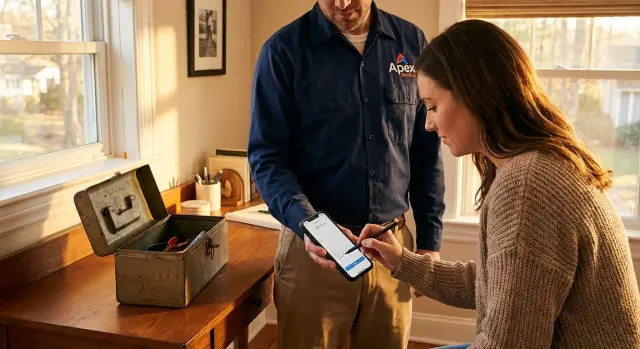
Most service teams do the work, then lose the proof. Notes sit in a pocket notebook, photos stay on a technician’s phone, and the customer sign-off turns into “we’ll get it later.” A week later, nobody remembers what was promised, what was replaced, or what the site looked like before and after.
The failure points are usually basic:
This shows up in repairs (“You didn’t fix the leak”), maintenance (“Was the filter changed?”), inspections (“Where are the readings?”), and installations (“Did you test it with the user?”). The job may be done, but without a clear record, disputes and rework creep in.
A good field service visit report app creates a report that works for two audiences at once.
For the customer, it should read like a clear recap: what was found, what was done, what’s still needed, and photo evidence.
For your team, it should be searchable and consistent: job ID, timestamps, technician, parts used, follow-up tasks, and proof of approval.
Picture a technician doing an HVAC maintenance visit. They take two “before” photos (unit label and filter), log readings, replace the filter, take two “after” photos, and mark the unit as tested. At the end, the customer checks a sign-off box (or adds a signature), and they receive an email summary within minutes.
That’s the goal: a mobile-friendly form for job notes, photos, and customer sign-off, plus an emailed report the customer can keep.
Before you touch the layout, get clear on who the form is for and what happens after it’s submitted. A technician needs speed and offline-friendly capture. A supervisor needs consistency and an audit trail. A customer needs a clean summary they can trust.
Start by naming the users and their moments:
Decide a few must-have rules up front:
Sign-off is worth extra thought because it affects disputes later. A checkbox plus the customer’s typed name and an automatic timestamp is often enough for routine work. For higher-risk jobs, you may want a signature image and a record of who collected it, when, and at which site.
Decide the report output early, because it changes what you collect. If the email is the official record, keep fields concise with predictable wording. If you’re generating a PDF-style attachment, you may want longer notes, structured sections, and a clear photo block.
Example: a technician replaces a pump seal at “North Plant.” The supervisor wants parts used and time on site for costing. The customer only wants a short summary, three photos, and a sign-off line. Making that decision now prevents a form that feels “complete” to one person and useless to another.
A solid data model keeps your field service visit report app consistent, even when different techs write reports in different ways. It also makes it easy to resend the same report later without rewriting anything.
Start with the core “who” and “where,” then attach work and evidence to that. A simple setup is Customers (the company paying), Sites (the physical locations), and Work Orders (the scheduled jobs). The Visit Report is the outcome of one on-site visit, tied to a single work order.
A practical set of records:
For Visit Reports, store details that settle questions later. Think about what you’ll need to reconstruct the day: status (draft, ready to send, sent), notes (what you did and what you found), arrival and departure times, technician (user ID), and a follow-up-needed flag with a short follow-up note.
Photos should be their own table, not a pile of URLs in a text field. Each photo record should point to the Visit Report and store the file itself (or a file reference), plus a caption, a category (before, after, damage, parts, meter reading), and a taken-at time. That makes it easy to group photos in the emailed report and show when they were captured.
For customer sign-off, store what you need for proof, not just “yes/no.” If you use a checkbox, save signer name, signer role, and signed-at time. If you capture a signature, save the signature image (or stroke data) plus signed-at.
Add basic audit fields across tables: created_by, created_at, updated_by, updated_at, and the related work order ID.
A good field service visit report app feels like a checklist, not a document. Techs are often standing in a hallway, on a roof, or next to a noisy unit. Design for one hand, bright light, and interruptions.
Keep the first screen simple and scannable. Use large tap targets, short labels, and defaults that match real work (today’s date, the assigned customer, the open job). If someone has to scroll before they can start, the form is too long.
Instead of one long page, group fields so people can complete the report in the same order they do the work:
A practical structure:
Only show extra questions when they matter. If “Follow-up needed” is on, reveal “recommended next visit date” and “follow-up notes.” If “Parts used” is yes, show “part number” and “quantity.” This keeps the main flow fast while still capturing detail when it’s required.
Validation should match your policy, not your wish list. Make a few rules strict and keep the rest flexible:
Photos are often the most valuable part of a field service visit report app, and also the easiest part to break in the real world. Phones switch networks, cameras struggle in low light, and a single giant upload can stall the whole report.
Give technicians two ways to attach images: take a new photo with the camera, or pick from the gallery when the photo was taken earlier (for example, a label shot from the warehouse). Always allow multiple photos per visit, because “one photo” rarely covers before, after, and details.
A camera roll of unnamed images is hard to use later. Add a quick label so the report reads like evidence, not a scrapbook. Keep labels short and mostly pre-set so techs can tap once.
Good labels:
Example: a technician replaces a pump. They take a “Before” photo of the setup, a “Serial number” close-up for the old unit, and an “After” photo showing the new connections.
Most upload issues come from file size. Modern phones can produce very large images, and weak signal turns that into timeouts. Compress photos on upload and enforce a reasonable limit per image. If a user tries to attach something too large, show a clear message and offer to auto-resize.
Plan for offline and spotty coverage. The safest approach is “save first, upload later”: store a draft report on the device, queue photo uploads when the connection returns, and show a simple status (Queued, Uploading, Uploaded). To prevent duplicates, assign each photo a unique ID and treat re-uploads as retries, not new attachments.
Sign-off is less about fancy UX and more about clarity. Your goal is to show who accepted the work, what they accepted, and when.
For many teams, a checkbox plus typed name is enough. It’s fast, works on any phone, and is easier to read later. Signature capture feels more formal and can help on higher-value or regulated jobs, but it can be messy on small screens and harder to compare.
Choose based on risk and speed:
Whatever you pick, show a short consent sentence right above the control. Keep it plain and specific so a customer understands it in one glance. Example: “I confirm the work described above was completed today and I received the photos and notes.”
Store enough detail to prove the sign-off later without collecting data you’ll never use:
After sign-off, lock the report. Photos, notes, and line items shouldn’t change quietly. If edits are sometimes necessary, require a supervisor override and record an audit note like “edited after sign-off by Alex, reason: wrong part number.”
A good flow starts with your data. Create tables for Work Orders, Visit Reports, Photos, and Sign-Off. Link Work Orders to Visit Reports (one-to-many if a job can have multiple visits), and link Photos to a Visit Report. Store who created the report and timestamps so you can answer “who said what, when” later.
Next, build a mobile screen that opens a report from the work order. Keep the first view short: customer, site, job number, and a big “Start report” button. When the technician taps it, create a Visit Report record right away and save drafts as they type so a dropped signal doesn’t lose work.
For photos, treat them like their own records. After upload, show a simple photo list with a caption field under each image, like “Before” or “After replacing valve.” If your platform supports it, compress images on upload and show clear upload progress.
For sign-off, decide the minimum you need to close. Many teams start with a checkbox (“Customer confirmed work completed”) plus customer name and time. Add rules so the report can’t be marked Complete until sign-off is present, and either at least one photo is attached or a short “No photo reason” is filled.
A straightforward flow:
Test on a real phone. Walk through one job end-to-end: start in a basement with weak reception, take three photos, try to complete without sign-off (it should block), then resend the email. The problems show up in real hands, not in a desktop preview.
Email is where a field service visit report app either feels professional or creates confusion.
Choose a sender name and address customers already recognize (for example, “Acme Service Team”), and set a reply-to that goes to the right shared inbox or dispatcher. If the customer replies with a question, it shouldn’t vanish into a no-reply mailbox.
Keep the report scannable. A clean template reduces disputes because customers can quickly see what happened, what’s next, and what they approved.
A good default structure:
Add clear contact info at the bottom, like a phone number or service email. Avoid internal codes in the customer copy.
Internal-only fields are still useful. Keep them out of the customer email body. Store things like labor cost, internal notes, or “return visit needed” flags in the record and show them only inside the app.
Emails fail sometimes. Treat sending like a trackable step, not a one-time action:
Most disputes start with a report that is “almost right” but can’t be proven. A good field service visit report app should make the record hard to misunderstand and hard to change without leaving a trace.
One common trap is letting technicians edit the report after the customer has signed off, with no history. If a customer later says “that note wasn’t there,” you have no clean answer. Treat sign-off as a lock: either prevent edits, or require a new version that records who changed what, when, and why.
Timestamps cause quiet problems, especially with teams in different regions. Photos often carry device times, while sign-off might be saved by the server. Store timestamps in UTC, and also store the local time zone used at the visit. That way, “Arrived 3:10 PM” stays true even when the report is viewed elsewhere.
Photos are another pain point. If you allow full-size images with no limits, uploads will fail on slow networks, and techs will retry or skip photos. Limit file size, compress on-device, and queue uploads so the form doesn’t look “submitted” until attachments are safely stored.
Mixing internal notes into the customer email can damage trust. Keep two separate fields: customer-facing notes and internal notes, and make the email template pull only customer-facing content. A preview screen before sending helps catch mistakes.
Access control is easy to forget during a first build. If technicians can see other customers’ reports, you risk privacy issues and angry calls.
A quick safety checklist:
Before you ship your app to the whole team, run a short “parking lot test” on a real phone. Stand outside, use mobile data, and pretend you’re late for the next job. If the flow feels slow or picky, techs will work around it.
Time the start. From opening the app to a saved draft report should take under 30 seconds. That usually means the job is pre-selected (or easy to search), today’s date is filled in, and the first screen includes only the essentials.
Be strict only where it protects you. Make the fields that matter in a dispute required, and let the rest be optional. A simple rule works well: don’t allow “Close visit” until the must-haves are complete, but allow saving a draft anytime.
Quick rollout checks:
Finally, check how support will look it up later. In the admin view, you should be able to filter by customer, site, tech, and date, then open the report and immediately see photos and sign-off details.
A technician arrives for a routine HVAC maintenance visit at 9:10 AM. They open the field service visit report app on their phone, select today’s job, and the form is already pre-filled with the customer name, site address, and equipment ID.
They work through the visit in a simple flow:
Before leaving, the tech confirms the outcome: “System running, no unusual noise.” The customer reviews a short summary on the screen and signs off. Whether you use a checkbox or a signature, the app stores who confirmed and the time.
At 10:02 AM, the customer gets an email report. It reads like a receipt: visit time, what was found, what was done, parts used, and a small photo section labeled Before and After. It includes the sign-off line (name, date/time, and either “Confirmed” or the captured signature).
Back at the office, a supervisor sees the same report in a review queue. One note is flagged: “Unusual vibration may return.” The supervisor adds a follow-up task for next week and replies to the customer using the saved report details, so nothing is retyped.
Once the core flow works, upgrades are straightforward: templates per job type (HVAC, plumbing, electrical), optional payment collection, a customer portal for past reports, and supervisor-only fields like internal costs.
If you want to build this without a traditional dev cycle, platforms like AppMaster (appmaster.io) can help you create the mobile app, backend, and email automation in one place, while keeping reports, photos, and approvals tied to the same data record.
 What fields should every service visit report include?
Start with what you’ll need to settle questions later: customer, site, work order/job ID, technician, arrival and departure time, clear work notes, parts used, and a follow-up note if needed. Then add proof fields: at least one photo for jobs where evidence matters and a stored sign-off with a timestamp.
How do I make a visit report form usable on a phone?Make the form feel like a fast checklist: confirm the job, record what happened, attach proof, then get approval. Keep labels short, prefill what you can (date, assigned customer, open job), and save drafts automatically so a dropped signal doesn’t wipe out the report.
How can technicians capture photos reliably with weak or no reception?Use a “save first, upload later” approach. Save the report as a draft on the device, queue photo uploads when a connection returns, and show a simple status so the tech knows what’s uploaded and what’s still pending.
What’s the simplest way to make photos actually useful in the report?Require quick captions and categories so photos read like evidence later. A short preset like “Before,” “After,” “Serial number,” or “Damage” makes reports searchable and prevents the classic problem of unlabeled images attached to the wrong job.
Should customer sign-off be a checkbox or a signature?For routine work, a checkbox plus the customer’s typed name and an automatic server timestamp is usually enough and is faster on small screens. Use a signature image when you truly need extra formality or compliance, and store the method, the consent text shown, and signed-at time either way.
Can we edit a report after the customer has signed off?Lock it by default. If edits are allowed after sign-off, require a supervisor override and record who changed what, when, and why; otherwise disputes become “that note wasn’t there when I signed.”
What should the emailed report to the customer look like?A simple default is: customer and site details, visit date/time, technician name, a short work summary, a small photo section with captions, and the sign-off line with name and timestamp. Keep internal-only fields (costs, internal notes) out of the customer email so you don’t confuse or alarm the recipient.
How should I handle failed emails and resending reports?Track sending as a status on the report, not as a one-time action. Save the exact email content you sent so resends match, and store error details for bounces so staff can correct the address and resend without rebuilding the report.
What’s a good data model for reports, photos, and sign-off?Keep Visit Reports separate from Photos and Sign-Off records so you can attach many photos and store approval proof cleanly. A common setup is Customers, Sites, Work Orders, Visit Reports, Photos (many per report), and Sign-Off (usually one per report), all with created/updated audit fields.
Can I build this as a no-code app without a traditional dev cycle?Yes, if you pick a platform that creates the backend, mobile app, and email automation from the same data records. AppMaster is a no-code option that can generate production-ready apps while keeping reports, photos, and approvals tied together in one system, which helps avoid the “notes in one place, photos in another” problem.
Experiment with AppMaster with free plan.
When you will be ready you can choose the proper subscription.
 Jul 14, 20268 min
 Jul 13, 20268 min
 Jul 08, 20268 min