


 Jul 14, 2026
 8 min
8 minEquipment reservation app: prevent conflicts and track returns
Plan an equipment reservation app that prevents double bookings, records returns and damage, and places faulty items on maintenance hold.

Field-level change history in an admin panel should be easy to scan, filter, and restore. UX and schema patterns for diffs, events, and actions.
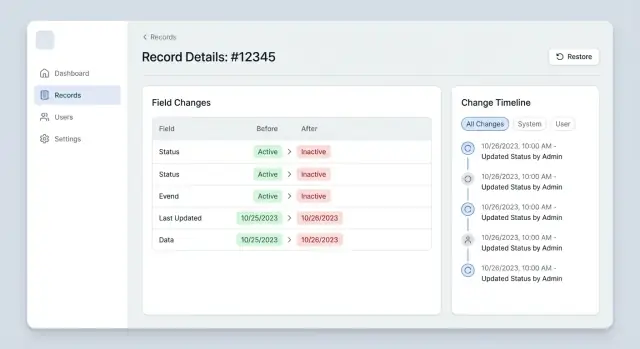
Most admin users don't ignore history because they don't care. They ignore it because it takes too much attention for too little payoff. When a customer is waiting or an order is stuck, nobody has time to read a long gray list of "updated" events.
A readable, field-level change history earns its place when it answers the questions people already have:
Most logs fail on at least one of these. The common failure mode is noise: every save creates 20 entries, background jobs write harmless timestamps every minute, and system processes look the same as human actions. Diffs are often vague too. You see "status changed" but not "Pending -> Approved", or you get a blob of JSON with no clue what to look at.
Missing context finishes the job. You can't tell which workflow triggered a change, whether it was manual or automated, or why two fields changed together.
The result is predictable. Teams stop trusting the audit trail and switch to guessing, asking around, or redoing work. That gets dangerous as soon as you add restore actions.
A good history reduces support time, prevents repeat mistakes, and makes restores feel safe because users can verify before and after quickly. Treat the audit UI as a primary feature, not a debug screen, and design it for scanning under pressure.
A readable history starts with one decision: who will use it when something goes wrong. "Everyone" is not a role. In many admin panels, the same audit view is forced on support, ops, and managers, and it ends up serving none of them.
Pick your primary roles and what they need to walk away with:
Define the top tasks your history must support:
Next, decide what you'll track, and make it explicit. A solid field-level history usually includes field edits, status transitions, and key workflow actions (like "approved", "locked", "refunded"). Many teams also include file uploads and deletions, permission changes, and integration-triggered updates. If you don't track something, users assume the system is hiding it.
Finally, define restore rules up front. Restoring should be allowed only when it's safe and meaningful. Restoring a shipping address might be fine. Restoring a "paid" status might be blocked once a payout has been processed. Spell out the block reason in the UI ("Restore disabled: refund already issued").
A quick scenario: a customer claims their plan was downgraded without permission. Support needs to see whether it was an agent, the customer, or an automated billing rule, and whether a restore is allowed. Design around that story and the UI decisions get much easier.
If your data model is messy, your history will be messy too. The UI can only be as clear as the records behind it.
An event model stores only what changed (field, before, after). A snapshot model stores the whole record after each edit. For admin panels, a hybrid often works best: keep events as the source of truth, and optionally store a lightweight snapshot for fast viewing or restore.
Events answer what changed, who did it, and when. Snapshots help when users need a quick "state at time X" view, or when you must restore several fields together.
Keep each change record small, but complete enough to explain itself later. A practical minimum:
To answer "why did this happen?", add optional context. A short comment is often enough, but structured references are even better when you have them: ticket_id, workflow_run_id, import_batch_id, or an automated_reason like "nightly sync".
People rarely think in single fields. They think "I updated the customer's address" even if five fields changed. Model that with a change_set_id that ties multiple field events together.
A simple pattern:
This lets the UI display one readable entry per save, with an expand option to see each field diff.
A good history belongs where the question happens: on the record detail screen. A "History" tab next to "Details" and "Notes" keeps people in context so they can confirm what changed without losing the thread.
A separate audit page still has a place. Use it when the job is cross-record searching (for example, "show me every price change made by Kim yesterday") or when auditors need exports. For day-to-day support and ops work, record-level history wins.
The default view should answer four questions in one glance: what changed, who changed it, when it happened, and whether it was part of a bigger edit. Sorting newest first is expected, but grouping by edit session is what makes it readable: one item per save action, with the changed fields inside.
To keep scanning fast, show only what changed. Don't reprint the whole record. That turns history into noise and makes real edits harder to spot.
A compact event card usually works well:
Make "who did it" and "when" visually loud, not buried. Use consistent alignment and one timestamp format.
People open audit history when something looks wrong. If the diff is hard to scan, they give up and ask a coworker instead. Good diffs make the change obvious in one glance and detailed in one click.
For most fields, inline works best: show Before -> After on one line, with only the changed part highlighted. Side-by-side is useful when values are long (like addresses) or when users need to compare multiple parts at once, but it costs space. A simple rule: default to inline, switch to side-by-side only when wrapping hides what changed.
Long text needs extra care. Showing a paragraph diff inside a dense list makes everything look like noise. Show a short excerpt (first 120 to 200 characters) and an Expand control that reveals the full value. When expanded, keep line breaks. Use a fixed-width font only for truly code-like content, and highlight only the changed fragments so the eye has an anchor.
Numbers, currency, and dates often look "unchanged" even when they aren't. When it matters, show both the raw value and the user-facing format. For example, "10000" to "10,000.00 USD" can be a real change (precision and currency), not just presentation.
Enums and statuses are another trap. People recognize labels, while systems rely on internal codes. Show the label first, and show the internal value only when support or compliance needs it.
Most people open history only when something is wrong. If the first screen is 300 tiny edits, they'll close it. Good filters do two things: cut noise fast, and keep the full truth one click away.
Start with a small, predictable filter set:
Defaults matter more than fancy controls. A solid default is "Important fields" and "Last 7 days", with a clear option to expand to "All fields" and longer ranges. A simple "Show noise" toggle works well for things like last_seen_at, minor formatting edits, or auto-calculated totals. The goal isn't to hide facts. It's to keep them out of the way unless they're needed.
Search inside history is often the fastest way to confirm a suspicion. Keep it forgiving: allow partial matches, ignore case, and search across field name, actor name, and the displayed values. If someone types "refund", they should see notes, status changes, and payment state updates without guessing where it lives.
Saved filter views help repeat investigations. Support teams run the same checks on every ticket. Keep these few and role-friendly (for example, "Customer-facing fields only" or "Automation changes").
A restore button is only helpful if people trust it. Restore should feel like a careful, visible edit, not a magic rollback.
Show restore where the intent is clear. For simple fields (status, plan, assignee), a per-field restore works well because the user understands exactly what will change. For multi-field edits (address block, permissions set, billing details), prefer restoring the whole change set, or offer "restore all from this edit" next to individual restores. This avoids half-restores that create strange combinations.
Make the impact explicit before anything happens. A good restore confirmation names the record, the field, and the exact values, and shows what will be touched.
Conflicts are where trust breaks, so handle them calmly. If the field changed again after the event you're restoring, don't blindly overwrite.
When the current value differs from the event's "after" value, show a short compare view: "You're trying to restore to X, but the current value is Y." Then offer actions like restore anyway, copy old value, or cancel. If it fits your workflow, include a reason box so the restore has context.
Never delete history by restoring. Record the restore as a new event with clear attribution: who restored, when, and which event it came from.
You can build history people trust if you make a few decisions upfront and keep them consistent across UI, API, and automations.
Before you ship, test one realistic scenario: a support agent opens an order, filters to pricing fields, sees a single save that changed subtotal, discount, and tax, then restores only the discount. If that flow reads clearly without explanation, your history will get used.
Most history views fail for one simple reason: they don't respect attention. If the log is noisy or confusing, people stop using it and fall back to guesswork.
A common trap is logging too much. If you record every keystroke, background sync tick, or auto-update, the signal disappears. Staff can't spot the one change that mattered. Log meaningful commits: "Status changed", "Address updated", "Limit increased", not "User typed A, then B".
Logging too little is just as damaging. A history view with no actor, no timestamp, no reason, or no before value isn't history. It's a rumor.
Labels can quietly break trust too. Raw database names (like cust_id), internal IDs, or cryptic enum values force non-technical staff to interpret the system instead of the event. Use human labels ("Customer", "Plan", "Shipping address") and show friendly names alongside IDs only when needed.
Mistakes that most often kill usability:
Restore actions are the highest-risk area. A one-click undo feels fast until it breaks something else (payments, permissions, inventory). Make restores feel safe:
A good history view is one your support team can use while the customer is still on the call. If it takes more than a few seconds to answer "what changed, when, and by whom?", people stop opening it.
A practical way to validate this is a short "support dispute" drill. Pick a record with lots of edits and ask a teammate: "Why does the customer see a different shipping address than yesterday?" If they can filter to Address, see the before/after diff, and identify the actor in under 10 seconds, you're close.
A customer opens a ticket: "My invoice total changed after I applied a discount. I was charged too much." This is where field-level change history saves time, but only if it's readable and actionable.
In the invoice record, the support agent opens the History tab and narrows the noise first. They filter to the last 7 days and select the Discount and Total fields. Then they filter by actor to show only changes made by an internal user (not the customer or an automation).
The timeline now shows three clear entries:
The story is obvious: the discount was removed, and the total recalculated right after. The agent can now confirm whether the removal was correct by checking the comment and the promo rules.
If it was a mistake, the agent uses a safe restore flow on the Discount field. The UI previews what will change (Discount back to 10%, Total recalculated) and asks for a note.
If you're building an admin panel with a no-code platform like AppMaster (appmaster.io), you can model the audit tables in PostgreSQL, centralize audit writes in Business Processes, and reuse the same history UI patterns across web and mobile so the story stays consistent wherever your team works.
 Why do users ignore change history in admin panels?
Most people ignore it because it’s hard to scan and full of low-value noise. Make each entry answer four things immediately: who did it, what changed with before/after values, when it happened in a consistent format, and why or from what source it happened.
What changes should we track to make history useful without creating noise?Log meaningful commits, not every tiny update. Track field edits, status transitions, and key workflow actions, and clearly label whether the actor was a person, an automation, an import, or an API call so system noise doesn’t look like human behavior.
Should we store audit data as events or full snapshots?Start with an event model that stores only what changed, then optionally add lightweight snapshots if you need fast “state at time X” viewing or bulk restore. A hybrid is often best: events for truth and readability, snapshots for performance and multi-field restore cases.
What fields are non-negotiable in an audit record?A practical minimum is actor identity and type, timestamp in UTC, entity type and ID, a stable field key, and before/after values with a data type. Add optional context like a comment, workflow run ID, import batch ID, or an automation reason so “why” can be answered later.
How do we group multi-field edits so the timeline stays readable?Use a change set ID to group all field changes from one save or workflow run. Then the UI can show one readable entry like “Changed 5 fields” with an expand view, instead of flooding the timeline with 20 separate rows.
What’s the best way to display before/after diffs for different field types?Default to inline before-and-after on one line, and switch to side-by-side only when wrapping hides the meaningful difference. For long text, show a short excerpt by default and expand on demand while preserving line breaks so it stays readable.
How should we handle time zones in audit history?Pick one timestamp format and keep storage in UTC, then display in the viewer’s timezone when it matters. If teams work across time zones, show the timezone label next to the displayed time so “when” is unambiguous during support calls.
Which filters actually help people find the right change fast?Start with a small set that matches real questions: time range, actor, field, change type, and source (manual vs automation/import/API). Set a safe default like “last 7 days” plus “important fields,” and make it obvious how to reveal everything when needed.
How do we make restore actions feel safe and prevent bad rollbacks?Treat restore as a new, visible edit with strict permissions and a clear preview of what will change. If the current value differs from the event you’re restoring, show the conflict plainly and require a deliberate choice so you don’t overwrite newer work silently.
How can we implement this end to end on AppMaster without missing API or automation changes?Centralize audit writes in one place so UI edits, API calls, and background jobs all log the same way. In AppMaster, you can model audit tables in PostgreSQL, write audit events from Business Processes, and reuse the same history UI patterns across web and mobile so the story stays consistent.
Experiment with AppMaster with free plan.
When you will be ready you can choose the proper subscription.
 Jul 14, 20268 min
 Jul 13, 20268 min
 Jul 08, 20268 min