


 Jul 14, 2026
 8 min
8 minEquipment reservation app: prevent conflicts and track returns
Plan an equipment reservation app that prevents double bookings, records returns and damage, and places faulty items on maintenance hold.

Device permission prompts that users trust start with clear timing and plain language. Use these copy and flow patterns to raise opt-in and stay compliant.
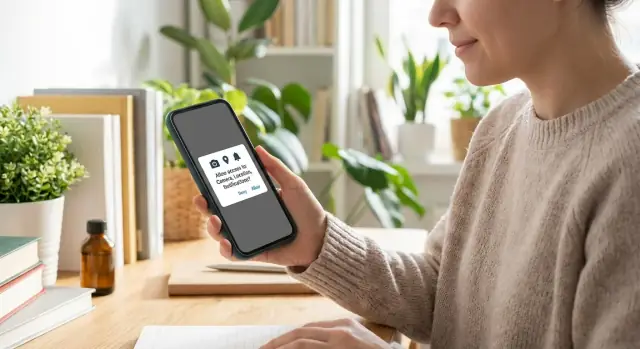
Permission requests are a trust test. The OS prompt can feel like a point of no return. One tap might expose something personal, and most people aren’t sure what happens next. Many have been burned by apps that asked for more than they needed, or used access in ways that felt unrelated.
The biggest driver of hesitation is missing context. When a permission appears without a clear payoff in that moment, it reads like risk with no reward. Even with good intent, the system prompt is generic, so users can’t tell if you’ll use access once, occasionally, or all the time.
Some permissions trigger stronger reactions than others:
It doesn’t help that permission screens look the same across apps. Users learn to treat them as a defensive choice, not an informed one.
The goal isn’t to trick someone into tapping Allow. It’s to help them make a clear decision by explaining three things: what you want to access, why you need it right now, and what you won’t do. When you do that well, opt-in improves as a side effect of trust.
Set the bar early: stay compliant, be transparent, and make changes you can measure. Track acceptance rates by permission type and by where you ask. Treat a “No” as feedback about timing or clarity, not as a user failure.
Most device permission prompts aren’t written by you. The operating system owns the final “Allow / Don’t Allow” dialog so users see a familiar, consistent pattern.
Your job is to make that system dialog feel expected, safe, and worth it. If users feel surprised, they often tap “Don’t Allow” just to get back to what they were doing.
On both iOS and Android, the OS prompt is limited. It names the permission (camera, location, notifications), shows your app name, and offers standard buttons. It won’t explain your benefit in the user’s words, and it won’t answer the real question: “Why do you need this right now?”
What you can control around permission prompts is everything that sets up (and follows) that moment:
Getting a user to tap “Allow” is consent for that device capability. It doesn’t replace your privacy policy, data handling rules, or legal disclosures. Treat the OS dialog as a trust moment, not a legal shield.
Platform expectations are simple: iOS expects a clear reason (a purpose string) and punishes vague explanations like “we need your location.” Android expects you to request permissions when they’re needed, and newer Android versions also treat notifications as a runtime permission.
When in doubt, ask only when needed and explain it like you would to a friend in one sentence.
Users aren’t judging your feature. They’re judging risk. If your request feels vague or early, many people will tap “Don’t Allow” on reflex.
Make three trust signals obvious, in plain words:
A simple structure works across permissions, whether it’s a pre-prompt screen, a tooltip, or text around the system dialog:
Avoid generic claims because they sound like data collection. “To improve your experience” tells users nothing and invites worst-case assumptions. Be concrete instead: “Scan a receipt to auto-fill the amount” or “Send a delivery update when your order status changes.”
Keep the tone calm and direct. Don’t guilt people (“You need this”), don’t pressure them (“Allow to continue”), and don’t over-promise (“We never store anything”) unless you’re absolutely sure.
A simple copy template that fits most permission requests:
People trust permission prompts when the request is tied to what they’re doing now, not to something the app might do someday.
A flow that often increases opt-in without feeling pushy:
A good pre-prompt isn’t a mini privacy policy. It’s a promise the user can verify. For example: “To scan a receipt, we need access to your camera. We only use it when you tap Scan.”
After the OS decision, stay calm. If the user taps “Don’t Allow,” avoid scare text. Offer an alternative (manual upload, choose from photos), and remind them later when they return to the feature.
If you’re building with AppMaster, it’s easier to keep the permission request next to the exact screen and action that needs it, so timing and intent stay aligned across web and mobile.
Good permission request copy does two jobs: it explains the immediate benefit and sets expectations for what the user is about to see (the OS dialog). Keep it short, specific, and true. If you can’t explain the benefit honestly, don’t ask yet.
A pre-prompt is a simple screen or modal you control, shown right before the OS permission prompt. It helps to include a clear primary button (Continue) and a respectful secondary option like “No thanks.” The second option reduces pressure and often increases trust.
Use one of these patterns:
Pattern 1 (benefit + timing)
“Add a photo now?”
“We’ll open your camera so you can take a profile photo. You can change it anytime.”
[Continue]  [No thanks]

Pattern 2 (what you will and won’t do)
“Turn on notifications?”
“We’ll only notify you about order updates and security alerts. No marketing.”
[Continue]  [No thanks]

Pattern 3 (reassurance)
“Share your location?”
“We use your location to show nearby pickup points. You can turn this off in Settings.”
[Continue]  [No thanks]
Camera (receipts, profile photo, document capture)
Option A: “Use camera to scan your receipt.”
Option B: “Take a profile photo. We only use it on your account.”
Option C: “Capture your document in-app. We don’t record video in the background.”
Location (ETA, nearby pickup points, only-when-true safety use)
Option A: “Share your location to show nearby pickup points.”
Option B: “Allow location to improve your delivery ETA while your order is active.”
Option C: “Help us confirm it’s really you by checking location during sign-in.”
(Only use C if it is true and you can explain it clearly.)
Notifications (order status, reminders, security alerts)
Option A: “Get order status updates: confirmed, shipped, delivered.”
Option B: “Reminders for appointments and time-sensitive tasks.”
Option C: “Security alerts for new sign-ins and password changes.”
Keep the language plain, avoid vague promises, and match the copy to the exact moment the user needs the feature.
People say yes more often when the request matches what they’re doing right now. “Minimum” means two things: the smallest scope the OS offers, and the latest sensible moment to ask.
For location, prefer “While Using the App” when the feature is on-screen. If you only need nearby results or a pickup address, ask when the user taps “Use my location” on that page. Save background location for cases where the user clearly expects ongoing tracking (like route recording or safety alerts), and make that upgrade a separate, explicit moment.
Progressive permission works well:
Sometimes a feature later needs a stronger permission than the user originally granted. Don’t surprise them with a sudden OS prompt. Explain the new benefit first, offer a clear choice, and only then trigger the system dialog.
Also watch frequency. If someone denies, don’t pop the same request again and again. Wait until they try the feature again, or provide a calm “Enable in Settings” option inside that feature.
Example: in a customer portal, request camera access only when the user taps “Upload receipt,” and ask for notifications only after they opt into “Send me status updates” for a case. The ask stays aligned with intent, and consent stays clear.
The OS prompt is a high-stakes moment, but the screen right after it is where trust is won or lost. Treat it as part of the experience, not an afterthought.
Confirm what they unlocked, then move them forward immediately. Avoid generic “Success” screens. Show the benefit in plain words and offer one clear next action.
Example microcopy (camera):
Example microcopy (location):
Example microcopy (notifications):
Don’t guilt-trip. Give an alternative path so they can still complete their task, explain what’s missing, then offer a “fix it later” hint.
Example microcopy (deny):
Accessibility basics matter here: keep text readable (good contrast, 16px+), use clear button labels (“Upload a photo,” not “OK”), and avoid tiny tap targets. If you show a settings hint, make it a normal button, not a small line of text.
The fastest way to get more “Don’t Allow” taps is to ask too early. If the first thing people see on launch is a system permission prompt, they don’t know what they gain by allowing it.
Bundling also hurts. When you ask for camera, location, and notifications in one moment, users read it as “this app wants everything.”
Pressure tactics backfire. Guilt (“Please help us”), urgency (“Required now”), and punishment (“You can’t use the app”) can raise opt-in in the short term, but damage long-term trust and increase drop-offs.
Another common UX trap is the denial dead end. If someone taps “Don’t Allow” and you block them with no alternative, you teach them that your app is brittle. Provide a workable fallback, and show how to enable the permission later if they change their mind.
Overpromising is risky, too. If your copy sounds broader than what you actually need, users assume the worst. Keep the promise narrow and match the OS wording.
The patterns that usually cause the most damage:
Do a pass as if you’re a first-time user who doesn’t trust the app yet. The goal is straightforward: ask when it makes sense, explain the benefit in plain words, and let people keep going if they’re not ready.
Then do a quick dry run on a real device. Trigger each permission from the feature that needs it, deny it once, then try the feature again. The app should respond calmly: offer the fallback, explain what’s limited, and make it obvious how to retry when the user is ready.
Imagine a customer portal mobile app where users submit photos of documents (ID, invoices, delivery notes) and track the status of their requests. The goal is to keep the app usable even if someone says No, and to make permission prompts feel expected, not random.
For the camera, wait until the user is already trying to add a document. When they tap Upload document (or Scan), show a short pre-prompt: “To attach documents, we need access to your camera. We only use it when you scan or take a photo.” Then trigger the OS prompt immediately.
For notifications, don’t ask on first launch. Let the user complete a meaningful action first, like submitting their first request. On the confirmation screen, add a gentle nudge: “Want updates when your request moves to Approved or Needs info? Turn on notifications.” If they tap Turn on, show the OS prompt. If they ignore it, the portal still works.
If the user denies camera access, keep the upload path open: offer Choose from Photos or Upload from files, and add a small note like “You can enable Camera later in Settings to scan faster.” If notifications are denied, keep status visible in the portal and consider a small in-app banner when something changes.
What success looks like: fewer reflex denials because requests happen in context, and fewer support tickets like “I never got updates” or “I can’t upload documents.” Track opt-in rates at the moment of ask, plus downstream metrics like completed uploads and repeat visits.
Permission UX isn’t a one-time copy task. Small changes in timing, wording, and which screen asks can shift opt-in a lot, so treat each permission like a product decision.
Start by tracking opt-in rates per permission and per entry point. “Notifications” overall is useful, but “notifications from the order updates screen” vs “from onboarding” is what you can act on. Keep the view simple: how many people saw the pre-prompt, how many reached the OS prompt, and how many tapped Allow.
When you test, change one thing at a time. If you adjust both timing and copy, you won’t know what helped.
Numbers don’t tell you everything. Review support tickets, chat logs, and app store comments for confusion signals like “Why do you need my location?” or “It keeps asking.” Those usually trace back to unclear benefit, a surprise prompt, or repeated prompts after a Deny.
Keep a simple change log for internal reviews and compliance: what changed (copy, screen, gating logic), when it shipped, and why.
If you want to make these flows easier to build and iterate across platforms, AppMaster (appmaster.io) is designed for full applications with real business logic, so you can tie each permission ask to the exact screen and action that needs it and adjust the flow without piling on technical debt.
 When is the best time to ask for a permission?
Ask when the user triggers the feature that needs it, like tapping “Scan,” “Find near me,” or “Get updates.” Avoid asking on first launch unless the app truly can’t function without that permission.
What is a pre-prompt, and why should I use one?A pre-prompt is your own small screen or message shown right before the OS dialog. It gives the missing context the OS prompt can’t: what you need, why it helps right now, and what happens if they say no.
How do I increase opt-in without sounding pushy?Make the immediate benefit obvious in one sentence and keep the scope narrow. If the user can’t see a payoff in the moment, they treat the request as risk with no reward.
What should I say instead of “to improve your experience”?Use concrete, user-facing outcomes tied to the current action, like “Scan a receipt to auto-fill the amount.” Avoid vague lines like “to improve your experience,” because it sounds like data collection without a clear reason.
Should I request “Always” location access or “While using the app”?Ask for the smallest scope the OS offers that still supports the feature. For location, that often means “While using the app,” and for background access you should treat it as a separate upgrade with a clear explanation.
What should I show right after a user taps Allow?Confirm what they just unlocked and move them into the feature immediately. A quick, specific confirmation builds trust more than a generic success message and reduces second-guessing.
What do I do if the user taps Don’t Allow?Keep them moving with an alternative path, explain what’s limited, and mention they can enable it later in Settings. The goal is to avoid a dead end that makes the app feel brittle or punishes the user for saying no.
Is it okay to ask for camera, location, and notifications all at once?Don’t ask for multiple permissions in one sequence unless each is clearly needed at that moment. Bundling reads like “this app wants everything,” which increases reflex denials even for reasonable requests.
Why do users distrust camera and location prompts more than others?It’s common when they need it for a core task (camera scanning, document capture), or when the OS wording feels scary without context. A short pre-prompt that promises narrow use, like “only when you tap Scan,” helps reduce fear of background access.
How can I measure whether my permission flow is working?Track acceptance rates by permission type and by entry point, not just overall totals. You want to know which screen and moment performs best so you can adjust timing or copy without guessing; platforms like AppMaster make it easier to tie each ask to the exact feature flow and iterate quickly.
Experiment with AppMaster with free plan.
When you will be ready you can choose the proper subscription.
 Jul 14, 20268 min
 Jul 13, 20268 min
 Jul 08, 20268 min