


 Jul 14, 2026
 8 min
8 minEquipment reservation app: prevent conflicts and track returns
Plan an equipment reservation app that prevents double bookings, records returns and damage, and places faulty items on maintenance hold.

Learn how to build a customer statement portal with secure payment links so customers can review balances, pay safely, and admins control role access.
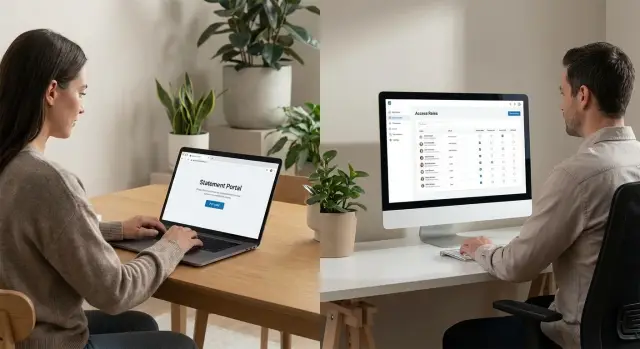
If you collect payments after delivery, you already know the weak spots: customers can’t find the latest statement, finance can’t tell which PDF is the right one, and a simple question turns into a long email thread.
A customer statement portal with secure payment links reduces that everyday friction by giving customers one up-to-date place to see what they owe, what they’ve paid, and what’s still open.
It usually removes problems like:
A statement portal is simply a website (or mobile view) where a customer signs in, selects their account, and sees a live list of statements, invoices, credits, and payments. Instead of sending attachments, your team sends customers to one source of truth.
A secure payment link means the Pay button doesn’t open a generic checkout page. It carries the right context (customer, invoice or statement, amount, currency) and it’s protected so it can’t be guessed or reused in unsafe ways. Done well, this reduces underpayments, misapplied payments, and fraud.
Role-based access is what keeps this safe and workable. Customers should only see their own accounts. Admins can see more, but not everyone needs everything. A support agent might only view statements and resend links, while finance can issue credits and approve write-offs.
A customer statement portal with secure payment links only works if people see the right things and nothing else. Start with the smallest set of roles you can run with. You can always add more later, but it’s hard to pull access back once customers and staff rely on it.
On the customer side, tie access to a specific customer account, not just an email address. Customers typically need to view current and past statements, download receipts, and pay open balances. If you support multiple contacts under one company, decide whether each contact can see all statements or only those assigned to them.
On the admin side, scope access by job function. A typical admin can manage customer accounts, control what documents are visible, and resend notifications when someone says, “I never got it.” Limit balance-changing actions (editing invoices, changing payment status, issuing credits) to a smaller group.
A simple starting set that fits most teams:
Two rules keep this clean: give each role only what it must do, and separate view permissions from change permissions.
A customer statement portal with secure payment links should read like a clean bank statement: totals first, details when needed. Most customers log in with one goal: confirm what they owe and pay it without calling support.
Start with a statement list that answers the basics on one screen. Each statement should show the date range and key numbers: opening balance, new invoices, payments received, and closing balance. Add a month filter (and a custom range if your customers need it). Let customers download or print if they still file paperwork.
When someone opens an invoice, the detail view should be complete enough that they don’t need to request a copy by email. Include line items, tax, discounts (if any), invoice status, due date, and short notes your team adds (like “PO 4815” or delivery info).
Keep payment actions obvious and safe. In most portals, customers need:
After payment, customers need a reliable history. Show a simple timeline of receipts, refunds, credits, and failures with plain reasons (like “card expired”). If a customer pays half on the 10th and the rest on the 20th, the portal should show both receipts and the updated balance right away.
The admin area is where a statement portal succeeds or fails. If it’s hard to answer basic questions quickly, tickets pile up and customers lose trust.
Start with an account dashboard that explains the customer at a glance: profile, current balance, credit terms, and a short notes field for context like “prefers email statements” or “PO required.” Time-stamp notes so they don’t turn into unreliable memory.
For statements, admins need control and repeatability. Filters matter more than fancy layouts: date range, status (open, paid, overdue), currency, and location or business unit if you use them. Add a manual refresh for “customer is on the phone right now,” plus scheduling for end-of-month runs.
Make disputes and adjustments explicit instead of burying them in free-text notes. A simple workflow is enough:
Finally, include an audit trail. When money is involved, “who changed what and when” isn’t optional. Record edits to customer terms, balance-affecting entries, statement generation, and payment-link actions.
A customer statement portal with secure payment links doesn’t need fancy security to be safe. It needs a few clear rules applied everywhere, every time.
Start with login and keep v1 simple: email and password, magic link, or SSO.
The most important piece is identity: how your system decides which customer account a user is allowed to act as. Avoid “type your account number to access statements.” Instead, create a real relationship between the user and a specific customer account.
A practical pattern is: an admin invites a customer user to an account, the user accepts, and you store a permanent relationship like UserId -> CustomerAccountId. If a customer has multiple accounts, store multiple relationships and let them switch accounts explicitly.
Enforce access in the backend, not only in the UI. Every query for statements, invoices, and balances should filter by the CustomerAccountId from the logged-in session, not from a page parameter.
Baseline expectations that prevent most issues:
A customer statement portal with secure payment links should feel simple: the customer clicks Pay, confirms what they’re paying, completes checkout, and lands back in the portal with an updated status.
Decide early whether each link pays a single invoice or a full statement balance.
Invoice-level links are clearer when customers must match one payment to one document. Statement-level links are faster when customers just want to clear everything due.
A practical middle ground: default to statement balance, but show invoice-level Pay buttons next to each open invoice.
Most support tickets come from unclear payment rules. Pick a policy and show it next to the Pay button.
Example: if a customer owes $240 on a statement but selects a single $90 invoice, show: “You are paying Invoice #1042 for $90. Remaining statement balance will be $150.”
After payment, show three things immediately: a success message, a receipt reference (and where it was sent), and the updated status on the invoice or statement. If the gateway confirms payment asynchronously, show a Processing state and update when confirmed.
A customer statement portal with secure payment links is only as good as its data. If the model is simple, totals match the ledger, and tickets drop.
Start with a small set of tables that match how money moves: customers, users, roles, invoices, payments, statements, payment links, and an audit log. Keep customers separate from users: one customer account can have many users (billing contact, accountant, owner), and each user’s role limits what they can see.
A reliable core relationship is: one customer has many invoices, and one invoice can have many payments. That lets you handle partial payments, refunds, and adjustments without workarounds.
Most disputes come from missing or unclear fields. Make these explicit from day one:
Also store a snapshot of what was sent on a statement (statement_period_start, statement_period_end, statement_total, generated_at). If an invoice changes later, you can still explain what the customer saw at the time.
If you sync from accounting software, choose one system as the source of truth for invoices and balances. Otherwise you’ll chase mismatches.
A common split is: the accounting system owns invoice amounts and status; the portal owns users, roles, and payment links; payments update both.
A portal is easiest to build when you decide the rules first, then let screens follow those rules.
Write down your roles (Customer user, Customer admin, AR clerk, AR manager) and list what each one can do: view statements, view invoices, download PDFs, pay, update billing email, invite users, issue credits.
Keep the first version strict. Add access later when you see a real need.
Define tables for accounts, customers (or contacts), statements, invoices, payments, and an audit log. Choose statuses you can rely on in the UI, like Draft/Final for statements and Unpaid/Paid/Voided for invoices.
Start with three pages: statement list, statement detail, and invoice detail. Put Pay only where the balance is clear, and always show what will happen next (amount, currency, and what invoices are included).
You’ll need fast search by account name, invoice number, and email. Add access management (who belongs to which account) and an audit view so you can answer “who saw what, and when” without guessing.
Use a payment provider (Stripe is a common choice) and store results: provider ID, amount, status, and which invoices were covered.
Then test with two sample customers: create similar invoices for both, log in as each, and confirm they can only see their own online customer statements and payment options.
Most support tickets don’t come from bugs. They come from small decisions that confuse customers or make admins nervous.
Common repeat offenders:
Before you open a portal to real users, run checks that mimic real life. Most launch-day issues are small gaps that create confusion, tickets, or accidental access.
Start with access boundaries. Create two test customers (Customer A and Customer B), then create at least one user for each. Log in as Customer A and try to view Customer B’s statements by guessing IDs, changing filters, and using any search. You should get a clean “not found” or “no access” every time.
Next, verify money math end to end. Pick one statement period and confirm the statement total equals invoices minus applied payments, credits, and adjustments. Compare what the customer sees with what an admin sees. If the numbers differ, customers will assume the portal is wrong even if the accounting system is right.
Run a bad-day payment test. Trigger a failed payment (declined card, expired card, canceled checkout) and confirm the portal shows one clear next action: retry, use a different method, or contact support.
On the admin side, spot-check permissions:
Picture a small wholesale customer, “Northwind Bikes,” logging into a customer statement portal with secure payment links at the end of the month.
Their statement shows three overdue invoices:
They also see two adjustments that explain why the balance isn’t just the sum of invoices: a partial payment of $300 applied to INV-1041 earlier in the week, and a credit note of $150 for a returned item applied to INV-1060.
On the customer side, the next step is obvious: each open invoice has a Pay button and a Pay custom amount option. The customer pays INV-1055 in full, then pays $900 toward INV-1041. The portal updates the “to pay now” total before they confirm, so they don’t have to guess.
On the admin side, when the payment succeeds, the system records the transaction, marks INV-1055 as paid, reduces INV-1041’s outstanding amount, and logs who initiated it and when. If the payment fails (expired link, insufficient funds, canceled checkout), the invoices stay unchanged and the admin sees a failed attempt with a reason and timestamp.
Role-based access keeps this safe day to day. A support agent can view the statement and resend a payment link, but can’t edit invoice totals, delete credit notes, or change the ledger by mistake.
The fastest way to reduce emails and payment friction is to ship a small portal that works every day. It doesn’t need every feature on day one. It needs to be clear, accurate, and safe.
Start with a minimum set you can test with a few real customers and one internal admin:
Once that’s stable, pick the next automation based on what causes the most tickets today. For many teams, it’s customers forgetting to pay, not understanding a charge, or needing a copy of last month’s statement.
Choose one improvement at a time:
If you want to build and iterate without heavy coding, AppMaster (appmaster.io) is one option for putting the data model, role checks, admin screens, and payment flows in one place, then deploying to common clouds or exporting source code when you need more control.
 What is a customer statement portal, and why would I need one?
A statement portal gives customers one secure place to see what they owe, what they’ve paid, and what’s still open. It cuts down on lost emails, outdated PDFs, and back-and-forth messages that slow down collections.
What roles should I set up first in a statement portal?Start with four roles: Customer, Admin, Finance manager, and Support agent. Keep view permissions separate from change permissions, and only let a small group do anything that can change balances.
How do I make sure customers only see their own statements?Tie access to a customer account, not just an email address. The safest default is an admin invitation that creates a permanent user-to-account relationship, and every backend query must filter by that relationship.
What should the customer dashboard show to reduce support questions?Put totals first, then let customers drill into details. A statement list, statement detail, and invoice detail view usually covers most needs, as long as customers can clearly see balance due, due dates, and payment status.
What makes a payment link “secure” in practice?A secure payment link should include the right context (who is paying, what they are paying for, the exact amount and currency) and be protected against guessing and reuse. Expire links and regenerate them so old emails can’t be used later.
Should I let customers pay a full statement or individual invoices?Default to paying the full statement balance because it’s simple and reduces confusion. Add invoice-level payment as an option when customers need one payment per invoice, and make it explicit what will remain after the payment.
How should I handle partial payments and overpayments?Pick a clear rule and show it before checkout. The safest default is to block overpayments and allow partial payments only if you can correctly track remaining balances per invoice and reflect updates immediately after payment.
Do I really need an audit trail, and what should it record?At minimum, log who did what and when for logins, statement views, payment link creation, and any balance-affecting changes. This helps resolve disputes quickly and makes internal access problems visible instead of guesswork.
How do I avoid mismatched balances between the portal and my accounting system?Choose one source of truth for invoice amounts and balances, then sync everything else around it. If accounting owns invoices, let the portal focus on users, roles, statement views, and payment links, and keep IDs and timestamps so you can reconcile cleanly.
What should I test before launching to real customers?Test access boundaries with two similar customers and try to “break” isolation by guessing IDs and using search. Then run a failed-payment scenario (declined card, canceled checkout) and confirm the portal shows a clear next step and doesn’t mark anything paid by mistake.
Experiment with AppMaster with free plan.
When you will be ready you can choose the proper subscription.
 Jul 14, 20268 min
 Jul 13, 20268 min
 Jul 08, 20268 min