


 Jul 14, 2026
 8 min
8 minEquipment reservation app: prevent conflicts and track returns
Plan an equipment reservation app that prevents double bookings, records returns and damage, and places faulty items on maintenance hold.

A practical guide to choosing and using a construction punch list app to assign issues, add photos, set due dates, and track re-inspections to closeout.
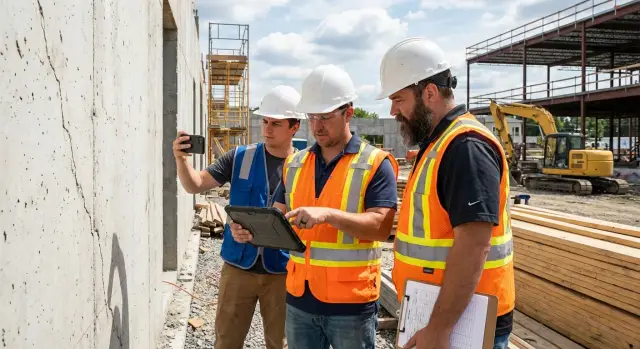
A punch list is the last set of fixes needed before handover: missed details, damaged finishes, items that don’t match spec, or work that’s incomplete. The list isn’t the problem. The problem is how quickly it grows, how often it gets duplicated, and how many times items get reopened when the site is busy.
On most projects, issues are found during walks, in hallway conversations, and in photos someone took “to remember later.” When that information lives in paper notes, a spreadsheet, or a chat thread, it turns into duplicates, missing context, and unclear ownership. People spend time debating what the issue is instead of fixing it.
Common tools fail in predictable ways: paper notes get lost and photos stay on phones; spreadsheets are awkward on site and don’t show what “done” looks like; chat threads bury the details and tasks don’t have real status or due dates. Once multiple versions exist, the “latest” list depends on who you ask. Re-inspection notes also get separated from the original item, so the same issue gets logged twice.
Re-inspections are where closeout dates slip. If an item is marked complete without proof, the inspector comes back, finds it still wrong (or only half-fixed), and the work bounces back into the queue. Each bounce adds coordination time: calling subs, reopening ceilings, ordering small materials, and scheduling another walk.
A big reason for rework is that “done” isn’t defined. “Done” should mean the location is unambiguous, the expectation is clear, photos show before and after, and someone with authority accepts it. “Fix paint in Unit 1203” is vague. “Unit 1203, bedroom north wall, 12-inch scuff left of closet door. Match sheen. Attach after photo from same angle. Accepted by GC on re-inspection” is something a trade can act on without guessing.
A good construction punch list app pushes that clarity upstream, so closeout becomes controlled instead of chaotic. When the rules are enforced early, the list gets smaller faster, and re-walks stop turning into arguments.
A punch list moves quickly only when each person sees what they need without digging through texts, emails, and marked-up PDFs. The best construction punch list app supports the whole chain from discovery to re-inspection because closeout is a team effort.
Supers and field engineers need speed. During a walkthrough they’re logging many small items while also answering questions and keeping work moving.
They benefit most from quick issue capture (photo, note, location), fast assignment to the right trade, and due dates that match the schedule. The payoff is fewer follow-ups because it’s obvious what’s still open, what’s ready for re-check, and what’s blocked.
Trades need clarity, not more admin. If an item is vague, it turns into back-and-forth and extra trips.
What helps is a clean assignment with a clear scope, a specific area (room, gridline, unit), and a simple way to upload proof of completion. When a trade can mark an item “ready for inspection” with an after photo, the team avoids “we fixed it” vs. “I don’t see it.”
Owners and project managers want visibility without extra meetings. They don’t need every note from the walk.
They need simple status views: how many items are open, what’s past due, and what’s likely to delay turnover. A short comment history helps when decisions are needed (accept as-is, change request, or rework).
QA/QC needs consistency and an audit trail. They care about who found the issue, what standard it ties to, and when it was re-inspected.
The cleanest setup is one workflow everyone understands: capture (photo, location, short description), assign (trade, owner, due date), verify (ready, then re-inspected and closed), and record (timestamps and photos stay with the item).
Example: during a corridor walk, the super logs “Door closer leaks oil” with a photo and tags the hardware sub. The sub replaces it, uploads a new photo, and marks it ready. QA/QC re-checks next morning and closes it, leaving a clear record for handover.
A construction punch list app only helps if it fits how the jobsite works: quick capture, clear ownership, and a clean re-check path. Fancy reports don’t matter if crews can’t tell what to fix, where it is, and who’s responsible.
Start with ownership. Every issue needs one clear owner. That means you can assign by trade and company, then down to a specific person when needed. If an item is “for electrical” but no one is named, it will bounce around until the last day. Good tools make responsibility obvious on the card and in daily views.
Next, treat photos as required, but don’t rely on photos alone. You need simple markups and short notes that point to the exact spot: circle the chipped tile edge, label “Unit 4B, bath, behind door,” and add a reference like gridline or room number. When the app supports consistent location fields, the same issue is easier to find during re-inspection.
Statuses also need to mean the same thing to everyone. Due dates, priorities, and status options should be simple and enforced. A small shared set beats a long custom list. Many teams stick to:
Re-inspection must be built in. Closeout slows down when “fixed” is treated as “done.” Look for a clear loop: contractor marks ready, inspector passes or fails, and failure requires a comment (and ideally a new photo) so the fix isn’t guessed.
Offline capture saves real time. Basements, stair cores, and parking levels kill signal. The right app lets you log issues, attach photos, and assign them offline, then syncs later.
Example: during a floor walk, you spot a missing fire caulk line at a penetration. You snap a photo, circle the gap, tag “Level 3, Corridor C,” assign it to firestopping, set it due tomorrow, and mark it high priority. The next day it comes back as Ready for review. You re-check, fail it with “needs full bead behind pipe,” and it returns to Open with the same history attached.
The first punch walk goes smoother when everyone uses the same language. If you wait until issues are already flying around by text and email, you end up re-typing notes, losing photos, and arguing about what “done” means.
Define a small set of standard issue types. Keep it broad enough that people can pick fast on a phone, but specific enough that reporting stays consistent. For most projects, five buckets cover almost everything:
Lock in one status path so trades, supers, and owners aren’t guessing. A good default workflow is:
Photo rules matter more than most teams expect. Agree upfront that every issue gets at least one clear “before” photo, and every closeout gets an “after” photo from the same angle when possible. Make location obvious in the image or caption: room number, grid line, door tag, or a quick marker on the plan. This alone cuts down the “Which one is this?” calls.
Due dates are where workflows often break. Decide who can set due dates, who can change them, and what the default is (for example, 48 hours after assignment unless the super approves a longer date). Also agree on what happens when a due date slips: does it escalate, or does it stay with the same assignee until the super changes it?
Example: during a Level 3 walk, you log “Door hardware: 3A-114 closer rubbing.” Assign it to the hardware sub, due in two days, with a photo that includes the door tag. When they mark it “Ready for re-inspection,” the re-check is quick and the item closes cleanly.
A punch list moves fast when every issue follows the same path: capture it clearly once, route it to the right person, and make re-inspection quick.
Log it during the walk, not later. Take one clear photo that shows the problem and one wider photo that shows context. Write a short title you can scan (“Missing ceiling tile,” not “Ceiling”). Add location the way your team already talks (Building A, Level 3, Room 312, Grid C5).
Assign to the right trade with a real due date. Pick the trade partner or foreman who will actually fix it, not a generic company name. Set a due date tied to your closeout plan (for example, “by Thursday 3 PM” if you re-walk Friday morning).
Make sure it was seen. A notification isn’t confirmation. Build a habit of requiring quick acknowledgement like “Received” or “In progress” so nothing sits unnoticed.
Collect proof in the same place. When the trade marks it complete, require an after photo from the same angle plus a short note on what changed. For some items, a simple checklist (tested, cleaned, labeled) prevents avoidable reopens.
Re-inspect fast and be decisive. On re-walk, either close it immediately or re-open it with one clear reason and a new photo. Avoid vague feedback like “still not right.” Write what to change, where, and what “done” looks like.
Example: you spot a chipped tile at the lobby entry. You log two photos, set location “Entry vestibule, Door 1,” assign Flooring, due tomorrow noon, and require an after photo. At re-inspection, if the tile is replaced but grout is missing, re-open with “Grout joint at north edge is open” and add a close-up photo. That keeps the back-and-forth to one extra visit, not three.
A punch list item is only useful if anyone can locate it fast and interpret it the same way. If one person writes “Lobby door” and another writes “Entry 1,” you get duplicates, missed fixes, and arguments during re-inspections. A good construction punch list app helps, but the team still needs a few simple rules.
Pick one location language and stick to it. The easiest option is to mirror your drawings or room schedule so everyone is speaking the same “map.” Instead of “2nd floor bathroom,” use “Level 2 - Room 2.14 - Restroom” or the exact room tag from the schedule.
A practical entry pattern many teams use is consistent structure: location first (building, level, room tag), then the system or trade (Door, Paint, HVAC, Firestopping), then a short problem statement (what’s wrong, not the fix). Pair one wide photo with one close-up, and add one sentence describing what acceptance looks like (paint match, gap tolerance, finish spec).
Not every issue should block closeout. Define what stops occupancy or sign-off vs. what can be finished later. Life safety, egress, failed inspections, leaks, and missing hardware are usually “must fix before.” Small touch-ups can be “finish by turnover” if your contract and client allow it.
Repeated items are another trap. If ten rooms have the same missing door stop, you can report it as one recurring type, but still keep accountability by assigning each room instance to a person with its own due date. That way you can see which rooms are done and which are stuck.
Be clear on when to create a new item vs. reopen. Create a new item when the scope is different (new location, different defect, different trade). Reopen the old one when it’s the same issue and the fix didn’t meet the acceptance note. “Room 3.07 - paint touch-up” should be reopened if the sheen still mismatches, not replaced with “paint again.”
Most punch list delays aren’t caused by the work itself. They come from unclear notes, unclear ownership, and unclear rules for what “done” means.
Here’s a common example: a site lead logs “paint touch-up” with one photo. The sub shows up, touches up the wrong wall, and marks it complete. The GC walks again, finds the original spot still visible, and the same item bounces around for three more days. That’s not a labor problem. It’s a communication problem.
If an item title could describe ten different problems, someone will fix the wrong one. The fastest teams treat every issue like a tiny work order.
Good entries usually include a specific location (level, room, gridline, unit number), a clear action (replace, patch, align, re-seal), one wide photo plus one close-up, a due date tied to the plan (not “ASAP”), and a short acceptance check (what you’ll look for on re-inspection).
Assigning an item to “Electrical” or “Tile sub” isn’t enough. People assume someone else is watching it. Pick one accountable person per item, even if the work is done by a company. That one name is who gets the reminder and who answers when it’s still open.
Another time-waster is letting items close without verification. If “Complete” can be set from the field without a re-check, your list will look healthier than the building is. A simple rule fixes a lot: work can move to “Ready for inspection,” but only the inspector (or the person running closeout) can move it to “Closed.”
Two definitions prevent wasted site walks:
When each trade uses different words for the same stage, reports become noise. Standardize a small set of statuses and keep them consistent across projects.
A punch list helps closeout only if the numbers answer one daily question: are we getting closer to done, or just moving tasks around? You want a small set of signals the site team trusts.
Start with measures that show workload, urgency, and quality, not vanity counts:
These are easy to understand in a trailer meeting and clear enough to act on in the field.
Imagine Level 3 has 42 open items. That sounds bad until you split it: 25 are painting touch-ups, 10 are hardware adjustments, and 7 are signage. Now you can send the right subcontractors, group work by area, and avoid three separate re-walks.
Past-due items are your daily fire list, but treat them carefully. If everything is past due, due dates have lost meaning. Fix that by setting realistic dates and updating them when scope changes, not after the deadline.
Reopens are the quiet schedule killer. A high reopen rate usually points to unclear photos, vague notes, or missing acceptance criteria (for example, “fix door” vs. “door closes fully without rubbing; latch engages on first try”). When reopens drop, re-inspections get faster.
A good construction punch list app should feel faster than paper and clearer than text messages. If it adds steps, people will avoid it, and closeout will drag.
Before you commit, do a 15-minute trial on an active area. Hand the phone to a superintendent or foreman and watch what happens.
You find a chipped tile in Unit 3B. The app lets you tap the location, snap a photo, assign it to the tile sub, and set “by Thursday” right there. Later, the sub uploads a replacement photo, and the inspector either closes it or reopens it with a reason like “wrong grout color.” No phone calls, no “which unit?” confusion, no lost screenshots.
Also check the small details that decide adoption: offline support in basements, fast photo handling, and notifications that help without turning into noise.
It’s the final week before turnover. One floor still has multiple trades moving at once: drywall touch-ups, door hardware, ceiling grid, final paint, and commissioning. Everyone is busy, and the fastest way to lose time is unclear issues and constant phone calls.
Monday: The super and foreman do a 30-minute morning walk. Each issue is logged with a clear location (building, level, room), a photo, and one sentence that defines what “done” looks like. Items are assigned on the spot to the right trade with a due date, usually 24 to 48 hours.
Tuesday: Trades work their lists. The PM checks a dashboard before the afternoon meeting to see what’s overdue and what’s blocked (for example, “paint after hardware” or “ceiling after inspection”). No guessing and no chasing updates.
Wednesday: Re-inspections are planned like real work. Items marked “ready for review” are grouped by area, and the super schedules a short re-walk for that zone. Each re-inspection is logged with a pass/fail and a photo if it’s still not right.
Thursday: Anything failing re-inspection is reassigned immediately with a new due date and a note that explains the miss. This avoids the loop of “we fixed it” without proof.
Friday: The final walk is smaller because most issues were closed earlier. The team produces a clean closeout report for the owner and keeps a record of who fixed what and when.
A dashboard should keep everyone aligned by showing only a few signals: new items today, ready for re-inspection, overdue items by trade, repeat fails (same item reopened), and items blocking turnover.
Next steps: pilot the workflow on one area (one floor or one unit type), then standardize issue categories, due date rules, and roles (who can close items, who can request re-inspection).
If you need a custom punch list tool that matches how your team works, AppMaster (appmaster.io) is a no-code platform you can use to build a full workflow with required fields, role-based permissions, and deployment options for web and mobile, without starting from scratch.
 What problem does a punch list app actually solve?
A punch list app helps you capture issues during the walk with photos, a specific location, an owner, and a due date in one place. The main value is fewer duplicates and fewer reopened items because everyone is working from the same source of truth.
When should we switch from spreadsheets and texts to an app?Keep it simple: if your team is juggling photos on phones, a spreadsheet, and chat messages, you’re ready. When you see the same issue logged twice, or subs claim “done” but the inspector can’t verify, an app with clear statuses and required proof will usually pay off fast.
How do I write punch list items so trades don’t misinterpret them?Use a consistent pattern: building, level, room or unit tag, then a short problem statement that describes what’s wrong. Add one wide photo for context, one close-up of the defect, and one sentence saying what “done” looks like so the trade can fix it without guessing.
Who should be the “owner” of a punch list item?Don’t assign to a vague bucket like “Electrical” if you can avoid it. Assign each item to one accountable person (often a foreman) with a due date, even if a whole company will do the work, so there’s a single point of follow-up.
What status workflow keeps closeout from turning into chaos?Use a small set of statuses that mean the same thing to everyone, and treat “ready” as a gate, not “closed.” A practical flow is: New or Open, Assigned, In progress, Ready for re-inspection, Closed, with Blocked only when something truly prevents work.
How do we cut down on re-inspections and reopened items?Make “after” photos required when a trade marks an item ready, ideally from the same angle as the “before” photo. Then only the inspector or closeout lead should be able to move items to Closed, so the list reflects verified reality, not optimistic updates.
Do we really need offline mode on a jobsite?Yes, if you routinely work in basements, stair cores, parking levels, or anywhere with weak signal. Offline capture lets the team log items, attach photos, and assign work immediately, then sync later, which prevents end-of-day retyping and lost details.
How many issue types or categories should we set up?Start with a few buckets that cover most issues, like finishes, doors and hardware, MEP, safety/code, and cleaning/protection. Too many categories slow people down and make reporting messy; the goal is consistent tagging, not perfect classification.
What metrics best show whether closeout is improving?Track a small set that drives action: open items by area and trade, items due soon vs. past due, and reopen rate. If reopen rate is high, fix the inputs first (location clarity, photo rules, and acceptance notes) before you add more reporting.
Should we buy an off-the-shelf punch list app or build our own?Build when you need required fields, role-based permissions, and a workflow that matches how your team actually closes work, not a generic template. AppMaster can be used to create a custom punch list system for web and mobile with the exact statuses, rules, and deployment options you want, without hand-coding the whole stack.
Experiment with AppMaster with free plan.
When you will be ready you can choose the proper subscription.
 Jul 14, 20268 min
 Jul 13, 20268 min
 Jul 08, 20268 min