


 Jul 14, 2026
 8 min
8 minEquipment reservation app: prevent conflicts and track returns
Plan an equipment reservation app that prevents double bookings, records returns and damage, and places faulty items on maintenance hold.

Biometric login can reduce friction, but only if you plan fallback, data storage, and recovery. Learn when to use it and what to keep on-device.
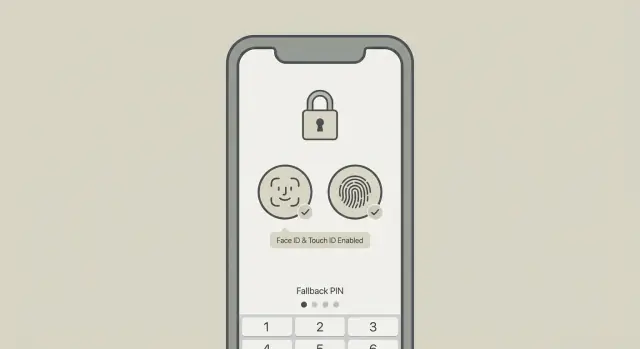
Biometric login solves a simple, everyday problem: people hate typing passwords on small screens, and they make mistakes when they're in a hurry. Face ID and Touch ID reduce friction so users can get into an app quickly, while still relying on the device's built-in security.
Done right, biometric login isn't “new security magic.” It's a faster way to reuse an existing, trusted sign-in state. The goal is straightforward: speed up sign-in without weakening security.
One detail trips teams up: your phone doesn't send your face or fingerprint to your server. On iOS and Android, the biometric check happens locally inside secure system components. If the check passes, the OS lets the app use a local secret (usually a cryptographic key or token) that was created earlier and stored securely on the device.
So when people say “biometric login,” what they usually mean is: “unlock a locally stored credential so the app can prove it's the same trusted user as before.” That’s why biometric login works best after a user has already signed in normally at least once.
It also means biometrics don't replace the basics your app still needs: accounts, sessions, revocation (sign out everywhere), and recovery (what happens when the device is lost or replaced).
On mobile, this is typically Face ID or Touch ID (or Android’s face/fingerprint). On laptops and desktops, the same concept shows up as Windows Hello or Touch ID on macOS. The experience is similar: a quick scan unlocks a local key, not a copy of biometric data stored on your servers.
Keep that mental model and you’ll make better decisions about fallback options and storage. Biometrics can make sign-in feel instant, but they don’t remove the need for a password, passkey, or other recovery method somewhere in the system.
Most sign-in methods answer two questions: who are you, and are you really here right now? Each method answers those questions differently, with different trade-offs.
Passwords are “something you know.” They work everywhere, but people reuse them, forget them, and type them into the wrong place. If you keep passwords, most of the work is in the safety rails: proper hashing, rate limiting, safe resets, and monitoring.
Magic links and one-time passcodes (OTP) sent by email or SMS are closer to “something you have” (your inbox or phone number). They reduce password reuse, but they can be slow and fragile. SMS can be hijacked, email can lag, and both are painful when someone is offline or traveling.
Passkeys are a modern replacement for passwords. They use a cryptographic key pair: the private key stays on the device, and the server stores a public key. Sign-in is fast and resists phishing. On many devices, passkeys are approved with Face ID or Touch ID, but the “secret” is the key, not your face or fingerprint.
Biometrics are best thought of as a convenient “user presence” check. A biometric login usually doesn’t send your fingerprint or face to your server. Instead, Face ID or Touch ID unlocks something already on the device (like a passkey, or a locally stored refresh token protected by secure hardware). That’s why biometrics feel instant.
Biometrics help most when people sign in many times a day, when they’re on the move, or when you want a quick re-check before sensitive actions (approve, pay, view private data).
They’re not enough by themselves for first-time sign-in on a new device or for account recovery. If someone loses their phone, you still need a separate path: a password, passkey on another device, an email-based recovery flow, or support-assisted verification. A good rule: biometrics make returning users faster, but they shouldn’t be the only door back into an account.
Example: a manager opens an approvals app in a meeting. A passkey signs them in, and Face ID simply approves using that passkey. If the manager gets a new phone, they use passkey sync or a recovery method first, then re-enable Face ID for speed.
Face ID and Touch ID are great when your goal is speed without lowering the bar on security. For most apps, biometric login isn't a new identity check. It's a fast way to confirm it's the same person who already signed in on that device.
Biometrics shine in apps people open many times a day, where typing a password feels like pure friction. Think internal employee tools, customer portals, or a manager app that needs quick approvals.
They work best when the device is personal and already protected by a strong device passcode. In practice, that means a phone that stays locked, belongs to one person, and isn’t routinely handed around.
A simple test: if you'd feel OK letting a trusted coworker borrow the device for 10 minutes, but you wouldn't feel OK letting them use your account, biometrics can help separate those two things.
Biometrics can backfire when the device isn't truly personal. Shared iPads, kiosk mode, warehouse scanners passed between shifts, and high-turnover teams often need a different approach. The issue usually isn't Face ID vs Touch ID. It's account ownership and clean sign-out between users.
Also assume a chunk of users can't or won't use biometrics. Some devices don't support it. Some users disable it. Some can't enroll due to accessibility or personal preference. Your app should still feel complete without it.
Biometrics are a poor default when the device is shared, users often switch accounts on one device, you must support older devices or strict enterprise policies, or you need strong audit trails tied to explicit re-authentication.
Compliance and risk matter too. Even if you allow biometric unlock, use sensible session timeouts and step-up checks. For actions like changing payout details, viewing medical data, or approving large payments, prompt for re-auth (biometric or passcode) at the moment it matters, and log it clearly.
Biometrics should make sign-in faster, not change who is allowed to do what. A good default is: the user proves who they are the normal way first (password, email code, OTP, passkey), and only then they can turn on Face ID or Touch ID for faster unlock next time.
Treat it like a convenience switch tied to one device and one app install. If someone signs in on a new phone, reinstalls the app, or clears app data, they should expect to set up biometric login again. That's a safety line that keeps “quick unlock” from turning into “silent access everywhere.”
The key decision is what biometrics unlock. For many apps, biometrics should unlock an already signed-in state, not create a brand new session from nothing. In practice, biometrics unlock a local key or token the app already has, and the server still controls what the account can do.
Not every screen needs the same level of proof. A useful rule: viewing is lighter, changing is heavier.
Re-auth checks often make sense for actions like changing password/email/phone number, exporting sensitive data, approving payments, managing team roles, and turning off security features (including biometrics).
That keeps daily use quick while putting speed bumps in front of the actions attackers want most.
Some users can't or won't use biometrics. Make it optional, and make disabling it simple: a single toggle in settings, no support ticket required.
A concrete example: in a team approvals app, approving a routine request could be a one-tap Face ID unlock. Changing bank details for payouts should always ask for a fresh check (and possibly an extra code). That split keeps the app pleasant to use without lowering the bar where it matters.
Biometric login is a local unlock. Face ID or Touch ID proves someone can unlock this device right now. Your server still has to decide whether that person is allowed to do anything.
A good rule: keep raw secrets off the phone. Store only what you need to restore a session safely, and make it useless if copied.
The server should stay the source of truth for identity, access, and history. That includes user status (active, locked, deleted), roles and permissions, session validation (expiry, rotation, revocation), audit events (logins, device changes, sensitive actions), and basic risk signals (like too many attempts).
This is what lets you disable access, force re-auth, and investigate issues without depending on what a device claims.
On the device, aim for items that are encrypted by the OS or meaningless without the server.
Typical safe choices include a refresh token stored in secure storage (iOS Keychain, Android Keystore), an app-generated key pair where the private key never leaves the device, an opaque session identifier, and minimal non-sensitive cache used for speed (not trust).
For biometric login, many apps use biometrics to unlock access to a refresh token or to use a private key for signing. The server then verifies that proof and issues a short-lived access token. That keeps biometric login fast without turning the phone into the system of record.
Data minimization helps: if you don't need it to re-open the app and fetch fresh data, don't store it. Avoid storing full profiles, permissions, or “remembered” answers to security questions locally.
Plan for logout and device changes. When a user logs out, wipe secure tokens and any cached data that could reveal private info. Also support remote logout by revoking server sessions so copied local data stops working.
Biometric login is great when it works and frustrating when it doesn't. Keep it calm by choosing one clear fallback path, and treat account recovery as a separate problem.
When Face ID or Touch ID fails, guide people to a single next step.
If the OS supports it, device passcode is usually the cleanest fallback. Other options include an app PIN, a password, email OTP, or an authenticator code. Match the fallback to the risk. For a banking action, you might require a stronger method. For low-risk re-entry, device passcode or an app PIN can be enough if you rate-limit attempts.
Fallback is for temporary failure on a known device. Recovery is for getting back into the account when the device or identity context changed.
Fallback triggers include wet fingers, a changed appearance (glasses, mask), sensor failure, OS biometrics disabled, or biometric lockout after too many attempts. When this happens, show a calm, specific message, then do the next step: “Face ID is unavailable. Use your passcode to continue.”
Account recovery is different: lost phone, new phone, phone number change, or loss of email access. Don’t hide recovery behind biometric prompts. Put it behind a clear “Can’t access this device?” action and use stricter checks.
Strong guardrails help without making the UX noisy: rate-limit PIN/password/OTP attempts, add short lockouts after repeated failures, alert users about new-device sign-ins, require step-up verification for sensitive actions, and log recovery events.
Example: in a team approvals app, let biometrics unlock the session for quick approvals. If Face ID locks out, fall back to device passcode. If the phone is replaced, route to recovery and require email OTP plus an extra verification step before approvals are enabled again.
A clean biometric login flow starts with one rule: biometrics should only unlock a credential that already exists. Your server still decides whether the user gets a session.
Sign in normally first. Let the user log in with your regular method (password, OTP, SSO). Create a server session the same way you always do.
Offer biometrics after success, not before. Once the user is signed in, ask if they want to enable Face ID or Touch ID for faster unlock next time. Keep it optional and specific about scope: “Next time, you can unlock on this device with biometrics.”
Create a device-bound secret. Register something the device can protect, such as a platform key or a random token stored in secure storage. The secret stays on the device and is only released after a biometric check. Store only references (like a key ID), never biometric data.
Next time, unlock the secret, then ask the server for a new session. If biometrics succeed, use the released key or token to request a fresh server session. This is “prove it's the same trusted device and the same user.”
Verify, rotate, and record. The server validates the request, issues new session tokens, rotates refresh tokens when appropriate, and logs the event (device info, time, success/failure).
After that, give users a simple way to disable biometrics and re-enroll. Re-enroll should require normal sign-in again, because the point is to re-check identity.
Biometrics are great for convenience, but they make auth confusing if you treat them like magic. Most messy setups happen when an app mixes up identity (who the user is) with device unlock (who is holding the phone right now).
A common mistake is assuming Face ID or Touch ID is a full login method by itself. Biometrics only confirm that a person can unlock a key on that device. Your server still needs to validate a session or a signed challenge before it should trust anything.
Another frequent issue is mishandling long-lived tokens. Storing a refresh token in plain local storage invites malware, backups, and debugging tools to grab it. If you keep anything that can mint new sessions, protect it with OS secure storage and tie access to biometrics or the device passcode.
Problems also show up when teams forget the “new phone” moment, force biometrics with no alternative, or skip re-checks for sensitive changes (email, password, payout details) because the app already looks “unlocked.”
To keep it clean, prompt for biometrics only when it saves real time. If you prompt too often, people approve prompts without thinking. A better pattern is: use biometrics to unlock quick re-entry, then require a fresh check only for higher-risk actions.
A small operations team uses a mobile app to approve orders while they’re away from their desks. Speed matters, but so does control, because approvals can trigger shipments and refunds.
On day one, Maya installs the app and signs in the normal way (email and password, or an email code). After the first successful sign-in, the app offers: “Enable Face ID or Touch ID for faster unlock.” Maya turns it on.
Behind the scenes, the setup stays simple. The app stores a biometric-protected key on the phone in secure system storage. The server stores the session and permissions, not Maya’s face or fingerprint. The app keeps a short-lived access token in memory and a refresh token protected by the device. Approvals still require server checks (role, limits, order status), even after biometric unlock.
A normal day looks like this: Maya opens the app in a warehouse, glances at the screen, and Face ID unlocks it. The app refreshes the session if needed, so she doesn’t see extra prompts. If she puts the phone down and comes back 10 minutes later, the app locks again and asks for biometrics. That prevents “someone picked up an unlocked phone” mistakes.
Then a problem happens. Maya has wet gloves on and Face ID fails a few times. The app doesn’t keep looping. After several failed tries, it offers a clear fallback, such as using a device passcode or an email code. She signs in, then re-enables biometric unlock.
A week later, Maya gets a new phone. She installs the app and signs in again using the standard method. Because the biometric key lived only on the old device, there’s nothing to transfer. After sign-in, she turns Face ID on again and the app creates a new biometric-protected key for the new device.
Biometric login works best when it's a fast door, not the whole security system. Before you ship, be clear about your primary sign-in method, what biometrics are allowed to unlock, and how people get back in when things fail.
Make sure you can answer these questions:
One practical rule keeps teams out of trouble: treat “unlock” and “sign in” as separate concepts. Unlock can be biometric and local. Sign in should always be verifiable by the server.
If you want to implement this without heavy coding, it helps to map the states (first sign-in, enable biometrics, lock screen, fallback, recovery) and keep the biometric piece small: it only unlocks access to a protected device credential. Platforms like AppMaster can be a good fit for this style of build, since you can pair a visual mobile UI with a backend that handles sessions, revocation, and recovery. If you're building on AppMaster, appmaster.io is the home base to explore its backend, web, and native mobile tooling.
If you can answer “How does a user get back in when everything goes wrong?” you’re ready to ship. "}
 What does biometric login actually do?
Biometric login lets Face ID, Touch ID, or an Android biometric check unlock a credential already protected on the device. The app then uses that credential to request or restore a server-approved session.
Does my app receive a user's face or fingerprint?No. The biometric scan stays inside the device's secure system components. Your app typically receives permission to use a protected token or private key after the check succeeds.
When should an app offer Face ID or Touch ID?Use biometrics after the user has signed in normally on that device. It works well for quick return visits and short app unlocks, especially in apps people open several times each day.
Can biometrics replace passwords and account recovery?No. A new device needs a normal sign-in, passkey sync, or an account recovery flow before the user can enable biometrics again. Biometrics only unlock a credential tied to the existing device.
What should stay on the device versus the server?Keep identity, permissions, session expiry, revocation, and audit records on the server. Store only protected session helpers on the device, such as a refresh token in secure storage or a device-bound private key.
What should happen when Face ID or Touch ID fails?Send the user to one clear fallback, usually the device passcode when the platform supports it. For higher-risk access, require an app password, authenticator code, or another stronger method and rate-limit repeated attempts.
Which actions should require biometric re-authentication?Ask for a fresh check before actions that could harm the account or other people. Common examples include changing email or password details, managing roles, exporting private data, changing payout details, and approving large payments.
Are biometrics safe on shared devices?Biometrics fit personal devices best. For shared tablets, kiosks, or devices passed between shifts, use explicit account switching and reliable sign-out because a biometric enrollment may not map cleanly to one app user.
How should an app protect biometric login tokens?Store refresh tokens only in OS secure storage and protect their use with biometrics or device authentication. Avoid plain local storage, and let the server rotate and revoke tokens so a copied token cannot keep working forever.
What happens when a user gets a new or lost phone?Treat the replacement as a new device. Require the usual sign-in or recovery checks, create a new protected credential after success, and let the user enable Face ID or Touch ID again. Revoke the old device session if the phone was lost.
Experiment with AppMaster with free plan.
When you will be ready you can choose the proper subscription.
 Jul 14, 20268 min
 Jul 13, 20268 min
 Jul 08, 20268 min