


 Jul 14, 2026
 8 min
8 minEquipment reservation app: prevent conflicts and track returns
Plan an equipment reservation app that prevents double bookings, records returns and damage, and places faulty items on maintenance hold.

Build a barbershop queue tracker app screen to add walk-ins, estimate wait time, and notify customers when it is their turn, using simple rules and a clean flow.
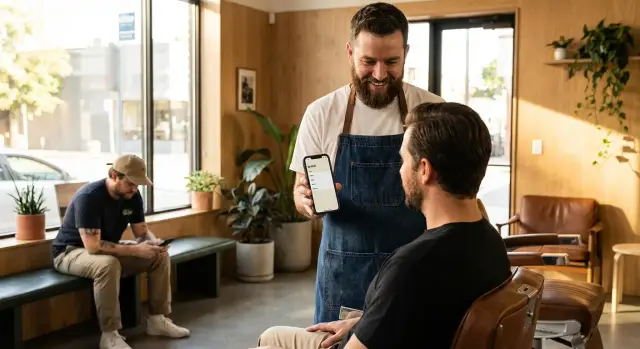
A busy barbershop runs into the same issue again and again: walk-ins arrive in bursts, the order gets fuzzy, and staff spend the next hour answering, “How long is the wait?” When the queue lives in someone’s head (or on a scrap of paper), small slips turn into big friction. A customer steps outside and misses their turn. Someone insists they were “here first.” The front desk gives a time estimate that ends up being wrong.
A barbershop queue tracker app isn’t a full booking system. It’s one fast, reliable screen your team can use during rush hours. The goal isn’t perfection. It’s consistency: one shared queue, one clear order, and a simple estimate everyone can point to.
For a first version, focus on the few things that remove most of the chaos:
“Done” for v1 looks like this: a staff member can open the phone, add five walk-ins without slowing the shop down, and the list stays clear even when people leave, switch services, or a barber becomes free. Customers get a single notification at the right moment, and staff can mark each person as started or finished with one tap.
Keep that definition of done tight, even if you’re using a no-code tool. You can always add polish later (service menus, barber assignment, analytics). First, fix the daily pain: a clean line, a reasonable wait estimate, and a simple “ready” message.
Most shops have three real roles, even if one person wears all the hats: whoever checks people in, the barbers who call the next person, and the owner or manager who wants the day to stay calm.
If you have a dedicated front desk, the screen should be built for speed. It should take a few taps to add a walk-in, a few taps to edit notes (for example, “skin fade” or “beard trim”), and one quick action to change status.
If barbers manage the list themselves, they need big, simple controls. The “next” action should be obvious. The list should show only what helps right now: customer name, service, and where they are in line.
Decide what customers can see. You typically have three options:
Whatever you pick, set expectations on the screen: wait times are estimates, not promises. A 15-minute cut turning into 25 minutes is normal. The order may also change if someone requests a specific barber or needs a longer service.
Choose one fairness rule and stick to it. Most shops do best with either strict first-come-first-served, or staff-controlled ordering with a visible reason (for example, “appointment priority” or “requested Barber A”).
A walk-in list only works if every entry answers two questions quickly: who is waiting, and what are they waiting for. Keep required fields minimal so staff can check someone in while still greeting them.
For each walk-in, start with the basics. A name is usually enough to call someone up. A phone number helps with notifications and no-shows. Service and check-in time are what make the queue feel consistent instead of random.
A practical minimum record:
Next, add clear statuses so the list stays truthful. If you only have “waiting” and “done,” the screen drifts out of sync after the first rush. Common statuses that work well in a shop are: Waiting, In chair, Done, No-show, and Cancelled.
If you want better estimates without slowing down check-in, add one or two optional taps:
Repeat customers are worth handling thoughtfully. Two practical approaches are: quick-select from recent customers after typing a few letters, or a one-tap “last used service” once their name is selected.
A good wait estimate isn’t about being perfect. It’s about being consistent, updating often, and never promising something you can’t hit.
Start with a simple rule: estimated wait = (people ahead x average service time). If your average haircut is 20 minutes and there are three people ahead, your first guess is about 60 minutes.
Most shops don’t have one “standard” service. Even a basic split makes the estimate feel more real:
When you add a walk-in, choose the service and let the app use that time instead of a generic average. If you’re unsure, default a bit longer. Being a few minutes early feels great. Being 15 minutes late feels like you lied.
With more than one barber, you have two simple approaches:
To keep it honest during busy periods, show a range like “15-25 min” by adding a small buffer (for example, 25% on the calculated time).
Update estimates at clear moments: when a walk-in is added, when a service starts, when a service ends, and when staff reorder the list.
A walk-in screen only works if staff can use it with one hand, in a hurry, with a customer talking to them. Favor speed over options.
Keep the top area “always ready”: a single, high-contrast Add Walk-in button and a search box. Search should match name or phone in a few keystrokes so you can quickly find someone who stepped outside.
Below that, the queue list should do most of the work. Each row should answer two questions at a glance: “Who is this?” and “How long until they’re in the chair?” A solid row usually includes the position number, customer name, service, status, and a simple wait badge (like “15 min”).
Make actions one-tap and consistent. The most common actions should live on the row as buttons, not hidden behind menus: start service, mark done, send a message, move up or down, or remove if they leave. If you use icons, add short labels so there’s no guessing.
Plan a clear empty state for slow hours. Instead of a blank screen, show “No one is waiting” with one obvious action to add the next walk-in.
On small screens, readability wins. Use big tap targets and short labels. If a row feels crowded, keep notes off the list and show them only after tapping the row.
A walk-in flow only works if it’s fast. Anyone at the desk should be able to add a customer in a few seconds, and the list should keep itself up to date as the day moves.
Start with a daily queue, but don’t make staff set it up. A practical rule is: auto-create today’s queue the first time someone is added.
A simple loop that keeps things moving:
Once service starts, the most important action is one status change. When a barber is ready, staff taps the next person and marks them In chair. That should bump everyone else up and refresh estimated waits so nobody has to manually reorder the list.
Keep notifications deliberate, not automatic. When someone is close to the top, staff taps Notify to send a “You’re up next” message. Log it (time sent, method) to prevent double-texts when shifts change.
Close entries with clear outcomes: Done, No-show, or Cancelled. If someone steps out, you can keep them in the queue but mark them as temporarily away (or add a short note) so staff know why they were skipped.
A good notification is the one that saves time for everyone. A bad one buzzes too often, confuses people, or goes to the wrong number.
Start with one channel your shop can reliably use every day. If most customers share a phone number, SMS is usually the simplest. If your shop already runs on Telegram or email, use that instead.
Keep templates short and clear:
Before you send to a new number, confirm it once. A quick “read back the last 2 digits” step prevents the classic mistake: notifying the wrong person, then arguing at the counter.
Decide your no-show rule ahead of time and keep it consistent. For example: if they don’t show within seven minutes after “Ready now,” mark No-show, notify the next person, and keep a short note so staff can explain it calmly.
Keep an audit trail so complaints turn into facts, not guesses:
Most queue problems aren’t about the app. They come from small habits that make the list feel unfair or make the wait time look like a guess.
A big one is reordering people without a reason. Someone gets moved up because they’re “just a quick lineup,” and later it turns into an argument. If you allow reordering, require a short note like “promo redo” or “kids cut, 10 min” so everyone knows what happened.
Estimates also fall apart when they ignore reality. If you have two barbers, the line moves in parallel. If one customer wants a fade and beard while another wants a quick trim, treating every spot as the same length makes your numbers look random.
Another common failure is weak statuses. If there’s no quick way to mark a no-show or cancellation, the list becomes unreliable and staff stop trusting it.
A few rules that keep the queue clean:
Privacy is easy to overlook. A public “Now serving” screen should show first name and maybe last initial, not full phone numbers.
Before you test on a busy day, do a quick “real counter” rehearsal. Hand the phone to the person who actually checks people in. Ask them to add five walk-ins in a row while talking to someone. If it’s not fast in that moment, it won’t be fast at 2 pm on Saturday.
Check the basics:
If any answer is “kind of,” simplify the screen. Remove fields, reduce taps, and make the primary button unmistakable.
Queues get messy when yesterday’s list bleeds into today. Decide what “closing time” means in the app.
You want two things at once: a clean slate for tomorrow, and records for what happened today (wait times, no-shows, volume by service). A simple approach is an End day action that archives finished and no-show entries, then clears active ones only after confirmation.
One scenario to test: add a walk-in, start them, finish them, then fix a mistake (wrong service length, wrong status). If correcting it takes more than a few taps, the team will stop relying on the list.
It’s 10:00 a.m. on Saturday. You have two barbers on shift: Sam and Lee. Your queue tracker starts with an empty list and a default service time you can adjust per customer.
At 10:02, three walk-ins arrive within five minutes:
You add each person with a service type and estimated duration. The app assigns them in order and shows a wait estimate based on who is currently in the chair. Sam takes Jordan. Lee starts Maya.
By 10:12, Jordan is done early. Sam is free sooner than planned, so Chris’s estimated start time shifts forward. The app should recalculate when you mark Jordan as Done and Chris as In chair (or assign Chris to Sam). Meanwhile, Lee is running 10 minutes late with Maya, so anyone effectively waiting on Lee’s chair gets pushed back. That’s why tying wait time to each barber’s status beats a single, simple line once the shop gets busy.
At 10:20, Chris steps out for coffee. Instead of removing him (which breaks the order), add a short note like “Back in 10” and mark him as temporarily away. The queue stays honest, and staff can see why the next slot isn’t moving.
After the rush, even basic history helps you set better defaults next Saturday: service type, estimated vs actual time, no-shows, and average wait by day or time.
The fastest way to get value is to ship a tiny first release. This app doesn’t need five screens and a dashboard on day one. It needs one place your staff can trust, even when the shop is loud.
Start with a v1 that does three things well: add a walk-in in seconds, show an estimated wait, and mark people as In chair or Done. For notifications, pick one channel and keep it consistent.
Keep a simple v2 list so extras don’t slow down launch: a shared waiting screen on a tablet or TV, basic analytics, a staff-controlled kiosk mode, barber-specific queues, or optional payments for high no-show periods.
Make rules editable without a rebuild. Your average service time changes when you hire a new barber, add a service, or run a promo. Service durations, buffer time, and message wording should be easy to adjust.
If you want to build and iterate without writing code, AppMaster (appmaster.io) can be a practical fit for this kind of internal tool: you can model the queue data, build a mobile UI, and set the “add, update, notify” logic visually, while still generating real source code.
Ship it to your own team for one weekend, write down every moment they hesitate, and fix those before adding anything new. "}
 What does a walk-in queue tracker actually fix in a barbershop?
A walk-in queue tracker keeps one shared, up-to-date line so staff don’t have to remember the order or answer the same wait-time question all day. It reduces arguments, missed turns, and inconsistent estimates during rushes.
What information should I require when adding a walk-in?Start with name (or initials), service type, and an auto-filled check-in time. Add phone number and a short note only when it helps, since slow check-in is what makes lines feel chaotic.
How do I calculate wait time without making it complicated?Use a simple rule first: total minutes of services ahead divided by the number of barbers working, then add a small buffer so you’re not constantly “late.” Update the estimate when someone is added, starts, finishes, or gets reordered.
Should I use one shared queue or separate queues per barber?If your barbers rotate and can take any customer, a shared queue is usually easiest and feels fair. If barbers specialize or customers often request a specific person, separate queues (or a “preferred barber” field) prevents misleading wait estimates.
What statuses do I need so the list stays accurate?Keep status options clear and fast: Waiting, In chair, Done, No-show, and Cancelled. Without a no-show and cancellation state, the list drifts out of sync and people stop trusting it.
How many notifications should I send so customers aren’t annoyed?Send fewer messages, not more. A good default is one “you’re up” notification when they’re next, plus an optional short heads-up if your shop needs it, and always confirm the phone number once to avoid texting the wrong person.
How do I keep the queue feeling fair when people get moved around?Decide one fairness rule and stick to it, then make exceptions visible. If you allow reordering, require a short reason so staff can explain it calmly and the queue doesn’t feel random.
What should customers be allowed to see on a shared display?If customers can see the screen, show only first name and last initial (or a ticket number) plus an estimated wait range. Keep phone numbers and detailed notes on staff-only screens to avoid privacy issues.
How do I design the mobile screen so staff can use it during a rush?Make the main screen usable with one hand: one obvious Add button, a quick search box, and one-tap actions on each row. If adding a walk-in takes more than about 10 seconds in real counter conditions, remove fields and extra steps.
Can I build this with a no-code tool and still ship something reliable?Yes, as long as the tool supports a simple data model, a fast mobile UI, and reliable logic for add, update, and notify. AppMaster is a practical option if you want to build this without coding while still generating real source code you can deploy or export.
Experiment with AppMaster with free plan.
When you will be ready you can choose the proper subscription.
 Jul 14, 20268 min
 Jul 13, 20268 min
 Jul 08, 20268 min