
 14 Tem 2026
 8 dk
8 dkEkipman rezervasyon uygulaması: çakışmaları önleyin ve iadeleri takip edin
Çifte rezervasyonları önleyen, iadeleri ve hasarları kaydeden, arızalı ekipmanları bakım bekletmesine alan bir ekipman rezervasyon uygulaması planlayın.

QR rozetleri, ev sahibi bildirimleri, güvenlik soruları, acil durum kayıtları ve dışa aktarılabilir ziyaretçi geçmişi için ziyaretçi giriş uygulamasının veri modelini ve akışlarını planlayın.
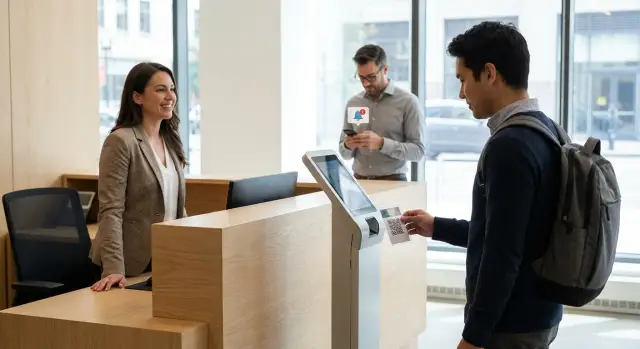
A check-in flow isn’t just a digital guest book. It decides who is inside, who they’re meeting, and what needs to happen next. When it’s done well, the front desk stays calm and you get records you can trust later.
Paper sign-ins fail in predictable ways: names are misspelled or unreadable, times are missing, and people forget to sign out. A sheet on a counter can also expose private information because anyone can see previous entries. And when something changes fast (a host is stuck in a meeting, a visitor answers a safety question with a red flag), staff end up chasing people by phone.
A good outcome is simple: check-in takes under a minute, the badge is clear and scannable, and the host gets the right alert without getting spammed. Each visit becomes a clean record of who, when, where, why, and what was answered, so you can export it for audits or investigations.
Before you design anything, lock the scope. Most teams start with a few visit types: onsite guests, contractors (often with extra safety steps), deliveries (sometimes no badge, but still a timestamp), and interviews (with more privacy needs).
Also decide where the experience lives. A kiosk tablet is best for speed and consistency. A receptionist web app is better for exceptions, corrections, and reprints. A mobile option can help hosts or security verify QR check-ins away from the desk.
A visitor check-in app lives or dies on two things: clear roles and a clean event trail. If either is unclear, you’ll get missing alerts, messy exports, and logs that no one trusts.
Keep roles simple at first:
Permission boundaries matter most around personal data and reporting. Decide early who can view phone numbers, ID info, or visitor photos, and who can export visitor history. A common rule is: the front desk runs the flow, security sees current onsite presence, and only admins can export full history.
Think in events, not just a single “visit” row that gets edited over time. These are the moments you’ll need later for audits and troubleshooting:
Make critical events auditable and append-only (check-in, notification, check-out). Allow limited edits only on fields that are frequently wrong (name spelling, company), and record what changed and who changed it.
A reliable system starts with a clean model. The key idea is to separate the person from the event of them coming onsite. A repeat visitor stays one record, while each arrival becomes a new visit.
Start with two core tables: Visitors and Visits.
One Visitor can have many Visits.
Add Hosts and Sites so your logs match how the business operates. Hosts are employees or tenants who receive alerts. Sites represent physical locations (HQ, Warehouse A). If you need more detail later, you can add zones (lobby, floor, secure area) without breaking the basics.
Keep it small:
Badges should be assigned to a Visit, not permanently to a Visitor. That prevents confusion when badge stock is reused, lost, or printed twice.
Visits need timestamps and a status that matches what staff say out loud. Store at least created_at, checked_in_at, checked_out_at, and canceled_at (or a cancel flag). Pair that with a clear status such as scheduled, arrived, checked_in, checked_out, no_show, canceled.
Example: someone is scheduled for 10:00, arrives at 9:55 (status: arrived), then completes questions and gets a QR badge (status: checked_in). If they leave without checking out, you still have checked_in_at and can clean up later with an explicit rule.
Safety questions only help if you can trust the history later. A common mistake is storing answers on the visitor profile, which overwrites what they said last time. Treat questions as templates, and answers as per-visit records, so each check-in keeps its own snapshot.
A simple structure works well:
Keep templates stable, and store the exact text shown (or a template version) with the answer. If you update wording later, older visits should still show what the person actually saw.
Question sets let you show different questions based on context, such as the site, visitor type, time window (temporary rules), host team, or language.
Plan for more than yes/no. Common types include yes/no, short text, signature, photo, and document upload (like an insurance certificate). Store file metadata (name, type, timestamp) and who collected it.
Add an “action required” flag on the template, plus a rule like “if answer is YES, create a safety alert.” Example: “Are you carrying a restricted item?” If the visitor answers yes, the visit can switch to a review state and require approval before a badge is printed.
A host alert should answer one question fast: “Do I need to act right now?” That usually means a short message that includes who arrived, where they are, why they’re here, and whether something needs approval.
Keep triggers predictable so hosts trust them:
Make triggers data-driven: tie them to site, visit type, and host preferences so you’re not hardcoding special cases.
Use multiple channels, but don’t fire all of them every time. A good default is one primary channel, plus a receptionist cue on screen if delivery fails.
Keep the rules straightforward:
Track each notification as its own record so you can audit what happened. Store status (sent, delivered, failed), error details, attempt count, and retry timing. If a message fails, fall back to a simple front desk action like “Call host.”
An emergency log isn’t the same as a normal visitor record. It’s a time-bound snapshot you can rely on during a drill, an evacuation, or a real incident, even if someone forgets to check out later.
Define entry types and rules up front. A drill can be planned and started by staff. An incident may be created by permitted users, then confirmed by a safety lead. Tie every emergency event to a site (and optionally a zone) so you can answer: “Who is supposed to be here right now?”
For each emergency log entry, capture the minimum fields that make it trustworthy:
Keep these records append-only. If someone corrects a name or marks a person as safe, write a new timestamped action instead of overwriting old values.
The fastest win is a one-tap “Current onsite list” that pulls all active visits for a site and freezes the list into the emergency event. Make it easy to use under pressure: a big-print view, a CSV/PDF export, and a filter for zones and “not yet acknowledged.”
The flow should work for both walk-ins and pre-registered guests, and it should leave a clean trail: who arrived, who approved, who is still onsite, and when they left.
If you can, start before the visitor arrives. Pre-registration creates a Visit tied to a person, site, host, and time window. Then send a QR code tied to that specific visit so the front desk doesn’t have to guess.
At the kiosk, the visitor scans the QR code or the receptionist searches by name, company, or phone. Show a quick identity confirmation (for example, full name and company) before proceeding, so the wrong “John S.” isn’t checked in.
Next, collect safety questions and acknowledgements. Save each answer as its own record with a timestamp and the exact wording shown.
After required checks pass, issue a badge and notify the host. The badge should carry a unique QR token mapped to the active Visit, not the person. Then send the host alert and store delivery status, retries, and (if supported) read or acknowledgement.
Check-out should be just as fast: scan the badge QR, confirm the visit, and set check_out_time.
For missed check-outs, use an end-of-day rule per site that marks visits as auto checked-out and logs the reason. That keeps emergency counts more reliable.
A contractor named Jordan arrives 20 minutes early to service an HVAC unit. At the front desk, Jordan uses a kiosk and scans a QR code (or is issued one if this is the first visit). The system creates a new Visit tied to the site, the expected host, and the badge ID.
During check-in, Jordan answers a short set of safety questions. One asks: “Have you done hot work in the last 24 hours?” Jordan selects “Yes.” That answer is flagged, so the visit status becomes “Pending approval” instead of “Checked in.” The timestamp and the exact question and answer are stored on the visit.
The receptionist sees three clear options:
If approval is requested, the host is notified immediately with who is waiting, why they’re flagged, where they are, and the decision buttons (approve or deny). The host can also see a short visit history summary, such as the last visit date and whether there were prior flags.
Once approved, the visit switches to “Checked in,” and the badge becomes active. When Jordan leaves, the receptionist (or Jordan at a kiosk) checks out. The app records check-out time, badge return status, and a short note like “Completed HVAC filter swap. No issues.” If the badge isn’t returned, that’s captured too.
Bad data usually starts with one shortcut in the flow. The system is only as useful as the audit trail it can produce when someone asks, “Who was here, when, and who approved it?”
A frequent mistake is mixing visitor identity with visit history. The person should stay stable over time, while each arrival is its own record. If you overwrite a “current visit” field on the visitor profile, you lose the ability to audit repeat visits, hosts, safety answers, and badge reprints.
QR codes are another trap. If a QR badge code never expires, it becomes a reusable pass and can be copied from a photo. Treat the QR as a short-lived token tied to a specific badge issue and visit, and invalidate it on checkout.
Edits without traceability quietly destroy trust. If staff can change past safety answers, you need to store who changed what and when, plus the previous value.
A kiosk outage shouldn’t turn into “just let them in” with no record. Plan a fallback, such as a staff phone flow, a paper backup that’s later entered, or an offline mode that syncs when the device returns.
Missed alerts often come from real-world complexity:
This only works if the data stays consistent on busy days. Before you put it on the front desk tablet, run a “messy day” test: multiple arrivals at once, a lost badge, and a host who doesn’t respond.
Start with the visit record. Every visit should have one clear status (pre-registered, checked-in, checked-out, denied, canceled) and timestamps that match real life. If someone starts check-in but walks away, decide what happens after 5-10 minutes: auto-expire the attempt, or keep it as “started” but not onsite.
Validate the badge lifecycle end to end. A QR badge should be easy to audit: when it was issued, when it became active, and when it was returned or expired. If a badge is reprinted, invalidate the old QR immediately so you don’t end up with two “active” badges for one visit.
A short checklist is enough:
Exports are where a check-in system becomes useful for real work: compliance, incident reviews, and simple questions like “Who was here last Tuesday at 3 PM?” Decide early what “truth” looks like, because the export will be treated as the record.
Support at least CSV and XLSX. CSV is best for audits and imports. XLSX is easier for many non-technical teams.
Define a stable set of fields and keep their meaning consistent over time. A practical minimum includes:
Keep the “who can export” rule tight. Typically, front desk staff can view today’s list, security can export a date range, and admins can export everything. Treat export as its own permission, not just “can view visits.”
Write retention in plain language so it’s applied consistently. Common rules include keeping full visit logs for 12 to 24 months, anonymizing personal details after the retention period (while keeping totals and timestamps), keeping emergency logs longer if policy requires it, and never deleting audit trails even if you anonymize a visitor.
Add audit fields to every visit record (created_by/at, edited_by/at) and to export actions (exported_by/at, export_scope, file format, row count).
For deletion requests, avoid hard deletes that break reports. A safer approach is “privacy delete”: blank or hash personal fields (name, email, phone), while keeping the visit ID, timestamps, site, host, and reason codes so reporting still holds together.
Turn the model into three focused screens: a kiosk check-in (fast, large buttons), a receptionist dashboard (today’s arrivals, overrides, reprints), and a host view (who’s coming, who’s onsite, who needs attention). When each screen has one job, people are less likely to work around the process.
Then tie automation to events, not button clicks. Every status change should be something you can rely on: created, checked in, badge issued, host notified, checked out, and marked as left during an emergency sweep. That way alerts still fire even when different staff use different devices.
A first release that’s often enough to go live includes one site, one kiosk, one receptionist dashboard, QR badge creation and reprints, basic host alerts with delivery tracking, safety questions with a single review rule, and visitor history export for a chosen date range.
If you want to build without code, a platform like AppMaster (appmaster.io) can help you set up the database model, workflows, and multiple front ends (kiosk, web, mobile) around one shared source of truth. Start small, pilot it in one lobby, then expand once the logs and alerts stay consistent under real front desk pressure.
 How fast should a visitor check-in take in a good system?
Aim for under one minute for most visitors. Keep the happy path to three steps: identify the visit (QR scan or quick search), answer required questions, then print a badge and notify the host. Push exceptions (typo fixes, approvals, reprints) to the receptionist screen so the kiosk stays fast.
Should I store visitor info on the visit, or keep a separate visitor profile?Separate the person from the visit. Store a stable Visitor record (identity and contact info) and create a new Visit record for each arrival so you can audit timestamps, hosts, answers, and badge issues without overwriting past history.
How do I prevent QR badges from being reused or copied?Treat QR codes as short-lived tokens tied to a specific badge issue and a specific visit. Invalidate the token on checkout and also when you reprint a badge, so you never have two active badges for the same visit.
What events do I need to log so audits and investigations are trustworthy?Use append-only events for the moments you’ll need later: check-in completed, badge issued, host notified, safety answers saved, and checkout. When someone fixes a common error like name spelling, record who changed it, when, and what the old value was.
Who should be allowed to view and export visitor history?Start with simple roles: visitor, host, receptionist, security, and admin. Keep export permissions tight; a good default is that reception runs today’s flow, security can see who is onsite now, and only admins can export full history.
How should I model safety questions so the history doesn’t get corrupted?Store questions as templates and store answers per visit, including the exact wording or a template version. That way, if you change the questions later, older visits still show what the visitor actually saw and answered.
How do I avoid spamming hosts while still making sure alerts get through?Track notifications as their own records with status like sent, delivered, or failed, plus retry details. Use a dedupe rule such as one alert per host per trigger per visit within a short window, and have a clear fallback when delivery fails (like a receptionist prompt to call).
What’s the simplest way to build an emergency onsite list that people trust?An emergency log should freeze a time-bound snapshot of who is onsite, even if someone forgets to check out later. Create an emergency event for a site, copy in all active visits at that moment, and then record confirmations and changes as new timestamped actions rather than edits.
How should I handle visitors who forget to check out?Use a predictable end-of-day rule per site that marks still-active visits as auto checked out and records the reason. Keep the original check-in time intact, and make the auto-checkout action visible in logs so it doesn’t look like the person left earlier than they did.
What should be in the first release of a visitor check-in app?Start with one site, one kiosk, and one receptionist dashboard. Include QR badge printing and reprints, basic host alerts with delivery tracking, a small safety question set with one review rule, and a clean CSV/XLSX export for a date range, then expand once logs stay consistent on busy days.
 14 Tem 20268 dk
 13 Tem 20268 dk
 08 Tem 20268 dk
Ücretsiz planla AppMaster ile denemeler yapın.
Hazır olduğunuzda uygun aboneliği seçebilirsiniz.


